Set up a white-label portal so your clients see their own call logs and chat history without knowing you're using VAPI underneath. Configure workspaces, assign phone numbers and campaigns, set up billing plans with free trials, and control what admins versus clients can see.
Chapters
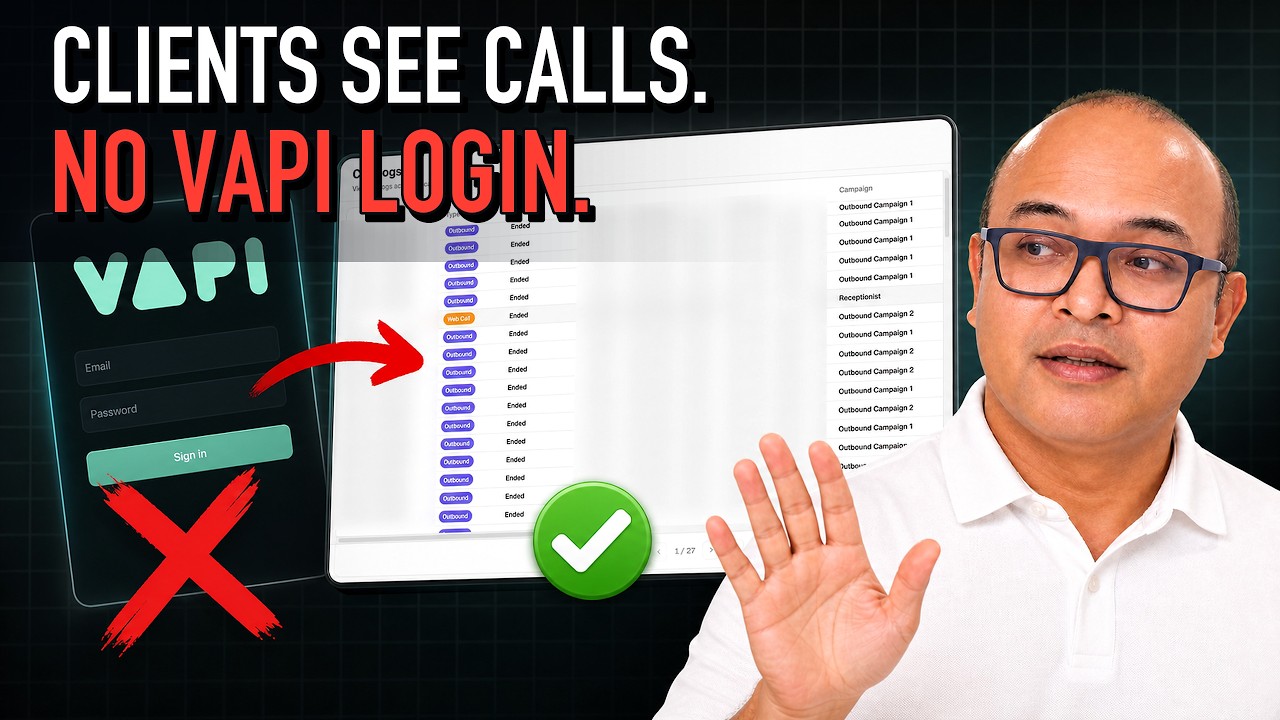
So if you've connected VAPI with Voice Air Wrapper, I'll quickly show you how you can make those calls that are running on VAPI show up inside your client portal, completely hiding Voice Air Wrapper or VAPI showing up anywhere for your client. So the first step is to connect your VAPI pod. All you need to do is just plug in these keys. Once you've connected your VAPI pod, all your VAPI assets are going to show up here. So your VAPI systems are going to show up here, and all you need to do is click on sync now. This will replace the server URL in your VAPI account. And now whenever you're taking calls, all the calls will now flow through Voice Airapper. The same thing goes for phone numbers. So if you have phone numbers, all your phone numbers are going to show up here and you hit sync to start using that in your white label. Now to start with your client portal, the first thing is to set up your client portal configuration, which is right here. And then you create client Client accounts. So when you're creating client accounts, I have a sample client account here. You'll also notice that during the creation process, there's a step to create a workspace. A workspace is just a set of instructions on what you want the client to see and what assets you want them to access. After you've configured it and you want to make changes, just head over to workspace, click on this dropdown which says update. When you click on assets, this will show you what VAPI assets you have associated. Or you can associate with your client portal. And then the other option here is to decide whether you want to give them edit or view access, right? So this takes care of associating VAPI assets to your client account and deciding what visibility to give them. The next thing is billing. You can create billing plans here, and when you're creating your client accounts, depending on whatever billing plan you want to associate, you just head over to billing and you'll see all your plans that you've created, your subscription packs, your one-time packs, whichever product you want to associate with this subscription, you'll see an option to associate with the client account. That way, when your client logs into their portal, they will need to pay or they can get a free trial in case you've given them a free trial, depending on what plan you've configured for them. Now regarding calls in VAPI. We track calls as inbound or outbound separately, simply because there are very distinct functionalities when it comes to inbound as well as outbound. And we also allow you to track and build clients for chat. So depending on whether you're running inbound or outbound, you need to set up one of these campaigns. And then once you're inside your campaign, let's say you're working on an outbound campaign and you have added your leads to call, or you have added an API. To fetch leads from your CRM system. After you've set all of this up, set up these settings, you just need to hit activate campaign. That is when your client billing is going to start. And when the calls happen, whether it's inbound or outbound, all your call logs are going to show up here. You will be able to view transcripts. Similarly, if you have created a chat agent for your client, you will also be able to see the chat transcripts. Typically a chat is created for an inbound receptionist. So I've shown you inbound receptionist here. In the case of inbound receptionist, you see all your call logs, transcripts, and assuming you have set up a chat widget, this can be a voice plus chat or voice only widget, which you can take and put in your client's website. This will run off the same agent that you have created for calling, and all the chat transcripts are also available. So when your client logs in, they'll be able to see call logs, chat logs, depending on which campaign you've assigned to them. This menu option here, call logs, this is an aggregate across all your calls across all your clients. This feature exists because some of our clients want to see this, but if you want to see the calls happening for specific campaigns, you view them here and you get to view them all the time as an agency admin. Whether your client gets to view them or not, that is completely your decision. That depends on whether you have given them visibility into campaigns or not, and what level of visibility and access you've given them. I hope this explains. Let me know if you have more questions. Happy to create more videos that might be helpful. Thank you.