Short tutorial by Ramit Sethi (Pbwiki co-founder) demonstrating how to use PBWiki: editing pages, creating links/new pages, applying templates, and adding plugins/widgets (YouTube, slideshow, calendar, voice chat/Yakpak). Shows dragging and saving widgets, configuring wiki settings (public/private, look and feel), and mentions premium plans and Add Features button for extra storage/features. Encourages users to click Edit and start typing.
Chapters
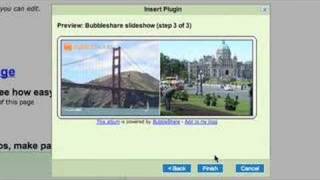
Welcome to Pbwiki. My name is Ramit Sethi. I'm one of the co founders of Pbwiki. And today I want to spend just a couple minutes going over how to use PBWiki. PBWiki lets you create links and pages. You can drop in widgets like videos, voice chat. You can even drop in a shared calendar. As you see, it says this is a real Pbwiki page that you can edit. That's true. Just click Edit page and you can make something bold. You can type in new things. You can even change the size and color of it. Now let me show you how to create a new page. If I want to make this a new page, I just select it, click Link and it will automatically see that I want to call this new page. If I want to call it something else, I can do that. Click OK and that's now linked to a new page. Once I click save, I can click that. I can apply a template if I want and I can make that a new page. This is now a syllabus for my classroom, which I can edit. When you go back to your homepage, you'll see that this is now linked and it takes you right back to your syllabus. Second, let me show you how to use plugins. These are our coolest features of all. When you click Edit Page and you click Insert Plugin, you're going to see a bunch of different things that you can do. Now, plugins let you insert widgets with just a few clicks. You can insert YouTube videos, a shared calendar, a photo show, or even voice chat so that people who are looking at the same wiki page can be talking to each other using their voices. Let me give you an example. I'm going to insert a slideshow. So here I choose Slideshow from photos. Here's a preview of what it looks like, and I'm going to drop that right into my wiki. Now I'll drag that because I want it to go here. And when I click Save, you can actually see that slideshow right in your wiki. Let's say that I want to drop in a calendar. Maybe I want to have a calendar for my classroom so that we can plan our homework. Well, I click next, I see a little preview. I'm going to click finish. And now I'm going to drag this calendar. Let's drag it down here. When I click Save, you can see that I have an actual calendar in my page. Now I want to do lunch at 2pm no problem. Lunch is done and it's scheduled. So here we have the Yakpak plugin. It's a Yakpack walkie talkie. I click next and now it's dropped into my wiki. When I click save, I'll see what it actually looks like. If you mouse over, it says push to talk. Now you'll see that someone just joined the room. Here there are two people in the room. Hi, Ramin. Hi, Darren. How's it going? If you want to configure things on your wiki, just click Settings and you'll be able to make your wiki public or private. You'll be able to change the look and feel of it, and you'll be able to do a bunch of other configurations. One last thing. Sometimes people ask us, how do I get more storage space? Or how do I get more features on my wiki? All you do is just scroll down to the bottom of your wiki and click Add Features. That's the button with the star. Your wiki is free, but if you want more features, check out our premium plans. They start at just a few dollars a month, but I think the best way of all to get started is just to click edit and start typing. Enjoy your PB Wiki. Thank you very much.