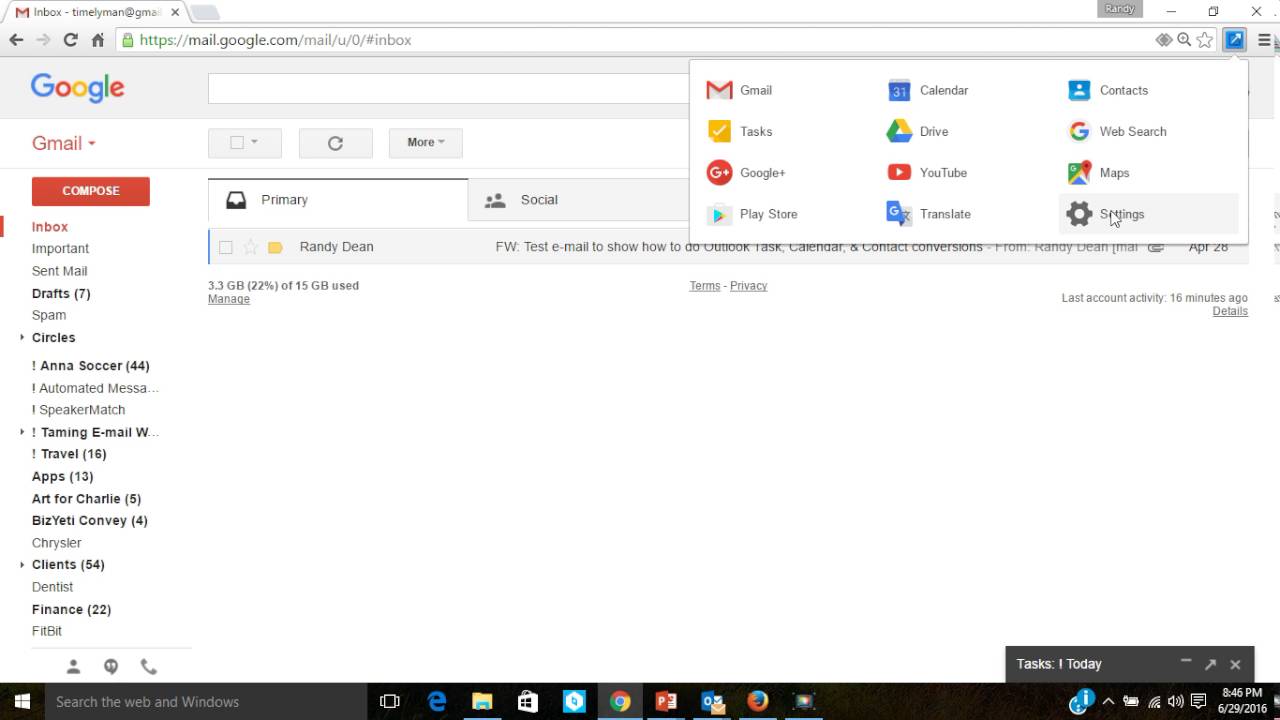
In this instructional video, productivity specialist Randy Dean introduces and demonstrates the "Shortcuts for Google" Chrome extension. He explains how to locate and install the add‑on from the Chrome Web Store, noting its high rating (nearly 3,000 five‑star reviews). Dean walks through the Settings panel, showing the extensive list of over 250 supported Google services and third‑party tools that can be added as push‑button shortcuts. He illustrates how to select, deselect, and reorder services such as Gmail, Calendar, Contacts, Tasks, Drive, Maps, YouTube, and Google+, and then demonstrates the workflow: with a single click each service opens in its own Chrome tab, effectively recreating an Outlook‑style suite (email, calendar, contacts, tasks, notes) within the browser. Dean emphasizes the speed and convenience of this approach, recommends the extension as a daily productivity tool, and directs viewers to his website (randaldean.com) and YouTube channel for further tips on email, Outlook, Google, and technology management.
Chapters
Alright, hello everyone, welcome to tonight's video tip. My name is Randy Dean and I'd like to share with you tonight a very useful add-on for the Google Chrome browser. It's called Shortcuts for Google. Once again, my name is Randy Dean. I am considered the email sanity expert and I like to share tips for people on how to be more productive utilizing the tools and technology that they commonly use. This Shortcuts for Google add-on is something that I thought many of those of you that are frequent users of Gmail and/or the Google Suite may find extremely useful because it may help you find many of the productivity tools that you like to use within your Chrome browser much more quickly. So let's take a look at this thing. What I'd like to do first is actually just pop out to my Chrome browser, and actually I'm going to shut down a couple of these other functions because I want to show you how this little add-on works. So as you can see, I have my Gmail inbox already opened up. And in order to get to the Shortcuts for Google add-on, all you have to do is click open a new tab, go into your Google search bar, and type in, in the short search bar, Shortcuts for Google. As you can see, come— came right up. I will pull this up, and then you'll get a couple different options when this pops up. Page down until you see this one right here which says Shortcuts for Google on the Chrome Web Store, and go ahead and select that. This is the add-on Randy Dean. And if you take a look at it, it's a pretty fascinating little add-on. I've already added it into my Chrome, but take a look at this. It's got almost 3,000 ratings at 5 stars. You almost never see something that high with that many ratings because this one is really handy. I've already added it into my Chrome, and let me show you what it is. I'm going to close this. I'm going to close that Chrome Web Store. Many of you already know about the Nine Box. I call this the Nine Box, which gives you access to a series of Google Apps that you commonly use. And this is pretty nice to have this little Nine Box, but the, the one thing that sort of bothered me about the Nine Box is some of the tools that I like to use fairly frequently just aren't available inside of this. You can't get to the stuff that you need. So I will close that. This is that Shortcuts for Google add-on. As you can see up here, upper right-hand corner, this little blue box. Let me show you what this gives you access— it's pretty fascinating. Open this thing up, go down to Settings, and once you go to Settings, you can see all of the services that are available to you that you can basically make push-button in your Chrome browser. Many of them by Google and Google partners. I'm going to do it by name because that way you can sort of see the full scope of what's available in here. Let's page down a little bit, and as you can see, there's a whole series of them. I'm still in letter A. This thing has extensive tools and services and apps that you can now make push-button in your Chrome browser. And I believe I read that there's more than 250 supported services, apps, and tools that are available, that all of which you could make push-button in your Chrome browser. Now let me show you how this thing works. Look what I've selected here. I've got a series of very common Google tools that I use frequently: Gmail, the Google Calendar, Google Contacts, Google Tasks capability, Google Drive, obviously the Google Web Search, Google+. YouTube, Google Maps, and the Google Play Store. And now watch this, this is sort of interesting. Let's say I want to take Google+ out of this list. All I have to do is click on it and it removes it from this list and moves it back over to the available list. But then I can come in here and search Google+ and when I do the search, it gives me all of these interesting additional tools within Google+. But I just want to use the basic. I just click on it. And now it becomes part of my selected services. Let's say I want to move Google+ back up to its original spot. I can just click on Google+ and drag it right up here to just under Drive, and now Google+ is higher in my list. Now you're probably wondering, well, what does this mean having these chosen services? Here's what it means. It basically makes all of these tools that you're using frequently push-button in your Chrome browser. Let me show you what I mean. So I'm in my Gmail. I'm already logged in. This is how I have my Chrome browser set up. It automatically opens me up and brings me into my Gmail. But now watch what I can do. I can come out to this, open this up, and click on Google Calend— Calendar. That will open that into the second tab. I can come back to here and open up in the third tab my Google Contacts tool. In the fourth tab, I can go in and open up the Google Tasks function. And in the fifth tab, I can come in here and open up Google Drive where my docs and notes are. So take a look at this. Just look at what I put on the screen right here, and I'm going to pop back over to the tab with my email. But take a look what I brought in here. In these 5 tabs, I have email, calendar, contacts, tasks, Drive where my docs and notes are. Wait a second, I did that in just a few seconds flat. And you know what that's basically given me right here on the single screen in Google Chrome? The equivalency within Google of what's effectively Microsoft Outlook— email, calendar, contacts, tasks, notes. And look at how quickly I did that. Plus, it lets let's say I don't really need Drive open, but I would like to go into Google Maps. I can just come in here, click on Maps, and open up Maps in a tab now. So this basically takes a lot of the services and capabilities that you might have an interest in and makes them push-button within your Chrome browser. So I strongly recommend that you check this tool out. It is once again called Shortcuts for Google, and it's one of the highest-rated additional add-ons I've seen for the Chrome browser yet, and I, I use it every day all the time. It's a wonderful little tool. So let's go ahead and finish this thing up. I'd like to pop back out here and let's do from current slide. I'd like to thank you for your time being part of this video today. Once again, my name is Randy Dean. I do a whole series of programs on email usage, Microsoft Outlook usage, Google and Gmail usage, smartphone and tablets, clutter reduction, etc. Pretty much everything on time, email, and technology management. If you'd like to find out more about what I do, go to my website randaldean.com. And if you want to get more of these video tips over time, subscribe to my YouTube channel. Would love to have you there. Thank you all for your time today.