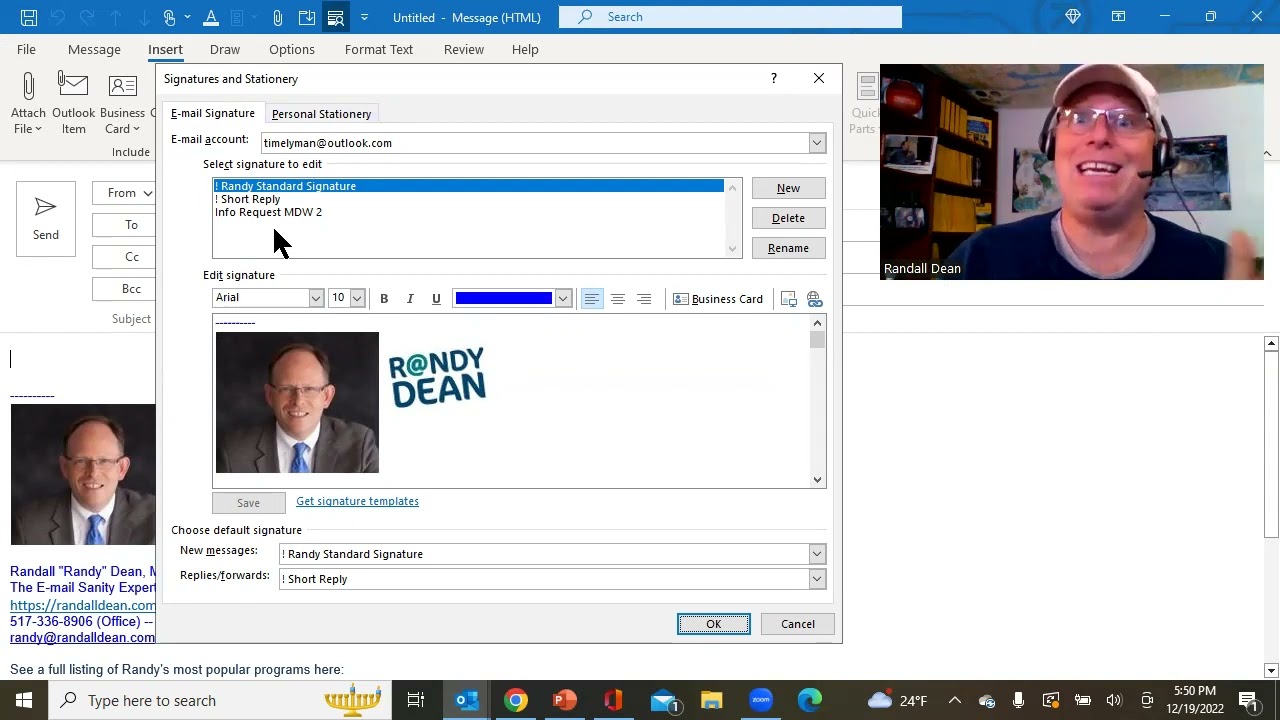
In this video Randy Dean, an email‑sanity expert, explains a major recent change to Microsoft Outlook’s signature management. He notes that signatures are no longer stored only on the local device (C:\ drive) but are now tied to individual email accounts and can be stored in the Microsoft 365 cloud. This shift means each Outlook account shows its own set of signatures, and signatures that were previously only on a specific computer can be copied into the cloud‑linked account to prevent loss during device upgrades or failures. Dean demonstrates the change by opening the signature wizard, showing the old local‑only list, then copying a signature (Ctrl C) and creating a new cloud‑based signature (Ctrl V) for a different account, saving it, and confirming it appears under the cloud‑linked account. He recommends all users perform this copy‑paste migration for each local signature they wish to keep. Dean also references two related videos – one on the new Outlook inbox UI and another on using signatures and Quick Parts as an automation/template tool – and invites viewers to subscribe, like, and request productivity PDF tip sheets via email. The video is framed as a helpful heads‑up to avoid panic when users encounter the new UI.
Chapters
Hi everybody, Randy Dean here, email sanity expert. Hope you'll forgive the slightly casual appearance. Uh, I was traveling end of last week and I have come down with basically the first head cold I've had in a couple years. Um, and, uh, it's interesting. I've tested negative on the COVID I've had my flu shot. Uh, I think it's just a head cold. I'm expecting probably all of us are going to be catching these this winter since we've had that period of time without getting exposed to all of the germs that are going around. Not feeling too bad. Just hoping I'm going to be better by the time we get into the actual holidays. I would have normally waited to make this video until I was a little clearer, but this is a big deal change to the Microsoft Outlook signatures, the first really big change I've seen probably in like 10 years. And so I wanted to show you what they did because because it's possible it'll cause you a moment of panic when this appears on your system too. So let's, let's go out to my Microsoft Outlook real quick. And I will always tell people, I think the easiest way to get to your signatures tool, signatures wizard in Outlook, is just open a new email. Now, by the way, you might be noticing this new screen layout. If you haven't seen this yet, I did another video that I'll put in the comments below about the screen change they've done here in Outlook and specifically the changes related to the inbox. So watch for that video in the comments below if you haven't seen it already. But this is another pretty major change that I noticed. And so I wanted to get this information out before people panic.
Remember, don't panic, carry a towel. So like I said, the easiest way to get to the signatures tool, in my opinion, is open a new email.
Because when you open a new email, you'll see under either the Message tab or the Insert tab is a big button for signatures. And when you open it up, you'll notice, whoa, look at all these signatures. Now, by the way, if you don't know how I'm using this, I'll also give you the link to a video I made a few years ago about how I'm utilizing the drafts, the signatures, and the quick parts, uh, in Outlook to help automate a lot of the messages that I send out. And so basically I, I can turn it into almost an automation template tool. So definitely check that out, especially if you're sending a lot of the same basic information out in a lot of your messages. It'll save you a huge amount of time. But here's why I think people will freak out. Now you can see my signatures are here, but if I page down to the bottom and open up the signatures wizard, this took me aback because I was actually doing a live client program when this popped up and I went, wait a minute, what just happened here? My signatures are missing. Um, notice what they've done, and it's actually a really cool fix. I like it a lot. They now have it specific to the email account. So take a look at this. This is the signature set that I have for my Timelyman account. Here is the signatures that are attached to my randy@randaldean.com account. But then this is what I noticed, which was really fascinating. Look here, right, right here, signatures on this device. Now what that's saying is that these are hosted locally, probably on your C drive of the computer that you're actually on. And this has actually been a big dig for a lot of people over the years because by having them hosted locally on the device, if you get switched to a new computer, you could lose all your signatures if you're not ready for it when it happens. But it looks like what Microsoft has done is they're now allowing you to take these signatures that you've had on the device for all these years and finally get them attached to your cloud account. Let me show you what I mean by this. If I go to signatures on device, look at all the signatures that are in here. These are, this is my entire list of signatures. And what I wanted to show you, which is pretty cool. Let me, I have the standard thank you note for people that purchase one of my online webinars. So what I'm going to do is come in here real quick and grab that signature, the whole thing, and do a Ctrl+C.
For a copy.
Now what I'm going to do is go back to timelyman@outlook.com and I'm going to create a new signature and watch what this is. Webinar purchase. Thank you. And I'm going to hit OK. Now when I do this, what's going to happen is if I click on this now, I've got the blank box. But I can come in here because I've already selected the text and the, uh, signature, so to speak, at the end of the signature from the previous one. All I have to do now is a Ctrl+V, which is a paste. And take a look at this— that signature now, which is hosted locally on the device on the C drive, if I—
all I have to do is hit save, and now that signature is one of my choices in my cloud account related to Microsoft 365. And so what I would recommend that everybody do when they start seeing this change, if you haven't seen it already, is go out to the ones that are on your device and simply do what I just showed you. Do a copy and paste, making a new signature on the cloud-connected accounts. That way you don't have to worry about losing signatures if you ever have a device upgrade or device failure, and they're going to be available for you on your future devices because it looks like, at least it looks to me like they've got these now attached to the Microsoft cloud. So I hope that that's helpful. Like I said, look at the other two videos in the bottom. Let's finish this thing up here real quick. You know, like I said, look at the other two videos in the bottom that I've mentioned. The one that talks about how I use signatures basically as an automated email template tool and the other one about the screen change because that's a pretty big change too.
They've made a couple pretty big changes in the last couple weeks.
So take a look at both of those and get yourself ready for who knows what's going to be next. I have a feeling I might be making some— a lot of videos here pretty soon because a couple of big changes like this makes me wonder what else is about to happen. So learn more about me out on my website, randydean.com.
If you like these videos, please like, please subscribe, please share.
All of that helps me with building the channel.
And if you'd like to get a series of productivity PDF tip sheets on Outlook usage, Gmail and Google Workspace usage, 365 tools, smartphone and tablet, any of these types of things, send me an email, randy@randaldean.com, put YouTube PDF in the subject line, and I'll use my automated signature to send you that email with those bonus PDFs. Thanks, everybody. And by the way, hope you all have a wonderful holiday if you're seeing this before the holidays. Thank you.