
Microlearning Tip (2 Min) Outlook Calendar -- How to Show Multiple Time Zones on Calendar View
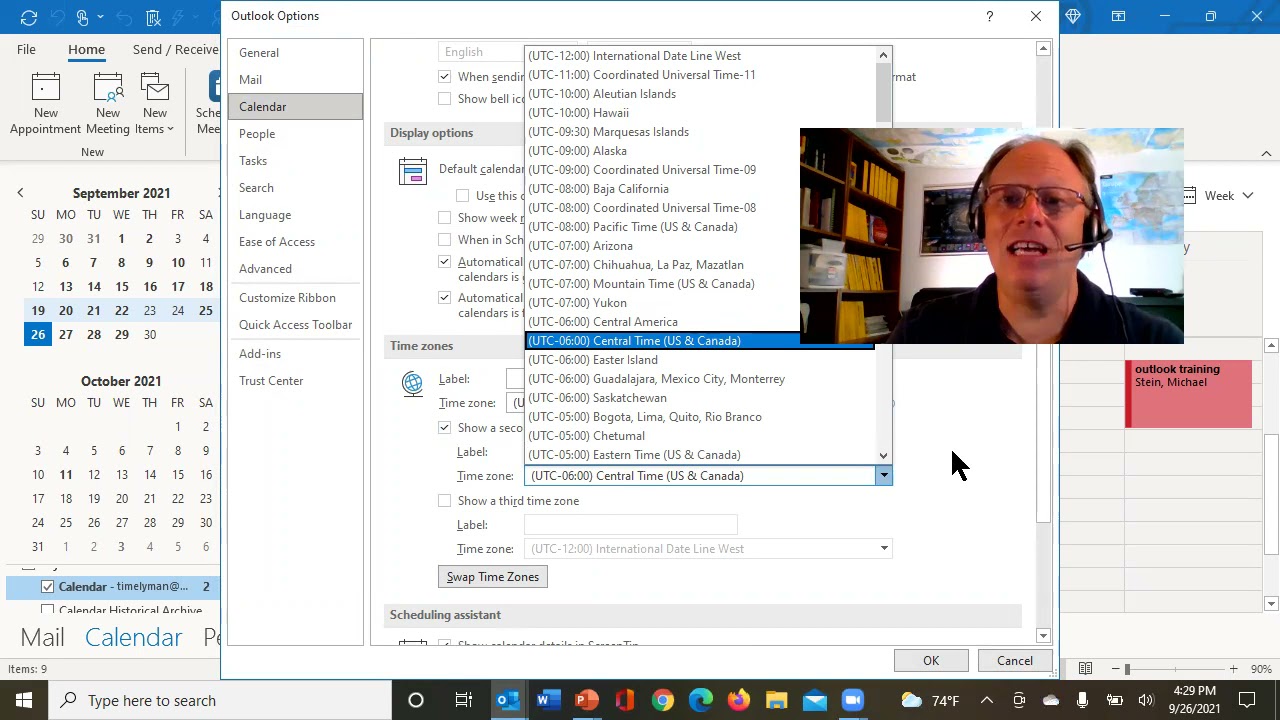
In this 2‑minute microlearning video, Randy Dean, the Email Sanity Expert, celebrates approaching 4,000 YouTube subscribers and outlines his goal to create 40 short tutorial videos. He demonstrates how to display a second (or third) time zone in Microsoft Outlook Calendar by navigating to File → Options → Calendar and enabling the "Show a second time zone" option, customizing the zone name, and confirming the change. He explains the practical benefit for coordinating with colleagues in different regions. The video concludes with a brief self‑promotion, directing viewers to his website (randaldean.com) and offering PDF tip sheets on time and email management via email request.
Chapters
More from Randy

Have #ADHD? Do you crave #caffeine and love #protein? There might be a reason! #diet #energy #focus

Do you have the #ADHD #superpower of Hyperfocus? Can you use to your advantage? Or succumb to it?

How to Prep Peeling #Aluminum #Siding for #painting #diyprojects -- read description 4 step by step

Set up my new #portable #patio #solar unit #balconysolar #apsystems #mhpowos #RVlife

This simple #ADHD #hack might end your #tasklist paralysis called #executivedysfuntion #productivity

Have #ADHD? Do you make a daily #tasklist ? This might help. #tasks #productivity #procrastination

Found too many cool Petoskey Stones and “Greens” on vacation. Had to do something!


Another free #pallet project: I built a heavy duty #ladder stand for #housepainting

Quick Windows Tip: Organizing Multiple Windows on One Monitor or Screen for Faster Multi-Tasking!

Classic Outlook (New Screen): Converting an Email to Task, Calendar, or Contact Using Drag & Drop