
OneNote For Less Email and Better Team Coordination? A OneNote Example (could work for Keep & Teams)
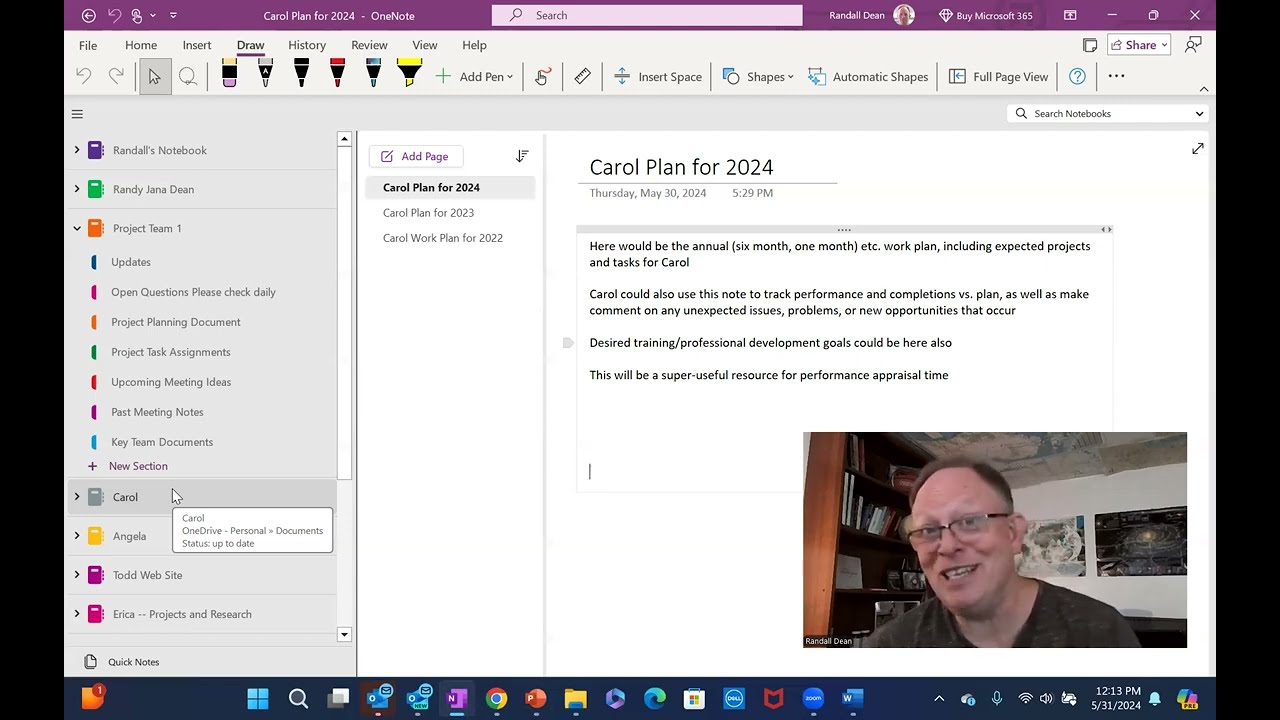
In this instructional video Randy Dean, the Email Sanity Expert, presents a detailed OneNote‑based workflow designed to replace much of internal email with a shared, notebook‑centric collaboration system. He explains how to set up a project team notebook that is shared at the notebook level, then outlines a series of structured sections – Updates (a running blog with timestamps, initials and keyword tags), Open Questions and Question Archive (including audio/video answers), Master Planning (project plan, timeline, budget), Task Assignments (by person, with a completed‑task archive), Meeting Ideas and Meeting Notes (agenda building and archival), and Key Team Documents (links, attachments, media). Dean stresses the necessity of team buy‑in, consistent use of the notebook, and the use of email only for truly time‑critical matters. He also shows how the same pattern can be replicated in Google Keep and Microsoft Teams, and suggests a one‑on‑one manager‑employee notebook for performance planning and informal communication. Throughout, he demonstrates OneNote features such as file attachment, audio/video recording, and drawing tools, and invites viewers to comment, request PDF tip sheets, and watch upcoming videos for Google Keep and Teams implementations.
Chapters
Hi everybody, Randy Dean, Email Sanity Expert here. Hey, I've been kicking around a little idea here and I've been sort of sharing the beginnings of this idea in some of my client sessions where I talk about OneNote, OneDrive, Google Keep, Microsoft Teams. And as I played around with this idea, I wondered if these apps if used in a certain way, could greatly reduce especially internal email, the emails we're sending back and forth when we're in a workplace, office, work team, project team, possibly some external emails too, depending on if the client, customer, vendor are also using the same system tools. But definitely for internal emails, I think there's a possibility here and I wanted to share with you this idea And not only would it help with reducing the number of emails going back and forth, I think it could also actually simultaneously help with better project and team collaboration and coordination. So let's dive in and take a little bit of a look at what I'm thinking. And now, mind you, I'm showing this in the OneNote app in Microsoft, but I see no reason why you couldn't replicate the same sort of strategy using Google Keep. The structures might be slightly different, but frankly, pretty much everything I'm showing here could be worked in Google Keep too. I am planning to make a specific video for Google Keep users on the same topic in the near future. But if you're a Google Keep user, you can watch this video and sort of let these ideas sink in. And it might work for you. So let's dive in and take a look at this idea here.
All right.
So I'm going to bring up my OneNote. And so what I've done— let me move myself a little bit out of the way— is I've created a project team notebook. Now, remember, in OneNote, you share at the notebook level, not the note level. And so that's an important distinction. I'm going to share a little bit why as we do this. But the key thing is pretty much if you share something inside the notebook, you're sharing the notebook. And so you want to make sure that there's nothing in that notebook that should be for your eyes only or should not be shared with specific team members. You're basically going to be opening up that notebook to everybody who has access to sharing inside of that notebook. So keep that in mind. But the philosophy that I was thinking is like you have a new project team, a new work group. You want to get everybody sort of having a centralized location to go find their stuff, ask their questions, make updates and posts. And so here was the little structure idea that I had. First, you'd have like an updates section, and in the update section, you could even make it by month. I was sort of making a little bit of a thing here, you know, saying that each one of these would be updates. And what I would see this being is basically the place where all team members would post real-time updates whenever anything of importance or interest occurs. You know, they could put in their date, they could put in the time of day potentially, and they can put their initials. That way people know who posted it, what was posted. And I was thinking things like task completions, status updates, deliveries, both coming in and going out, maybe invoices being sent or received, payments being made. You could even do quickly updated document links in here, although I am going to show a place a little bit later where all of the team documents would be stored potentially too for easy access. But anything that would be relevant could be posted here. I was also thinking maybe like updates on status with key clients, customers, vendors, independent contractors. You know, if there's a change that happened with one of these people, that could be posted here. Date, time, and initials of the person who posted it. And by doing that, you could make it to where instead of having to send emails to everybody and carbon copy everybody on this, they could just go here. And once they go here, that sort of sets it up that people know, hey, that's my sort of center point for this whole project. And I'm actually envisioning, like, if you have a multi-monitor setup, maybe this would be just on screen too. Okay. And so it's sort of the running internal blog for the team. One of the things that I was thinking too is you could set up and agree on keywords so that before you put in whatever the entry is, you could have something like project update, task update, task completion, vendor update, billing update. Whatever it is, you could have that all laid out so that people can quickly go in and see what it is they need to know about the status of the project. All right. Now, obviously, I'm going to make this point here, and it counts for everything else that I'm going to share later. You got to get everybody to buy in because if everybody on the team buys in and everybody does their post here instead of sending emails, it'll work. But one person still doing the old school email thing, everybody's going to default back to email because they won't trust it. So it's sort of got to be your center point for this activity, whatever platform you choose. So this is the updates idea. This is basically a running blog for the project, the group, the team. Now related to this, but slightly different, are open questions. And notice how I said open questions, please check daily. Here you would answer— here you would post questions. Now hold on, this is the question archive. I want to go to open questions. Open questions is where people would post questions that are active and open for the team. They could identify who they believe the person is that should answer the question. And obviously, now here's the interesting thing. I think email will still be used here. For really time-sensitive type stuff, stuff that you need a quick answer. You could still send an email, but if it's not critically time-sensitive, you could just post it here instead. And, and here's the beauty of this. Let's say you— 3 questions come up. None of them are really urgent, all for Jill. Jill pops in on her daily review and says, oh, I got 3 questions.
I can answer all of those right now.
And then here's what's nice about this. Once the answer is provided, you move it over here to the question archive. So Jill could take the original question and her answer, copy it all and paste it right into the question archive where people would know that it's there. And now the interesting thing about this, you might want to say, like, send a little courtesy email to the person who posted the question, and all you'd have is a subject line saying pending question answer. And what'll happen is then they don't even need to open that email. They know they go here to go to the question archive to get the answer to their question. And, you know, a couple of things that are cool about this technology. Take a look at this. Like if I pop up here under the three dots, the ellipses, by the way, anytime you see that, click, there's something hiding in there. Notice that you can record audio or record video because you could actually do a video answer or an audio answer to the question. If you don't feel like typing it out, you feel like it needs extra explanation.
So you could drop that in there. You could drop in a document file in here as the answer to the question or a link saying, here's the link that shows you the answer to what you're looking for.
So there's a lot of capabilities here for you to be able to do this and make it to where it's easy for people to find what they need.
And I would even say, like, if the answer to the question is something that might be important to the whole team, You could post that the question has been answered in the updates note, which is your running blog. You could say, question has been answered, go to the question archive for details. Now, so these are sort of the running blog and the open questions as well as the archive for the questions.
Now think about this.
What if you had another section with your master planning document for the workgroup the team, the project. And what you could do then is you could post the document, the file, the spreadsheet.
If it's a shared document file, people could go in and read it or, and, or make edits, including things like putting in task completion dates as well as projected task completion dates.
So you could have that in there. You could also even have potentially budget.
And as you can see, I put in an Excel spreadsheet here, master project plan, timeline, and budget.
It's, it's there.
So that gives you the ability to do this.
And if it's a fairly sophisticated project with multiple moving parts, you could even have breakouts for different subprojects. And maybe you could even have a little running blog of unexpected surprises, both positive and negative. You know, they always say no project plan is ever executed perfectly, but having the plan is invaluable. I think that's an Eisenhower quote that I sort of mangled. But, you know, planning, planning is useless. Plans are indispensable, though, because it gives you a path to complete what you need to do. So, you know, so this would be a place where people could go to find that information. Maybe you'd even have like a one for budget or something like that, although I would argue you could probably integrate this right here. Now, what's interesting is if you're using third-party tools like Asana or Trello or Monday for your project management, maybe what you would do is just make a note and not even have this tab, make a note in the updates at the very top or in the project task assignment area. This is all being done in that third-party tool. So it's possible if you're using that, that neither of these two areas right here will even be needed. But if you want to do it here, you could certainly do it here using old school Excel spreadsheet or PowerPoint, whatever it is that you think is going to work. Now you'll notice right below that I have project task assignments.
And this is sort of interesting.
You could do it this way. You could actually like make the running list of what assignments, and you could do it all in one panel by person. You could say, here's your task assignments and due dates. Or what you could do is do it by person. You could have each person's tasks laid out. And when people get things done, they could move it into the completed task archive so you can see when it's done. Now, the interesting thing is, if you're using a project planning document, maybe you'd want to do that all here and you wouldn't even need this section. But it gives you some flexibility. You can choose whichever way you think is going to work well.
Now, here's another thing that I would recommend. Most projects, workgroups, teams have lots of meetings. Why not have a section where you could put in ideas for the upcoming meetings? And because it's a shared resource, anybody at any time that's part of this project, workgroup, or team could post in and something that could potentially be covered in the next meeting. And you'll have a running blog of potential meeting ideas., and then 1 to 2 days before the next planned meeting, whoever the meeting leader is or organizer could pop in here and pull out and make an agenda and their stuff is there. If they don't bring something from here into the agenda for that particular meeting, they could still leave it here for later. Once things are pulled out though, then they could move into the meetings note archive. And notice what I did. You can either make this a running blog with all of the history of all the notes. You could add in any related documents or files that were discussed in the meeting. Or what you could do is you could make individual notes for each individual meeting and have a running list going back into the past of every single meeting that's occurred since the, you know, beginning of the project, workgroup, or team. And so, you know, once again, this would be a very good place for everybody to have access to what's happened previously. And you don't need to You don't need to send out the meeting notes. You don't need to ask for comment. That all could be handled here. And then, you know, and of course, if somebody reads the meeting notes and they have questions, well, then they could put it up here in the open questions area. And then the last little idea that I had was this one right here, the key team documents. And what this is, is, you know, because like tools like OneNote, OneDrive, Google Drive, give you the opportunity to create shared documents, shared files. You could either post links to the file that are— is shared with the team members. You can choose, is it shared so that they can just read it, or is it shared so they can edit it? And you give them the link, they'll open the file, they can review it, or you can actually like post files too. You know, as you can see right up here, when you do file attachment, I did this all through the Insert File Attachment menu. And what I did is One case I made it a shared link. The other couple documents I posted, I just posted as actual attachments in PDF format. And so that can work too. And remember, once again, you could record audio, you could record video, you could go find an online video to bring in here if it's valuable and useful. So, so there's a lot of options, you know, and you can even do drawings if you needed to. Hey everybody, here's Here's a little sketch of what I think we can do. Works really well if you have the touchscreen, which allows you to use the little pen. So remember that that's an option potentially too. You've got automatic shapes that you can use. There's a lot of capability here. Now let's take it one more level because I could see this being super useful, super valuable for a project or team leader. Getting full support and buy-in from their team, and everybody on the team has access to this notebook via the sharing capability. And since the notebook is shared, people would have access to every single one of these tools, and they would be— you know, the, the primary goal would be to use this first and then only use email for more time-sensitive stuff, especially questions that you need people to move on more quickly or tasks that you might need people to move on more quickly than just normal daily review. Although I'm going to throw this out there, if it's that quick, maybe you should be making a phone call. Now, what you could also do though, as the project or team leader or supervisor for the department or whatever it is, You could also make shared notebooks just with one other person. Let's say you're the manager and one of your support team members is, you know, that reports to you. You could make a notebook just for that person. And then what you could do is inside of here, you could have an update panel similar to the update panel for the project team. But in this case, it's just for each other. And you could be posting in, you know, anything that either the supervisor thinks the employee needs to know or the employee thinks the supervisor needs to know. Running blog. You could also have another one, which is discussion items. And what this is, is things you need to discuss next time you talk. And that doesn't necessarily mean a formal meeting. I mean, how many times a day do you happen to make a phone call with each other? You can pull up this note, knock out 2 or 3 other things. You're sitting in a, waiting for a team meeting to get started and you're waiting for a couple of people to show up and you're sitting next to each other, knock a couple out because you got it right here in your pocket on the app. And so this might allow you to significantly enhance the quality of impromptu communications and be able to handle a lot more stuff more quickly. So keep that one in mind. You could have down a section which is the job plan for the upcoming year that you both agree upon when in the, you know, end-of-year performance review. Maybe you have a document or file that you post. You could put in desired training and professional development goals for the employee, you know, things like that. And then, you know, all of this, the combination of these two, notice that I did this for Carol, but you could also build it for Angela, Todd, and Erica, right? I mean, if you're the supervisor and you got a team of 4 that's reporting to you, you can set it up for each one of those people. Each one would have sharing capability with that one notebook for them. Not the rest, because then it becomes sort of your communication center and coordination center between you and that one employee. And this capability of having these tools and getting the buy-in to use these tools certainly seems like you could send a heck of a lot less emails and simply have this resource which is basically giving you a real-time feed of the information you need to be able to do what you need to do. And then email becomes sort of the backup resource if you need something more quickly than what's being posted. But, you know, hopefully more times than not, you'll have that open, you'll have the question in your mind, you pop in, it's already answered, it's in there. Because the person— yeah, it was done. It was completed this morning at 10, you know, which is fantastic. And you don't need to be blasting all these emails and all these carbon copies to everybody all the time. Consider it. And I'd love to hear your comments on this idea. Once again, watch because I'm going to probably make a similar video for all the Google Keep users that watch this channel. And I'm probably going to also be making a video showing how I would do this in Microsoft Teams, because with Teams, one cool thing about Teams, you remember how I mentioned Asana, Trello, and Monday? You can actually set those up as tabs inside of Teams. So if people go to that team and they go to the proper, uh, section or channel, they can get over to the tab and actually open Asana or Monday. Or Trello or Microsoft Project or Salesforce. So, so watch for that video too. But we'd love to hear your comments on this one. It's, you know, like I said, it's a bit of a, a bit of an idea. What am I missing too, by the way? If there's something else that, you know, you can think of that would be really helpful in a format like this, let me know because maybe I'll make a follow-up video with some of the ideas. Post your ideas in the comments though, because maybe we can get a discussion going when people see this and say what else they've done that might be similar or a little bit different from what I'm sharing here in that idea of more coordination and collaboration, utilizing more of a, almost like a blogging and information resource setup versus a hit the email, send and wait setup. So if you like this, please like the video, please share the video, consider subscribing to the channel. That really helps me with, with building this up. I also have a series of productivity PDF tip sheets, including my YouTube channel guide, which has links to more than 100 of my past videos.
If you'd like to get um, get those PDF tip sheets, just send me an email, randy@randaldean.com.
Put YouTube PDF in the subject line.
And if you'd like to learn more about what it is that I do, go visit my website, randaldean.com. Thanks everybody. Hope you enjoyed this one. Bye now.
More from Randy

Have #ADHD? Do you crave #caffeine and love #protein? There might be a reason! #diet #energy #focus

Do you have the #ADHD #superpower of Hyperfocus? Can you use to your advantage? Or succumb to it?

How to Prep Peeling #Aluminum #Siding for #painting #diyprojects -- read description 4 step by step

Set up my new #portable #patio #solar unit #balconysolar #apsystems #mhpowos #RVlife

This simple #ADHD #hack might end your #tasklist paralysis called #executivedysfuntion #productivity

Have #ADHD? Do you make a daily #tasklist ? This might help. #tasks #productivity #procrastination

Found too many cool Petoskey Stones and “Greens” on vacation. Had to do something!


Another free #pallet project: I built a heavy duty #ladder stand for #housepainting

Quick Windows Tip: Organizing Multiple Windows on One Monitor or Screen for Faster Multi-Tasking!

Classic Outlook (New Screen): Converting an Email to Task, Calendar, or Contact Using Drag & Drop