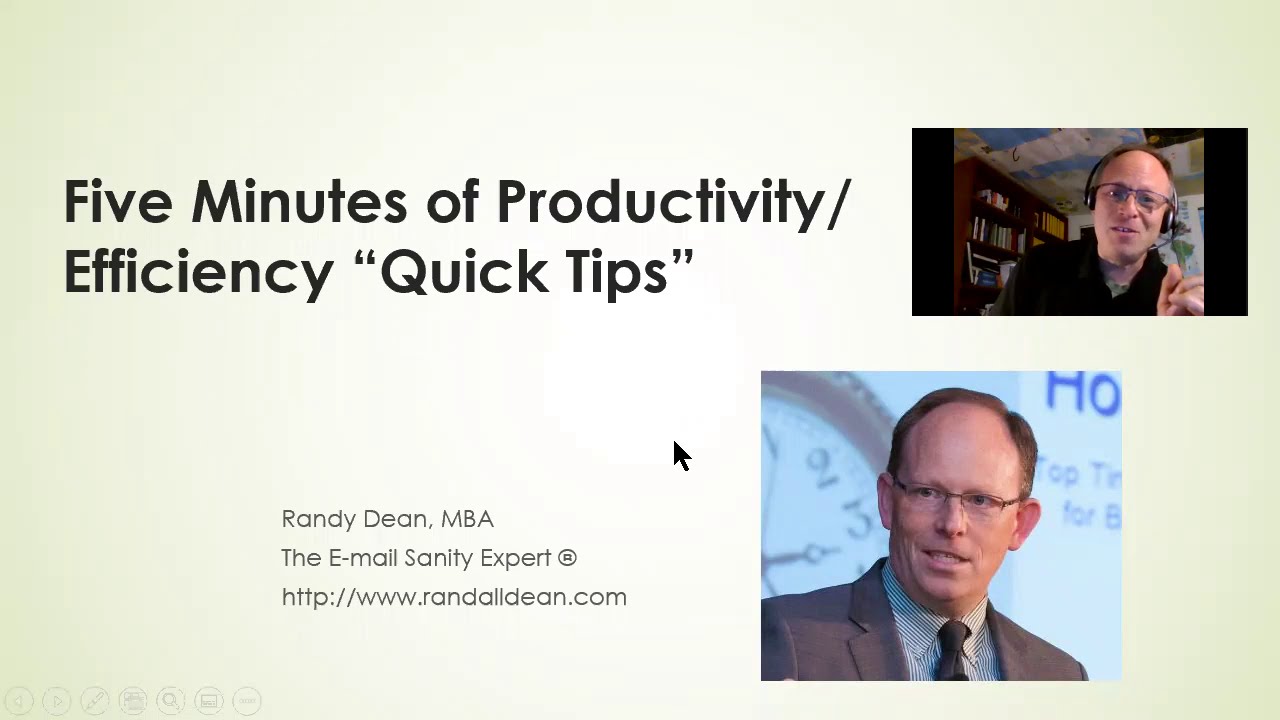
In this five‑minute video, Randy Dean – the Email Sanity Expert – delivers a fast‑paced series of practical productivity shortcuts for common office tools. He demonstrates a PowerPoint shortcut (Shift + Function + F5) to jump straight into presentation mode, an Outlook right‑click “Move” trick that lists recently used folders and can be undone with Ctrl + Z, and a Gmail/Chrome navigation update that adds a Contacts widget and lets users toggle compact navigation labels. He shows how to open Calendar or Keep in a full‑page panel via a widget, and explains how to leverage multiple monitors by dragging Gmail, Calendar, or Outlook windows to separate screens for simultaneous visibility. Additional tips include moving active windows between monitors, snapping windows next to active files, and reordering browser tabs by dragging. The video ends with a call‑to‑action to request a PDF tip sheet via randy@randaldean.com and to follow his YouTube channel for more content.
Chapters
All right. Hi everybody, Randy Dean, the Email Sanity Expert, and I'm going to do something fun here for everybody today. I'm going to try to see how many quick tips I can get in 5 minutes for productivity and efficiency. And I've even got an alarm set on my phone to tell me when I should stop talking. Now you're probably wondering, why did he set this thing up in PowerPoint management mode? Well, I want to show you actually the first tip is a PowerPoint tip. Did you know that if you want to quickly go from PowerPoint management mode to presentation mode and you're in the PowerPoint management screen, rather than mousing up here to slideshow, you can just do a quick little keyboard combo. Hold down the Shift key, hold down the Function key, and hit F5. Boom! Now you're in the PowerPoint. That, once again, if you didn't catch that real quick, was Shift-Function-F5. Wait, we got another tip. Let's go into Microsoft Outlook. I wanna show you a really cool Outlook filing tip. So let's go into my Outlook. Jealous of my inbox? But let's say you have an email and you put it into a client or other folder. And then you realize, wait, I should put this email in there too. Watch this, you can do a right-click, come down to Move when you do a right-click, and whatever folders you've been in most recently will be right here. Boom, it's gone. And of course, if I do a Ctrl+Z, I'll bring the email right back. What if I realized I shouldn't have put it there in the first place? Wait a second, let's go back to this. Let's talk about the changes since I did an Outlook tip. It's only fair that I do a Gmail tip. Did you notice the new change? There's a new change. Take a look at this. Notice that I just noticed this in the last few days. Here's my inbox. Once again, jealous, but take a look at this. This is Gmail. In the Chrome browser, did you notice the buttons? These have been— a couple of these have been here for a while. Calendar, Keep, which is their notepad, Tasks, and here's the one they just added, Contacts. That one hasn't been there. They finally added it. Wait a second, email, calendar, contacts, tasks, and notes. Oh, and by the way, since we're in here, go into your three dots, hit Navigation Options. You can turn off Compact Navigation, hit OK, and then you can actually have the words if you prefer. Your choice. Now let's go back to this though, because I want to show you something else here. Watch this. If you open up Calendar or Keep, take a look, you can come up here. That was funny, failed to load. You can hit this little widget right here, which is to open it in a new tab, and that opens up that item in a full page panel. Hold that thought for a minute because I'm going to come back down here and I want to talk about something. Do you have multiple monitors? How many of you have more than one monitor for your primary workstation? If you do, I've got something for you to realize. Watch this. I'm going to pop back up here, and let's say I'm a Gmail and Google Calendar user primarily, and I have two monitors. Well, wait a second, since I've got Gmail in one tab and Calendar in the other, just pick up that second tab, drag it over that second monitor, and then you could have Calendar on one screen email on the other. And notice that in both Calendar and Gmail, you could see your task list down the side. Oh, so that means you can see at one time, anytime, email, calendar, and tasks. Wait a second though, we've got Outlook users out here. Randy, what if I want to do the same thing on my multiple monitors? Bet you might not know this trick. I've got my Email open on this panel. Let's say I want to see Calendar on the next panel. Right-click, Open in New Window. Boom! And now I can take that new window and drag that to a second monitor too. Cool. Okay, but wait, wait, there's a little bit more here. Let's see, what else do we got in here? How about multitasking? You doing a lot of multitasking? Hey, by the way, if you remember, that was Shift-Function-F5. Watch this. Let's say I'm doing some multitasking, which is making me jump from in between my PowerPoint and my Outlook and my Edge browser. Did you know you can pick that up and move it over so that it's right next to the files that you're actively using? And if I'm not using Chrome, maybe I want to move that over here. Or actually, I'm using Chrome a lot, maybe I should move it all the way up. Very cool. Now let's do one more thing. Also notice this, that if you have open tabs in your browser, you can come in here and do this. This is my final tip. Hey, that's me telling me to stop talking. Watch this. You can actually take your browser tabs and move those around too. And I'm out of time. Did I give you way too many tips for a 5-minute little video? Well, let's do this. I'm going to finish this up. Once again, this is Randy Dean. Looking forward to seeing many of you at upcoming live events. And by the way, hey, if you want to get a whole sheet of tips, send me an email, randy@randaldean.com. I'll send you a whole bunch of PDF tip sheets with links to some of my YouTube videos. And we'll put this video on my YouTube channel too, why not, so you can see it again if I did that a little fast. Thanks, everybody.