
Build Beautiful Interfaces for your Claude Code Automations (in 10 mins)
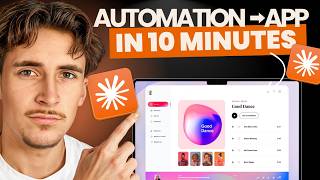
A tutorial on turning a Claude automation into a polished web app. Use Anthropic's frontend-design skill to have Claude generate a React interface, test it locally, then deploy to Modal for a public URL. The example takes YouTube URLs and produces transcripts, blog posts, LinkedIn content, and images.
Chapters
What's up guys, in this video I'm going to be showing you how you can build amazing front ends or even just full apps around the automations that you're building inside of Claude Code. This way you can easily deliver it to clients or just use it for yourself as a tool that you can access all the time. It's really, really simple to set up and I'm really excited to show you guys. So if you stick around till the end of the video, I'll show you how you can take your automations from just bits of code and turn them into beautiful apps that you can then deliver or use for yourself. So without further ado, let's just jump into it. Okay, so we're inside of Claude Code now and I've already built this automation. That essentially what it does, you put in a YouTube video URL and it will transcribe it and it's going to turn it into an SEO blog post and then also 3 LinkedIn posts and they're all going to come with images. So I'm going to quickly demo this out for you so you can see it. We're going to say do it with this vid and I'm going to paste in the URL of my latest YouTube video. So we're going to send that off and just say do it with this vid. We don't need to like tell it to write the post like the 3 LinkedIn posts, 1 blog post. It already knows what it has to do. So we're just going to put that in there and yeah, it's just going to run through. It should give us an output here, so we're just going to come back when it's done. Okay, great. So it's just finished. You can see it gave us the transcript, the blog post, and then 3 LinkedIn posts, and then all of the images here. So we can have a look at them here. This is the blog post, this is the 3 LinkedIn posts, and then images look something like this. Awesome. And for this, by the way, we just have, um, OpenAI hooked up to this Claude to actually write it, and then we have Gemini's Nanabanana to generate these images. Awesome. Okay, so now what we're going to do is we're just going to start a new chat here, um, and we need to actually first of all install a skill. And this skill is basically just going to make Claude Code better at front-end design. So it's just a front-end design skill. And if you don't really know what skills are on Claude Code, think of them as just big system prompts that get injected into Claude when it needs it to just make it an expert on certain things. There's hundreds of different, uh, skills you can use to make it really good at front-end design or generating email copy or lead enrichment, like hundreds of different skills for loads of different things. So we're going to use the front-end design one. So I'm going to show you exactly how you install this. I've just come over to the Anthropic, uh, skills GitHub repository on here, and we're just going to go into the skills folder, and then we're going to find— yeah, front-end design. Perfect. So let's click on the skill.md, and this here is the actual skill. You don't have to read through all of it, but we're just going to download it. So I'm going to download raw file, and then what we need to do is come back over to Claude. We're going to create a new folder in here called.claud. Perfect. And then inside of there we're going to create another folder called skills. Perfect. And then inside of there, one more folder with the actual skills. This one is just going to be called frontend-design. Awesome. And then now in this folder, we're just going to upload that file that we just downloaded. Great. So I now have that skill in there, as you can see. Uh, perfect. You can see this is the whole skill here. So what we need to do is quickly just restart VS Code to basically, um, read it all again and it logs it. It's just something you have to do to do when you upload a new skill. So we're going to do that quickly. Okay, so just reloaded it, and one of the ways you can check if the skill is actually there is if you go forward slash and then just start typing it in. You can see front-end-design. So now the skill is actually in there. Cool. So now we need to get Claude Code to actually make a front end for us, because right now we don't want to be just chatting with it through Claude Code and giving it the URL and things like that. We want to actually generate kind of like a mini app for us, or just a front end where we can just put in our URL and then, um, get the outputs and it's very clean and nice. So I've said to it, I want to build a UI for this automation. I wanted to have a clear input for the YouTube video URL. Then I want the 3 LinkedIn posts and 1 blog post to generate as UI cards that can easily be copied or downloaded. I want you to use the frontend-design skill in order to create this. And we've got it set on plan mode. So we're going to send this off, it's going to generate a plan for us. And then if we want to, we can read it through or we can just auto accept it. I found it's just better in general to get it to plan just for itself, not even for us really. Um, just so it can kind of like talk itself through the steps and then just approve it. Um, but yeah, off the bat here you can see it used the front-end design skill. So this was the skill here, so it's used that and it's going to use it when it's generating this plan. And then when it actually goes to create the UI, it will use it again. So we're going to let this plan and we'll just come back when it's done. Okay, cool. So it's just given us the plan here, and like I said, you don't need to like read this in depth. It's more for Claude to actually have this plan generated by itself and then it can use it on its own. So it's basically just saying like the context, the aesthetic design, a cold industrial print, uh, and then the font stack here, the color system, uh, what's going to change, and files to modify, the files not modified, and then preserve from existing code. Cool. So we're just going to hit yes, auto accept, and then change this to bypass permissions to basically just let it crack on, um, and do this on its own. So we're just going to come back When it's done, it should come back to us with a localhost URL where we can open and test it out. And then I'm going to show you how to actually deploy this and host it on your own server. Okay, great. So it's basically told me everything that's done here, but it hasn't given me the URL. So we're just going to say, can you give me the localhost URL? So we said, can you give me the localhost URL? Okay, great. So it's just given me this localhost URL here. So we're going to copy that, and then I've opened it. And as you can see, To me, this looks awesome. I think this looks really, really cool. It looks like super professional. It doesn't look like the AI slop, uh, kind of UI generations that you usually see. This looks like it was actually done by like a web designer or a UI designer. It looks kind of different, and like I said, away from that usual AI-generated look, which is really, really cool. So we're going to test this out. We're going to use the exact same URL and we're going to go generate content. And from what I've seen here, the transcribing part is like the longest part of all of this. So we're going to let it transcribe, and then I will basically come back when it's writing and then illustrating. We should see it move across the different phases here, and then it will give us an output. Okay, so I actually missed it because it like pretty much flies through the write and illustrate part. I wasn't really paying attention, but it did it all there— transcribed it, wrote it, illustrated it. I'll actually get a, um, kind of like the screen recording because I wasn't talking. I missed it, but, um, I'll put the screen recording on the screen of how it looked when it goes all the way through. Anyway, here we have the actual content. So this is a full blog post. We have an image here, which is really, really cool. And then we have the full, uh, blog post here. And really cool, it's got some like bullet point stuff here, the different sections. It's directly referencing the parts I said about Claude Code in the video. Um, it's giving me like this little structure thing here, which is really cool. It's kind of like put it in a different format and like a different section. Which is awesome. It's got parts in bold. It's got, like I said, the different like Claude Code specific things in there. Awesome, awesome, awesome. And then at the bottom, uh, it should also— yeah, it's got some suggested internal backlinks and then also suggested external sources, which is so cool. Um, we also have the option to just download this file or copy the markdown. Awesome. Then we have the LinkedIn posts here. Again, we can copy them and we can download the image. So pretty much ready to just straight go into LinkedIn. And the posts are about, you don't need a marketing agency, you need a GitHub repo in 20 minutes, my my, um, YouTube video, by the way, was about like how to automate all of your marketing with Claude Code by going into this GitHub repo and downloading all of these marketing skills. So pretty accurate. Here's what nobody tells you about hiring a marketing agency as a small business, then 5 things I learned about automating marketing with Claude Code skills, and then like 5 things here. So awesome, clearly works very, very well. Now we need to look at how do we actually host this. So how do we get it off of this localhost URL running for our Claude, and how do we get it basically running on its own thing? So the way that we do that is using a platform here called Modal, which is actually free to use. I think you get $5 credit for free, then if you add banking information, you get about another $30 for free on top of that. Um, so it's really cool, really great platform, and really, really easy to integrate with Claude and just start hosting things like this on there. So when you create a new project, you're going to be met with something like this where we get some commands that we need to run in order to actually host this on Modal. So all we're going to do is copy this, come back over to Claude Code and say, I want to host this on Modal. These are the commands they said to run. Cool. So I want to host this on Modal. These are commands basically I've been given for you to run. We just paste that to it and it's going to do— it has some other things to do, like some environment setup things to do, but we're not going to really worry about that. We're just going to let Claude kind of handle that all on its own. So we just give it the commands that it needs to run it's going to do everything it needs in the environment. You can see actually here it's appeared on my other screen, but I'll drag it over. We basically have a thing where we can create an API token here. We just select the, um, environment that we want to use inside of Modal. So I'm going to go to YouTube test, hit authorize, and it's going to say API token created. And we're going to get redirected, which means if we get redirected— yeah, okay, cool— means it's all gone well. And then you can see the Modal setup is now here inside of, um, Claude Code. If you get something that looks pretty similar to this, then it means it works because that's a Modal logo there. Also, it's finished that and it said uh, Modal is authenticated and connecting to your YouTube test workspace. Next step is to create Modal deployment file for your Flask app. Want me to do that and deploy that? We're just going to say yes, and then we're going to come back when it's done. Should give us like a legitimate URL, not a localhost URL, and it's all going to be running from Modal. Okay, great. So it just says it's finished, it's all deployed, it's even given us a URL here. So we're going to copy this URL, and then when we open it up, we just see the exact app that I've already showed you. But now it is on a consistent URL. So you can send this to other people, they can use it, you can use it for yourself. You don't have to get Cloak Code to like run it every time or anything like that. And now we also have it completely hosted as well inside of Modal. When we come over to Modal here, we've got like the app there, we've got the logs, we've got all of our secrets, which for me is my Anthropic API key, my Google API key, and my OpenAI API key. Then our storage and then notebooks. You don't really have to worry about that kind of stuff. You don't really even have to come into this backend of Modal, to be honest. Like the main reason you do it is just to get it hosted off of Claude Code and to get that consistent URL. So yeah, I hope you enjoyed this video, guys, and I hope you can actually use this now to create your automations and then create like a whole app around it and then deliver it to people, or use it for yourself and not have to go into Claude Code every single time to use it. And also, um, I hope I've also shown you how to make good UIs, not just kind of like the typical AI slop that you see with like emojis everywhere and really basic elements and everything like that. You can see the stuff I made in this video is a little bit fresher and it looks a bit different to like the usual AI, uh, UI generation. So that is it for the video, guys. I hope you enjoyed it. I'll see you in the next one.
More from Rory




Dynamic Workflows are crazy. This is how to actually use them (beginner's guide)






