
How to generate infinite leads with AI (No Code)
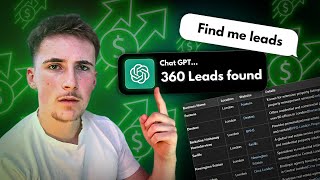
Rory Ridgers builds a no-code lead-generation system using ChatGPT and Relevance AI to scrape Yelp listings, pull LinkedIn profiles, and generate personalized outreach messages. A live demo finds real-estate directors in Atlanta and creates a tailored pitch in minutes.
Chapters
This AI tool will instantly be able to generate you an infinite amount of leads for your business. You don't have to waste all that time spending hours and hours searching for leads, getting all of their contact information, their email, their phone number, trying to find who it is you're meant to contact. This AI tool is going to solve all of those problems, and it's super simple to set up. It should only take you about 10 minutes, and it's going to save you hundreds of hours of looking for leads for your business. If this is your first time seeing me, then my name is Rory Ridgers, and I'm an AI enthusiast, and I'm passionate about helping business owners implement AI into businesses, to help them generate new leads, close more sales, automate boring and repetitive tasks. So if that's something you might be interested in learning more about, then consider sticking around for this video and subscribing to my channel. In this video, I'm going to be making a custom GPT that's going to search Yelp for businesses that might be ideal leads for you, and then it's going to use a relevance AI tool to scrape all that company's information and output it back to you. So for instance, if you wanted to find restaurants within a 10-mile radius of your hometown, then you could just type that into the GPT and it's going to come back to you with a list of businesses that meet that criteria. And then any one of them that you think might be a good lead, you can just say to it, tell me more information about that one. And then it's going to scrape all of that company's information, find the decision maker's LinkedIn, give you an overview of their company, who they are, and then it can also craft an outreach message for LinkedIn. So let's get into the video. So the two softwares we're going to be using for this video is Relevance AI and ChatGPT. That's all it is. I'm going to show you quickly the tool that we're going to be using in Relevance AI. It is this research company and find leads tool. It's a tool that's already made on Relevance AI, so you're not gonna have to make any custom tools. It's already a pre-built template on there, so it just makes it that bit easier. So to begin with, we're going to start in ChatGPT. We're going to go over to Explore GPTs and Create. We're going to create our custom GPT for this video. So I'm going to make this lead generation chatbot assistant for my business autonomously. So I'm just going to name it— I'm just going to name it Autonomously Lead Gen Assistant. I'm going to give it a little description. All I've said is help me to generate leads for my AI automation agency as the description. Now the name and the description don't really matter, they don't really have any effect on how the GPT works, so don't get too caught up on this bit. The main bit is in the instructions and the tools. So, so I'm going to show you the prompt that I'm going to put into the instructions tab. So this is my prompt. I've got a role section, a task section, specific section, and a context section. I'm just going to give you a brief overview of what's in each of these sections. If you want to pause the video and see exactly what I've written, then feel free. I'm just going to give you a quick rundown. So in role, I've just simply said, you are a lead generation assistant for my AI automation agency called Autonomous Lead. You will assist me in generating leads and helping me to approach these leads. Sent in tasks, pretty much what I've said is you're going to take a user's inputs, search yelp.com, and use these inputs as the variables that you have to input on Yelp site. Now the only inputs it's going to need is the industry name and the location. So for instance, restaurants in London, that's just an example. And it's going to output these results as a table with the headings business name, location, website, and details. So obviously business name, location, and website are kind of self-explanatory what it's going to put in there. And then for details, all it's going to put in that column is just any extra details it can find about these businesses on Yelp. Sometimes they have little short descriptions about some of the products they sell or the services they do, that sort of thing. So I wanted to output that into the details column. I've said as standard output 10 results unless the user specifies more. So if you said 'Find me 20 restaurants in London,' for instance, then it'd output 20. And then I've said, once you have these output results, ask the user which lead they'd like to learn more about, and then use the Research a Company and Find Leads tool— that's the tool from the Relevance AI— to find the specific people from these companies. And I've just given it a little overview of how it should input the variables into the Relevance AI tool. So I've just said, I want you to input the company name into the company name variable on the Relevance AI tool. And then input the role variable as director unless the user states otherwise. So the default is going to be it will find the director of that company unless you state that you want to find a specific role. So I'll put it in here. For example, if the company they want to learn more about is Gymshark, input the results as Gymshark for the company name variable and the director as the role variable. However, if the users say they want to find a head of sales for Gymshark, then input the company name as Gymshark and the role variable as head of sales. So super simple. All it is is just inputting the company name and the role that you want to find, and the default role is going to be the director of that company. So then once you have the results from the Relevance AI tool, output those results back to the user. And then if the user states that they want to create a personalized LinkedIn outreach message, then reference the knowledge base, which we're going to come on to in a minute. Reference the knowledge base to craft this outreach message. So it looks like a lot, but it's quite simple. And then for the specifics, I've just done some little bits. Make sure you use the tools correctly and output the correct amount of leads as prompted. And if you can't find specific information, for instance, if you can't find the website or any extra details, and just output those results as N/A in the table. In the context section, I've just put a little bit of context about me and my business, so that tool has a little bit more context on who I am and my business. Super simple. And then another bit that I haven't added actually is just a short description on the tool, the name of the tool, and what the tool does. That's really helpful for the GPT, just so it knows what tools it's using and when to use them. So I'm just going to add that in now. Okay, so as you can see, I've just added in a tool section. I've put the name of the tool, Research Company and Find Leads. I've just said the inputs the tool requires, kind of similar to what I put earlier. I've just said what parts they should put in what variables. So the company name needs to be under the company_name variable and add the director as the default input for the role variable unless the user states otherwise. And then I've just said when it's gonna use this tool. So when a user states that they wanna find more information on a specific lead, and then I've just said what this tool is gonna output so that the GPT knows it's gonna output the role name, their LinkedIn URL, the website URL, and the company summary. So we're all done on ChatGPT for now, so we can come out of that. And now we want to head over to Relevance AI. So we're going to be using this tool, Research Company and Find Leads. As I said before, this is a pre-built template on Relevance AI. So if you don't already have this tool, just click on New And then up here you can just type in the name of it. Research. Yeah, so I just typed in research and it's come up here, Research Company and Find Leads. And to be able to use it, you're just going to click on modify and there's going to come up with an option to clone it. You're just going to click yeah and then you'll be able to edit it and use it whenever you want. So I'm just going to quickly show you inside this tool what it looks like. As you can see, we have the variables I was talking about earlier, the company name and the role variable. And then pretty much what it's going to do is it's going to make a Google search for that company and then the role that we want to look for, and it's going to try their LinkedIn. It's also going to try and find their website here, and it's going to try and find a little bit more information on that role's LinkedIn, and it's going to output that in JSON format. And then this step here, convert string to JSON, and the reason we do that is because this step here is going to output a couple of results, and we want each of those results to be different outputs, if that makes sense. I'll run this tool in a minute and I'll show you what I mean. It all makes sense. And there's just another LLM step to determine the company's URL and just output just the URL of that company. And then we're going to extract the website content here, another LLM step to just give the company summary. It's just going to take the information from the extract website content step and then just process that and create a company summary. And our outputs down here, you can see, are going to be the name— that's going to be the name of the role that we want to find— their LinkedIn, company website, and company summary. So I'm quickly going to run the tool. I'm going to use some example inputs. I'm going to say Gymshark, and we want to find the head of sales. So Gymshark, we want to find the head of sales. I'm going to run it and show you how it works. Okay, so as you can see, it's output the name. So this is the head of sales, Noel Mack. It's got its LinkedIn URL, it's got the company website, and then a summary of the company. So I'll show you what I was talking about earlier with the Converting string to JSON. You can see here in the LLM step when it was extracting some information on that role, it's outputted their name, their role, and their LinkedIn URL. But we want these outputs to be 3 separate outputs. We don't want them to be one. So what we do is we ask the LLM step to output as JSON, and then we use this step called convert string to JSON. And then as you can see, now it's outputted them as 3 separate outputs. So yeah, I hope that makes sense now. That's all you really need to see inside the tool. It's not too complex, but it does the job perfectly. So we're just going to make sure to hit save, come out of it. And now we've got to add this tool into our custom GPT. And this is super simple. Relevance AI make it really easy to do this. All we do is we come over to new custom actions for GPTs. You can see it gives you some instructions here. We just want to click on the tool that we want, come down to here. It's going to generate an API key for us. We don't need that just yet. First, we need the OpenAI schema here. So we're going to click Generate OpenAI Schema, copy that, come over to ChatGPT. Then we're going to go to Create a New Action and then just paste in that schema here. And as you can see, it has recognized the tool. Then we're just going to go on to Authentication here. API key, then we're going to generate an API key, copy that, paste into here. Authentication type, we're going to click custom, and then, and then we're going to do it as authorization. So I'm going to hit save. And then before we can save this, we need to create a privacy policy. And now I've already done this, and it's really simple. You can use a custom GPT to do it, which I'm going to link in the description to this video. So for now, I'm just going to put in the URL that I already have, but it's super simple to create a privacy policy. I'll put a link to the GPT in the description and just give a short set of instructions on how to do it. I do do it in one of my older videos if you want to go watch that, but if you don't have the time to go watch that video, I'll just put some instructions in the description of this video. So now we can come back. As you can see, we have our action here, and something to mention is that with our prompt, we need to make sure that the name of this tool matches up exactly with, with the name we have here. So if you're not too sure, you can just copy and paste it and add it into your prompt just to be sure. As you can see, I already had it right, so it doesn't matter. But yeah, if you aren't too sure, then you just copy and paste it and add it into your prompt later on. So one more thing that we have to do is upload a knowledge base to this GPT, because if you remember in the prompt, there was a part where I told the custom GPT to reference the knowledge base when it's crafting an outreach message. So we're just going to do that really quick. I've uploaded my knowledge base to it. Super simple. If you've never done a knowledge base before, it's really easy to do. You might have to just sit down and write a knowledge base out manually for your business. You can do that if you like, but what I like to usually do is just go to ChatGPT, put your website's URL in there, and tell it to write your knowledge base from your website. It's a much quicker way. It is a little bit less detailed, but if you're short on time and you just want to get a knowledge base in there, I'd recommend doing it that way. So now we can just add a profile picture if you want to. This is what it came out with. I'm not really sure what that's meant to be, but it doesn't really matter at all. So all that's left to do now is just test it out. So I'm going to say— so I'm just going to say to it, find me real estate companies in Atlanta. Let's see what it comes out with. Okay, so as you can see, it's outputted all of these results here, and for a couple of them it hasn't found the website, which is fine because for the tool to run we don't actually need the website URL. All we need is the company URL, but it's just helpful to have it here. So now it's going to ask us if you want more information on any of these, and we're going to say yes, and we're going to see if it actually uses the the Relevance AI tool. So we're going to say, give me more info on the second one. So give me more information on the second one, and let's see what it comes out with. So it's asking us to confirm or deny the use of the Relevance AI tool, which is good because it knows it's meant to use the Relevance AI tool. Start in action. Okay, and then look at that, so it's found the information on Beers' Homes, which is obviously the director. Yeah, as you can see, director contact, it's found his LinkedIn, it's found the company website, which I think we already had, so it doesn't really matter. But then company summary, as you can see, a summary on his company. So yeah, perfect. So let's see if we can now generate a personalized outreach message for LinkedIn. So as you can see, it's asked if I want a personalized outreach message. I've just said yes, make the LinkedIn message. I spelled it wrong, but okay. So this is the outreach message that it's come back to us with. It said, hi Kevin, I hope you're well. I came across your profile, was impressed by your work at Beezer Homes, particularly your focus on creating vibrant communities for those aged 55 and older. At Autonomously AI, we specialize in developing custom AI tools and autonomous agents that can enhance operational efficiency, streamline tasks, and improve customer experiences, especially in industries like real estate. And then, I'd love to connect— a little call to action. But yeah, that's perfect. As you can see, it's actually scraped his LinkedIn profile and found information on him. So the part where it says, particularly on your focus on creating vibrant communities for those aged 55 and older— I would have no idea on that because this is the first time I've seen this guy. I haven't even clicked on his LinkedIn URL, so I would have never known that. So it does that instantly. It instantly finds relevant information about these people to personalize these outreach messages. So Yeah, that's super cool, that's perfect. So now to finish it off, we're just going to go to Create, Anyone with this link, and hit Save. So yeah guys, there we have it. Now you have a custom GPT that's able to generate you infinite leads. In this example, I only did 10, but I could have just asked it to keep going and say, they're all no good, generate me 10 more. Or if there was multiple different leads that I thought looked nice, I could have said all right, find me the information for the, the first one, the second one, and the fourth one, and craft me LinkedIn outreach messages for all of them. So yeah, this is a super useful tool and it's pretty much free. The only thing is the Relevance AI tool, but you get 100 credits a day for free. So if you're using this a few times a day, then you should be absolutely set with the free plan. And if you do want to upgrade, I think the cheapest plan is around $20 a month, and you get more credits than you need. I think you get about 10,000 a month. So yeah, this is a super, super useful tool and it was really, really easy to make. So if you made it to the end of the video, then thank you for watching. You should now have a custom GPT that can generate you infinite leads and save you a bunch of time every week. And if you are interested in working with me so we can integrate AI into your business somehow, it could be something like this or it could be something way more complex, just drop me an email or check out my website and fill out the contact form on there and we can have a free consultation and just talk about some ways that AI could help you in your business. And if you're just an individual that's passionate about AI like me and you're looking to learn a little bit more and how you can use AI in your day-to-day life, or maybe even sell these solutions yourself, then subscribe to my channel and follow along my journey. I'm sure you're going to find it really, really helpful. And of course, if you have any video suggestions that you want to see, just put them in the comments and I'll try my best to do them.
More from Rory




Dynamic Workflows are crazy. This is how to actually use them (beginner's guide)






