
I built the BEST Ai cold outreach system (no code)
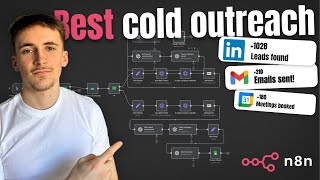
In this tutorial, Rory Ridgers walks viewers through the creation of a fully automated, no‑code cold outreach pipeline using the NAN platform. The workflow begins by scraping LinkedIn job listings via Apify, filtering companies by employee count, removing duplicates, and handling cases where the job poster’s name is missing. Domains are extracted from company URLs and fed into AnyMailFinder to locate email addresses, with a fallback to senior titles (e.g., CEO) when needed. The system then scrapes each company’s website, converts the HTML to Markdown, and uses LLM steps to generate concise, human‑like compliments based on recent wins or notable details from the site. Additional LLM steps clean company names and extract first names for personalization. All gathered data—name, email, domain, company name, compliment, and a placeholder for response scoring—is written to a Google Sheet. Rory demonstrates how to mass‑email the leads using the free Streak CRM Gmail extension, employing mail‑merge variables for personalized outreach. He also builds a second NAN scenario that monitors Gmail for replies, matches incoming messages to rows in the sheet, and uses an AI agent to assign a 1‑10 interest score and capture the reply content, sending a notification when the score exceeds a threshold. Throughout, he shares prompt templates, JSON payloads for Apify and AnyMailFinder, error‑handling settings, and a transparent cost breakdown (Apify free tier, AnyMailFinder trial, NAN self‑hosting). The video concludes with a call to action for viewers to book a discovery call for AI integration services.
Chapters
What's up guys, in this video I'm going to be teaching you exactly how you can build a cold outreach system in NAN that's able to find you new leads, research these new leads, and then create a personalized message that you can use when you reach out to these leads. Just quickly, if you don't know who I am, my name is Rory Rogers and I help business owners to integrate AI agent systems into their businesses. So if that's something you might be interested in, I've left a link to my website in the description. You can go ahead and book up a completely free discovery call. We can talk about some ways to integrate AI into your business. That's pretty much all for the intro. We're going to jump right in. I can show you exactly how this works. Okay, so this is system number 1. There's 2 systems in this is kind of the main system that's going to be finding us these leads, researching them, and then adding them all to a Google Sheet. The way I've done it is we add it all to the Google Sheet, and I can show you how you can actually mass email all these people just by a Google Sheet. So this system was inspired, by the way, by another creator on YouTube. I can't remember his name off the top of my head, but I will leave a link to his channel in the description so you can check out his video. Obviously, I did my own tweaks to it and added some of my own stuff. So basically what we're looking at is the way it works is it's going to scrape, uh, LinkedIn jobs. So the job section on LinkedIn, it's going to scrape that and look for companies that are basically putting jobs out that we can solve— in this case, that we can solve with AI. So what we do is there's a chat message and we just input the, uh, LinkedIn URL for the job. So we go over to LinkedIn, type up the sort of job that we want, the location, everything like that, and we just put in the URL. We put that into the chat message bit here, and then we send this over to Apify. Just quickly, if you haven't used Apify Appify before, basically what this is, is it's just a massive little marketplace for just scraper APIs. You can scrape pretty much anything. You can see these are my, um, past jobs, so LinkedIn, Google Maps, Apollo, Facebook, Instagram. You can pretty much just scrape anything using Appify. So we just connect to that through NAN, and we're just going to scrape the LinkedIn job section for that URL, and we're just going to get a bunch of jobs back, and we're going to get a bunch of other information back. I'll show you when we actually run this through all the different data points we get back. But then we basically have an if step here, and what this is doing is it's just filtering them out. This is just my personal preference, just filtering them out based on employee count. So we look at the companies that are actually posting these job listings and say, in this case I've done 201, so if it's less than 201, so 200 and under, then they're going to go through. And if not, then we don't want to deal with them because they're too big for us. And then removing duplicates, this is literally just pretty much what it says, it just removes duplicates because sometimes a company might post more than one jobs in LinkedIn for maybe the same criteria if you've left it quite broad. So we just remove the duplicates from there and make sure we're not doing any duplicates. And then we have an if step because sometimes in this, uh, original step here where we're scraping the LinkedIn jobs, we'll get the name of the person that posted the job. So for example, if it's a company is looking for a sales associate or a sales assistant then maybe the head of sales would have posted that job. And sometimes we get their name, sometimes we don't. So in this case, we're just filtering it out. So if we get their name, it goes this way. If we don't get their name, then it goes this way. And then you can see these systems are pretty much the same, these two. I'll show you the differences when we get to it. So basically, you have an edit field step. We go with this bottom one. We have an edit field step, and what we're going to do is we're going to take their website URL that we get from, uh, so this step here, we'll get their website URL. For the company. We're going to take their website URL and we're just going to extract the domain from it. So this little piece of text here is basically just going to edit the field and just remove all like the prefix and the suffix, so www, https://, all of that stuff. We're going to remove all of that and just get the domain name. And then we send over to an email finder, which is just an API you can use to basically find emails for specific people. So if it goes this way, it means we've found the name of the person that posted the job application. So we're going to search for that specific person. So let's say it's Jeff Bezos from Amazon has posted the, uh, job application. Then we're going to search for Jeff Bezos from Amazon's email address. And then if it goes this way, we haven't found the person, we're just going to search for like a senior figure. So it could be CEO, head of sales, head of marketing, whatever it might be. I can't actually remember what we've done in this case. So I've done the CEO, so just The CEO— if we can't find the name of the person that actually posted the job application, we're just going to search for the CEO of that company. As they're kind of smaller companies, it shouldn't have too much trouble finding the CEO's email. And then what we do is we're going to scrape the company website and just get back all of the raw HTML from their website and then convert that all into markdown. And then we just use an LLM step here. This is all the same after this step for both sides. So we're just going to use an LLM step to basically get some recent wins or accomplishments or some things that we can complement from their website. So this could be like a new big hire or a new award that they've won, uh, rebranding thing, anything like that. We're just going to use an LLM to basically scrape the website data and find something we can complement or find something we can comment on. And then we just have a simple LLM step that's going to clean the company names. This is just if their company name that we get through from here says something like Limited, like Amazon Limited or Amazon Inc., for example. No one really talks like that, so we're just going to remove the, again, the prefix or the suffix. So like the Inc., the Limited, anything like that, we're just going to remove that to get and get just the company name. And then we had another step here, but I just removed that because I realized we didn't need it because I did the exact same thing. It's basically what we're doing here is we have another LLM step that's just going to get the first name of the person that we found. So in this case, it's going to be the CEO that we've got their email for. We're going to get the CEO's first name just using our outreach message. And in this case, we're just going to clean up the name that we got from here and just extract their first name. So again, if it was Jeff Bezos, it would cut that down to just Jeff, and it's going to do that for all of them. And then we upload all of that to a Google Sheet that looks like this, with their name, their email, website URL, company name, website compliment, and then data and response score. I'm going to show you that after. That's the sort of next, uh, set that we have with this. The next scenario, it's an agent, it's going to be able to log the data and the response score. Okay, so we're going to head over to LinkedIn and we're just going to find some jobs that we can search for to use for this scenario. Just before we do that though, I want to show you the prompts for all of these because on my last video I forgot to show some of the prompts for my LLM steps, my agent step. So I'm going to show you the actual prompts that we have here. So for get recent wins, you're crafting very short natural sounding compliments or congratulations for cold outreach emails based on the company's website content. Instructions: first priority, Look carefully for specific recent events, awards, achievements, milestones, events, notable numbers, or news, anything like that mentioned on their website. And then we've given it a little example here. If nothing specific is meant, give a simple, believable compliment based on something that seems authentic or genuinely noteworthy about the company's approach. And so we've given an example again. Really love your team's fun approach to branding and design, yada yada. The rules again, this took some fine-tuning because it was kind of generating like not very human-like, very normal sounding compliments. They sounded like too over the top or too weird, too far-fetched. So it did take some fine-tuning to get this one right. And then clean the company name, dead simple. It's literally just, I want you to simply take up— I want you to take the company name of these companies and output it without the suffix. For example, like LLC or Inc or Limited, just remove that and just give us the company name. And then get first name, pretty much the same thing. You simply output the first name of these full names. So really, really simple. And then I'll also show you inside these other ones. So the Apify request— all Apify requests are basically the same. We have a URL and then we have the JSON body. So I'm going to show you how that looks. If we go to Actors, LinkedIn Job Scraper, you can see right now we're in manual. It's going to be if we're actually using it through Apify, which we're not. Of course, we're using it via API, via NAN. So if we go to JSON, this is the JSON that we're going to be, uh, sending over. To Apify from NAN to basically trigger this. So you can see the variables that we kind of need to input is going to be the count, so how many jobs or how many companies we're looking to scrape here. And then scrape company true, this basically just means it's going to scrape the company that posted the job as well, which obviously we want, just makes our life way easier. And then your URL, this is going to be the URL of the jobs on LinkedIn that we want to scrape. So what we do is we go over to API, API endpoints, and then we scroll down Run Actor and Get Dataset Items. Copy that, come over here, paste that into here. And when we say Run Actor and Get Dataset Items compared to these other two, basically all that's going to happen is we're going to run it and then it's just going to wait and keep running until we get all the data back. So we don't have to go and check, see if the data is there, and retrieve it and wait a bit. It just does it all for us. So we input that URL into there, and then this JSON, we literally just copy that here. Send Body. So we turn Send Body on. Body Type is going to be JSON, and then Using JSON Below. And then we just simply paste this into here. And then I've done the URL as a variable because it's going to be what we're inputting in the chat node. You don't have to do this, but I just thought it was a little bit nicer to do it that way. And then this if node is just going to be the company employee count that we get from the step 4, if it's less than 201. And then the remove duplicates, the operation remove items repeated within the same current input, and then compare selected fields. And then we're just comparing company names. We'll get like 50 company names come through. Let's say we get 100 from here, filter it through, we get 50. So we get 50 company names come through here, and then this is just going to output all the data points but remove the, um, duplicate company names and subsequently all the dataset items around that company name. So we might get 35 after that, it might remove 15 different companies there. And then we have an if step that's just going to— if the job poster name from this step here, if that exists, then we go this way, and then if it doesn't, we go this way. And then any MailFinder, really, really simple, we just use this URL here, and then the headers are going to be authorization our API key, content type application/json, and then again JSON, but then using fields below just because it's way easier. We could do an actual JSON body, but we're just going to do the fields below. So we're giving the fields a name, so domain, giving it a domain, and then the name. So the decision maker category, the value is going to be CEO in this case. And then for this one, you can see here we've used the actual JSON just to sort of show you the difference. Domain, again, exact same thing, we're inputting the domain. And then the full name, this is going to be the job poster name that we get from here. And then really, really simple scraping the company website. We literally just put in the company website URL, get back all the HTML here, and then we have a Markdown step that's just going to do HTML to Markdown, convert all that HTML into Markdown. Okay, so we're on LinkedIn now and we've filtered it for just United States. And let's say something like, let's say something like, uh, sales assistant So we're doing sales assistant, there's 954 results, which is pretty good. And then all we have to do here is simply copy this URL, obviously making sure this is actually what we want to look up and make sure this is all right. I've just done sales assistant as an example. We just copy this URL and we can simply open ChatGPT, paste that into here, and then hit send off. And then it's going to be inputted into this one and it's going to trigger the Apify node and then this should all go through. This does take a second, this Apify one, because it's got to get like 100 different data points, so it does take a second. We're going to come back when it's done. So while this is running, we can actually come over to Apify and look. So right now it's got 78, and this is what it's outputting to us. So the applicants, the apply URL, along the benefits, company address, uh, company description, employee count— that's what we're filtering out— the company LinkedIn URL, their logo, name, slogan, website, the description HTML, description in text, employee type, ID, industries, input URL, and then a bunch of other things. We don't really need to worry about this stuff, it's kind of just those stuff I already showed you. But yeah, it's really, really cool. You get all these different data points just from searching for jobs on LinkedIn. You can see right now it's at 99, so this should actually finish in a second and it should trigger. Okay, so you can see right now that went straight through. So we got 22 items this way and we got 5 items this way. 67 items obviously had more than 201 employees, so they went this way. We didn't even look at them. And then 33 items out of that 100 went through, removed the duplicates. We got 27, and then it went this way. So it starts off going this way first, and then once this is done, it'll go this way. So this is quite important. We get an error here, and you probably will get this error if you, uh, use this scenario, use anything similar. You'll get this error because basically we're putting through, uh, so 5 different items into this node here and we failed. Obviously because AnyMailFinder just couldn't find some of these emails. And what we want to do is if you go to settings, we put always output data and on error continue. And this just means when it has an error, it's just going to throw up an error when it can't find an email, and that's just going to stop the entire flow and the entire scenario. Which we don't want. So we want to always output data. And let's say out of those 5, there was just 1 where it couldn't find the email. It's just at the moment it was just going to stop the entire scenario. But we want it to just sort of give us the 4 that it does have, and then the ones it doesn't have, we just obviously can't do anything with, so it doesn't matter. So if we hit test step now that we've changed those settings, and you can see now it's, uh, successfully executed. You can see we get these data points here. So we've got the domain, the full name, the email address here, and then validation it doesn't know. And then again we get it for all of these. We actually got 5, so I'm not too sure why there was an error here, but just make sure to turn that on anyway when you're doing large sort of data points. So there's only 5 in this one, but for this one there's 22, so it's probably going to be 1 or 2 that it can't find in there. So just make sure to turn that on. Now we're gonna have to manually run all of these, but if we scrape the company website, it's just going to scrape the website data from all of those different websites. So these 5 that we got here, you can see it's quite a lot of data. If we hit show data probably won't. Okay, so it does load, but you can see there's absolutely tons of it. And then we convert all of this to markdown. So let's give this a second. Okay, that's gone through, perfect. And then we give this all to our LLM step here. That's just going to go through all that website data and give us some sort of compliments or some things that we can touch on in our outreach emails. Okay, perfect. You can see this, we've got love how 4Floor leads fashion recruitment with a tailored high-touch approach. Really appreciate your personalized approach to fitting workforce solutions for client needs. Yada yada. We got 5 there, and we just simply clean the company names to remove any like Inc. or LLC or Limited, anything like that. This shouldn't take too long. Okay, perfect. Let's have a look at the output. Okay, perfect. Yeah, so Content 4th Floor, uh, The Good Kind Group, Karen Kane. Perfect. And then let's get the first name of all of these people. Okay, cool. And then let's add all of that to our Google Sheet. Okay, you can see here there was one actually though, you didn't get the name or the email. That doesn't really matter, we can just remove that one here. So this is why we get it all inputted into a spreadsheet, so we can just remove stuff like that. Uh, if we just move this one up. Okay, perfect. So we got 4 in there, absolutely perfect. Got their names, their emails, website URL, company name, and then a website compliment. Now we're going to run these other steps here to just do the exact same thing this time with, uh, 22 items. So we've edited the fields there, got just the domain name for all of these different companies, give that over to an email finder, hopefully get all of their emails or most of their emails. Okay, perfect, that's just run. So now let's scrape the company website data and get all of the HTML from their websites. Perfect, you see that one runs really, really quick. Let's convert all of that into markdown. Again, that one runs really, really quick. And now let's give this over to our LLM. That's just going to again get the recent wins and events and things that we can touch on in the email body. Okay, perfect. That's run through. Let's run this one. We can actually have a look at this while we're waiting for that to run. So, impressed as how your website clearly highlights user-centered design. So clearly impressive work staging over 4,500 homes in Colorado. Truly expert team. Impressive, impressive focus on data-driven decisions. Okay, this one's just finished, perfect. Let's have a look at this. This again, it's quite boring, just cleans the company name. So let's have a look for all of these. Perfect. Probably seeing here there's things like Mercedes-Benz of Austin, or let's have a look, uh, there was another one somewhere. Yeah, Mercedes-Benz of Ontario. And you might think obviously Mercedes-Benz, massive company, they're never going to reply. But if we get the email address of the right person in that branch— obviously we're not reaching out to the main Mercedes, but the right person in that branch— that branch has less than 201 employees, so they still fit into the people that we're reaching out to. So, you know, there's still a chance that they're going to reply to the email, they're going to see the email, because we're just reaching out to a branch, not the entire company there. But of course, that's only with some of them. Okay, perfect. So that's run now, and then we're just going to add all of this into our Google Sheet. Okay, so I just had to do a little bit of cleanup because there were a couple ones where I just couldn't find the email. And that happens, obviously the email has to be somewhere on the internet for our system to be able to find it. So if it can't find it, it can't find it. Of course you can still keep these in here because it still has like the website URL, the company name, and the website compliment, and even sometimes the name of the person. So you can still just try and like manually find the email yourself or reach out to them via a different way. But for this case, of course, we actually need their email because I'm showcasing a cold outreach system. So you can see these are all the ones we have here. We have 16 altogether. And to run this system, just to be like full transparent on cost, just so you guys know, obviously cost of NAN, I self-host it, so it's really, really cheap for me. The Apify request here was completely free because you get like $5 a month for free. And this run costs— let's have a look— so it cost us 10 cents. That's all it cost us from Apify. And of course we get $5 for free, so literally cost us nothing. And then any Mailfinder, you can get away with— I think it's about $14 a month, and they do have a 3-day free trial. So of course, 3-day free trial, if you reach out some people, you get one client back from it, you made all your money back and you can afford the subscription. I think you can get about 50 for like $14 a month, and then the plans go up. They're quite affordable, to be fair, as they scale up. So full transparency, those 16 leads probably cost us something. Now, if we're using the free trial it cost us 10 cents. If we're not using the free trial, then we only did, uh, what, $27 worth of things. So, so those 16 leads probably cost us about $5 to $6. So really, really cheap. And obviously as you get more, it's going to get even cheaper per lead. If you have like 100 leads in here, it's going to be even cheaper for you. I'm going to show you how you can actually send these emails off. We're going to be using a free extension called Streak CRM for Gmail. You can just install it, it's absolutely free, allows you to do a couple things for free. It allows you to track all of your emails that you send, so you can see the open rate, when they opened it, where they opened it from. And then you can also do these mail merges. So if we go to Streak down here and then go to mail merges, create mail merge, and then a subject— let's just say something like— I've just said something like, 'Opportunity to save on hiring costs.' You can do whatever subject line you like. You can sort of test a bunch out. And then what we're going to do is we're going to download this spreadsheet here. So if we go to file Download, and then we're going to do it as a CSV. Okay, so that's downloaded, perfect. And then if we go to upload a CSV, we can upload this one here. And you can see here now we get this thing loaded. So we have messages here. If we go to recipients, we have 15, which is obviously all of the ones in here with their email addresses. And then as we start to type, so let's just say something like, hey, and then we can go to variables, and then we can do the name. So we can put in the name here. So that's going to do all 15 unique names that we've got from our spreadsheet, and we can just do a full email here including all of the variables. Okay, so I've just drafted out like a demo cold outreach email you might do. So, hey name, a friend mentioned me recently and I've been meaning to reach out. By the way, the website compliment. I just wanted to check in and see if that position for the sales assistant has been filled yet. I'm only asking because me and my team are certain we could automate the position with AI systems we've used to help similar companies. Book up a free 15-minute call. We can talk a little bit more about it. So obviously you can change this. I just quickly drafted this out. This might not be the perfect cold outreach email, but this is kind of how it looks. And one of the cool things about Streakr, you can actually hover over these recipients so you can see exactly how their email would look. So, hey Antonia, friend mentioned me, yada yada, by the way, love how Fourth Floor leads fashion recruitment with tailored high-touch approach. Or for this one, hey Devin, really appreciate your personalized approach to fitting workforce solutions to client needs. Or this one: Hey Michael, by the way, love your fresh April collection and the curated Mother's Day styles. So obviously you can look for all of these. All of these are going to be completely unique, and I'm not going to send this off, but if you were going to, all you do is you just hit start mail merge now, and this would send it off to all 15 of these people. So absolutely perfect, really, really cool way of doing it, and a really, really nice sort of user-friendly way of seeing all these different things and seeing exactly how they would look for each person. What I want to do now is quickly show you the other system I've made in addition to that original system. So basically what this is going to do is it's just going to sort of track the replies that we get to these emails so we can sort of build up a thing of what works and what doesn't. Obviously this is super, super important for cold outreach, seeing what works and what doesn't, and then changing up your subject line, your email body, the people you're reaching out to, everything like that. So all we have here is a Gmail trigger, and it's just going to be watching our Gmail account. Any Gmail account you're obviously reaching out to these people on, you'd hook up to here. And then we have a Google Sheet step that's just going to return all of the data from our Google Sheet. And then we just have an if step that's just basically going to say the email address that we got from the Gmail step here, the from email, if that is in our Google Sheet, then go through. If it isn't, then don't, just because we might have some leaks in there. You might get some emails from someone that isn't part of your cold outreach campaign. So we just have this step here sort of as a little safety precaution. And then in here we just have if the response score in our spreadsheet is greater than 0, so if there's any value to it, then go through. And if it isn't, then don't. And basically what we're doing here is when we get a response to one of our emails, we're going to use the agent to update the data column and the response score. So the response score is going to be 1 through 10, how well they responded to that email. So if like, uh, they didn't really care at all, they told you to go away, take you off their list, that's going to be like a 1. And then if they were like, yeah, that sounds really, really good, I'm booking up a call right now, really, really excited about this, and that's going to be a 10. And then the data is just going to be the content of the email body. So just so we can look back at this and say, okay, this was the content of their body and it got this score. So that's all that's happening here. And basically this step here is just checking to see if the response score is already filled out, because if it is, we've already done this with this person. It's probably not the first reply to our email. So if there's already a value in it, then we just go false and nothing happens. But if there isn't a value in it, then it gets sent to our AI agent, and the AI agent here is able to update rows. So it's just going to, to take the new email that comes in, look at the email body, and it's going to update the row for— if we have a look in here, so we've matched it. So we're matching each column manually, matching it to— I just chose website URL. You can kind of do, uh, any data point you like because we're just going to be using the website URL from this step here, and then we're going to be matching it. So we put in the website URL variable and then the data and the response score, leaving this up to the agent. So for the lead that comes in— or sorry, the reply that comes in from a lead— we're just going to check if they're in the Google Sheet, what row they're in, and then depending on that row, we're going to have the agent only look at that row and then only update the data and the response score for that row. And then we just have a Gmail send message here that's basically just going to notify us when we have something over a 5. So if we have a lead that's sort of over a 5, the response score, you can change this to like 6 or 7 if you like. The agent is just going to email us and say like, hey, this person seems pretty interested, I rated them a 7, you should probably go and reply to them. And just so you can see this as well, this is the prompt I've given it. So, Ro, you have 2 jobs. I want you to update this spreadsheet based on the response from an incoming email and also notify me via email when you have done this task. When you receive a new email, it will be a reply to a cold outreach message. Based on the message content, I want you to give the score from 1 to 10 to indicate the person's interest. And then I've given it some examples here. So for example, if the message shows, duh duh duh, and then I've sort of said like what would be a 1 and what would be a 10, and also told it to sort of update the spreadsheet with the actual content of the email. So this agent is just going to make sure that our email campaigns are properly optimized and we're able to update things, see what does well, see what doesn't do so well, and obviously act accordingly on our next email campaign. Okay, so that is it for this video, guys. I do hope you enjoyed it, and I hope you learned something about building these cold outreach systems, because AI is an absolutely perfect place for cold outreach because it can automate the entire things I've been showing you— finding new leads, researching them, and then actually reaching out to them. All the stuff that you before would have had to manually do when you're doing cold outreach. And also, you can use AI to optimize these campaigns, but you don't have to do that manually. So yeah, like I said at the start of the video, if you were looking to work with me so we can implement some AI agent systems into your business, then just check out the link in the description. You go ahead and book up a call, we could talk about some ways to integrate AI into your business. So yeah, that is it for the video, guys. If you have any video suggestions you'd like to see, please do drop in the comments or just send me over an email and I'll try my best to get around to doing them.
More from Rory




Dynamic Workflows are crazy. This is how to actually use them (beginner's guide)






