
Meta Ads just got a LOT easier. Scrape & analyse competitors ads (free template)
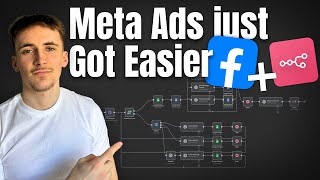
Rory Ridgers built an n8n workflow that scrapes competitor ads from Meta's Ads Library daily, scores their copy and images with AI, then rewrites your own ads based on what performs best. The system logs everything in Google Sheets and emails you a change report. A free template is available at commonus.com.
Chapters
What's up guys, in this video we're gonna be going over a system that I built that makes Facebook ads a whole lot easier. Basically what the system allows you to do is scrape your competitors' ads using the Facebook Ads Library, because I'm sure all of you that run ads know this. Obviously there was some law a while ago that basically made it that all advertisers just had to publicly display all the ads that people were running. So you can go to Facebook Ads Library and you can just type in any advertiser, or you can type in any topic, and all the ads that fit into that category will appear for you. But I'm sure you guys know this, but with Apify you can actually scrape this and you can scrape it based on specific advertisers or even specific categories like, uh, topic or location, that kind of thing. So you can scrape it using Apify, and then we can run it through this system. And basically what we're doing with this system is we are scraping all of our competitors' ads, doing an analysis on them, doing an analysis on the ad copy, the ad image, and also the ad call to action. And then we're basically going through and then we're using the system to rewrite our own ad copy, ad CTA, and ad image prompt based on the ones that we think we scrape that are actually any good. So if that didn't make any sense, I'm going to give you a brief overview of the system so you can see exactly what I'm talking about. So to remove— I've just gotten a trigger, so it's going to be like running every day. And then we have an HTTP request to Apify. And if you haven't used Apify before, it's basically a marketplace for scraping APIs. Don't worry, we'll get into that later into the video. I'll show you inside that and how it all works. So we have the Apify step here, and in here we're going to be scraping for— in this case I did it for roofing companies. So we're going to be scraping the ads of all the roofing companies. We're going to get back a bunch of data And then depending on how many we scraped— let's say we scraped 20 ads— we're going to loop through those items and we're going to do— if we got 20, it's going to be 20 times it's going to go through this system and then go up here. So basically this system here, what we're doing is we're scoring the ad text. We're looking at the ad text from this ad, and that's just sort of the ad copy, so the caption that's in the ad. We're going to score that, and then we're going to score the ad CTA, and then we're going to score the ad image. And then we're going to add all of that data to a Google Sheet in nice rows. So for each advertiser, I have the advertiser's name and then the add text with a score, the add CTA with a score, and then the add image with a score. And then like I said, if that runs 20 times, we're going to go through each of these one at a time, 20 times. It's going to come up here and we're going to get all of that data from the Google Sheet that's just been added. Let's say it's 20 rows, we're going to get all of that data. And then we're also going to get our original ad copy from this Google Doc. So this is what it looks like, our original ad copy with the add CTA and the image prompt. And then we're just going to use these 3 LLM steps here to look at the data that was in the Google Sheet that we've just scraped here. And then it's going to rewrite our ad copy, rewrite our image prompt, and then rewrite our CTA. And then it's going to update the Google Doc with all that new information. And then we just have a report generator here that's just going to look at basically everything that's happened and then just send us over an email saying, hey, we changed this because of this, we changed that because of that. So before we have a detailed look of how this actually works, I want to run this through so you can see a live demo of it and you can see exactly what's happening, and then we'll look at what actually happened during that run. So in this case, we're going to run for 20. I'm just going to hit test workflow. Of course, this is on a daily trigger, but if you just hit test workflow, it'll just run for you. We're now sending this over to Apify. Does take a minute, this, because of course Apify has to scrape, uh, Facebook Ads library and then send it back to us. So, okay, you can see it's done. So we've got 20 items there, and then we're going to loop over them So it's coming down here, we've scored the ad text, scored the ad call to action, and then analyze the image, scored the image, and then we're adding that to a Google Sheet. And then you should see it comes back up here and then we go around again. So yeah, now it's come back up and it's going around again. So it's going to do this 20 times. So I'm going to leave this for a sec and I'll come back when it's done. Okay, so just this is running through, it's on 8 at the moment, but if we look at the Google Sheet, you can see the data coming through and this is kind of how it looks. Sometimes you get weird readings like this where, for example, maybe this ad didn't have an image, so cannot read properties of undefined, reading split. That's just where the analysis LLM couldn't actually do anything because we couldn't give it a legitimate image. But anyway, you can see all the rest of these, like if you look at this one, it has an image here. So if we copy this, open it up, you can see this is the image. Perfect. And then we've got a score for that, score for their call to action, and then a score for their ad copy. You can see all of these coming in here. Most do have images, which is nice. Uh, some of the ad CTAs are a little bit weird like this, but again, they get rated 1 out of 5 because they're not very good. So the next LLMs are probably not going to take much notice of them. That's why we score a lot of these, because a lot of these will be like sort of weird readings like this. But yeah, anyway, You can see them coming in, which is pretty cool. So we're gonna let this run out at the moment. Okay, so it's on 12. We're gonna let this get to 20 and then I'll come back to you. Okay, so we're on the last one now. You can see it's done 20. We're just gonna wait for this to go through. It should go up this way. Okay. Yeah, you can see it went up this way, read that Google Sheet, and then also read the Google Doc, passed over, rewrote the ad copy, rewrote the image prompt, rewrote the call to action, and then it's updated the Google Doc, and then it should send us an email in a second. With the report on what it did. Okay, yeah, perfect. So I just got this email. It says the updated ad copy introduces Ridgeline Roofing directly in the headline, making the brand name more prominent up front. The wording is slightly more concise and emphasizes the combination of fast service and expert craftsmanship. I'm not going to read through all of this, but it gives you a breakdown of the ad copy and the CTA. The CTA shifts from schedule your free roof inspection today, protect your home with trusted experts, to Get your free roof inspection now. Secure your home with experienced professionals. This change uses get instead of schedule for more direct call to action, yada yada. The image prompt has been refined to enhance the portrayal of professionalism and technology. So absolutely perfect. This is the kind of email that you'd get every single day in your inbox. And of course, it's actually updated our Google Doc as well here. You might not be able to tell it's been updated because you probably don't know what it said before, but Trust me, it's been updated. You can see the image prompt is a little bit longer. It didn't go onto that second page before. So perfect. By the way, I quickly want to mention how you can actually get the free template for this. If you're interested in getting started with a system like this straight away for completely free, all you're going to do is you're going to go over to commonus.com. You can type it up or you can just check out the link in the description where I have this template linked. You don't have to go through here. This is my platform that I made myself and it has all of my templates on and also templates from other creators. So you can see here, if we scroll through, we have the most popular templates at the top. And then we have marketing ones, sales ones, data transformation, uh, social media scraping, customer support, finance and accounting, knowledge retrieval, and then other down at the bottom. So loads of different templates that you can browse through. If you want to get the exact one that I've posted on here, you can go, like I said, the link in the description, or you can come in and you can type it up. And to download it, let's say we're going to download one, all you do is you click on it click I want this template, and then you can download it from here. And then there's also some similar templates from this same seller, which is of course me. So if you want to download the template, be sure to come over to Commonus, check out the link in the description, or just type it up, find the template you're looking for, and then download it for completely free. Okay, so now we're actually going to look at what was happening in here. So if we have a little bit of a closer look, first one is a schedule trigger. So really simple node, it's just the trigger interval you set to days if you want to do days, and then Days between triggers is going to be 1. Trigger at hour midnight. This just means every day at midnight it's going to trigger this scenario. Of course, you can customize this to however you want it to be. And the second one is going to be an HTTP request. So if we go over to Apify, if you remember me saying that we used Apify for this, so come over to Apify. If you haven't used Apify before, it's basically just a massive marketplace of different scraping APIs that allow you to scrape loads of different things like Apollo, Facebook, Instagram, LinkedIn, YouTube. Loads of different stuff that you can scrape with Apify. It's really, really easy to connect up to things like NAN. So if we look at this Facebook Ad Library scraper, this is one that we're going to be using. You can see here, all we do is we put in the URL that we want to scrape, and then it will scrape that for us. So to get the URL, you go to Facebook Ads Library— oh, sorry, Meta Ad Library rather than Facebook Ad Library. And then in here, you just basically pick the category that you're searching for. So let's say I was doing United Kingdom, um, all ads, and then let's say digital marketing, for example. Spelled digital wrong. There we go, digital marketing in the United Kingdom. It's going to show us all of the digital marketing ads in the United Kingdom. And then this URL here is the one that we'd put in the Apify scraper. So you can see it says country GB, and then if we go along, it says Q for query is digital marketing. So this is basically the URL that we would put into here. Of course, for us, I think it was United States, and then roofing was the query. So I put that URL into this input. And to connect this up to NAN, all you do is you go to API, then API endpoints, and then run Actor and get dataset items. Copy this and then come back over to NAN, and then just paste that into this URL input here. And then you can skip the headers Scroll down to send body, set this to JSON, and then using JSON. And then this is the JSON body that you're going to send over. So the way you get this is if you come back over, if you switch this from manual to JSON, you can see this is the JSON body. So pretty much the only thing you need to worry about is the count and the URL. The URL is going to be the one that I just showed you, and then the count is going to be how many advertisers you're looking to return. So I did 20 This is set to 100. You can set it to whatever you like. So you just copy this and then come back over to N8N and then just paste this in here. And of course, switch out your URL with the one that you actually want to be scraping. So when that runs through, you can see this is what we get back. So we get 20 items that all look like this or similar to this. So we get a bunch of different, uh, data points. We get their page profile URL, we get their page name, we get their profile picture URL, and then this ones we're actually using. So body, and then text is going to be the text for the ad. And then you can see the different cards. We also have another body here. We have the CTA text, which we're also using, and we have the image URL, which we're also using. So you can see there's a bunch of different, uh, data points here, but we're only really using those ones that I just mentioned. So we get all of this data back. We get 20 items that look like this, and then we— you can see there's 20 items here. So we pass that to a loop over items node set the batch size to 1. This just means it's going to do each thing 1 time. So if you set it to 2, it would do 10 runs through. If you set it to 5, it would do 4 runs through, because 20 divided by 4, 5, uh, 20 divided by 2, 10. So we're basically just dividing it by 1, so it's going to do 20 runs through. And what happens here is it's going to take that first dataset item, we're going to edit fields, and we're going to set the variable for the CTA text. And the reason we do this is because if we scroll down to CTATX, you can see that it's buried in this card variable. And sometimes in NAN, when you're trying to use variables that are buried inside of other variables, it can get a little bit annoying. It can say undefined. It will— the variable will pop up red and it will say undefined, and then you can't use it. If that happens to you, just try earlier on in the scenario adding an edit field step and then using whichever variable you're trying to use and then make the new variable from the Edit Field step. So I dragged in, uh, the CTA text and just named it this. Don't really matter what you name it, but now I can use it later on. So if you ever get the issue where it says undefined and you have no idea why, just earlier on in the scenario, as early as you possibly can— you can see mine is pretty much straight after the HTTP request— add an Edit Fields node and just edit that field and make a new variable out of it, and it means it won't be undefined later on down the line. So now we have a Score Add Text LLM. So if we open up and have a look at this prompt, We basically said to it, you'll receive multiple different ad copies scraped from Instagram and Facebook ads. Your job is to score each ad copy on a scale of 1 to 5 based on the effectiveness of the ad copy. You will output the score from 1 to 5, output as blank out of 5 and nothing else. And then we give it the ad copy. You can go a little bit more detailed in these prompts and give it like a criteria that you consider effective for an ad copy or specific things that you're looking for in competitors' ad copy. But for me, I just left it pretty broad. And then of course we pass over the ad copy to it, and then it's going to give us a score out of 5. So you can see 2 out of 5. If you have a look through some of these, that one was 2 out of 5 as well, uh, 1 out of 5 for that one, 3 out of 5 for that one. So it just outputs literally just the score that it rates that ad copy. And then you can see we have all of these wait nodes. So the reason we have this is literally just because if we run this through 20 times and you're doing 3 back-to-back LLM calls for each run, that's obviously 60 LLM calls. It can just overload your OpenAI API and you just get hit with rate limits. That's the only reason we just have these wait nodes in here for like 5 seconds just to make sure that we're not getting hit with rate limits and we don't go too overboard with the requests, especially as we're looping through items. And if you're doing this with like 100, you're going to be way more likely to hit some, um, hit some rate requests. So that's the only reason we have these wait nodes in here. Then we have a score add CTA, and this prompt looks pretty similar. Basically just saying the exact same thing. Uh, we give it the add CTA and we just tell it to score it on a scale of 1 to 5 and output just the score for us. So again, quite simple stuff. And like I said, again, you can, um, go into a little bit more detail in the prompt with these. And then a wait node. And then for the image, so we use the OpenAI and then the resource is going to be image and then operation is analyze image. You can just put this node down in NAN, it's just a native node, and then you can pick whatever model you want. The text input is going to be what's in this image, and then we just give it the URL. You can see this one's undefined, and the only reason for that is because some of these don't have URLs because they're not image ads, they might be video ads. So that's the only reason. It would have been either the last one or the first one. This looks like the first one would have, um, not been an image ad. So that's the only reason it's coming out red. So like, if we look at another one, it says the image shows a wooden deck with a railing surrounded by trees that are displaying autumn colors, and it gives us a description of that image. So then We pass that over to the Score Image Add, uh, LLM step. Again, this variable here looks like it's, um, undefined, but that's just because it would have been the output from here where it didn't have a URL. Some of them are actually going to have URLs and they're going to be descriptions in here rather than a red undefined variable. But we're basically just saying the same thing as the other nodes: score the image on a scale of 1 to 5 based on the effectiveness. Just output to us the score from 1 to 5. And then we have a Google Sheets node, and what we do here is we just put in all of the data that we got from the steps before. So the advertiser is going to be— if we scroll down to loop over items, it should be— yeah, so we put in page name, that's going to be the advertiser. So Homie Roofing or Homie Roofing. Add text in here, we're going to go to body text, drag that in, and then we're going to just add a little separator line here, and then we're going to put in the output from this first LLM, which would have been 2 out of 5 for this one. So score and ad text, and then we repeat that same thing with ad CTA, and then we repeat the same thing with the ad image, except we also put in the description of the image. Just because if you want to quickly look, like in the spreadsheet it's going to give you the URL and the score. If you want to quickly see what that image actually is as well, there'll be a description underneath it so you don't actually have to go to the URL and like look at the image. You can just look at the description that's underneath it since we already have it. So I thought I'd put that in there. So that there is all going to happen 20 times. Going to score the ad text, score the ad CTA, analyze the image, score the image, update the sheet. And then once that gone through 20 times, it's going to go to the Done node. And we have an aggregate step here. You can see we have 2, and the reason we have that is because we're passing through 20 items and we only want 1 item to go to the Google Sheet, because we don't actually need the data from here really, like the actual variables that are being passed through here. We just need to trigger this. So the easiest way to do this, whenever you have 20, like if I'm passing through 20 items and it's returning 20 items, it would do 20 times 20 items, which is quite a lot of items and we don't need all of them. It would just be 20 versions of each item, which is obviously going to be 20 times 20 items, which you don't need. So we just have an aggregate step here and just do all item data. Basically all of this data that goes into here, it's going to get aggregated into one item. And then we can safely use this node here, um, and just get the 20 that we actually wanted. So all this node here is doing is just returning all the rows from this spreadsheet, which look like this. So it's returning all of these rows here, and then we have another aggregate step because you can see it's 20 again. So if you pass that through, it'd be 20, and then it would keep that 20 the whole way through. So we have just another aggregate step, all items into a single list, and then we have Google Docs step and we've just put in the URL of this Google Doc here, and then it's just going to return all of the data from that Google Doc, as you can see. Now we pass all of this over to our 3 LLMs here that are going to rewrite the ad copy, rewrite the image prompt, and then rewrite the call to action. So if you have a look at the rewrite ad copy, open this up, you can see your job is to rewrite my ad copy based on competitors' ad copy that we scraped. You'll be given a Google Doc containing my current ad copy as well as my CTN image prompt, And they basically just said, I want you to go through the data that's scraped from the spreadsheet, only really look at the ones that are 4 or 5. Don't worry too much about like 3s and the 2s and the 1s, cuz we don't really wanna be like replicating or getting any inspiration from those ones. Um, and then edit only the ad copy, not the CTR, the image prompt. And then we give it the competitors' ad copy with scores, which we are gonna have got from the spreadsheet node here. So you can see, uh, if we have a look, scroll down past these ones. Yeah, so the Google Sheet would put in the ad text, which is going to be the ad copy with the scores attached. And then my ad copy doc, if you scroll back up here, we're just giving it this. So we just give it the whole doc so we can look at our current ad copy as well as all of the ad copy of our competitors. So as you can see here, and then pretty much the same thing with the image prompt. We have essentially the same prompt in here. Okay, so then if we look at the RewriteCTA LLM here, again, prompt is pretty much the same thing. We're just saying look at all the CTAs that are scored above a 4, so just a 4 or a 5, and then tweak my CTA and improve it based on what I've given you. So you can see we've given it our competitors' CTAs here, and then we've also given it, and then we've also given it the doc containing my CTA. So then each of these are going to output, if we have a look, so outputted, this is what outputted for our new ad copy, and then this is what outputted for our new image prompt, and then this is what it outputted for our new CTA. And then we update the Google Doc with all of that information. So the old text, basically the way this Google Doc node works is the operation is update. And then the way we do it is we do find and replace text. So we put in the old text that we would have scraped, uh, from back here. So we scraped that to pass it to the LLM. So we put that in there because we're matching that up, and then we're going to replace it with this new text here where we've put in the new ad copy the new ad CTA, and then the new image prompt. And then again, we have another wait node here, and then we have a report generator. If we look at here, we're basically saying you're part of a system that checks competitors' Facebook and Instagram ads and use it to improve our own ads. You'll be given my original ad copy, CTA, and image prompt, and then the updated ones, and I want you to output to me the difference and what's changed. And basically saying this is going to be in a report in an email, so sort of act accordingly and structure it that way. So we've given it the original And then we said this is the new ad copy, this is the new ad CTA, and this is the new image prompt. And you can see this is what outputted. We've already checked the email, so we know what outputted, but this is what it said, the differences between the two. And then just a simple Gmail step here. We're sending this to myself. The email type is going to be text, and then we're simply just putting in what that report generator said here. So that is the full system. It allows you to every single day. You don't have to think about it, and you don't even have to tell it to do anything. It's just going to automatically update your ad copy, your CTA, and your image. All you have to do is just let it run through. It's going to scrape all of your competitors, analyze what they're doing, exactly what they're doing, put that into a spreadsheet, and then look at that again. Use AI to go through all of that, and then look at your own ad copy, CTA, and image prompt, and update that based on the ones that are actually good that your competitors are doing.
More from Rory




Dynamic Workflows are crazy. This is how to actually use them (beginner's guide)






