
Multi-Agent systems in n8n just got a LOT easier
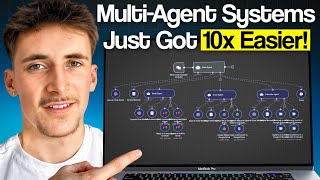
n8n's new AI Agent node lets you build multi-agent systems on a single canvas instead of chaining workflows. The demo shows a main assistant delegating tasks to specialized agents for calendar, email, and event creation, each with its own LLM and tools. The update simplifies debugging and lets you assign different models or memory per agent for cost and performance.
Chapters
NAN have finally released the update that I've been wanting for a long, long time. Basically, if you don't know what I'm talking about, NAN have now released the feature where you can have AI agents all inside of one canvas in NAN. So when you're building multi-agent systems, you can have actual AI agent nodes as tools for your agents so you don't have to call upon other workflows. So in this video, we're going to do a quick run-through of this new update, what it means for these multi-agent systems. I'm going to give you a walkthrough of this multi-agent system that I've put together, and I'm also going to show you how you can set up your own multi-agent systems with these new AI agent nodes. So to begin with, this is how the new multi-agent systems are going to look. If you see, if we zoom in, you can see that rather than calling upon other workflows, the actual tools now are just AI agents themselves. So we have the main agent here, and then you can see we have an email agent, a Google Drive agent, a calendar agent, all in the same canvas, and they're all working as independent AI agents. Previously, how we would have done it in NAN is by something like this. You might be familiar with this. This is actually an agent I've taken from an older video, and this is actually on a NAN instance that hasn't been updated. So this is an older NAN instance where we don't have this multi-agent feature with the AI Agent tool. So this is how it would have looked to call upon different AI agents. So if we look at one of these agents down here, let's say the company research agent, this is how that agent looks. So we're just calling upon another agent built in another workflow. So you're probably familiar with this because this is how it's been for a long time in NAN. We have to do these executing another workflow nodes and basically just pick the agents that you want to call upon and then your AI agents canvas will look something like this, uh, with all of these tools where they're calling upon other agents. But now we can do it so that the actual main agent here can use an AI agent tool inside of the canvas. So you can keep all of your AI agents inside of the same canvas. And then these AI agents here, if you wanted to have another layer to a multi-agent system, you could also just hook up another AI agent node to this and just have more AI agents all in the same canvas. So we're going to test this out quickly so you can see how it all works. I'm going to say something like So I said, can you check my availability for today and then email it over to rory@autonomously-ai.com? So quite a simple one, but it's gonna be having to use multiple agents here. So you can see it's using the calendar agent first, getting my availability for today, and then it should ping over an email to myself. So you can see it said, your availability for today is as follows. It's given me that. And then it said, I've emailed this information to Rory. Please let me know if you need anything else. And then if I check my emails, I've got this email. Hi Rory, just want to inform you about my availability I have two scheduled events, a client meeting from 1 till 2, and then another one from 3 till 4. I'm available before 1, between 2 and 3, and then after 4. Please let me know if you'd like to schedule anything during these times. Best regards. So absolutely perfect. Only had to use the two agents here, but you see, did that perfectly. And what's really cool, um, that we couldn't do before is we can see all of the logs in one, uh, canvas, in one log execution here. So we're not having to flick between all of these different workflows to see, ah, the calendar agent didn't do what it was supposed to do. Let me go into that workflow and check the logs. Ah, but sent this data back to the main agent, which then interpreted that wrong. So let me go back to the main agent and having to flip between all of these different workflows. You can just see all in one canvas. If we look at the logs here, yeah, so you can see all of the different agents that we use. So the email agent, the calendar agent, and then what was actually going on with each of these agents. So it got the calendar events, as you can see here, used the OpenAI chat model, used the memory. Use the chat model again. Also, it's kind of hard to read this because I've made it quite small, but you see what I mean. You can see all the logs from all of the agents and what actually went on with each agent. Because before, how it works, you'd send off— let's say if he's talking to the email agent, the main agent would send off a request to the email agent and then we'd just get a response back. So all this would look like would be inputting to the email agent, getting a response back. You won't be able to see what went on with the memory or the chat model or what happened with the nodes that it was using. with the chat model and the memory again. So you wouldn't be able to see any of that. It would literally just be inputted to the tool and then got an output from the tool. And you would have to actually go into that other workflow to check the logs to see what went wrong, if something went wrong. So of course, if you haven't used these multi-agent systems before, the main benefits of these multi-agent systems is you can have a main agent at the top that is just connected up to agents that have specific tasks or can do specific things. So in this case, it's an email agent. A Google Drive agent and a Calendar agent. And the strength of this is because down here you can see we have 4, 8, 12 tools. If we just linked all of those 12 tools up to one agent and gave it a massive prompt on how to use all of those different tools, chances are it'd get pretty confused. If you asked it to do stuff, kind of wouldn't really know what tool to use. It'd be looking back at its prompt, not really too sure what to do, and it'll probably get confused and it will probably mess up. So we have these multi-agent systems so that when this main agent here gets an input that says something like, can you check my availability for today? And then email it over to Rory@autonomously-ai.com. All it needs to know is right there, that's a calendar task and an email task. So all it does is it just sends the calendar part over to the calendar agent. So you can see here, it inputted check my availability for today to the calendar agent, got back the availability for today, and then it just sent over to the email agent, email Rory at Rory@autonomously-ai.com with my availability for today. And then it sent over the output it got from this calendar agent. So all it's worrying about is just delegating the requests to the right agents and kind of handling the data between the agents. It's not actually worrying about how does it send the email? How does it check the calendar? How does it do these things? Like which tools does it have to use? Which API calls does it have to do? Nothing like that. It just knows that there is a task for the calendar agent and a task for the email agent. So in theory, this agent only has 3 tools, just the email, the Drive, and the calendar, but actually has access to 12 different functions between all of these agents. So that is the main benefit of using a multi-agent system. Also, with a multi-agent system, you can do things like changing out the LLM. In this case, I just have, uh, GPT-4.1 Mini for each of these LLMs, but you could have it so the main agent is really, really smart and it's hooked up to, I don't know, maybe GPT-03 or something like a reasoning model if you want to spend a little bit of money and have it so the main agent is really, really smart. But then maybe the calendar agent, if all it's doing is kind of just retrieving data from your calendar, it might make sense to just do a cheaper model, maybe GPT-4.1 Nano or completely different LLM, just a cheap one that's just used for retrieving data. And then you could have it so if you think the email agent doesn't quite sound right in the emails it's sending over, you could change the LLM to maybe a Claude model that you like, or a Gemini model that you like the tone of. So you have a lot of flexibility with each of these agents on how you want it all to work. You can have some of them linked up to different memories. That's actually another thing, you can have all of your agents linked up to one unified memory, because you can see at the moment there's a memory here, memory here, memory here, memory here. You can have them all linked up to unified memory, but for this. I didn't just because I didn't really think it was worth it. And all of these agents are kind of doing completely different things, so you wouldn't really need a memory of what the other agents are doing. But yeah, you get the point. You could have all of your agents completely customized, all specified at doing one thing really, really well. Email Agent's really, really good at writing and getting emails. The Drive Agent is really, really good at finding data from your Google Drive. The Calendar Agent is really, really good at checking your availability. And scheduling, uh, calendar events in your Google Calendar. Okay, so now we're actually gonna walk through how to build a system like this. So I've created a new canvas here and we're gonna start completely from scratch. First of all, all you're gonna do is you're going to do a on chat message. You can do something else. You can do like a Telegram trigger, a WhatsApp trigger if you wanna talk to it through those kind of platforms. But just for this, just while we're, uh, testing and demoing this out, just gonna do on chat message, which is the built-in chat with NAN, which I was using in that demo. Then after that, we're just gonna do a standard AI And then AI Agent. And you can see here, if you've never really used the AI Agent, no, before, you can link up a chat model, a memory, and a tool. So to begin with, we need to link up a chat model, which is just going to act as the brain for our AI Agent. So if we go to OpenAI chat model, you can pick whichever one you want. If there's one that you prefer and you're one that you're more comfortable with, you want to use more, then use that. But for me, I use OpenAI for all of my stuff. And if you don't know how to connect up your OpenAI account, or this goes for pretty much any AI model account, LLM account, it connects up the same way. All you're going to do is you're going to come over to the OpenAI platform, go to dashboard, and then go to API keys and just hit create a new secret key. Give it a name, hit create secret key, and then you will get a key pop-up here and you're just going to copy that, come back over to N8N, hit create new credential, paste your API key into here, and then there will be a green pop-up saying your account's connected. And then your account will be connected and you'll be able to pick any LLM you want. In my case, I use GPT-4.1 Mini for most stuff, uh, just as like a general go-to, but it's completely up to you what you use. Okay, so now we have that, we can put that over there. And then the memory, we're just going to do a simple buffer memory. And all this basically does is, if we look in here, the context window at the moment is 5. This just means it's going to remember the last 5 messages in the conversation, just makes the conversation flow a little bit nicer. You can change this to whatever you want. But I'm just going to leave it at 5 for now. Very simple node. And then now we get on to actually building the multi-agent system part of this. So if you go to Tool, and you can see usually we have all of the tools here that we can place down. If we just type up AI agent and then click this, you can see we now have another AI agent in the same canvas. So with this, we need to follow the exact same thing. So we're going to go chat model, OpenAI, and then just going to leave it in GPT-4.1 Mini for now. And then memory, like I said, this is optional. We don't have to do this, but I'm just going to put down a simple buffer memory. And you can see here we have an error. This is in red. That's just because we need to do a prompt, and we're just going to do let the model define this parameter. So basically all that means is just the prompt, the user message, is going to be made by this main agent here. So whatever it needs to input into this agent, it can do that when you click, uh, this button here, which just allows, like I said, this agent to basically input wherever it needs to into this agent here. And then we can start actually working on this agent. So let's say this one's an email agent. We'll just call this email agent like that. And then we can start putting down tools. So if we go tool and then go to Gmail, let's say we want to do a message send. The to, we're going to let the agent define. So when we click this button, that's the agent defined. But of course, this time it's this agent above it. So we're going to let the model define who it's going to. It can define the subject as well, and then also the message. And we're going to change it text. This is just going to allow the agent to send simple emails via Gmail. And if we go to tool again, go to Gmail, and then let's change this one. So let's do message and then get many. So this can basically search for our emails for specific data. So let's say the limit, we're going to let the model define that one as well. So that means we can say to the agent, get my last 20 emails, get my last 50 emails, get my last 100 emails, and get whatever data I want from those, uh, batch of emails. And then let's just add one more tool. Let's say Gmail. Let's go draft and then create. So this can actually create a draft as well, as well as sending emails. So for now, we're just going to leave it with those 3 tools there. Okay, so what I'm going to do is I'm quickly going to paste over the prompt from that, um, demo agent that I showed you that I was demoing earlier. If we go to system message on the main agent and then I just paste that in we can have a look here. It's really, really simple. It's just saying, you're a personal assistant that can help me with my calendar, emails, and Google Drives. Your task is to take the query from the user and delegate it to the correct agent. You may have to use multiple agents in one request, and you may have to use an agent more than once. And then I've just given it a list of the agents that it can use. So we're just going to leave that in there. And I've also just grabbed the prompt from the email agent in the demo system. So if I go to system message, paste that into here. And then this one only has 3 tools, so I just had to get rid of one of the tools. But this again, I can show you it. Very, very simple. It's just, you're an email agent that can do all things email. You will receive an input from the main agent and you will use your tools to complete the request. And then I've just given it a list of the tools. So really, really simple because a lot of the tasks are gonna be really, really simple for it. Just like send an email, get some emails, create a draft, that kind of thing. So really simple prompts don't need to be too crazy. Um, we're just gonna test this out quickly. So if we open the chat, Let's just say send an email to Rory. So I said send an email to Rory@autonomously-ai.com saying what's up. You can see if we zoom out a little bit, this main agent called this agent down here. We can actually have a look at the logs. So this agent read its system prompt. This is the main agent. It then called upon this agent here that used the send a message in Gmail. The to email was Rory@autonomously-ai.com. Subject was WhatsApp, and then the message was just WhatsApp. And then it just sent all of that back up to our main agent. And then this was outputted the email with the subject WhatsApp and the body WhatsApp has been sent to Rory at autonomously-ai.com. Is there anything else you would like me to do? But you can see, got this email saying WhatsApp from myself. And by the way, if you want to get rid of this little thing at the bottom, because it annoys me, so it might annoy you, all you have to do is in the send message in Gmail, if you just go to options, pendant and attribution, and then just turn that off, and then that'll be away because that annoys me. I don't know if it annoys other people, so if it does, that's how you get rid of it. Okay, so that's that agent there, pretty simple. And now we're just going to add another one. So let's hit tool again, AI agent, face this one down. And for this one, we're just going to say calendar agent. About calendar wrong. There we go, calendar agent. And the prompt again, we're going to let the model define this one. So we're going to let the main agent define what to go in there. Chat model, we're gonna go with OpenAI 4.1 Mini for this one. So GPT-4.1 Mini again. Memory, again, just a simple memory, don't have to do this. And then the tools for this one, it's going to be calendar tools. So if we type up calendar, Google Calendar, and let's just say nice and simple, let's do an event create. So it can create an event in our calendar. Select calendar, obviously this applies to whichever calendar you're looking to use, but mine's just going to be my main calendar. So it can create events in my main calendar. And tools again, we're going to go calendar again. Let's say event get many. So it can, uh, if we pick my calendar again, so this time it can basically get lots of different events from my calendar based on a time range. So here we're going to let the model define these ones, the after and the before time. This just means it can set the time that it wants to get the events from. So let's just say I said to it, what events do I have today? It can just do 24 hours in the after and the before to get the today and it's just going to return all of the events from today and they'd be able to tell me. But of course it could also do like this week, this month, next week, next month, anything like that. So that's why we let the model define the before and after time. So we've got those two tools. Let's go calendar again. And then for this one we might change this to calendar and then availability. So this one can check our availability. So differently from the other one, the get events from Google Calendar, it's going to be like what events do I have today, what times do I have available for people. It would get all the events from today and say you're available from these times to those But then the get availability, what that would be is in here you put in the time. So let's just say I said to it, am I available at 2 o'clock today? This would just ping back either yes or no. So in here again, we let the model define the start time and the end time so it can do whichever time it wants. Like I said, if I said, am I available at 2 PM till 3 PM today, then it'll be able to do that. So again, 3 tools for that one. So I've just copied over my, uh, system message from the other one. We're just gonna paste that in again. Into the calendar agent. Basically just says the same thing as the email agent ones, but just different tools in there. So we're going to test this out again. We're going to say something like, am I available at 3 till 4 PM today? So really simple, am I available at 3 till 4 PM today? Use the Get Calendar Availability. And it said you are available from 3 till 4 PM today. Okay, cool. So now we can actually demo the multi-agent system aspect of this where it can multiple agents within the same run. So we're going to say something like, so can you see when I'm available today and then email that over to rory@autonomously-ai.com and then create a calendar event for me at 5 PM till 5:30 PM for a client meeting. So we're going to send that off. First it's going to calendar agent, get the events from the calendar, and then also create a new event. Okay, perfect. So sent over that email saying, uh, all of the availability today, and it's also created a client meeting for 5 PM till 5:30 PM. Please find below my availability for today, meeting from 4 to 4:30, otherwise I'm available for the rest of the day. Perfect. And you can also see it created that event in my Google Calendar, which is absolutely perfect. So it did everything I needed it to do, and you can see it actually used both agents in this run. So this is a multi-agent system where it's using both agents, and you can have kind of as many agents as you want. And one of the other things you can do is, let's say you start to have loads of different agents and these agents were getting a little bit confused, you could have the email agent and break it up into just one agent that's used solely for retrieving emails, and then one that's used solely for crafting emails and sending emails out. Because as you can see with these AI agent nodes down here, so you've got the main agent, AI agent, you can then add another AI agent onto that AI agent. So you can have sort of layers of AI agents here. And like I said, you could have like the main agent, then the email agent, and then the email agent is able to use like the composing email agent tool there. Getting emails from Inbox Agent, that kind of thing. So yeah, this is the new AI Agent tool in NAN. Super useful. I've been wanting something like this forever since I started using NAN. I've been wanting it so you can have everything on the same canvas. So much easier, so much smoother, so much better to use. So that is it for the video, guys. I hope you enjoyed it. I hope you learned something. As I said, I've been wanting this feature forever in NAN since I started using NAN. I've been wanting a feature like this where you can have everything on the same canvas. Makes life so much easier. These AI Agent systems are very, very useful. Not only when just creating, uh, little demo things for YouTube videos like this, but when you're actually creating production systems for clients. These multi-agent systems— I wouldn't recommend creating a whole big system out of just one multi-agent system, but having a small sort of multi-agent system within a larger system I found has been very, very useful for specific cases when I'm actually building these for clients. So this isn't just like a gimmicky thing we do for YouTube, they are actually useful when building these things for clients. So if you've got any video suggestions you'd like to see, please do just let me know in the comments. But if not, see you in the next video.
More from Rory




Dynamic Workflows are crazy. This is how to actually use them (beginner's guide)






