
This Ai Phone Agent qualifies leads on Autopilot (free template)
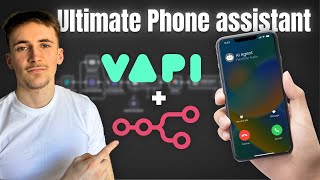
Rory Ridgers builds an AI phone agent that automatically enriches leads with web and LinkedIn data, then calls them with VAPI to qualify and schedule meetings. The workflow runs in NAN, scrapes websites, searches LinkedIn, summarizes with an LLM, and integrates Google Calendar and Twilio for outbound calls.
Chapters
Okay, so you can see it's calling me.
You recently submitted an inquiry about an AI sales system to boost your conversion rate. Just wanted to give you a call and ask a few questions if you don't mind.
Yeah, sure.
Thanks Rory. I've booked the call for tomorrow at 12:00 AM. Rory looks forward to talking to you in the upcoming meeting. If you have any questions before then, just let me know.
Perfect. Thank you. What's up guys? In this video, I wanted to go over an AI agent system that's able to actually call the new leads that you receive qualify them, and then book up calls with them. Just quickly, if you haven't seen me before, my name is Rory Ridgers and I help business owners to integrate AI agent systems into their businesses. So if that's something you might be interested in, I've left a link to my website in the description. You go ahead and book up a call, we can talk about some ways to integrate AI into your business. I just want to mention that the template that I use in this video will be available for completely free in the description. So if you want to get started with this straight away, just go into the description, you can grab the free template. But that's it for the intro, let's get into the video and I can show you how it all works. Okay, so we're in NAN now and this is how the system looks. This is the main system, then there's two more little tools that we have here as well. And basically what's happening here is when a new lead comes in, we have an on-form submission. So this is a built-in, um, NAM form, but of course you could connect this up to your HubSpot form or any form you have on your website. Um, so when a new lead comes in by filling out this form, we're first gonna do a bit of research on them. So we're going to scrape their website, find their LinkedIn, get summary on their LinkedIn, and then pass that to an agent that's basically gonna summarize that for us and summarize the lead as a whole. Based on their website and their LinkedIn. And then we're just gonna add that to our Airtable database, which in this case is just acting as our CRM. So you could add this to whatever CRM it is that you use. I've just chosen Airtable, but we're gonna add this lead with all of their information and that scraped information that we just found into the Airtable database. And then these two steps here, what we're gonna be doing is we're sending this over to VAPI to actually make the call. So after we have researched them, added them to Airtable, we're then gonna send this information off to VAPI to call this person and qualify them a bit and book them up for a meeting. So simplify inquiry, this basically is just going to their inquiry that came through here. Let's say they inquired and they said, I want a customer support AI system that does this, this, that, and that. Um, this simplify inquiry step here, it's just going to do what it says, simplify that inquiry so our VAPI agent can use it in the first line. So it can say, hey, I noticed you recently inquired about da da da, and it'll be a simplified version of what it was they inquired. And then a format phone number, It's just because when you send over to VAPI, it has to have the country code. So like the +1, +44. So when someone inquires, they might not have that. So just having LLM step here, just reformat that to have the country code in there. And then we send this off to VAPI and it's going to call this person. It's actually going to ask them a couple of questions, qualify them a bit, and then book up a meeting with them. So what I want to do is show you a little bit more in depth this system, and then we'll go over to VAPI and then you can see what's going on in there. So This first system, we just have an on form submission and it's going to be their name, their phone number, how we can help you, and their website URL. They're going to fill all of that in and then we're going to scrape the URL. So we're going to put in the variable that we get from here, which is going to be their website URL, and we're going to do an HTTP GET request. And all this does is it just returns all the HTML from this URL that we input in here. So it's going to return all the HTML from their website and then we just convert that to markdown. So HTML to markdown, we put the output from this step before and we just convert all of that HTML into Markdown, and what that does is it basically just strips back all the fluff that we don't really need, and it makes it easier for our LLM to handle that data. And then what we do is we have a Tavli step. If you've watched my channel before, you know I use Tavli all the time. It's basically like a Google Search API for, um, NAM. This is how it looks. You do a POST request to this URL. The headers are going to be Content-Type: application/json, and then authorization, your API key, which you can get from your Tavli dashboard. And then what we're going to be sending over, this is the body that we send over. And all of this stuff, you don't have to worry too much about it. It's just kind of, as you can see, the topic, the search depth, the max results, time range, days, stuff like that. You don't really need to worry too much about it. In this case, we're not touching it. What we are touching is the query part. So what we're going to actually be searching, this is sort of, um, the actual Google search, if you like. What we're going to be searching, it's going to be the name's LinkedIn profile URL. So if I was doing it and I put in Rory Ridgers, it'll do Rory Ridger's LinkedIn profile URL, and then from that it's gonna return the actual profile URL of that person. Then also a little summary of their LinkedIn as well, which is really, really nice. And then what we do with that, so the data from here and the summary from their LinkedIn is we pass that over to an LLM step. So we give it LinkedIn summary, the website content, and then this is the prompt we've given it. So you'll receive a LinkedIn summary and a full website in markdown for a new lead. Your job is to look at both of a piece of data and create a summary on this lead and their company. Output just a summary, please keep it 100 words max. And that's gonna do exactly what it says. It's going to give us a summary of that lead based on their LinkedIn and their website. And then we have an Airtable step, really, really simple. It's just gonna be record, create. We've hooked up our table here and then we're just gonna be adding in, I'm actually gonna show you this, uh, table quickly so you can see. So we've got name, phone number, website URL, status, notes, LinkedIn URL, and lead summary. It's basically everything that we've just got from either the form all those LLM steps. So in here we put in the name variable that we got from the form, phone number, which we got from the form, website URL that we got from the form, status. I've just done it as new lead cuz it's gonna be a new lead. The notes are gonna be their inquiry. So what it was they put in the inquiry form, that's gonna be the notes. LinkedIn URL we got from that Tably step. And then the lead summary we got from that last LLM step. So now the, uh, lead has been researched, it's been put into the Airtable database. And now we have to send this over to VAPI. So the first thing we do is we're gonna be simplifying this inquiry. So in VAPI there is a first line when it first calls someone. So when it's doing these outbound calls, there's a set line that it has when it first calls people. So basically what we're doing here is we're getting this LLM to look through the, uh, thing that they've put on the form, which is how we can help them. So basically their inquiry and then fitting it into this sentence. So this is the sentence in VAPI. It says a little bit before it says, hi, their name. And then it says, you recently submitted an inquiry. About, and then the how we can help variable. And this is going to be making the how we can help variable. What it's basically doing is it's going to look at that form submission and then create something that can fit into the how we can help variable. So let's just say they said, like I said, they want an AI customer support system that can, um, do ticket support, it can book up demos, it can pass on requests to the right team members, that kind of thing. Let's just say that's a little bit too long, so this LLM step might simplify that down. So it says, you recently submitted an inquiry about a multi-purpose customer support system. So it's just sort of shorten it down and make it make sense in the context of this sentence. And then the format phone number, really, really simple, just the phone number that we get through here. We're going to say if it hasn't got the country code attached, just reformat it so it has the country code. So really, really simple, you can read the prompt, but that's all that's doing. And then we're going to be passing this over to VAPI. But before we do that, I'm going to show you inside VAPI so that you can actually see the agent that we're building here. So it's this one, the Autonomous Lead Assistant. And if you've never used VAPI before, it's basically just a voice agent building platform where you can connect up your phone number, have it answer calls, have it make outbound calls, do anything you like. You can use tools as well, and you can have custom prompt. Of course, you can do custom voices and everything like that. So, so this is inside of VAPI. I'm just going to take you through each little bit here. When you create an assistant, you just go to create assistant, and then it makes sense to just do a blank template. These ones, they'll probably just confuse you a little bit, and they're just not really worth it. You might as well just do a blank one, because if you use something like NAM before or text-based agents, you'll sort of know what you're doing here. So to begin with, we just have the model, and then the prompt will come back to the prompt. But the model I've just done GPT-4 1 Mini because it's sort of the cheapest. I think GPT-4.1 Nano is actually a little bit cheaper, but GPT-4.1 Mini works absolutely fine, so we're using that. And if we scroll past the prompt, like I said, we'll come back to that. And then we have the voice. So this is where you can actually choose the voice that you want. Here you can see there's all of these different voices. Yeah, it goes down, loads of different voices. And for each of them you can change the person speaking as well. So lots of voice customization options. I've just gone with one that I thought sounded better. There's no right or wrong answers here. And then additional configuration. You can change like the background sound, so you can have it be busy like an office, the default, custom, so you can add a custom track in the back, or you can just turn it off. I've just done default because it sounds quite nice. Uh, and then we have the transcriber. So again, there's quite a few options here, and basically it's going to transcribe the call as it's going, and then after the call's done, we get a full transcription. And also the agent can sort of summarize the key parts that you want. So you can pick a transcriber model Uh, it doesn't matter too much, just one that works. So I've gone with this one here, DeepGram, and then Nova 3. You can change all of these different settings here, but you don't have to worry too much about it. There are quite a lot of settings to change here in VAPI, but don't worry too much about it because, um, a lot of them don't make a huge difference unless you really, really need them. So then we move on to the tool section. Predefined functions, don't worry too much about this. Same with custom functions. The main thing here is just going to be this tool section. And we have a Create Calendar Event and Google Calendar Check Availability tool. And these do exactly what they say on the tin. So Create Calendar Event is going to create a Google Calendar event. Google Calendar Check Availability tool is going to check our Google Calendar for availability. And I'll show you how we make those tools once we've gone through the prompt and sort of covered what we're doing here in VAPI. And then we have the analysis section. So this is after the call's done. VAPI will do an analysis of the call and you just put in here what you want it to find from the analysis. So for me, I'm having it answer a bunch of different questions to sort qualify them a little bit, then I want to save it as these variables: budget, year from now, past automations, and business overview. That's basically the things that I wanted to get from the analysis. And then success evaluation, this just sort of determines, uh, if the call was successful or not. And for me, the success is kind of just measured by whether they actually answer these questions. There's no right or wrong answers with the questions I wanted to ask, but as long as they answer all the questions, for me that's considered success. So I just put that in there. And then structured data, You can see it's the exact same prompt for all of these because it will actually output structured JSON data, um, after the call. And I just want it to output as these variables: budget, year from now, past automations, and business overview. And then we have the advanced section where you got privacy settings, start speaking plan, the voicemail detection, stop speaking, call timeout settings, keypad input settings, messaging, loads of different things here. Um, you can sort of go into them. Like I said, there's quite a lot here in VAPI, so try not to get too overwhelmed with it, but there are a lot of settings. You can do and customize. By the way, all those things I just showed you do add to the cost, and VAPI will sort of— it's really, really nice. VAPI shows you, uh, the cost of everything. So they've got the VAPI fixed cost, which of course you can't change, which is fair enough. And then you have the transcriber, you have your LLM here, and then you have your voice model. Then you also have web, which is just sort of goes towards the latency. So it shows you cost, then it also shows you latency, which is really nice. And as you go along, this will build up or go down depending on the models you pick, so you can keep track of costs and latency, which is really, really nice. So now looking at the prompt, these curly brackets here, like if you've used text-based platforms or any other platforms, these are variables. So we're going to pass these through from NAN, and it's going to be really simple stuff— the name, the how can we help, which I already showed you, and then business info, which everything from there just comes from this NAN scenario. So we're going to pass all of that data over. So let's say I inquired, it would say, hi Rory, I'm calling from Autonomously, You recently submitted an inquiry about, um, an AI customer support system. Just want to give you a call and ask you a few questions if you don't mind. So it's gonna open with that line every time. And then this is a prompt we've given it. So I'm not gonna read out the entire thing, but to give you the general gist, I've given it an overview of my business just so it has a little bit of context and I've given it the task. So I said, you're gonna be passed over the person's name, what they want to help with, and then their business info. And also just told it that you are calling a lead who just submitted an inquiry. And I've said your goals. So your goals are basically just to ask these questions. So first of all, it's going to reference their business information. It's going to say something like, hey, so I see you're running a gym wear brand in London, for example. And then it's going to say, can you tell me a little bit more about your business? Just to sort of get them talking, get them talking about their business. And then it's going to ask these questions. So it's going to ask, what automations have you tried in the past? Where would you like your business to be a year from now? Are there any specific goals you're aiming for? And then what is your rough budget. So there's lots of little sort of style, uh, prompts we put in here. So only ask one question at a time, acknowledge your response of each question, ask your question casually, you don't have to be word for word. The same here. And then basically after that, once it's asked those questions, we're telling it to check our Google Calendar availability and actually book up a call with these people. So that's basically what we're saying here. Use the check Google Calendar availability tool to check our Google Calendar availability, ask this person sort of what time works best for them, that kind of thing. and then use the Create Calendar Event to actually book up this meeting. It's gonna need their email address to attach it to the meeting. And then just some more styling stuff. Be casual, professional, and warm. Ask follow-up questions if needed. Guide the conversation. And then tools. I've just laid out the tools that it has just so it knows. So you've got two tools. The Check Google Calendar Availability, it's gonna scrape the Google Calendar to get current events. And then Create Google Calendar Event tool, it's going to create, is going to create Google Calendar events. And then I've just given it some context on my business, and this is optional, we don't have to do this, but I feel like it's just a nice touch to give it some context on sort of our process, our pricing, where we're based, what kind of things we do. Uh, and then important at the bottom, I've just said keep your responses and questions at max 40 words because I found it did drone on a little bit with its responses. And then once you're finished, ensure you capture the responses to these questions as variables, yada yada yada, telling it to use the tools as well. So That's the prompt. Perfect. Now I'm going to show you how you actually add these tools because you can see we got the, uh, checking Google Calendar availability tool and also creating Google Calendar events tool. So we have to assign these tools to our VAPI agent. So to actually assign them, like you saw, you go to tools and it gives you a dropdown of all your tools here. But to create these tools, you go to tools here, and I've already created the two tools. But if you're going to create a new one, you go to create tool and then function. And this is basically just going to be a HTTP request that we can send to a webhook on something like NAM. So if we have a look at both of them, let's look at the Google Calendar check availability tool. We just named it, given it a little description so the agent knows, and then we flick this one on here. And basically what it's going to do is it's going to trigger this tool and then wait for the response. That's all this means here. Parameters, we don't need to send any over. And then the server URL, this is going to be the webhook URL. So if we come back over to NAM and then if we go to this scenario here, this is what we're calling on. So really, really simple, it's just a webhook and it's a Google Calendar node. We've just done return all, it's going to return all of our calendar events. You can do the time range here, but just as there's not many on here, just because I've done a demo account, um, I've just done return all. So it's going to trigger this webhook, return all the calendar events, and then respond to the webhook. This just basically means the— as you can see, the first incoming items, it's just going to get sent back to the webhook, which is in turn going to get sent back to VAPI. So all we do is we go— you can do test URL if you're testing it, but for me it's going to be production URL. Copy that over, paste that into here. And as there's no parameters or anything, because all it has to do is trigger and it's going to return all— if you're doing a time range, you would set these parameters, but for me it's just returning all. This is literally all we have to do in here. So if we go to test, you'll see it's going to be sending it to this webhook. And if we actually send the request, you can see, yeah, status 200. This is what it gets back, all of these different calendar events here. So absolutely perfect. And then we just assign that to the agent and it's going to be able to use this tool for us. The next one, create calendar event, same kind of thing, names it, flick this on here. This time we have parameters. So if we come back over to NAM, I'll show you this scenario. So it's this one here. Again, really, really simple. Just have a webhook and then we have Google Calendar create event. And the variables that we need is going to be the start time. The end time, and then the attendees. So the way we do that is you go to parameters. So let's start with start time. Start time is the start time of the event formatted as like this, because for the Google Calendar node, you have to format it like that. So you can't see, but you have to format it, um, exactly like this, otherwise it won't work. So we say the start time of the event formatted like this, just giving it a little description so it knows exactly what to put in this variable here. And then end time is gonna be the exact same thing formatted like this, and it's just going to be the start time plus 30 minutes, cuz it's gonna say these are 30-minute meetings. So it's just gonna be the start time variable plus 30 minutes in that same format. And then attendees, this is gonna be the email address of the lead, which the agent is gonna ask for. And then server settings, again, we just put in this URL here, which is gonna be this webhook URL here. So. Pretty simple stuff, really, really simple tools, relatively simple prompt. Obviously it's a different platform, it's a different platform for me and it might be a different platform for you. So it looks a little bit more confusing, but if you just kind of treat these for the most part like text-based agents, if that's what you're used to, then you'll get by really, really easy with it. 'Cause it's very similar in terms of prompting and in terms of assigning tools to it. It's pretty much the exact same thing. So now the last thing we have to do in, uh, VAPI is actually add a phone number. And I've already added a couple phone numbers in here. Just for testing. And what you can do is you can, uh, just get a free VAPI number. So they just do free numbers if you're not too bothered about what the actual number is. You can just do free ones. But to bear in mind, uh, they only work inside of the US. So you buy US numbers and then you can only make inbound and outbound calls to other US numbers. Me, I'm in the UK, so when I tried to get a free VAPI number, uh, it was a US number and I couldn't call a UK number. Obviously my number's a UK number. I'm going to do that. So the way you do it, if you're not from the US, so you're going to be calling people that aren't from the US, or also you want to add your existing number. So you own a business, you own a restaurant or something, for example, and you want to do your company's number to answer inbound calls, something like that. The way you would do that is by using something called Twilio. And I did use this and I did use this, I think in my last video or the video before, send text messages. But this is of course, is going to be for making calls the way you do it. So we come over to Twilio here. This is how your dashboard looks. If you go to Phone Numbers and then Manage and then Buy a Number, here you can just, um, buy these numbers. So you can select the location. Let's say we're going to do one from the United Kingdom like I did. You can see all these different, uh, numbers here and then the different capabilities. So voice, SMS, MMS, or fax. I wouldn't worry too much about MMS and fax. The main things are going to be voice and SMS. And all you do, once you've found one that you like, you can see there Dirt cheap, and you get, I think, £10 for free. So they're pretty much free. All you do when you find one that you like, let's say this one from Sheffield, we just click on buy, and then we go through the things. So we click next. Let's say it's for an individual. It's probably better to just do it for an individual if you're just watching this video. Of course, if you own a business, do business, but for this I'm just going to say individual. Click on next, and then we have to get an assign-approved bundle. And the way you do that you have to create a regulatory bundle. So you just click on that link that you get here, create regulatory bundle, and I've already done this, but you just have to put in a bunch of your information. So end users, business info, upload supporting documents, which is going to be like ID, uh, give it a name, set up notifications. You just have to go through this little, um, ordeal here to set up this bundle. But once you've done it, you can buy as many numbers as you want, so it's fine. And you just have to add in your ID and some sort of personal information and they'll send you over an email to say that it's, uh, pending. And then it says it can take up to like 48 hours or something. For me, it took like 5 minutes. So just sort of wait around until it says approved. They'll send you another email and you should get a link or an ID or something. And then when you come over, you can put that— it's an SID you get— so you can put that SID in here and just hit buy. And then like I said, it's pretty much free because you get £10 for free, and this one costs 89p. So really simple. And then once you've done all of that, come over to your account dashboard, scroll down to your account SID and auth token and we come over to VAPI. You put in that number that you just bought and then your account SID, your auth token, and then just give it a label and then it's going to be connected up like that. So this is the number I bought. You can see it's a +44 number, so it's a UK number. This is the other one, the free VAPI number, it's +1, so it's US, so it didn't work for my phone. But yeah, this is the one I bought, +44, bought it through Twilio pretty much free, which is perfect. So now we can pretty much get on to actually testing this thing. Okay, so I've got my calendar up now, it's just some demo one. I've just put in some demo events here as you can see, and what we're going to do is we're going to test test it out. We're going to fill out the form, test it out, and it's going to call us and we're going to go through the call together. So we hit test workflow. And then for this example, we're going to do an actual notable figure. In all my videos, I do Ben Francis from Gymshark. So we're just going to do Ben Francis just to give you a better idea because it researches the LinkedIn and the website. So just to give you an idea, so I'm going to put in my number and I'm going to format it wrong so you can see how it actually works without adding the country code. So put in my number there and how we can help you. Let's say I want an AI sales system to Help boost my conversion rate. Something like that. Website URL. Let's put in the website URL of Gymshark. Okay, perfect. There we go. Let's hit submit and then let's watch this go through. So it's found the website, converted it to Markdown, found the LinkedIn, passed that over. It's gonna summarize it, adding it to Airtable, simplify inquiry, format phone number, and then it should. Okay, so you can see it's calling me. And by the way, I have a Twilio free account, so it's gonna do some little bit at the beginning. Don't worry too much about that. I'll show you how to get around that. So we answer it. We get Twilio free message. All you have to do is go to keypad and then just click any number you like. And then you've reached the agent.
I'm calling from Autonomously. You recently submitted an inquiry about an AI sales system to boost your conversion rate. Just wanted to give you a call and ask a few questions if you don't mind.
Yeah, sure. Great.
I noticed you're running a gymwear brand in London. Could you tell me a little more about your business? And what you're aiming to achieve?
Yeah, so I just want to build an AI sales system to help me boost my conversions.
Thanks for that, Ben. To get a better idea, have you tried any sales or marketing automations in your business before? If so, what was your experience?
Yeah, so no, I haven't really tried anything so far. It's kind of my first thing.
Thanks for sharing, Ben. That's a good place to start fresh. Where would you ideally like your gymwear brand to be a year from now in terms In a year from now, I want to double my revenue. Got it. Doubling your revenue in a year sounds like a solid goal. What's your rough budget for implementing AI sales systems or automation?
I'm not too sure. Maybe around $5,000 to $10,000.
Thanks, Ben. That's helpful. To move forward, could you tell me what time you're usually available for a quick call?
Yeah, let's say how about tomorrow at 12 AM? How does that look for you?
I checked tomorrow at 12 AM is available. Could you please share your email address so I can send the calendar invite?
Yeah, it's RoryRidges@gmail.com. That's R-O-R-Y-R-I-D-G-E-R-S@gmail.com.
Thanks, Rory. I booked the call for tomorrow at 12 AM. Rory looks forward to talking to you in the upcoming meeting. If you have any questions before then, just let me know.
Perfect, thank you. Okay, so as you can see, asked me all those questions there, qualified me a little bit, and of course I answered them, and it booked me up a call. And we can look at the executions of these two tools. So first it would have checked the calendar. So if we go to executions, it was this one here. You can see executed this, and then this is what it got back with all of our calendar events. You can see there's 3 items here, so it weren't just this one thing, uh, there was 3 events there. So it passed all of those. To the webhook and back to the agent. And if we come over to, uh, the other system here, so this one, go to executions, and then you can see webhook created event, and then it created an event with royridges@gmail.com, and then of course with me on, uh, demo. So absolutely perfect, exactly what we wanted. It asked those questions, qualified me a little bit, and then actually booked up a call with me. Okay, and there you have it, guys. That is it for this video. I don't really do too many videos on voice agents. This is kind of my first one, I think, on actual voice agents. So if you'd like to see more of these voice agent videos, please do just let me know, because when I first started looking into them, they weren't too great. This is about a year or two ago, they weren't very viable. But now they are actually very, very good. They're able to use all these different tools, have all these really realistic sounding voices, and they are actually a great addition to sort of a lot of these AI sales systems. So yeah, like I said at the beginning of the video, if you do want to work for me so we can implement some AI agent systems into your business, then if you just go to the link in description. You can book up a call, we can talk about some ways to integrate AI into your business. And also the template for this is available in the description, so if you want to grab it and get started with this, then just go into the description and you can grab this free template. Yeah, that is it for this video. If you did want to see some more voice agent style videos, then just tell me in the comments and I'll try my best to get around to doing some more of these sort of voice agent style videos.
More from Rory




Dynamic Workflows are crazy. This is how to actually use them (beginner's guide)






