
This multi-agent system researches leads competitors and ANYTHING else
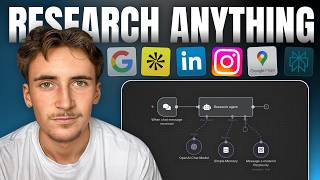
Rory Ridgers builds a multi-agent research system in NAN that routes queries to specialized agents for Google searches, social media scraping, and company research. Live demos show it finding Gymshark's employee count and Instagram followers, then retrieving Anthropic's CEO and assessing his work ethics using Perplexity, LinkedIn, and company data tools.
Chapters
What's up guys, in this video I'm going to be showing you a multi-agent system that I built that can research pretty much anything, including LinkedIn, X, Instagram, company information, Google, and more. Just quickly, if you don't know who I am, my name is Rory Ridgers and I run an agency called Autonomously AI where we find and eliminate operational bottlenecks for business owners in just 14 days to keep them focused working on the business rather than in the business. So if that's something you might be interested in, I've left a link to my website in the description and you can go ahead and book up a call. By the way guys, just an important announcement as well, I've just launched my new NAN community on Skool. It's packed full of content that's going to take from a complete beginner to an absolute master with NAN, and then also teach you how to implement it into a business. Alongside that, there's 24/7 support from me, a community of like-minded individuals, and also a weekly call where you can ask any questions you like and I can answer them personally. And because it's brand new, it's the cheapest it will ever be. So I'll leave a link to that in the description as well, and I suggest you check it out. Okay, so we're in NAN now, and like always, what I'm going to do is I'm going to give you a high-level overview, and then we're going to do a demo so you can see it in action, and then I'm going to give you a more in-depth breakdown of what's actually going on. Okay, so first of all, we have a main agent up here that is essentially just orchestrating all of these agents down below. It will take your input, decide which agent to use for the specific task. It might use one, it might use all of them, it might use the first one, then the second one, then the first one again, but it's just basically going to be orchestrating all of them and then giving you the output. And then down here we have the individual agents and the different things that they can search. So the first one is going to be a Google agent that can essentially just search anything on the internet. So it has a Tavli tool for just quick searches, and if you don't know what Tavli is, it's essentially like a Google API but a little bit better that you can use inside of N8M for really, really cheap. And it's also connected up to Perplexity for more in-depth searches in the internet. And it also has a think tool, so if it gets a lot of data back, you can use the think tool to just go through it and give us a better output. And then we have a social media agent here that's able to search through Instagram, LinkedIn, and X. And the way it does this is by using a platform called CreatorMate, which I actually used in a previous video. I'll link that video if you want to check that out. That's just a platform that allows you to scrape any social media really, really easy and conveniently. And then we also have a company research agent here that looks a little bit simple, but trust me, is one of the most powerful out of the 3 of these. And what it is, is connected up to an Explorium MCP. And if you've watched my videos before, you probably would've heard me talk about the Explorium MCP server. Essentially what Explorium is, it's a platform for company enrichment. So you can just input a company and you can get pretty much any data you want back from them, which is amazing. And they've released an MCP server that allows you to just plug it into an agent and then you can just talk to an agent in natural language and say, find me the funding details, for example, of this company it can use the MCP server and then get that information for you. So it's basically just all of the Explorium tools combined into one MCP server. It makes it so much easier for your agent to use it. Okay, so we're going to give this a quick demo now so you can actually see it in action. We're just going to say something like, okay, so I said, how many employees do Gymshark have? And also, how many Instagram followers do they have? So here it's going to be using the company research agent as well as the social media agent. So we're going to see it in action here and see what it does. So it's just spinning around in the research agent for now. It's using the Google agent, then the company research agent. The reason it has to use the Google Agent, it's because it needs to find the Instagram handle for Gymshark to pass that over to the social media agent. So it's actually gonna use all 3 agents here, which makes it quite a nice example, um, of something for me to demo you. So you can see it's used a Google agent to get the Instagram handle of Gymshark, used the company research to get their employee count, and it sent that over to Gymshark and it says Gymshark has approximately 2,462 employees. Their official Instagram page has about 8,096,945 followers. If you need more detailed or updated info, feel free to ask. Okay, cool. Okay, so now I've said find me the CEO of Anthropic, find me his LinkedIn profile details, and then do some research into whether what he's doing is ethical. So a couple more moving parts here. We've been a lot more vague. We haven't said— we've said like a specific company, but we've said to find their CEO, which of course we haven't told it. It has to find on its own. And then it also has to use a social media tool, has to use the LinkedIn search tool. So we're going to let this run through and we'll come back with the results. Okay, so this is what it said. The CEO of Anthropic is Dario Amadeu. I might have pronounced that wrong. Uh, he's strong background in AI research and development and emphasizes responsible AI development. Here's his LinkedIn profile summary. As you can see, regarding the ethics of his work and leadership at Anthropic, Dario and Anthropic focus on building steerable, interpretable, and safe AI systems. Yeah, I'm not going to read the whole thing out, but you can see he used the Perplexity tool to get this summary, use the Tabli tool a couple times, use the LinkedIn tool, and also use the company research tool. So very, very cool. Now we're going to do a breakdown of how this actually all looks under the hood. Okay, so if we have a look at the first agent up here, which is kind of like the main agent, the head of all of this, it's called the research agent. And the user prompt, really, really simple, it's just the connected ChatGPT node, as you can see. And then the prompt, the system prompt, is where a lot more of the magic happens. And now with these sort of heads, like the top of the systems of these multi-agent systems, the prompts don't actually have to be that big or in depth because it isn't doing too much, isn't doing any of the research on its own. All it's doing is just sending the queries to the right agents. So Essentially, we've just told it a little brief on who it is. So you're a research agent that can research anything using AI agents. And then we said the 3 AI agents that it has. So the Google, the social media, and the company info. You may have to use each agent more than once. For example, you may have to get the company's website URL by using the Google agent, then pass that to the company info agent to get the employee count as an example. And then also a little extra thing down here. This is something I like to do as I'm testing it out. You can add extra at the bottom, or of course you can just weave it into the original prompt. But for certain things I like to just add a little extra section. So for social media, you may need URLs. If so, don't ask the user for them, use the Google agent to find the social media URLs and then pass them back to the social media agent. So that is obviously quite a specific example, but this just kind of reinforces that this agent should be more proactive and actually doing things on its own. Because I found when I first started testing it, it was like coming back to me with specific information. Like for example, with that query I did before, if I said like, find me the CEO of Anthropic's LinkedIn profile details, it would have come back and said, what's the name of the Anthropic CEO? You know what I mean? Which is just annoying and it's not very seamless. You want it to do it all on its own, which this kind of reinforces in this specific example. So that's that agent, and then it's linked up to these 3 agents down here. We'll start with probably the simplest one, which is the Google agent. So if we come in here, well, first of all, we'll look at its tools. It's got 3 tools, which is Search in Tavli, Message Model in Perplexity, and Think Tool. Search in Tavli is essentially just a Google Search API like I told you before. So to Tavli account, all you have to do to, uh, set it up is put in your API key. To get that, you just go to tavli.com, sign up for a free account, and you get 1,000 credits per month for free. Then your API key will be right there in your dashboard. Just copy it and then paste it into here. And then the resource is going to be search, and then the operation is query. And then the query, we simply just— we click this button here, this sort of sparkly button that lets the model define the parameter, which just means this AI agent to put whatever it wants into this input here. So it can just search for whatever it wants using this, and it will just get back sort of like a Google search result with some more detail. It gives like a list of URLs and also a summary on what it actually asked, which is nice, which makes it a little bit better than just a Google search API. And then we have Messenger model in Perplexity. And now to sign up for or to link your Perplexity credentials, all you do, very, very simple, like Tavli, just go over to perplexity.com. There'll be a section that says API, and then you get free usage. I think it's not very much, but of course depends how much you're going to be using. I think you get about $5 for free, something like that. You can go over there, just grab an API key, and then just put it into here the exact same way. And you might get this error, couldn't connect with these settings. Um, if your API key is correct and you know it's correct, then just ignore this because as you can see mine says couldn't connect, but we just demoed that out and you saw that it did work. So yeah, it's a little bug I think within it, and if that pops up, don't worry about it, just test it out, and if it works, then it works. And the operation is Messenger model, and then for the model you have these different options. So the R1 1776 is actually a depreciated model now. It won't work if you try and use it. These are the only models that actually work. And in terms of which ones you should use, basically the difference is just the level of research that they do and then also the price. So Sonar, as you can see, this base model Sonar is the cheapest out of all of them. I think it's $1 inputs, $1 output, so pretty cheap, which is good. And it just gives you like— it gives you a good amount of data, but compared to these other ones, it's not as much. But I think for the price, it is the best one. And then you have Sonar Deep Research. Which just does— if you use ChatGPT or something, you'll see their Deep Research feature. This does the exact same thing, but of course it's made by Perplexity. Then you have Sonar Pro, which is just the pro version of Sonar, so it's just a little bit better. Like again with ChatGPT, where you have ChatGPT, you have ChatGPT Pro, it's just a little bit better. And then you have Sonar Reasoning and Sonar Reasoning Pro, and these two are just reasoning agents. So you're probably used to these with, uh, let's just take ChatGPT again, things like O1 or O3, they're reasoning LLMs. It's just the exact same thing. And then in here we just have a simple text input, and again we're just letting model to find this parameter. So it can basically just send any query over to Perplexity. These are going to be for the more in-depth things, like when I asked, is what, um, the CEO of Anthropic's doing, is that ethical? That's a little bit more of like an in-depth question. And then we just have this simple think tool, and you don't have to configure this at all. All it is is just a tool that the agent can use, and it just sort of spins for a few seconds and it allows the agent to think for a bit. It basically just turns your AI agent into a reasoning model, which is nice when it has to process like a lot of data from some of these outputs here. It can just use this think And then for the prompt in here, it is very, very simple actually. It's just, roll your research agent that can search the internet. And then similar to the main agent, these are all similar prompts. Um, the task, we've just listed out the 3 tools that it has. So the Tavli tool, this is for quick simple searches. And then Perplexity, this allows you to do in-depth queries in the internet that require much more reasoning and thought. And then Think tool, this allows you to take a moment to think before you output. It will be mainly used to consolidate large pieces of data. 'then you may need to use one tool, or you may need to use all three. It depends on your task.' So pretty simple. That's the thing with these, uh, multi-agent systems. A lot of the prompts are very, very simple because each agent is just doing their specific task. If you just put all of these tools up to one agent, the prompt would be huge. But because we're splitting up into a multi-agent system, each agent just has a simple prompt and a simple set of tools, but allows the whole system to be very complex. Okay, and then we have the social media agent here. And first of all, I'm going to show you the prompt for this, and then we'll get into the tools because the tools are a little bit more in-depth. Than these tools here. So to begin with, the prompt is like, like I said, it's the pretty much the exact same except we just swapped out— except we've just swapped out the tools in here. So you're a research agent that can search social media. You have 3 tools that allow you to do a few things. So the Instagram search, the LinkedIn search, and then the X profile search. And we've just told it how to input. So simply input an Instagram profile handle, input a LinkedIn URL, and then input an X profile handle. And then again, you may need to use one tool, you may need to use all 3. It depends on your task. So as you can see, pretty similar prompt to the other ones. Very, very simple prompt. So we're going to look into each of these tools here. So like I said, we're using a platform called CreatorMate, and if you haven't heard of this before, like I said, it's just a really, really simple way for you to search social media. It's so easy, it's so convenient to just plug into something like NAN. All you need is just your API key, which if you come over to your dashboard, you get free credits, by the way, so don't have to worry about paying. Um, you get this API key, you simply just copy it, come back over, and then paste it into your credentials. So we're going to have a look into each of these tools. So the reason that we're having to call another workflow as you can see here. So these nodes just mean we're calling another workflow. It's because there's not a native, um, CreatorMate node that AI agents can use, if that makes sense. If we come here, so let's say we're building like an actual workflow rather than AI agent system, and go to Scrape Creators, you'll be able to see that there is actually a node here that we can use. But if we try to use this as an AI agent tool, if we go to Tools here and then go to Scrape Creator, you can see there's nothing in here because some nodes in NAN, especially the community nodes that you have to download, there will be like workflow nodes, but there won't be nodes that an AI agent can use. So tools rather than like workflow nodes. So that's why we call in these other systems. So if we look at these other systems, these other workflows, they're literally just two nodes. It's when executed by another workflow and then the Scrape Creators node here. So this one is the Instagram search. We have that first node, which is when executed by another workflow, and the inputs are just going to be profile name. So we set the inputs that that AI agent has to put into this. So the profile So the inputs are going to be profile name, and then it's really, really simple. It literally just the ScrapeCreator's credentials, and then the resource is Instagram, operation is get profile, and then we put the output from that step before, which is going to be an Instagram handle, into here. And then we get an output. If we go to executions, you'll be able to see with this one it inputted Gymshark, and then it was inputted into here, and this is what we got back. So we got back like the full name, uh, the followed by count, their bio, all of this kind of stuff, which is perfect. And just looking at the calling another workflow nodes here, uh, back in the main system. It's literally just a node which is just calling another workflow. We set a description, which is a tool to search Instagram profiles, simply input the Instagram profile name, and then we link up the Instagram search workflow that I just showed you. And then the workflow inputs are profile name, like I just showed you, and then we just do that little sparkly button which lets the model define this parameter. And then if we quickly look at the other ones, LinkedIn, same thing, uh, when executed by another workflow, this time we have to input a LinkedIn URL. As you can see, the resource is LinkedIn, operation get LinkedIn profile, and then the URL is just that variable from the step before. And then X, let's look at it one more time. It's going to look very, very familiar. It is just the exact same thing when executed by another workflow. And then the resource is Twitter or X, the operation is get a Twitter profile, and then the handle is just going to be the input from that step before. So that is the social media agent. As you can see, Scrape Creators makes it so easy to do things like this. So you can add way more tools. I just wanted to do this as like an example to show you. But you can, you know, you could have a whole agent just for Instagram, a whole one just for LinkedIn. Because with the API, I want to show you actually, uh, Scrape Creators. By the way, I'm in no way affiliated with Scrape Creators, I just think it's a great platform. As you can see, if we come down to Instagram, you can do things like getting a profile, getting a post, getting a specific post, getting a transcript from a post, getting, uh, Reels, getting their story highlights. You can do lots of different things inside of each platform. Same with LinkedIn, And then also with X, if we find that. So yeah, so we could get a Twitter profile, get a user's tweets, or get tweet details. So you could have whole agents for each social media, but for this one, I just wanted to get their profile data because I thought that was the best way to show you. And then after this, we have the company research agent. Again, I want to show you the prompt first before I show you the tool. So with this one, it is literally just one tool, and the prompt is, you are a research agent that can research any company. You will be given a company name and information that needs to be found on them. You have one tool, an Explorium MCP, that will allow you to do pretty much anything. Use Explorium tools to first match businesses to find the business ID, then use the appropriate enrichment tools to find the relevant data. And if you have no idea what I just said at the end there, this is Explorium. I want to show you around quickly. Like I said at the beginning of the video, if you've watched me before, you would have, uh, be familiar with this by now, the Explorium, because I use it all the time and I love it. I think it's great. But basically what this platform is, is it's a platform that allows you to enrich companies and contacts with any information that you like. And the way the platform actually works, you can see here this little description where I said first use match business to find the business ID. The way this platform works is they essentially on the back end have like a massive database of companies, and what you do is you just first send off the name of a company. So let's say we did Anthropic again. We send off the name Anthropic, and then we, uh, Explorium will check their database to see if they have Anthropic, which I obviously would because it's a big company, and then it gives you back a business ID. And then what you do is you use this business ID, which should just be sort of a string of numbers and letters, to do any kind of enrichment that you want. So if we have a look at the enrichment This is their API docs, by the way. If we go to business and then, as you can see, match business, this is what we're doing. So v1 businesses match, we send off a business name, get back a business ID, and then down here you can see this is what we can actually enrich. So if we go to business enrichments, we can enrich the firmographics, the technographics, company social media presence, uh, ratings by employees, keywords on their website, business challenges, competitive landscape, uh, company's website content changes, company hierarchy, company's web stack. So as you can see, there's so many different things that we can enrich here. And if we come back over to any— and what we've done is we just linked up to the Explorium MCP, which is amazing. Basically what Explorium have done is they put all of these tools together inside of one MCP. So this is just for business. There's also things like events as well, so you can watch for events like IPO announcements, new product launches, uh, funding rounds, new investments, office closing, all of these kind of things. And what Explorium have done is they've just bundled all of this together in one MCP server. So rather than having to call each individual endpoint like this, you see v1 businesses, uh, firmographics enrich, rather than to call that specific endpoint for all of these different things, they've just put it all together in one MCP server. So an AI agent can just quickly check all of its available tools and say, okay, we want to see their tech stack, so I'm going to use the Technographics tool and not have to worry about endpoints or anything like that. And it just makes everything so, so much easier. It means you can enrich business data and get any information on any company with just using natural language. So if we look on how to actually set this up, all you do is the SSE endpoint is just going to be this URL here. And then for the authentication to get this connected up to your Explorium account, you go to authentication, bearer auth, and then this— so, and this basically sets up like a custom credential. So Explorium isn't natively inside of NAN. So, you know, for example, in NAN when you set up your Google Sheets credentials or something like that, there's a little dropdown like this and you can, you know, just put in your API key or however you set up the Google credentials. Um, the Explorium isn't natively inside of NAN, so we're basically just simulating that and making a custom version of that credential. So we go to bearer auth and then credential for bearer auth, we just call it Explorium. And then here we get a bearer token. And then all you do is you come over to Explorium dashboard here, copy your API key, and then just paste it into here. And then that sets up a new custom credential for your exploring, which just means every time you hit the MCP server, it's going to send over your API key so it knows it's coming from your account. So when I break it all down like this, it does actually seem pretty simple to build a multi-agent system that can research literally anything you want. And by the way, if you want to grab the free template for this and get started with it straight away, you can just go into the description and there'll be a link for the free template and you can get started with this. That is it for this video, guys. I will see you in the next one.
More from Rory




Dynamic Workflows are crazy. This is how to actually use them (beginner's guide)






