
This n8n Agent can scrape ANYTHING (no code)
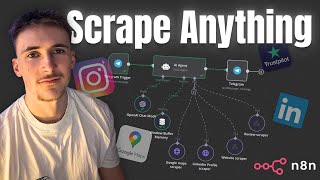
Rory Ridgers builds a no-code scraper AI agent in n8n that takes Telegram commands and pulls data from Google Maps, LinkedIn, websites, and Trustpilot using OpenAI GPT-4 Mini. He walks through the full workflow with Gymshark as an example, showing how to convert HTML to markdown and summarize results.
Chapters
we're going to say something like, I want to scrape Gymshark's website. Let's give this a second, it should return. Yeah, so it's finished the tool there, and we should see this. Gymshark is a fitness apparel brand that specializes in high-quality workout clothing. I want to get the Gymshark reviews. Okay, yeah, here we go. Summary of Trustpilot reviews for Gymshark reveals a mixed customer experience. What's up guys, in this video I'm going to be teaching you how you can make a scraper AI agent on NAN after switching from Relevance AI N8N. I have found that on N8N it can be a little bit harder to scrape certain things just because I found that on Relevance AI they already have built-in tools that allow you to scrape things really, really easily. For example, they have built-in web scrapers where you can just input a website URL and it scrapes the content. The exact same thing with LinkedIn, you could just input a LinkedIn URL and it will scrape that LinkedIn content. So it just makes it a little bit easier on Relevance AI, but I want to show you exactly how you can do it on N8N still Very, very simple, so don't worry about that. But they're just some workarounds that we have to do in NAN. You haven't seen me before, my name's Rory Rogers and I help business owners to implement AI agent systems into their businesses. So if that's something you might be interested in, I've left a link to my website in the description. You go ahead and book in a call or just fill out the contact form and I'll get back to you. Also, like always, want to mention that the templates that I use in this video will be available for completely free in the description on my platform Commonus. So if you want to go ahead and get started with this straight away, you can you can just grab them in the description. You should see a link that says something like free templates. Let's not waste any more time, let's get into the video and I can show you exactly how the scraper agent works. Okay, so this is how the agent looks in NAN. You can see we have Telegram triggers here, which are going to be talking to this through Telegram, just makes it a little bit easier. If you don't know how to do that, I'll show you how to set that up in just a minute. But if we look at the sort of anatomy of this agent, what we have is obviously an OpenAI chat model. This is just run on GPT-4 Mini. This is kind of the brain of our agent. We just have a simple window buffer memory. This just means that the agent can remember the sort of last 5 messages that we sent to it, just means the conversation flows a little bit more naturally. And then we have the actual tools here. We have a Google Maps scraper, LinkedIn profile scraper, website scraper, and then review scraper. I mean, a lot of these pretty self-explanatory tools, what they do. Google Maps scraper is going to scrape Google Maps and find us different businesses that we can use as either leads or competitors or whatever you like. And that's going to be done on a certain criteria, so it's just going to be area and industry. We're going to search Google Maps for that. LinkedIn profile scraper, we're going to be able to find LinkedIn profiles on LinkedIn based on certain keywords. And then website scraper is going to find a company's website for us, or any website we like. It's going to scrape the content of that website, give us a summary. The review scraper, going to find a company's Trustpilot page and it's going to give us a sort of summary of their reviews. Okay, so kick things off with this Telegram integration. The way you set this up, if you don't know, is you put down a Telegram trigger to watch for new messages. If you double-click on this, you have to set up new credentials if you haven't done this before. So hit create new credential. You have to put in this access token, and the way you get that is if you come over to Telegram, you can go to this Botfather here, hit /newbot, and it says what you want to call the bot. Put in your name. I spelled ScrapeIt wrong, I put an O instead of a P. Doesn't really matter. Then it'll ask you for a username and you have to do one that isn't already taken. So just make sure you do one that isn't already taken. And it'll say, done, congratulations, here's your new bot. And it'll give you a link to the bot. And then you'll get this access token. I'm not going to show you mine, but you'll get an access token. And then you can put that into here. And then if you go back on Telegram, this link here, if you go to that, it will take you to your new, in my case, scraper agents. Now, NAN will watch out for any new messages from this channel. And then the way we get the agent to reply in this exact same channel, if we click off of this, we just put a Telegram send message bit at the end here. Double-click on this, and all we do is put in the exact same credentials. So scraper agent, and then the chat ID, we'll get this when we execute the previous node. We'll get a chat ID from that first Telegram node, and we simply just put that in there. And then we put the output from the AI agent into the text. This just means that the output from the AI agent will be sent back to the same channel that the messages were being watched from. So really, really simple. If that don't make sense now, it makes sense when we actually run this through. And then of course we have the OpenAI chat model, which is just GPT-4 Mini. You probably know how all this works. And then we have a buffer memory, so the context window is 5 messages. This just means it can remember the last 5 messages in our conversation. Now onto the actual tools. First, we have the Google Maps scraper tool. For these two tools, you can see these are just HTTP requests, because what we're going to be doing is we're going to be using actors on Apify. And if you haven't used Apify before, it's just this large marketplace of scraping APIs. So there's loads of different APIs. If we go to store, I can show you some of them. So Instagram profile scraper, Google Maps scraper, website content, TikTok data extractor, all of these different scraping APIs, all on Apify. You get some free credits, which is nice, so you don't have to worry about paying if you're just sort of going along with this tutorial. Anyway, we're going to be using the Google Maps email extractor and the LinkedIn companies and profile bulk scraper, but right now we're using the Google Maps one. So let's click on this. What we want from here is we want the different inputs, so the industry here, and then the location, and then the number of places to search as well. We're going to keep the number of places at 10, so don't need to worry about that. What we're looking at is instead of the manual, we're looking at the JSON, because manual is if you're using it through Apify, which obviously we're not. We want to use it for our agent. So we look at this JSON, and this is JSON body that we need to send over to the actor on Apify with all the relevant information for it to run properly. So we have the language, location query, the max crawled places per search, which is just 10, and then the search strings array, which is going to be the industry. So if we come back over to NAN, let's have a look how these HTTP request nodes actually look like. The method is going to be POST because we want to send data over to Apify and get something back. And then in the URL section, what we do is come over to Apify, go to API, API endpoints, and then we scroll down to this one, run actor and get dataset items, because we want to run the actor and then basically wait for it to finish and then get the dataset items back. If you use some of these other ones, it will just trigger the actor on Apify and then we won't get any data back. It will just trigger it and then the agent will say, okay, I'm done now. We obviously don't want that, so we use this one here. We copy this, put it into the URL bit. Authentication is just going to be none because your API key is actually already in that URL. The send headers are going to be Content-Type: application/json because we're sending over JSON. Obviously the send body, what we do is we click use the JSON below and then we put in this JSON body here, which is obviously what we get here. So we've just copied and pasted this. And then what we've done is we've put in a placeholder value for the location query and then the search strings array. This just means that the AI agent can replace these placeholder values with the actual values we want. So for example, if we say to the agent, I want to find some restaurants in London, then the AI agent can replace the search strings array with restaurants and it can replace the location query with London, UK. And then it can send that all over to Apify and then it'll work properly. So we have to send over this JSON body. Using these placeholders that the agent fills in with whatever we input to it through Telegram. So that will return to us 10 different, uh, Google Maps results for, in this case, restaurants in London. And we'll get all these different data points. I can actually show you the data points we get. We go to runs. You can see this is just a test one I did. So we get their review count, their Instagram, Facebook, their LinkedIn, YouTube, TikToks, Twitters, phone number, email, city, and website. And obviously this is if it's all listed on Google Maps. You can see Sometimes they aren't listed, so obviously we just don't get it in that case, but it tries to find all those different data points, which is really, really nice. Now we're going to look at the LinkedIn profile scraper tool. This one, again, same deal. We'll go back over to Apify. We're using this actor here, LinkedIn companies and profiles bulk scraper. If we click on here, we just want to look at the JSON, not the manual. So for the JSON, the only thing that we really need to input into here is going to be the keywords. So you can see the placeholder is just restaurants. And basically this is just going to search LinkedIn for these keywords. This could be as specific or as broad as you like. This could just be digital marketing agencies and then the location, or it could be really dialed into one specific industry or specific niche, whatever you like. Any keywords, it will search, uh, LinkedIn for those keywords. Come back over to NAN. The URL is again going to be API, API endpoints. This one, run Actor and get dataset items. Copy that. Put that into there. The headers, obviously again, content-type: application/json. And then this time we put in this new JSON body that we get from here. So we copy this, put this into here, and again, we put the placeholder under keywords, and then we just prompt the agent to replace that placeholder value with the actual keywords that inputted to it. This will just return to us a bunch of LinkedIn profiles that fit into the category of those keywords. So now we get onto slightly more complex tools, but still not really complex at all. We look at the website scraper. Now this one, we actually are using another workflow because this means that we're calling another workflow. So let's have a look at that workflow. Okay, so here it is. This is what we're calling from the AI agent. We have this when executed by another workflow. If we click on this, the inputs we're looking for are company name. So all we have to do is input a company name and this tool is basically going to find their website URL and it's going to scrape the content from there and then give us a summary from that. So, so the first thing we're going to do is we're going to use the Tavaly API before. And if you haven't used Tavaly API, Basically what it is, it's just a way to search the web via an API. It's really nice, you get some free credits with it. So again, don't worry about paying if you're just following along with this tutorial. All we do for the endpoint URL is we put this URL in, so api.tavli.com/search, and it's just basically going to search the web for us. The method is going to be POST, content type application/json for the headers, and then we also have authorization, and then we get an API key here. You can just copy this, put it into this input here. I'm not going to show you my one. And then we have the actual JSON body here. And if you want to look at the Tavelly docs, I'll show you that so you can actually see sort of for yourself what we're sending over. We go to Tavelly search, and then you can see this is what we're sending over. So this is the curl. So we have the URL here, the headers, authorization bearer, and then your API key basically. And then content type application/json. There, the headers list the data we're sending over. So you can just copy and paste all of this, but if you want to read it You, you can see we get a query, we get a topic search there, max results, time range, days, da da da. We get all these different data points. What we do is we copy that over to here and then we just replace the query variable with what we get through from this step before. So what the AI agent is sending over, in this case, for an example, I did Gymshark. We'd basically do a Google search for Gymshark. You can do more in depth or more broad if you like, but you don't really have to touch any of these other things. We just left it as sort of general. And basic. So we're basically just doing a Google search for Gymshark, and that will return to us the URL. We can test this actually, so you can see it should return to us Gymshark's website URL. So if you see, we get an answer. It's obviously just a summary of Gymshark, but we're not going to use this as a summary because I know that's what we're trying to do with this tool. It's kind of not in-depth for us enough. So you can see we get a URL here, and then in this next step, what we do is we do an HTTP request. This is really, really simple. It's just a GET request. And we do the URL from that step before. And what this does is just scrapes all the HTML from that URL. So if we test this out, you can see it's quite a lot of data, 1.5 megabytes of data. Even asks us if we want to download it, which can hit show data. You can see we get all of this data. It's just a massive chunk of HTML. We don't really want to deal with that, and it's just going to cost us a lot of money and a lot of time to get our LLM to deal with that. So what we do is we use this HTML to Markdown step. If we click on this, we have HTML to Markdown as the mode, and we just put in HTML from this step before. If we hit test step, this is just going to convert all of this into Markdown for us, which is just much, much easier to read and much, much easier and quicker for our LLM to process. Then we have an LLM step, obviously, that we basically just prompted it to go through this scrape website data and give us a summary of the website that's been scraped. I put just a summary, no explanation. Here is the data. And then we just give it the data from that markdown step before. So we're going to test this out fully. Let's hit test workflow. And then, so actually goes through quite quick. Let's have a look at all these different data points. So we got— so you can see in this Tavly step, it's actually given us the shop women page, which we don't really want. So all we're going to do is we're going to say Gymshark's main site. We're going to do Gymshark's main site instead and see if this gives us the actual URL of Gymshark. You can see, so Gymshark home, perfect. Let's test this out again using this new input, so, so their main URL rather than just a random URL from their site. Let's have a look. We go to the LLM step. Gymshark is a fitness apparel brand that specializes in designing and selling workout clothing and accessories to both men and women. All this big summary here. We can see all these different steps. So this one, if we have a look at this, we should have got their URL. Yeah, we got their URL for their homepage. And then we can show this data, all of this HTML. I mean, there's literally loads of it. So we send that over to this step here, convert all of that into Markdown. And it looks like this. You can see still a lot of data, but not quite as much as when it's in HTML. It's much easier for our LLM to go through. And obviously our LLM goes through that, and then it gives us this output here. So absolutely perfect. Found the website, gotten a summary on it. Pretty simple, but really, really useful. So let's hit save, and then we can look at the last tool. So Scraper Agent. The last tool is the Review Scraper, and this one, like I said at the start of the video, it's going to find their Trustpilot, and then it's going to basically do the same thing we did with that web scraping tool, but it's just going to search their Trustpilot page and then scrape their Trustpilot reviews. So same thing, we input the company name. Let's have a look at the tool. So this might look quite familiar because it's basically the exact same thing. Again, we're looking for the company name. This time we do a Tavli search, pretty much the exact same thing. But we're looking for the Trustpilot. So again, I've done Gymshark, so look like Gymshark's Trustpilot. We hit test step, we should get the output URL for their Trustpilot. So yeah, uh, trustpilot.com-review.gymshark.com. So yeah, absolutely perfect. Again, same thing, we do a GET request for the website, so it's going to be a Trustpilot page, and then we convert that to markdown, give it to our LLM, exact same thing. So we're going to hit test workflow. You can see this all in action. So yeah, it's gone through. We just have a look at the LLM step. Summary of Gymshark's reviews. Total reviews, 37,000. Average rating, da da da. Points, positive feedback highlights, fast delivery, good quality. Basically giving us a summary of all of their reviews, sort of the general overview of what everyone's saying about them from their Trustpilot page. So really, really cool. We can have a look at these other steps as well. So we've got their Trustpilot URL, then we got all of the HTML from that page. Then we converted that into markdown, and then we gave that over to our LLM. So quite simple but really, really useful and a really, really efficient way of doing it, which is always good. Okay, so last but not least, we have to look at the prompt for the agent, because obviously this is one of the most important parts of the agent. In this case, it's going to be a tool agent. The user prompt is going to be defined below, so it's going to be whatever is passed through, through Telegram. And then the actual main prompt here— let's make this a little bit bigger so you can see it. So the role, your job is to use the tools provided to either scrape LinkedIn, Google Maps, websites, or Trustpilot reviews. When you receive an input, it will be to either scrape or find either LinkedIn, Google Maps, website, or Trustpilot reviews. You have 4 tools, and basically the bulk of this is just me breaking down the 4 tools that it has. So the first one, it's a Google Maps scraper. This tool can scrape Google Maps and find businesses for the user. You must input the tool with the location that user wants to scrape and the industry. For the tool to input, you will see this JSON body. And then we give it this JSON body that we have inputted into the tool here. So we've just copied and pasted this bit here. We've given it to the agent and we've said, I want you to basically replace these placeholder values with the actual values. So simply switch out the placeholder next to location query with the actual location and the placeholder next to the search strings array with the industry. And then LinkedIn scraper, pretty much the exact same thing. We've just given it the JSON body, told to switch out the placeholder value with the actual value. So in this case, the keywords. Website scraper, all it has to do in this case is just input the company name that the user says to it. Exact same thing with a review scraper. You can pause this and read through it, or you can just get the free template and these prompts will just be pre-filled. But yeah, basically saying the same thing for the website scraper and the review scraper. Just recognize if a user wants to scrape their website or get their reviews, and then just input the company name that the user gives you. So quite simple. We can actually test this out now so you can see how it all works. So let's hit test workflow. We're going to say something like, I want to scrape Gymshark's website. So just using the exact same thing, Gymshark. I want to scrape Gymshark's website just so you can see how it works. Uses the website scraper tool. Let's give this a second. It should return. Yeah, so it's finished the tool there. And we should see this. Gymshark is a fitness apparel brand that specializes in high-quality workout clothing. Gymshark promotes a community-driven ethos featuring physical retail locations. Absolutely perfect. By the way, if you want to turn off this message was sent automatically with NAN, just go into this last step here. And if you go to additional fields, append NAN attribution, and then you can just flick this off. And it just means it won't say at the bottom of the message that sends back to us this message was sent automatically with NAN, which looks a little bit ugly. And if you're delivering this for a client, or even if you're just using it for yourself, you might not want it. So yeah, you can turn that off if you want. We're going to test this out again. We're going to try and now get the reviews. So I want to get the Gymshark reviews. So I said I want to get the Gymshark reviews, and then let's see. So it's using the review scraper tool. Perfect. We should see this finish in a second. Okay, yeah, here we go. Summary of Trustpilot reviews for Gymshark reveals a mixed customer experience. At 37,000 reviews, the company holds an average rating of 3.6 out of 5. It's given us some of the positive feedback, some of the negative feedback, and then an overall sort of overview of it. So absolutely perfect. Really, really cool. Really handy. So that is it for the video, guys. I do hope you enjoyed it and also you found some value in it. Like I said, if you did want to work for me so we can implement some AI agent systems into your business, then just head over to my website, book up a call with me, or just fill out the contact form and I'll get back to you. And also, like I said, all the templates will be available on my platform Commonus. If you haven't used Commonus before, it's a platform that I made as an easy way to share and download AI templates. So if you want to grab this template, I'll leave a link to it, and you can also browse the rest of the templates on the platform. So yeah, that is it for this video. If there's any more NAM videos that you'd like to see, please do just drop me an email or just comment something on this video, and I'll try my best to get around to doing them.
More from Rory




Dynamic Workflows are crazy. This is how to actually use them (beginner's guide)






