
This one app allows you to connect any MCP to Claude code in minutes (game changer)
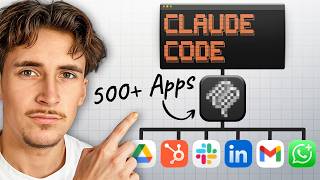
Rube acts as a universal connector that lets Claude Code access Gmail, Google Calendar, Sheets, Drive, and other services through a single integration. Install the CLI, authenticate with granular permissions, and add services from the marketplace in minutes. It's free to use through Claude Code.
Chapters
What's up guys, in this video I'm going to be showing you a really cool tool I found that allows you to connect any MCP to Claude Code instantly. What's really interesting is I've never seen anyone use this app because every time I've seen anyone connect anything to Claude Code, they've always used the individual MCP for whatever they're trying to use. So for example, if they're trying to connect up Gmail, I've just seen people use the Gmail MCP, or the HubSpot, they just use the HubSpot MCP. But this app, you can connect it to Claude Code one time and then you can use literally any MCP for all your apps so you can manage them all in one place. So if you stick around until the end of the video, I promise you you're never going to have to go into a GitHub repository ever again to try and find the MCP that you're looking for and try and connect up to Claude Code. You literally just connect this app up once and you can get any MCP you want. So without further ado, let's just get into it. First of all, in case you don't know, I want to run through quickly what an MCP actually means. If you already know what it means, you can just skip this part. But essentially what an MCP is, is if you look here we have an AI agent, and let's say you wanted to connect up a Gmail tool to it. So you wanted a Gmail agent that could do things like read, write, and draft emails for you. So if you was doing it without MCP involved, you would just connect up each individual tool and it would just be HTTP requests, right? So we have an AI agent here, and let's say we wanted it to be able to read, write, and draft emails for us. We'd connect up 3 separate tools and it will look something like this. But with MCP what we can do is just connect the Gmail MCP server up to our AI agent, and then that MCP server would have access to all of the tools inside of Gmail. It wouldn't even just be these three, it would literally be every tool inside of Gmail. And then when our AI agent needs to do something inside of Gmail, it can just call the MCP tool to see what tools it has available. It can list all of its tools, list how to use all of them, and then it can say, okay, I wanted to write an email. It will use the write email tool through the MCP server and then write an email for you. So that's the difference between an MCP server and just connecting up, uh, tools for an app. So now I want to show you inside of this app, but first what we're going to do is we're going to come over to VS Code and we're going to set up a new workspace with Claude. So we're going to go over to File here, Open Folder, and then I've already created a folder here, so Claude Code, and then MCP Rue. We'll open this up, and then yes, I trust the authors. Let's open up Claude Code. And then let's shut these two things down. And now we just need to add in our Claude, uh, MD file. So I'm going to do that now. Okay, so we got that MD file in now, and this is just standard. If you watch my last video on how to set this all up, this will look familiar. It's the exact same MD file. So this is pretty much all we need to do for now. Now I'm actually going to show you through the app where we can connect any MCP, and it's called Rube. Okay, so this is the app here, and like I said, it's called Rube, and it's a very, very simple app. Essentially all it is is Rube itself is an MCP, and it allows you to easily connect up MCPs to, I think, more than 500 apps or something like that. So if we come over to apps here, you can see I already have some set up. So I've got my Gmail, Google Calendar, Google Docs, Google Drive, HubSpot, and YouTube. And these are all actual my accounts, and these are also the MCP servers of all of these platforms. So it's the Gmail MCP, Google Calendar MCP, Google Docs MCP. And all we do now is we just connect Rube up to Claude Code and then Claude Code can call on Roob to see what MCP servers it has access to, and then it can go into each MCP server and just treat them like a normal MCP. So it can use all the tools inside of there, list all the tools, get all the documentation. So if we look inside one of these, let's go with Gmail for example. If we click on here, this is how it looks. I can disconnect it, I can disable it, I can also edit the scopes. So here are all the scopes, and I just have them all, uh, selected. And then I can also modify the tools. So this is really, really cool. You can have access into what Claude Code would be able to do inside of these apps. So what I've done with this is I've basically just given it view access only to, um, all of my apps in here. So if we go to view only, they have a nice little folder for view only, and all of these ones here, um, Claude Code would be able to use. So like get contact, get a draft, fetch emails, uh, get people, get profile, all of this kind of stuff Claude Code is able to do. I don't give it access to be able to actually send messages or anything like that. You can see if we scroll through here, there's some quite destructive ones, and they label it as destructive. So like batch delete Gmail messages. So I just give it read-only access. I'm not allowing it to actually send or anything. But of course, if you want to, if you, you know, you've been using it for a little bit, feel a little bit more comfortable, and of course you can just give it that access. But what I'm trying to show you here basically is that it's really, really easy to manage all of these MCPs. Because if we go back, uh, we can literally do this with any of them. Let's go to HubSpot, for example. Exact same thing in here. I can allow the scopes, and then I can modify the tools here and only give it access to what I want to give it access to. Okay, cool. So now I'm going to show you how to actually set this up inside of Claude Code. If we just go over to use Roop here, you can see they already have a Claude Code integration built in. Uh, something to note though here, this is the CLI, so this is the command line interface version. You can't set it up directly through that interface that you see usually inside of Claude Code like this. Like, you can't set it up inside of here. You set it up in the terminal and then you're able to use it through this interface. So don't worry, you don't have to use it through the terminal. You just set it up once through the terminal and then you use it through here. Cool. So if we click on this and open it up, you can see here we have a terminal command to run. So all we do is we just hit copy on that, and then let's come over to the terminal here, and then let's just go Claude so we can access the Claude code inside of the terminal. I'll move this up. Cool. Uh, we're gonna say yes, I trust this folder. Okay, cool. Now we can actually type stuff in here. So let's paste in that, uh, command that we got from Roob, and then Claude Code is just going to do all of its thing here setting up, and then we will have to verify it. So it's just asking us to do some bash commands here, so we're just going to hit accept. Okay, cool. As you can see, that's all work. Now I just got this error here saying Claude Code cannot be launched inside another Claude Code session. It doesn't really matter if you get that error because what it does is just creates a JSON file with that MCP. It's the exact same effect. So all we do now is we need to restart VS Code, launch this back up again, and we just type in /mcp to see all of our MCP servers. And then we just need to authenticate. Rube. Okay, cool. I've restarted it. And then just to enter into Claude CLI again, I just typed in Claude, as you can see here, and instantly it said new MCP server found. MCP servers may execute or access system resources. Cool. Use this and all future MCPs in this project. Awesome. And then what we're going to do is we're just going to hit /mcp, manage MCP servers. And then as you can see here, Project MCP's Rube connected. And then we just hit enter in here. And because I've already authenticated this, uh, for me it just says re-authenticate, but for you there'll be a pop-up just saying authenticate. It's the exact same process. So we're just going to go to re-authenticate here, hit enter. It's going to open up a window in my browser that will look something like this. So we're just going to hit allow access here. And then welcome to Rube. Perfect. Click on the organization or create a new workspace. I already have one set up there. Auth successful. Cool. And then it just says authentication successful, reconnected to Rube. Awesome. So now what we're going to do is we're just going to say to Claude Code, we're going to get it to test out something. So we're going to say, uh, use the Rube MCP. All right, I said use the Rube MCP to grab my last 5 emails. So pretty simple. And we're just going to make sure they can actually use the MCP here. And then, yeah, as you can see, uh, MCP Rube, Rube search tools. Cool. We're just going to hit yes. Of course, you could put on bypass permissions for all of this so it doesn't have to ask you every time, but just for the sake of this video, I'm going to leave them on so you can see what it's actually doing. Cool. As you can see, it said Gmail is connected. So first, what it did is it used Rube to search all the tools that I had, i.e., the different MCP servers that we have in there. So Gmail is one of them. So it says Gmail's connected, fetching your last 5 emails now. And now what it does is Roob multi-execute tool. So we're going to hit yes on that. And as you can see, all of these things are done through Roob, so it's not actually connecting up to the Gmail MCP server, it's doing it all through Roob as a middleman. Okay, cool. As you can see, here are my last 5 emails, the date, who they're from, the subject, and then it gave me some quick summaries there. So as you can probably imagine, this opens up like a whole nother world of opportunity because now we literally have all of those apps that I showed you, so like Google Docs, Google Drive, Gmail, um, HubSpot, YouTube, all of my accounts are now connected and I have full control over what it can access in there and when it actually uses it. So I can get it to grab stuff from Gmail, then grab something from Google Drive, and then update a contact in HubSpot, and then create a Google Doc explaining everything it did. That's literally what it's like, um, all through one MCP. And I'm going to show you right now how to actually set up these MCP servers because Now we know how to connect Rube to Claude Code. Now I'm going to show you how to connect up these MCP servers to Rube. So this might blow your mind, but connecting up MCP servers to Rube is probably easier than it is to connect Rube up to Claude Code. It's so simple. You don't have to do anything crazy like with all the Google apps. You don't have to go into your, um, Google Cloud Console and start a new project and put in all the keys and auth tokens and everything like that. I'll show you exactly what you do. If we go to Marketplace here and we're going to say, for example, Google Sheets. So because usually Google apps can be a little bit of a headache to connect up to things like this, so all we're going to do, Google Sheets, we hit connect, and then it does it through Composeo. So all we do is we hit yes, and then we go to setup, and then we should get redirected to another window here. And then we literally just pick the Google account. So I'm going to pick this one here. Hit continue, hit continue again, and then that's literally it. That's all you do. Now it is actually connected up to Google Sheets for us, and it's going to open up this window here where we can allow or disallow all the scopes. And if I also go to modify tools here, we can just give it, um, the tools that we want to give it access to. So by default, I usually just go to view only and just allow it to just view things only. So I'm just going to deselect everything else other than view only. Uh, but of course you can come in here, have a look around. If you trust Claude Code, then you can give it access to create spreadsheets and things like that. But for me, I'm just going to give it view only access. Also as well, through Claude Code, it asks you before it executes absolutely anything. So if you wanted to give it access, you can make sure that you have to actually hit accept every time it does that. So it could be a case-by-case thing. Sometimes you want it to, sometimes you don't. Uh, but I've just selected the view only tools. Hit update tools, and then that's literally it. Um, that's all you do. So you can connect up, as far as I can tell, it's as many MCPs as you want. They have loads on here. Uh, as you can see as I scroll through here, there is literally hundreds and hundreds and hundreds of different MCPs that you can connect up. And it is all as simple as I just showed you with the Google. You just click on the button to connect, and then usually just sign in through Google, or just sign in how you sign in through these apps, and then that's it. It's connected, and then it automatically syncs up. It's all going to be connected inside of your Claude code. And the cool thing as well, inside of Claude code, it's consistent between the workspaces. So if I had this Claude code open here and I went to clear and started like a new chat like this, it would still be in there. Don't have to reinstall it or anything. The only time you'd reinstall it is if you're starting an actual whole new project, but then I literally showed you how you do that. It's so easy. And the authentication is consistent across, uh, VS Code as a whole. It's consistent. So you saw how I had to re-authenticate rather than authenticating. It's because I'm already using Rube in other projects. So all you have to do is just do that command line to install it in this workspace, and that's it. Just to touch on the pricing as well, if we come back over to Rube and then go to credits, this is how the pricing looks. You get about 10,000 credits for free, um, and to be honest, I'm not sure if this is a mistake on Rube's part because I've been messing around with Rube and trying it out and literally none of my credits have been deducted. You can use Rube, um, through the actual interface here, and same thing, pretty much what we're doing in Claude Code, except we don't have all the powers of Claude Code. But I've only been charged, or my credits have only been used for the chats I've been doing inside of Rube. As you can see, I've lost about 19 credits there, but I've been using it through Claude Code and my credits haven't been going down. So Rube, if you're watching this, make sure you fix that. If you're not Rube and you're watching this, start using it because it looks like it's free at the minute, or maybe I'm just doing it wrong. It's been able to use all of MCPs inside of here, um, completely fine, as you just saw in that demo. So I don't know what's going on with that, but I would start using this straight away if I were you. It's also free to make an account. So that is it for the video, guys. I hope this is helpful. Like I said at the start of the video, I haven't seen anyone using this platform before, and it's so easy to connect up to Claude Code and so easy to connect up as many MCP servers as you want. So you can just set it up once, install it in all your workspace inside of Claude Code, and you can manage it through a nice interface like this, um, so you can make sure you're giving it all the permissions you want it to and make sure it can't use anything that you don't want it to use. So that's it for the video, guys. I hope you enjoyed it. I'll see you in the next one.
More from Rory




Dynamic Workflows are crazy. This is how to actually use them (beginner's guide)






