
This system that generates infinite YouTube content ideas (free template)
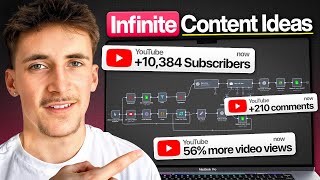
A fully automated n8n workflow scrapes YouTube videos in your niche, scores them by views-per-minute and engagement, analyzes thumbnails with AI, then generates a new video concept and mock thumbnail. All data flows into Google Sheets so you can see exactly what works before you film.
Chapters
What's up guys, in this video I'm going to be showing you a system that I actually use to generate me video ideas for YouTube. And the great thing about this system is, is it's actually able to scrape YouTube for any videos in your niche. It's also able to see all of the views and engagement of each of those videos, and then it can look at the thumbnails and look at descriptions, and it can see which videos are doing well based on the likes and engagement. And then it can see the thumbnails and descriptions for those videos that are doing well and then kind of determine what those videos are doing well and what you could do to create a video like that. And this system can run daily, weekly, monthly. It can run 5 times a day, 10 times a day. Basically, it can run as often as you like and can generate you as many content ideas as you want. By the way, guys, just one more important thing that I wanted to mention before we jump into the video. I've actually just launched the waitlist for my new NAN community. In this community, you'll be able to learn how to use NAN to build systems that businesses are actually looking to use. So if you're completely new to NAN, it's gonna teach you all the basics. But if you've also been using NAN for a little while now, it's gonna teach you how to take it that step further and build systems that businesses are actually looking to buy. So if you wanna sign up for the waitlist and get notified as soon as the community drops and also get access to an early bird discount, then I'll leave the link at the top of the description and you can sign up. But anyway, let's get into the video and I can show you how it all works. Okay, so I'm in NAN now and this is how the system looks. And right now I have it on a click to execute. Like I said at the start of the video, you would have this on sort of like a timer. So daily, weekly, monthly, 5 times a day, however you like. But just for this example and to show you in this video, it's just going to be a click to execute. It's much easier to show the systems when it's click to execute. And then what we do here is we get the videos for a certain search query. So you can type in any search query and it will give you back the videos as if you search that on YouTube. And then we just have a simple step here that's going to get all of the likes, comments, engagements, um, of those videos that we've scraped from this step here. And then we have a really cool scoring system that's going to go through all of those videos, see their views per minute, comments per minute, and it's going to score both their views per minute and their engagement and then give an overall score. So from there, we'll be able to determine which videos are actually good and which videos are worth sort of looking out for and using when we're coming up for our own video ideas. And then we just loop over each video here. So for each video, there might be, say, 20, 30 videos that you're doing at a time every day. We loop through those videos and we analyze the thumbnail image. You get ChatGPT here to just give us sort of a description of that thumbnail image, and then we add all of this information information into a Google Sheet. And the Google Sheet— the Google Sheet looks something like this, with video title, author, description, thumbnail, thumbnail description, views, views per minute, comments, likes, engagement score, and then overall score. And then once it's cycled through all— let's say there's 20 in there— once it's cycled through all 20, it will add each of them to the Google Sheet. So there'll be 20 rows in there. And then we get all of that information from the Google Sheet, we filter out all the scores where the overall score is below a 7 because those videos probably aren't worth, um, using for coming up with our own video ideas. We only want the ones that are actually performing well. So we filter out the ones that we don't want, and then we have an AI agent here that's just going to go through all of these sort of good videos, the ones that have a score of 7 or above, and it's going to do a full report of why these videos are doing well, what their description is about, what their title is, what the entire video is about, and also why their thumbnails are doing well. And then it's going to output an entire report of basically why this is all happening and how we can actually use all of this information to create our own video. And then that gets passed to an agent that will take that report and then actually generate a video idea. So it's going to generate a title, a description, a prompt for a thumbnail that we can either use for the video or send to your thumbnail designer. For me, I'd send it to my thumbnail designer. And then it also just outputs a justification of why it's chosen this type of video. And then we just generate an image that we can use for, like I said, either a mock-up for the thumbnail to send over to the designer, or you can actually use it for the thumbnail your video. And then we just add all that information to another sheet that looks like this, with title, description, thumbnail mockup, and a justification. So what we're going to do now is we're just going to run this through, and then we're going to have a look at what happened. And then we're going to go into each step here and see how you can recreate this. Just quickly, guys, if you want to grab the free template, you can come over to Commonus. You can either search it up on Google, or you can just follow the link in description. It'll take you exactly to the template that you're looking for. And all you're going to do is you can hit View Details on the one you want. Hit I want this template, and then you'll have to sign up for account to be able to access it, but it's completely free. And then you're able to download the JSON files here, and then you can just upload that directly into your NAN. And while you're here, you can look around at all of the other templates. You can see which ones other people are downloading, which ones are a little bit better than others. And like I said, it's completely free. So inside of this YouTube node at the beginning, I'm just going to put the limit to 10, and I'm going to say the query is NAN. So for me, looking for NAN videos We're just gonna hit execute workflow. This part here happens pretty quick, and then this loop over section will take a little while because it's analyze image. For some reason takes a minute to run. Um, yeah, well, I mean, it takes a few seconds, it doesn't take a minute, but it takes longer than the other nodes. So we'll come back when this step's done. Okay, so this is running through now and you can see it's almost done. It's just processing the 9th one. And if we come over to the Google Sheet, you can see this is what it all looks like. So for some of these, they're gonna have, uh, massive descriptions. That's why these boxes look so big. But if we look through here, you can kind of see what's going on. So video title, N8N Agents Are Insane. And then this was the author, that was a description, this was the thumbnail image. We can have a look at the thumbnail image and then the thumbnail description here. And then the views, views per minute score, the comments, the likes, engagement score, and then the overall score is a 10. So this is probably one that we should look out for. And then there's a couple from Nate Hurk here. And a lot of these are pretty high scores. Same thing, 8.2, 8.06. Uh, this one here, 4.6, so this probably isn't going to be one that we're going to look at. It's going to be filtered out. Uh, if we come back over to the system here, you can see— okay, I've let it run over a little bit. So here we've gone through and we've got all that information from the Google Sheet. We filtered out the ones that, um, don't have a very high score, so the ones that are 7 or above that go through, the other ones don't. And we just aggregate all of that, give it to our reporting agent that will give us an output that looks something like this with a full report of all the videos and why they've done well and a breakdown of each of like the description, the thumbnails, the title, everything like that. And then we have a new video idea agent that gives us something like this. So this is the title and then here's the description, the thumbnail prompt and the justification. And now it's just generating an image. This step takes a second. Okay, so it's generated the image, then we just upload that to Google Drive so we can get a link for it. And then we're going to add all of that information into our Google Sheet, into this column here. And then yeah, it looks something like this. So this is the title: Unlock the Power of NAN's New AI Agents and Native Data Tables, Step-by-Step Tutorial. And this is actually a new feature in NAN, so it managed to pick up on that and grab that. And then this is the description, and then the thumbnail mockup looks like this. So this is the thumbnail mockup. You can adjust this however you like, but I don't think this is too bad, um, considering it didn't really have any context on like me or anything. So the headshot obviously looks nothing like me, um, but yeah, I don't think this is too bad for the information that we gave it. And then the justification here, it's given us a little paragraph. We just read through some of it. It says the title uses strong, exciting words like unlock and power to create urgency and highlight the value of NAN's new features, replicating the success of the top videos. The description details practical tutorials and real-world use cases with timestamps for clarity, aiding viewer navigation and enhancing value. And then of course you can read the rest here, but this is just a justification of why it did everything it did here. So then if we have kind of a breakdown of what actually went on here, so to begin with we just had the YouTube step that outputs to us a bunch of YouTube videos with just the sort of surface level basic information, just like the video ID, the video kind, when it was published, the title of the video links to the thumbnails, the channel title, and then also the publish time, which I guess is the same as the publish at time. I don't know why it gives us both. Um, and by the way, if you want to connect your YouTube account to this, I think it was different before, but now we do it this way. Um, it's the exact same way if you've ever set up like Google credentials, like Gmail, Calendar, Drive, anything like that. It's the exact same thing. All you do is you go to create new credential, and then if you go to Google Cloud Console. And then if you go to your Google Cloud Console, and then you have to set up a project in here, but then you can just go to credentials once you've done that. And then my one's called NAN here, and you'll get a client ID and you'll get a client secret, and you simply just paste that into the client ID and client secret inputs here. Then yeah, this is all the information we get. So we don't get any information on like the views or the comments or the likes or anything like that. And that's really, really important if we're determining— is it— it'd be very easy for us to just do analysis of the videos I've posted, but if we actually want to make good content off the back of this analysis, we need to see which videos are actually doing well, of course. So the way we do that is via just a custom HTTP request. It's not one of these native, um, NAN YouTube nodes. We do an HTTP request, and in here we use this particular endpoint, and we put in the video IDs from the step before. And what this does is it gives us just way more information on the video. So we get that standard information that we got before, so you can see like the thumbnail, when it was posted, the title, and then also like the, um, author name and things like that. But then we get the statistics here, which is what we're really worrying about. So we get view count, like count, favorite count, and comment count. And by the way, in here you'll see that it'll be blurred out, but you'll see there's an API key. And the way you get that is back over in the Google Cloud Console. If you go to APIs and Services and then Enabled APIs and Services and then you go to this top one here, Enabled APIs and Services again, and then you click on YouTube Data API v3. Go over to Credentials here, and then I've already got an API key, but you can go to Create Credentials and then API key, and it'll just pop you up one. You can just copy it and paste it straight into the end of this endpoint. So then, yeah, that gives us that information here, and it does it for all 10 of those. And then what we want to do for each of those, we want to calculate the views per minute, the engagement per minute, and then give the views per minute a score, the engagement a score, and then give an overall score based on that. So the way we do that is through this JavaScript that we have here. And again, I say in all of my videos, this was generated by ChatGPT. So if you have no idea what you're looking at, you don't know how to write this, don't worry. I use ChatGPT to write all of my JavaScript. But basically what we're doing here is kind of like an algorithm, like a small algorithm, and it just goes through, it looks at the published at date, and then it looks at their views to calculate the views per minute. And then it does the, then it does the exact same thing with their likes and comments to calculate the engagement per minute. And then it gives each of those a score out of, for the views per minute, it's out of 7. And then for the engagement per minute, it's out of 3. So together, if you get the best scores, if you get 7 and then you get 3, you get an overall score of 10. So there's baselines in here. And of course, when you get the free template, um, you can go through and you can look at exactly how this all looks and you can change the baseline and everything. But there's baseline numbers in here. And that's how it generates the score from 7 for the views and then out of 3 for the engagement. And then it will give us an output that looks like this where we have the scoring. The overall score is 10, the views per minute score is 7, the engagement score is 3. And then that goes through a loop over items node. So we just loop over, we set this to 1, we're just going to loop over all 10 of these items. And then we have an edit field step, and this is to like capture the variables that we want because we want these variables from these loop over items nodes But for some reason, this happens a lot in N8N. You'll see if we go to like this step here and we try to grab variables straight from the loop over items node, it says no fields. Um, so node wasn't executed, but of course it was executed. The way you do that is you just put an edit field step after, grab the variables that you actually want. So like title, channel title, thumbnails, metrics, all of those ones I just showed you, grab all of those variables and store them, and then we can use them later down the line. Then we analyze the image. Uh, we just use a native OpenAI Analyze Image. So we set the operation to Analyze Image, and the prompt is just, what is in this image? To give more context, you're describing a thumbnail image that I'm using in a system to help me create YouTube videos. We just give it the URL of the thumbnail, as simple as that, and then it gives us an output of sort of a summary or description of that thumbnail. And then we add all of this information into that Google Sheet that I showed you a minute ago, so the one that looks like this with these headers. We add all of the information that we get from the Edit Field step, as well as that, um, thumbnail description that we just got from the step before. We put that into the thumbnail description input, and then we get an output like this with all of this information for each YouTube video and for each creator into the Google Sheet in a nice format like this. And then you'll see here there is a little bit of a mess up, a little bit of an inefficiency in the system, which is good. You have to test these things out, and it's better to be transparent with you guys. Here you can see on the done route there were 10 items, so actually multiplied everything by 10. Here we should have got an output of 10, but we got an output of 100 because it did it 10 times. So it kind of multiplied it by 10 because 10 items were passed in. And then here it should have been 3, but we got 30. It sorted itself out at the aggregate step, and then it was fine later down the line. So that's why I didn't mention it earlier. It's not a massive issue. But what you can do to fix this is you can in here put in an aggregate node. So you can put aggregate and then you can just say all items into a single list. And the reason we do that is because we don't actually need the information from the loop over items though, because we're getting the information that we want from that Google Sheet. All we need from the loop over items node is to say that this part is done so that we can get the information from here, if that makes sense. So I'll run this at the end once we finish looking for everything, and you'll see after it, it will only output one item. And then this will be 10 here. But anyway, the Google Sheets node, we just output all the data from the Google Sheet. We just get all rows from the sheet, and then the filter here, we use the overall score, uh, column. So the overall score, if it's greater than 6, they go through. If it doesn't, then they get discarded. So you can see 70% got discarded and we kept 30% of them. And then we just aggregate all of that so we can— because here there's going to be like multiple items, we want just one item. So we want all of these in a big list, so we just aggregate all of those into a big list that looks something like this, all of these data points. And then we pass that over to an AI agent here where we just give it all of that data. And then this is the prompt we've given it. We've said, you're an AI agent that's going to help me create YouTube videos. We've told it all of the information that it's going to get, and we've said, your job is to look at the ones with the highest scores, look at their— look at their descriptions, titles, and thumbnail descriptions to output exactly why the video is doing well based on all the information you have. I want you to output a report on what is doing well in this current niche of videos, why it's doing well, and what video I should look to do to replicate it. And then it will give us an output that looks like this. You can see a lot of the videos are around NAN AI agents and native data tables. Um, obviously that's a new feature, so there was a lot of stuff about that. And it's given us the top performing videos with all of their metrics, uh, kind of giving us like an output here of all the top performing ones that we're actually looking for. And it said why these videos are doing well. And then if we scroll down, uh, valuable relevant content. It's broken down exactly why all these videos are doing well and what we can kind of do to replicate that. And then we pass that to another AI agent. So we just give it the output of that, um, step before. So this report, and then we've just said all of the information that it's gonna get. Again, if I open this up and then create a structured plan for a video, including video title, description, prompt for an AI image generator to create a thumbnail mockup and a justification for each point. Now the reason the prompt isn't too massive here is because the report that it receives is pretty big and pretty detailed, so we don't need to put too much into this prompt. We can keep it nice and simple and lean. And you see here, outputs this as separate variables, so title, description, thumbnail prompt, and justification. And the way we get to do that is we hit on the require specific output format, and that will allow us to add down this node here. You can see there's another little prong that we can add, and it's the output parser. And if we look in here we can put in like an example of how we want this to output. So title, description, thumbnail prompt, and justification. We put a little JSON body in here and it's going to output like that every single time. So we can actually use these variables for later steps. And then we just have a simple GPT image one. Um, this is just going to generate the thumbnail mockup design. So we give it the prompt. So here we can just drag this now, which is nice because like I said, it's separate variables. So we can just drag them. So we give it the thumbnail prompt that's gonna look something like this. So pretty detailed. And we'll get this output here, which is just a bunch of data. You can't even see it. It's binary. You can view it to get a preview. You can't actually really do anything with this cuz it's just binary data. So what we do is we go upload a file. So we put in the binary data into a Google Drive node. The operation's upload. The input data field name is data, as you can see here. And you can put this in any folder you like. All it's going to do is it's going to give us a web view link. So this link here, we can open this up and then we'll be able to actually see the image that's been generated. So then we add all of that information into the Google Sheet with the title, the description, the thumbnail mockup, and then the justification.
More from Rory




Dynamic Workflows are crazy. This is how to actually use them (beginner's guide)






