
This system will find leads & book calls 24/7 on autopilot
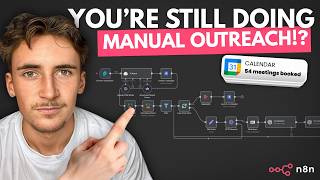
In this 30‑minute walkthrough, Rory Ridgers (Autonomously AI) builds and runs a fully automated lead‑generation and cold‑email outreach pipeline using the n8n (NAN) workflow engine. The process starts with a simple web form where the user specifies campaign name, target industry, location, and offer. An AI node instantly creates a 3‑step email sequence and subject lines, then an Apify Google‑Maps actor scrapes relevant business listings (e.g., plumbers in New York). For each lead, the workflow fetches the company website, converts the HTML to markdown, and feeds the text to an LLM prompt that generates a specific, genuine compliment. A second LLM pass “humanises” the compliment. The lead’s email, name, website, compliment, and company name are stored as custom fields and added to a newly created campaign in Instantly via its API. Finally the campaign is launched, delivering personalized cold emails at scale. The video also shows how to access the ready‑made n8n template in the creator’s community classroom, enabling viewers to replicate the system without building it from scratch.
Chapters
What's up guys, in this video I'm going to be showing you a system that I built that can find leads, reach out to them, and book you calls, all completely on autopilot. So if you stick around till the end of the video, I promise you, you'll never have to touch lead generation again. You can just watch all of your booked calls come in and focus on the sales and delivery. Also, I'm going to show you how to grab the template for this, so make sure you stick around for that. Just quickly, if you don't know me, my name is Rory Ridgers and I run an agency called Autonomously AI where we find and eliminate operational bottlenecks in just 14 days so business owners can focus working on the business rather than in the business. So if that's something you might be interested interested in, I'll leave a link to my website in the description. You can go ahead and book up a free discovery call. Even if we don't end up working together, the call is completely free. So any advice and any guidance that you get from it is completely yours to keep. Okay, so we're in NAN now, and this is how the system looks. And what I'm going to do is I'm going to give you a brief overview of how the system works and then give you a quick demo, and then we're going to break it down in a bit more detail on what actually happens. So to begin with, we just have a form here, and in this form we just have questions like the campaign name, the target industry, the target location, and our offer. So in here which is going to be naming our email campaign. And then we're also going to be saying who we're trying to target, where we're trying to target them from, so which location is this industry in, and then what are we actually going to be offering them. And then what happens is an AI agent here will create a campaign instantly. So it's going to take the inputs from this form and it's going to generate our subject lines and a full 3-step email sequence and then create a new campaign instantly. And then what we're going to do is we're going to scrape Google Maps to actually find these leads. So we're going to use Apify scrape Google Maps to find these leads. So let's say it's electricians in London, for example. We're going to be using Google Maps to find electricians in London, and then what we're going to do is we're going to loop over each of these, and then we're going to scrape their websites, and we're going to generate a personalized compliment for each of them, because it's absolutely vital with cold outreach. And with AI, there's really no excuse to not be doing this. So we'll scrape their website, generate a personalized compliment for them that will go at the beginning of the email, and then we just simply add that lead to that campaign that we just created. And then when we run this through, let's say we do 100 leads, we create the campaign and the full email sequence, and then we scrape the leads, find the leads, go through, generate a compliment for each one, then add all of that lead data into that campaign that we just created. And once it's run through and it's done all 100, it's just going to simply launch that campaign. So let's run it through and see how it works. If I execute workflow, then it's going to open this form, and here we can just name it. And for this we're going to be targeting plumbers in New York. So let's just do the campaign is plumbers, and I'm just going to say, uh, YouTube demo because this is going to my actual Instantly account. So I just need to know, uh, which is which. And then target industry, we're going to say plumbers. And then the target location, let's do New York. And the offer is going to be building AI voice agents to handle all of their calls. Okay, so I have all of that information in now. Let's hit submit. And if we come back over to 1-8-N, you're going to see this running through. So this first AI agent, what it's doing is it's generating the entire email sequence based on our offer and who we're trying to target. It's going to create a new campaign inside of Instantly with that campaign name and upload the email sequences and the subject lines. And then now we're running the actor on Apify to actually find these leads through Google Maps. So we're looking for plumbers in New York. And of course, because we're scraping Google Maps, um, we've done it location-based. So Google Maps is the best way to scrape for that kind of thing. Okay, so you can see it's scraped. I set it to 20 just for this demo, so scraped through 20. It's filtered them out depending on if they have a website or not because we need the website for the compliments. And then now it's looping over each of them, so scraping their website, generating a compliment. And then what I found really helps is just humanizing it, so taking that compliment and making it sound like an actual human has written it. Okay, perfect. So that's now finished running through. It's created the campaign, found the leads, complimented all of the leads, added them to that campaign, and then launched a campaign. So if we come over to Instantly I did, um, pause it straight away just because like I said, this is on my actual Instantly account and I'm not going to have this running. So I paused it, but in here we can see what's actually happened. So if we go to leads, you can see because it was only a demo, there wasn't a crazy amount of leads. This is like infinitely scalable, so you could do as many leads as you want. But just for this demo, I think there's about 8 in here. So you can see all of these leads with all of their data in here. Okay, then if we come over to sequences, you can see it's done this 3-step email sequence completely generated by AI, which is really, really cool. So what we're going to do So we're gonna preview them because you can see in here it has these variables. So if we go to preview and we just select one of these leads, you can see this is how it's actually gonna look for them. So it says the name of their company, Plumbing NYC, cut call wait times. And then it says, hey, really admire how you promise 24/7 emergency repairs with under 30-minute arrival times. That kind of quick response is a game changer in NYC plumbing. And then just a little email body here that says, handling all your calls as a plumber in New York can get overwhelming, right? What if you could have AI voice agents doing that for you, letting you really focus on your craft? Imagine a system that answers all calls promptly, schedules jobs instantly, and never misses a lead. That means no more lost customers and more time for what you do best. Plumbers we've helped saw up to 40% increase in booked jobs without AI agents managing calls around the clock. Ready to make your calls hassle-free? Let's chat here. And it's given a link to my, uh, calendar and just says cheers, Rory Ridgers. Perfect. Then we can scroll through a couple here. You can see these are all different. So it's got the name of the company and they really like how your online scheduling lets people book a plumber in under 30 seconds. Very cool. So it's obviously got that from their website. Love how you cover all NYC see borrowers with 24/7 Plumbing and still keep a 4.9 rating. That's pretty impressive for such a hectic city. So very nice. As you can see, these are all personalized. We have the company name, we have the personalization, and then of course we also have these other sequences in here that just follows up with them, make sure they haven't, um, missed our emails and make sure we actually get them on that call. You can see they all have, um, a booking call here and a call to action. By the way, guys, if you wanna grab the template for this, all you have to do is come over to my community here. And if you go to the classroom section, along with an entire course that will take you from a complete beginner with NAN to an absolute master and teach you how to implement it into a real business. There will be a template section here. If you go in here, there is literally dozens of different templates in here that you can download. You can have full access to them. All you have to do is join the community, and the one from this video will be in here. So you can come in here and you can find it and grab it and use it whenever you like and have leads on complete autopilot. So if we come back over to NAN, we can have a look at actually what went down. So we first got this input from the form with the campaign name, which was Plumber's YouTube Demo, target industry, which is plumbers, the target location, New York, and the offer, building AI voice agents to handle all of their calls. And then if we come into our AI agent here, we've given it the target industry and the target location, and then we've given it this prompt. And this prompt essentially says, you are part of an email outreach system. Your job is to help generate email campaigns inside of Instantly. You'll be generating 3 subject lines and 3 email bodies for an email sequence. And we've given it some guidelines here. And sort of how to generate each of them. So you're going to receive a target industry, target location, and an offer. Your job is to generate 3 subject lines, 3-step email sequence for an outbound email campaign. So the subject line should be short and enticing to get opened. The email should follow the AIDA framework. Make sure it sounds genuine and human, though using slightly informal language. And I've just given it the AIDA framework here to follow, which of course: attention, interest, uh, desire, and action. And then I've also told it to use this link as the call to action. And then for the email body, I've said use personalization variable on the first email only. It should look something like this. Hey, and then the personalization. And then just for the subject line, I just say keep it under 5 words and always include the company name. And then what we do, because we haven't actually generated the variables of company name and the personalization, essentially what we do is we just tell it what these variables are. So how to input these variables into Instantly, because we first have to create the campaign and then we add the leads to that campaign, which is going to have all of their details like their email, the personalization, the company name, everything like that. So we first generate the email bodies with just the placeholder variables or actual variables, but they will later get filled in when we add leads into that campaign. So I've just given it the variables to use, which is personalization and company. And the reason it's one curly bracket like this in the actual, um, when we send this over to Instantly, it would have to have two curly brackets to be a variable. But because with NAN, if we was to add two curly brackets like this, it would recognize it as an NaN variable and it would just say undefined, as you can see. So we just say to it, we give it in one curly bracket and we just say in your output, this would actually have two curly brackets. It just doesn't let us do that inside of NaN. And then what we do is we flick on require specific output format, and then we add this little output parser here, and then we essentially just get to output everything as separate variables. So the subject line 1, the email body 1, subject line 2, email body 2, so on and so forth. And then it outputs something like this with the subject line 1, email body 1, and then like I said, so on and so forth. And then what we do is we add an Instantly node. And if you don't have this Instantly node inside of your RN8N, you should just be able to type up Instantly and then download it because it is a community node, so you will have to download it. But it's free and it's quick to download, so don't worry about that. And you simply connect up your Instantly account by just putting in your API key that you will get from your Instantly dashboard. So we're creating a campaign here. The resource is campaign, operation is create, the campaign name is going to be from that form submission. So if we come over to the form submission campaign name, we simply just drag that in, and then you can change all of this to however you like. It's like the start time, the end time, the days of the week, all of that kind of stuff. It's all personal preference, along with the time zone. But then what you want to do is go to additional fields and then email sequence steps, and then actually put in the sequence steps here. So step number 1, the email subject line, in here we literally just drag in the variables from our AI Agent step. So subject line 1, we just drag that in. Email body 1, Drag that in. And then step number 2, we do email subject line 2, sub email body 2. And then for the 3, we do the same thing. And then that puts all of that data into Instantly. But of course, in here, uh, as you can see, if I have a look, it's still got these variables. So we need to actually fill in these variables. Right now there's no leads in there, so there's no personalization variable. So this will just show up as personalization written like that. So we need to actually find the leads, add the leads into there, and add a personalization variable. So what we do after that is we have an Apify node— well, 2 Apify nodes here, but we using one actor on Apify. It's going to scrape Google Maps. And if you don't know what Apify is, it's essentially just an online marketplace of scraper APIs. So you can scrape essentially anything. They're scrapers made by the community that you can just connect to via NAM. So this is the actor that we're using on Apify. Uh, bear with me while it loads. It is the Google Maps Email Extractor. It costs $8 per 1,000 results. So we just connect that up inside of NAM. We go to Apify Appify store actors, and then we simply just type in the name of that and then click on the correct one. And then for the input JSON body, the way that we get this— you can see this is how it looks— the way that we get this is if we come back over to Appify, switch this to JSON, and you can see here this is what we get that we have to copy over. So we've got the country, the has website— it can be false, it can be true— location New York, and then the term is plumbers, the total is 50. So all you do is you copy this come back over to an 8N, and then we're just going to replace our variables. So the location variable, if we go into our form submission, the location variable is going to be target location, and then the term is going to be the target industry. So now we're searching for in New York, and then the term is plumbers. And the reason we have two nodes of Apify is because the way it works is first you run the actor and then you just get an output that says this, it says succeeded. So wait until the actor's actually finished running and then just give us an output back that says it succeeded. And then what we have to do So we have to add another node here, which is get dataset items. So we just resources, dataset operations, get items, and then we simply just drag in the dataset ID from the step before. So if I type in dataset ID, you'll see it here. We just drag it in like that, and then now we get the actual data back, which looks something like this. You can see we have 20 items, so we get all of this kind of thing back. And all of this doesn't really matter too much to us. Uh, what we're mainly looking for is things like the city, the country, the name of them here, their phone number, uh, rating, I guess you could take into consideration, their website, and then their email addresses. So that's the kind of things that we're actually looking for here that we can use for the outreach. So when— what we do after that, we get those 20 items and we just filter out the ones that have a website because we need to have ones that have a website in order to do the personalization. If we don't do the personalization, there's not much point in reaching out to them. So we simply just drag in that website variable from this step before And then we say if it's not empty, so all the ones that are empty will get discarded. As you can see, 9 got discarded. Then all the ones that aren't empty will go through. So 11 went through and 9 got discarded. And then we only keep the ones that actually go through because they're the ones that have a website. And then what we do is we add a loop over items node, set the batch size to 1. What this is going to do, you can see we have 11 items that come through, just going to loop over each 11 items so we can handle each lead separately. What we do after that is we add an edit field step and we just store the variables that we want to use later on in the workflow. And the reason that we do this is cuz the variables that come through in this loop over items node, you can only use them directly after the loop over items node. So if I go into this one, which isn't directly after, you can see loop over items, I can't use the variables from there. This is something you'll probably run into all the time and it's really, really annoying, um, because you're gonna need those variables later on in your workflow a lot of the time. So all you do is just add an edit fields afterwards. And then you just drag in the variables that you want. So for me, it's the email, the name, and the website. And then that way, let's say I come into one a little bit later down the line. If I go to this edit fields, you can see loop over items, can't get any data, but then edit fields, I can get the data from there and use those variables. So we just grab those variables and then we simply do a HTTP GET request to scrape their websites. This is like a really, really simple way of scraping websites. It's just HTTP node. The method is going to be GET. And then the URL, we're manually typing in https://www. Because the data that we get from here is more just their domain than their actual website URL. So all we do is we just add this before and then drag in their domain here, and it'll look something like this, which is going to be that actual website URL. And you can see we get this data back, we get lots and lots of data back. And this is another really simple technique I do all the time in any end when we have this massive chunk of HTML that we get back from a website that we just don't need, we don't need like all of this HTML. What you do is you add a Markdown node here. So you go HTML to Markdown, and then you drag in that data variable from the step before. So just all of this HTML that I just showed you. And essentially what it does is it just strips back all of the HTML fluff that we don't really need and gives us it back in Markdown, which Markdown isn't raw text, but it's much, much closer to just raw text that we can actually use compared to HTML. So it gives us an output, it looks like this. You can see it's much, much shorter than the full HTML. And the reason we do this is because when we pass it to our AI agent, of course, the less data, like the less fluff in the data that has to go through, the more accurate it's going to be, the quicker, the cheaper it's going to be, everything like that. It's just massively beneficial to do it that way. So now we have the markdown for this particular lead. Then we come over to this agent here to actually generate the compliment. So what I'm going to do So I'm gonna show you this prompt. It's quite long, so I'm not gonna read you out the entire thing, but essentially we just give it the, uh, company name and then the scraped website data, and then we just get it to generate a compliment. So reference one specific detail, phrase, or initiative from the text. Compliment it naturally as if you personally noticed it while browsing. Keep it under 35 words. Avoid generic phrases like love your site, great mission. Sound genuine and conversational as if you are genuinely impressed, not selling. So essentially just guidelines on how to generate a really, really good quality compliment. Based on their website. Because I found when I've been doing this before and I've been given like website data to an AI agent or just an LLM, it just gives me like the most generic compliments. So just sort of like, oh, I love the colors on your site, I love the way you do this, and they're just rubbish. It's not really worth doing a compliment if it's like that. So it's very important that you say to it like reference one specific detail, like I love the way that you mention you'll be there within half an hour, something like that. Or congratulations on winning that plumbing board recently that's on their website, something like that. One specific detail from their site performs way better, then it gives us an output that looks like this. Really appreciate the emphasis on 24/7 emergency services. Being dependable around the clock is a game changer for trust in a local plumbing company. So on its own, this isn't bad at all, it's a pretty good compliment. But what I like to do is just humanize that a little bit. So we give that output to another AI agent here, and we essentially just— again, I'm not going to read out this entire prompt, but we give it the output here and we just tell it to humanize it by using a couple techniques. So we say sound 10 to 20% more human, casual, and imperfect. And then for the rules, keep the same meaning, use contractions, break long sentences into shorter ones, drop fancy adjectives like incredible, initiative, organic, things like that. It's very obvious it's AI-generated when it's like that. And then you can add like filler words like honestly, yeah, nice touch, super relatable, pretty cool, actually, keep it under 25 words. And then some examples here. This is great to give it examples. So something like, really like how you frame growth as spreading roots and blossoming websites. It's such a fresh, organic way to think about digital optimization over time. Let's say it gets that input. We could change it to that spreading roots line in your site. Really like that. Feels like a way more down-to-earth take on growth. So this is obviously just an example from like a web design agency. Let's say we're reaching out to them. You can see that second one sounds way more human. Way more natural. The first one, it sounds all right, it's not too bad. That second one, it looks as if you've just gone on their website, noticed something, and decided to shoot them over an email, which is what you're trying to get out here. So then it's going to switch that up from, really appreciate the emphasis on 24/7 emergency services. Being dependable around the clock is a game changer for trust in a local plumbing company. Changes that to, really like how you put the focus on 24/7 emergency services. Being there all the time is a total game changer for trust in a local plumbing company. So didn't change it too much. And this one, I think the one before was already pretty decent. But you can see it just added that little human touch. It just makes it sound that little bit better. If we go through some examples here, you can see these sound way more human. Love that you do free on-site estimates with no hidden fees, even nights and weekends. That kind of upfront honesty is pretty rare in plumbing. So a lot more human, sounds a lot nicer. And then it's time to actually add this lead into Instantly. So we go to Add Lead to Campaign, and then the campaign, the one that we're adding it to, we go to By ID. And the way we get the ID So we come down to when we actually created this campaign. The first variable here is the ID of that new campaign. So we just drag that in here. So now we're linked up to the correct campaign, and then we put in the email address. So we go to edit fields. We've already got their email, so we drag that in. With this method, you don't get their first name and last name, which is a bit of a drawback, but it's not that big of a deal because you can just switch out the scraping method to scrape something like Apollo or LinkedIn or something like that. You will get their first name and last name. And then we put in the personalization, which is just from that humanize step. And then we need to add another custom field, which is going to be company. And then we just add in their company name here. So you can see Local Plumbing Company Plumbing BO. That is the one that we put in here. And then these variables are ones that we're actually referencing in that, um, email body. So company with a capital C and personalization with capital P. Come back over to when we first created this campaign. You can see in here personalization with a capital P and then company with a capital C. So now these variables will actually get filled in because we've just added these variables for each lead. And that's simply going to cycle through. You can see it did that 8 times, so it just added 8 leads, um, to that new campaign. And then once it's done, all it does— very, very simple— it just comes up here, it launches a campaign. If you're wondering why there's an aggregate node here, it's because you can see when it's done, it passes through 11 items because 11 items went through. Uh, we don't actually need that data. All we need to do is just launch it. So if we were to connect this up So it was like, um, just directly up to the launch campaign because there's 11 items that essentially acts as a multiplier. So it would launch it 11 times and just break and wouldn't really work. So all we do is we just aggregate it, don't even use that data, but we just aggregate it so it's only one item. And then we just launch that campaign. The way you launch it is you just go to Campaign, Launch, and then By ID. And then using the same method as before, we go to when we created this campaign and just drag in the ID. So now when you want to generate leads, all you have to do is just fill out that form with the kind of leads that you're looking to target. And also the specific offer. And this AI system will handle literally all the rest. It will create the campaign, find all the leads, do all the email bodies, the personalization, and actually launch that campaign for you. So you can just sit back and watch all of these booked calls come in on autopilot.
More from Rory




Dynamic Workflows are crazy. This is how to actually use them (beginner's guide)






