PhoneWagon full feature demo
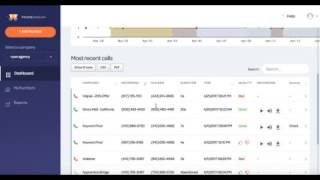
Ryan Shank demonstrates PhoneWagon's call tracking platform, showing how to add phone numbers in under 30 seconds, listen to recordings, and use Dynamic Numbers to swap displayed phone numbers based on website traffic source. The platform also lets agencies manage multiple client accounts with granular permission controls.
Chapters
Alright, I'm gonna do a demo as if I am with a paying customer. Okay, so we're gonna sign into PhoneWagon right now. So what this is gonna do, it's gonna dump us right into our beautiful dashboard. I can close this notification. So you'll notice at the top you'll see notifications for all of your new calls there. You can listen to the call recording, you can mark them as good or bad there. As you scroll down, then you're gonna see a graph of all of your calls. This is gonna be similar to Google Analytics or something like that where you can just see visually all of your calls. Then what you're going to do is you're going to scroll down to your most recent calls. Now this is where you're going to spend a lot of your time. This is a very good place to see everything that you're doing at a glance. You can see which campaign it came from. So starting from left going right, the red icon means it was a missed call, green means it was completed, and if it's grayed out like down here, just means that it was an abandoned call. Okay, so you can see the campaign that it came from, the number of the caller that they dialed, and then the number that was actually dialed, your tracked number. Another good thing to look at is duration, right? If it's 0 seconds, 7 seconds, 4 seconds, you know it's probably not a good call. However, if you see calls that are, you know, 300 seconds, 400 seconds, they're probably good calls because they were, you know, they lasted a long time and good things were said on those calls, okay? Obviously, you can mark the quality of the calls as good or bad. You can listen to the call recordings. You can even download the call recordings right here. And then if you're using dynamic numbers, which we'll get to later, you can even see the source of the call based on on where that traffic came from. Again, that's if you're using dynamic numbers and the numbers are swapping out automatically on your website. Okay, so that's our main dashboard, most recent calls. So next, what you'll want to do is you're going to go into my numbers. Okay, and this is just a way to quickly glance at all of your tracked numbers that you have right here. So you can see the actual number that you have that is a tracked number, where it is getting forwarded to, which is the transfer number, and then the campaign that you have assigned to the number. So this is pretty cool because you can just see all of these. You can see the number of calls by number if you want. I can even click on one of these and then I can view even more details, okay. So I can, you know, change the date range and then I can see, boom, here's all of the calls that this particular number has generated. So this is my Twitter Ads number, okay. So I can easily see all the calls by each number. So that's a super easy way to do it. I can edit the configuration if I want to or the automation, which again we can get into later. Going back to my numbers again, this is gonna be all of your numbers. So if I want to add a number, okay, what I can do is I can click Add Number right here. And then what this is gonna do is it's gonna let me add a brand new number, whether I want to add a toll-free number or if I want to add a local number. So if I want to add toll-free, I can click Toll-Free. It'll show me some available toll-free numbers. If I want to add a local number, I can do that right here. If I want to search, you know, for instance, 917, which is a New York area code, I can do that. What this will do is it will display about 5 or 6 available numbers and I can choose one of these numbers right here. I can choose to add this one right here. Again, the plan in this account, I've already added all the numbers. But anyway, I would add the number and then I would just jump right into the configuration of that number. And then as soon as I configure that number, uh, that number, again, it would dump me right here. I would add a campaign name. I would say where I want to forward the call to, I would turn on call recording, I'd click save, and then boom, that number is configured that quickly. It's that easy. Literally less than 30 seconds, we can configure a phone number. And then when I call this phone number, right, it's going to get forwarded to the main line that our number, you know, is forwarded to, okay? And then we'd be able to see all of the phone calls right there. So after that, that's our numbers. That's how easy it is to grab a number. Then we can jump into our reports. Super easy. We can see all of our calls by My campaigns at a glance, graph view, pie chart, we got sideways charts, charts for days, and then at the bottom again it's going to be a list of all of our campaigns and then you can see the total number of calls for each campaign. So if you have a campaign that's generating 1 or 0 calls, you might want to turn it off, right? You might be spending— let's say I'm spending money on Valpak, it's generating 1 call, maybe 0 calls, I'm probably not going to renew that campaign because it didn't really work for me, okay? So that's an easy way at a glance to see all of our calls by campaign. If I want to go to call status, again, I can do this as well, and then I can see again at the bottom, I can see how many calls were completed, abandoned, and no answer, right? If there are no answers, that's probably on me and my team. We need to figure out a better way to answer phone calls so that we're not leaving money on the table. Okay, so that's PhoneWagon, super, super easy dashboard. You can view all of your calls at a glance. You can download them. You can view all your numbers. Optionally, you know, some people want to use dynamic numbers, so I can click on, I can click in the upper right, okay, I can go to dynamic numbers. So what dynamic numbers does is it lets you put a piece of code onto your website, and then what happens is it automatically swaps out the phone number on your website based on where that visitor came from. So for example, if someone comes to your website from a Google ad, or a Facebook ad, they'll see a different number than if someone came to your website directly and just typed it into the address bar. So what you need to do to set up dynamic numbers, it's super simple. You just go straight down here. You have a keyword pool. Typically, if this is going onto your website, let's say John's Auto Body, I would just put John's Auto Body right here as my keyword pool, or you could just call it keyword pool. It doesn't really matter. This is where the numbers are going to get forwarded to. Just like when we bought the individual numbers, where do you want the numbers forwarded to? Probably the main line that you're using anyway, right? Because now these are just going to be tracked numbers forwarded directly to you. And then down here, what area code do you want? You probably want to, you know, continue to use a local area code. So if it's a 410 number currently, you probably want 410 tracked numbers. Pool size, this is going to be the number of numbers in your pool. We recommend 8, okay? Basically, that means you'll have 8 different numbers that keep swapping out based on the source of the traffic. Swap target, this is gonna be the current number on your website, the number that you want to actually change based on where the visitors come from. Cookie duration, just how long you want the customers to see the same number, and that's 30. Boom, it'll say get script. All you do is simply copy and paste this script onto the backend of your website before the body tag. We'll give you additional details, but it's super easy. Then once that's activated, check it out, you can go over to overview, and this is just a gut check, so it'll show you every time a number is displayed and what number is actually displayed. So it will say, okay, this 917 number was displayed on April 21st and the traffic was direct. Someone came to my site directly, okay, and they used Chrome and they were on a MacBook or a Mac operating system. However, down here, check it out, someone came from Google organic, right? They searched something on Google, maybe PhoneWagon, maybe something else, and they saw this number, okay, and they were on Chrome and Windows, okay. So you can see these are just the different times that the number gets swapped, and then what you can do is you can actually go over to My Numbers and Dynamic Pool. So these are the different numbers in our pool that are going to swap out. So I can go to one of these numbers right here. I can go to one number in my keyword pool. These are the different phone calls, okay, that came from our keyword pool that is on our website, okay, and we can listen to these calls as well. So that's pretty cool. So that's Dynamic Numbers. We can go into more detail. I just wanted to go over it at a high level for you, and then the final feature that I want to go over is multiple users, and this is really, really beneficial for agencies or anyone that's managing ads or marketing on behalf of their clients. So what you can do is you can go first into, again, I went into edit profile, now I'm in my settings, okay. I can go over to company and this is where I can create multiple companies. So let's say my company is Ryan Agency, but under Ryan Agency I manage Ryan HVAC, I manage John's Dental, and Cynthia's Cosmetic Surgery, okay. I manage a bunch of different companies. Now what I can do is let's say someone wants to have a login from Cynthia's Cosmetic Surgery. I can go over here, I can change the company, and then I can now add a user under Cynthia's Cosmetic Surgery. Okay, so now Cynthia has a login right here. Cindy has a login. We have a bunch of different logins, and they're all under Cynthia's Cosmetic Surgery. And you'll notice since I changed the company over— and again, I can add additional users as well. Different permissions, right? We don't want all users to be able to just buy numbers or see billing and things like that, right? We have different permissions, so it's super, super easy, but you can give your clients logins. And then you'll notice, since I'm in Cynthia's Cosmetic Surgery, there's no data in here, okay? All the data is tied to the actual company. If I change this to Ryan HVAC, again, no data is in here because we haven't done anything. All of the data that we just showed you, all those phone calls, all, all of that is in Ryan Agency. And by the way, the only reason I am able to view this is because I'm logged in as Ryan Agency. I'm logged in as a super admin, okay? If I was logged in under Cynthia's Cosmetic Surgery, and if I was this user right here, by the way, Cynthia or Cindy, they wouldn't be able to see, they wouldn't even be able to change the companies over here. So it's a really cool way to give your clients logins if you're managing phone calls and spend for them, and give them logins with different permissions. So anyway, at a high level, I'm gonna go back to Ryan Agency. Agency back to the beginning because not everyone's going to need the multiple users login, not everyone's going to need the dynamic numbers, but just wanted to give a full overview, full demo of everything we got. And that's PhoneWagon. It's beautiful, it's easy to use, you can see your calls, you can get a number in less than 30 seconds, you can search the number, get it, get a brand new local number, configure it, forward it somewhere, have the calls recorded, and start using that in your ad campaigns. Again in less than 30 seconds. It's beautiful. Give it a shot.
More from Ryan

We Analyzed 500+ Contractors. Here's What the Most Profitable Companies Do Differently.

Employee Incentive Programs That Drive Team Performance and Profitability with Ryan Shank


Stop Losing Money! Ryan Shank of ShareWillow on Using KPIs to Reward Field Teams