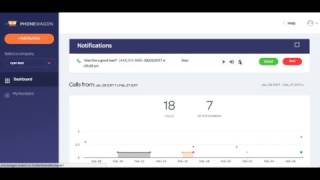
In this product demo, Ryan Shank walks viewers through PhoneWagon’s newly released dashboard and call‑tracking interface. He begins by showing the notification banner that appears for unconfigured numbers and the recent‑calls panel where calls can be marked as good or bad and listened to directly. He then demonstrates how to add a new phone number, selecting a 917 area code and a vanity number, and configures it for a specific campaign (a billboard on Madison Ave), setting the call‑forwarding destination to his cell phone and enabling call recording. After saving, he places a test call to the new number via Google Voice, receives the call on his cell, ends it, and returns to the dashboard to view the call entry, its source campaign, and the recording. He tags the call as good, reviews the number’s overview, and highlights the call‑overview section at the bottom of the numbers page. Throughout, he emphasizes the ease of setup, real‑time monitoring, and invites user feedback on the new interface.
Chapters
Alright guys, this is Ryan Shank from PhoneWagon, and I'm giving you a sneak peek at the new interface. So this is going to be your dashboard. If you have numbers that you haven't set up yet, and when you first log in, there's going to be a notification banner up here. You can close that out. It's also going to show your most recent calls up here. You can mark these as good or bad calls. You can listen to the call recording right there as well. So let's say that was a bad call, we're going to mark that as bad. And then, then down here You can see it marks it as bad. So it's gonna have a summary of your most recent calls right here. When we scroll down, you're gonna be able to see the campaign, the number that the call came from, and then the number that it's forwarded to, the duration, and then if it was abandoned, it's gonna say abandoned. Then you can start to mark your, actually that would've been bad, bad. But you can start to mark your calls as good or bad and then just see the call recording there. So I'm going to, This is gonna be in my numbers. So this is all of your numbers that you have in your account. I'm gonna add a new number now. So let's say we want to add a number. Let's say we're in New York City. We need a 917 area code. Okay? So we're doing some stuff. So I can choose from one of these num— oh, that's a cool number with a bunch of 3s at the end. So I'm gonna add this number. And then what I'm gonna do now is I'm gonna begin configuring this number in our account. So let's say this campaign, I'm gonna do a billboard. Billboard on Madison Ave. And then I want this number to forward to my cell phone so I get all the calls and no greeting, but I do want to record the calls. And now I'm going to click Save. Okay, so now I have this number configured. And then what I can do now is I can, you know, put that number on my billboard, which is pretty cool. But I'm going to call this number now from— what's the number— from my Google Voice. And show you guys what that looks like. Okay, so now I'm gonna call this number right here. It's gonna ring on my cell phone, so I'm gonna answer the phone. Hello, hello, hello. Alright, so I just ended the call there. Whoa! And then now I can go back into my dashboard and then I can view all of the calls that I've received on all of my numbers. Okay, so here's the call that just happened, came from the billboard on Madison Ave. I can listen to the call recording, you can see that there. And let's say that was a good call, so you can mark it as a good call. And then again, you can go back into your numbers. So here's all of your numbers that you have, here's the number that we just did. It's going to show all of the recent calls at the bottom in the call overview, and then you can configure it there. So this is the the new interface. We're super excited to get this out to you guys, and let us know your feedback.