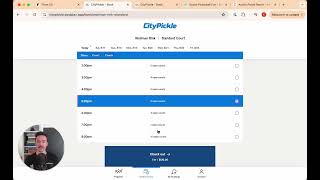
The video walks through the PodPlay mobile app from a first‑time user’s perspective, demonstrating the complete booking journey and ancillary features. It begins with selecting a club, choosing a location, date, and time, reviewing an order summary, and completing a reservation using a password‑less email login. After booking, the user can invite friends via a share link, see invited participants, and switch to other club locations for future reservations. The community tab lets users browse programs, clinics, open‑play events, and waitlists. For private lessons, users can view coach bios, rates, availability, and trigger a confirmation email to the coach. Membership options are presented in the account tab, with purchased memberships highlighted. All screens are white‑labeled with club colors and logos to create a seamless brand experience. The demo concludes with a call‑to‑action to book a demo at podplay.app.
Chapters
As a first-time customer interested in using the Podplay app, I select the club that I want to visit, and I can go to the booking page. On this page, I can select the preferred location where I want to play. I can select the preferred time and day that I would like to play, and when I hit checkout, I'm brought to the order summary page. This is a review of all the things that I'm going to be purchasing. For example, the court price, if I was going to add a coach, and how many people I'm going to play with. When hitting Reserve, I am then prompted to log in. By entering my email and hitting the Continue with Email button, the system is going to send me a login link. Our system is passwordless and doesn't require any passwords to log in, so it's more secure. Once I receive that email, I can click on the login button and I'm brought back to the app where I can then book my reservation. This signup flow is required only during the initial signup or sign in. Once I'm logged in, the system will remember and keep me logged in. Working again through the booking flow, I select my location, my preferred day of play, and preferred time. Hitting checkout, I then click reserve and receive the confirmation screen telling me that I'm booked. The next call to action is to invite my friends. By clicking on the "Invite Friends" button and copying the share link, I can then send this in a text message to any of my friends, prompting them to join my private court reservation. Once my friend accepts, I can see them pop up on my invitation list. If I have a preference to play at a different location, I can select one of the many locations where this club is offering court space. The booking flow is the exact same. I select my day, preferred time, I go to the checkout screen, and I reserve my court. When hitting Skip for Later, I then see all of the locations where I am going to be playing. Later today, I will be playing at Wollman Rink. On Monday, I will be playing at Long Island City. The system itself is intuitive to use on the phone. When I'm selecting where I want to play and when, there is a vertical scroll that allows me to choose the preferred time. This is also available when I'm choosing a program. On the community tab of the app, I can choose from any number of different programs that are coming up, or perhaps next week. I can choose between clinics and open plays, seeing flags for how many spots are left, or noticing when there is a waitlist at one of the events. If there's a preference instead of joining an event to book a private lesson with a coach, the app gives me a number of coaches to pick from. I can check out their bios, see their rates, and I can confirm when I have chosen my preferred coach. I can then click through the available days and see when the coach is available for that lesson. I select the time with that coach and go to the checkout screen. Once I hit Reserve, the coach is then sent an email saying, "Hello, this customer would like to book a private lesson with you." Once the coach confirms, I would then have my reservation inside of my Reservation tab. The Podplay app also offers the ability for a club to give their customers membership options. A customer goes to their account tab, clicks on the membership sign-up button, and then sees a variety of membership cards detailing the membership perks available. Once a customer purchases a membership, that membership will rise to the top of this page. You may have noticed that each of these apps that we have gone through are white-labeled. We take the club's colors and logos and add them into the app so that the customer feels as if they are already engaging with your club as they are on the app booking reservations or joining any sort of programming. To find out more or to book a demo, reach out to us at podplay.app. We look forward to serving you.