help video article manager Joomla 1.5
2 Dec 2011 · 3 min
3:01
Ryan Dohrn walks through Joomla 1.5's Article Manager, showing how to find articles using filters, edit content, and use bulk actions like publish, archive, and trash.
Ryan Dohrn walks through Joomla 1.5's Article Manager, showing how to find articles using filters, edit content, and use bulk actions like publish, archive, and trash.
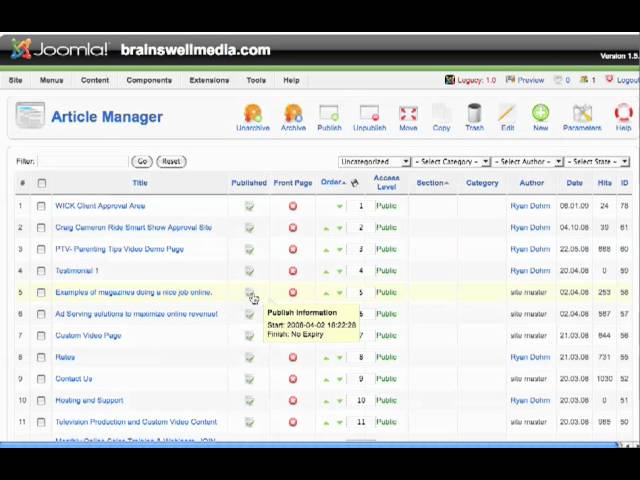
Hey everybody, it's Ryan Dohrn here from BrainSwell Media. Today we're going to talk about how you're going to manage your articles in the database, okay? This magic thing we call the database. Remember, if you get lost, you just go up here and click Site, and then you go to the Control Panel, and it'll take you back to where you need to be, right here to our control page, okay? Alright, here's a tab, a little button here that says Article Manager, okay? Simply click on it. This is going to show all the articles that are currently in your database. Again, guys, you're gonna find this is very self-explanatory. Okay, you'll notice right now Select Section and Select Category, Select Author are all just pretty much blank. If you wanna see certain articles from certain sections so you don't have to scroll down through the long list, choose that section. Let's choose News. Okay, oh, there's nothing in the News section. Alright, let's go ahead and click on Uncategorized. There we go, now we found some articles. Okay? Now, what it's going to tell you on this page is the name of the article. Alright? And this one here is examples of a magazine doing a nice job online. It's going to show you here, is it published? Yes, it is. Is it on the front page? The red circle with the X means no. The green checkmark means yes. And it also is going to show you the order that those articles are appearing within this particular section. Remember, this section is called Uncategorized. So, If you knew that there was an error in an article, you wanted to get online, you go to the Article Manager, and then what you would do is you would go and simply click on that article so it can pop up and you can make changes. And you notice that all your changes that you make, you'd make it to the text right here, and then you would simply click Save. It's actually quite that simple. So again, on the Media Manager, you're simply going to go from your Control Panel, you're simply going to click on Article Manager, And then you would want to choose what section or category you want to look at. Simply scroll down until you find the article that you want to edit. Simply click on that article's name and then you can go into the article itself and make the changes that you need to make. And that's it. That's where the Article Manager is located and that's what its function is. Now, one thing you can notice here, you've got a lot of little checkboxes. If you want to get rid of an article and trash it, Simply click the checkbox, go over here and click trash. If you want to edit it, you click it here. If you want to copy that article, you simply click copy, unpublish it, publish it, put in the archive, unarchive it. Oh my gosh, so many options, I don't even know what to do with them all. Well, this is just your basic training, guys, so we'll get more into detail later. The article manager allows you to manage articles that have already been written. You can select them by section You can select by category, by author, etc., etc. That's a quick overview of your article manager within Joomla. I'm Ryan Dohrn from BrainSwell Media. Happy article managing, I guess. Have a good day.







