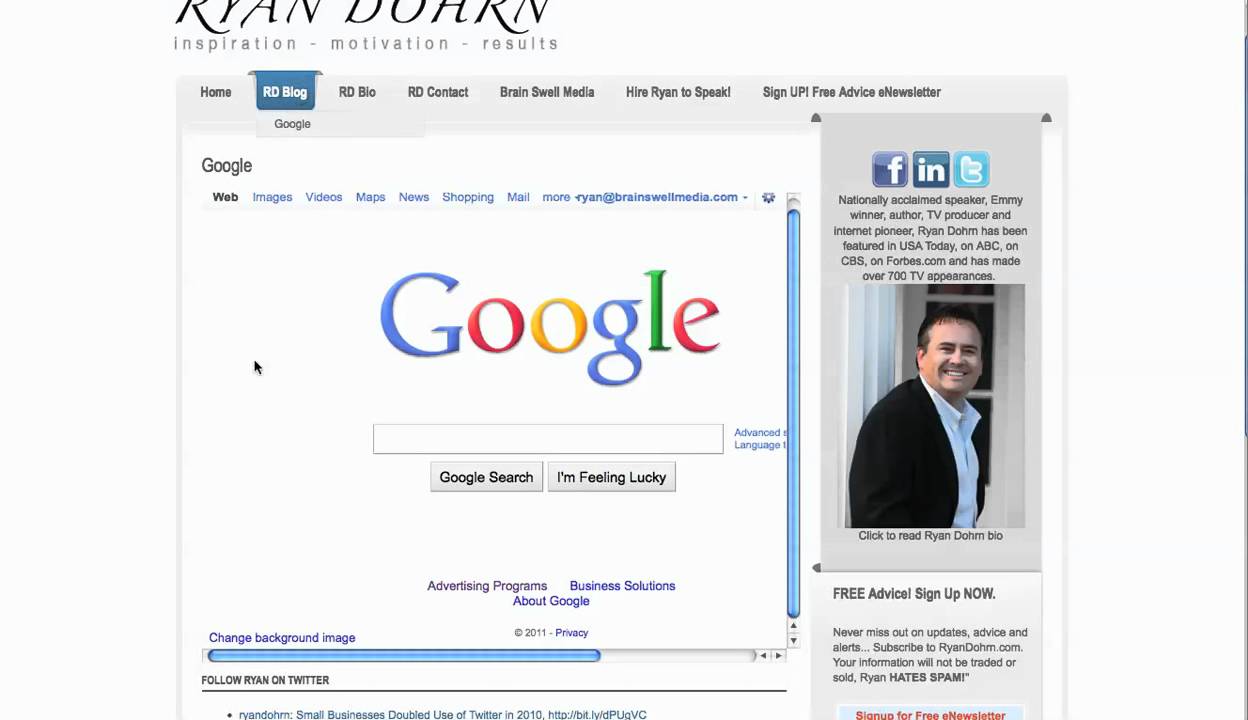
Ryan Dohrn shows two ways to embed external websites in Joomla. Use the built-in Wrapper menu item type to configure scrollbars and dimensions, or paste raw iframe HTML directly into an article source code. Online iframe generators can help you get the code right.
Chapters
Hey everybody, welcome to Joomla Training. This is Ryan, and today we're going to talk about iframes and wrappers within the Joomla interface. It's actually pretty easy to be able to house another .com name within an article or within the Joomla wrapper. So let's talk about that for a second. There's a couple ways to handle it. The first, let's talk about, is the Joomla wrapper. And so the way you create a Joomla wrapper is that we're going to actually go to Menus, Main Menu. And what we're going to do is just on the Ryan Dohrn website, we're just going to create new and you'll notice right down here there's a thing called wrapper. What this is going to do is allow us to be able to put some type of URL. We're going to use Google and we're going to put it within our website template. So we're going to link, the menu is going to be called Google. Over here on the right, the wrapper URL. It's just going to be called google.com, okay? And there's all kinds of parameters you can set. Do you want scroll bars, yes or no? How big do you want it, etc., etc.? We're just going to link it right here off the RD Blog on the main page. Let's click Save. Let's go back over here to my website and click Refresh. And then obviously here right underneath RD Blog is the Google link, so we're going to highlight that, and then you'll notice what happens. Is that it's automatically going to pull it right back here in the interface. And so you can see right here, then it just basically is going to pull Google within my template, and then it's got scroll bars so you can go up and down and you can go right and left, okay? Now you might say, okay, well, I don't want it to be appearing from the menu item. That's fine. What you'll notice at the top is that I have a URL that's already generated up here at the top, so I can highlight that URL and I can cut and paste and use that. And then just go into the Menu Manager and I can just unpublish that menu item. The second way is to use actual iframe HTML code. So what I've done here is I just opened up a regular article and we can just call it, you know, for example, just, you know, test article. And then what I'm gonna do is I need to actually write HTML code. So at the bottom of the screen here, I'm just gonna toggle my editor. I'm gonna use standard iframe HTML code, which allows me to basically put this— put somebody else's .com name or another page here right within a particular article. So here's the code right here. It's simply the iframe src, and then you're able to set the width and the height, okay? And within this iframe src, you're able to then put whatever .com name you want. So if we wanted to do the same thing that we just did before, we would just, you know, go ahead and put google.com in there. And then we would adjust the height and the width. And this is a really nice way if you want to just incorporate an iframe within an actual Joomla article itself. Keep in mind there's a ton of different ways to incorporate iframes into your Joomla website. What I typically do is I would just go, you know, over to Google, and what I would do is I would just type in iframe HTML code, and it's gonna give you all kinds of different examples of iframe code. You can kind of test and tweak from there to base, you know, your different preferences. Alright, so basically we've got 2 ways. One, you can use the iframe HTML code, just toggle your editor back and forth and you can put that code, you know, right there within your page. Or the other way is to go over like we did in this example and use the Google wrapper, which allows you to put an iframe directly within your Google template, basically just using a wrapper. So hope that helps. Joomla is great and I hope that you'll really use it for all the benefits, it's there for you. Have a great day. This is Ryan Dohrn from Brain Swell Media. Thanks so much for checking us out.