The video tutorial walks through installing the jPlayer plugin in Joomla, enabling it via the Plugin Manager, and configuring the Audio Parameters by specifying the MP3 folder path (e.g., media/podcasts without leading or trailing slashes). It then demonstrates embedding an MP3 into a Joomla article using the WYSIWYG editor with a custom shortcode syntax: [MP3]filename[/MP3] (the filename is inserted without the .mp3 extension, obtained via the link button). The presenter shows how to apply changes, refresh the article page, and verify playback of the audio player. Common mistakes such as forgetting to enable the plugin, using incorrect folder paths, including the .mp3 extension, and not refreshing the page are highlighted. The tutorial also notes that jPlayer supports other media formats (FLV, MP4, YouTube) and works across browsers (Firefox on Mac, Chrome on PC). The tone is instructional and supportive, ending with encouragement for users.
Chapters
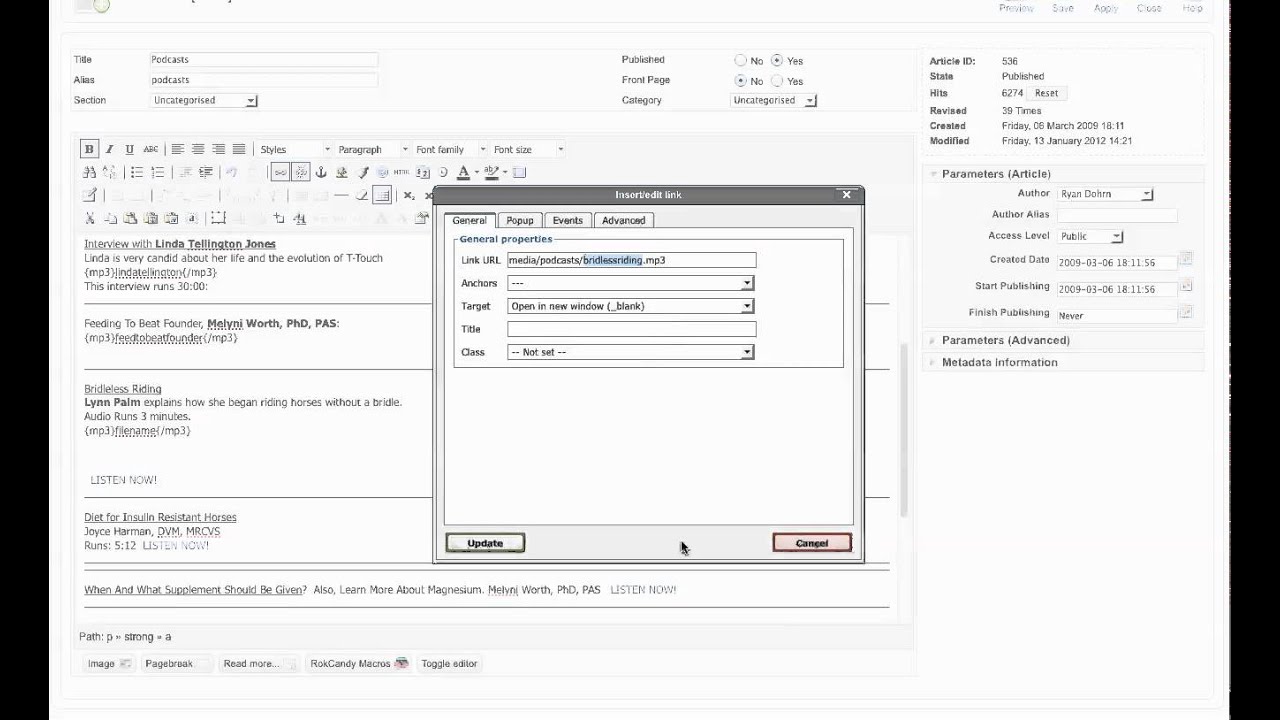
Alright, today we're going to talk about how to use JPlayer, which is a plugin through your WYSIWYG editor, to make sure that you can— so that you can embed MP3 files or other— some other supported media files on your Joomla webpage. So you're going to simply go through the installation process as normal under Extensions, Install and Uninstall. Then you go to the Plugin Manager, and a lot of times what people do is they forget to turn that plugin on. Which is the first problem. So you need to go actually to the player and then make sure you enable it. But there's a configuration setting. Let's talk about MP3s because it's gonna apply to all files. Over here under Audio Parameters, you need to actually denote here which folder, okay, which folder your MP3 files are gonna be located in. In this case, on this website, they're located in media/podcasts. Notice there's no leading forward slash and there's no ending Then very easily, all you're gonna do then is go over to the contact— to the content article manager. Okay, here you're gonna see just a standard Joomla page inside the article manager. And adding— okay, even if you have existing content, adding to a page is very, very easy. Okay, now in this particular example, this user has been linking externally, and so they've been having some trouble getting their MP3 files to play. So, I'm just gonna go ahead and put my cursor here. I'm gonna space down a couple so I have some room to work, okay? I'm gonna hit Shift+Enter to make myself just one carriage return, and then all you'll do is you put a bracket, bracket, MP3, and then close bracket. Don't worry because these brackets are not going to appear. Then you're gonna put the filename here of the MP3 file. Notice there is not an MP3, okay? To get rid of the MP3, on the actual filename you're placing on this page. Okay, then you're gonna do an open bracket, forward slash, which stands for M— and rather MP3, okay, and then a close bracket. And this is where you're gonna place the filename. Now, in this case, I'm gonna go to the Listen Now link. I'm gonna simply click on the link button to grab the filename to save me a little time. So notice I'm grabbing the filename. I'm not placing .mp3. Very, very common Mistake. I'm gonna go here to where the file name goes, and I'm simply gonna go ahead and place that file there. Alright? Now, just to know where I am in the page, I'm gonna put a few X's here, just to know when I go to the page that I'm gonna review that this is what's going on. So let me go ahead and click Apply, and then I'm gonna actually go over to the podcast page. And this is what the player, JPlayer, will look like once it's on the podcast page. Okay? So let me refresh the page. Another common problem, you have to refresh the page after you make a code change, okay? And the one that we just were working on was this Bridalless Riding right here. So let's refresh the page. Alright, so let me scroll down the page. Here we go. And so here is the Bridalless Riding and here is the MP3J player. So let me click on the play button just to double-check it. Bridalless Riding, it has to go back with Bobby's film. Okay, so there we go, we got it. Sounds like it's working. So what I can do now is I'm gonna go back over into the WYSIWYG, okay? And you might say, well, Ryan, why do you leave all these X's and stuff? It just makes it easier for me to find it. Let me get rid of the old file, okay? Now sometimes what people do is they delete the Listen Now from their older documents before they check to make sure that the MP3 player is working. Now notice again, bracket, MP3 bracket, and you'll notice inside the bracket is MP3. If, you know, based upon the developer's website, If you have a Flash video, it's gonna be FLV, MP4, MP4, FLV remote, video playlist, YouTube. So you can actually use this player for various different things within your YouTube articles. I'm right now on a Mac using Firefox. I have tried it on Chrome on a PC and it works splendidly as well. So kudos to the folks over here at JPlayer and the development of a really great, easy a plugin to play MP3 files and other media files on your Joomla website. Thanks a lot and best of luck.