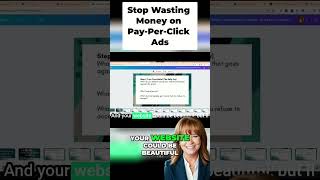
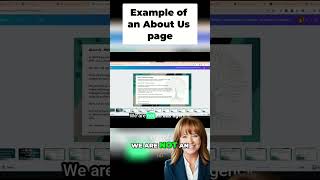
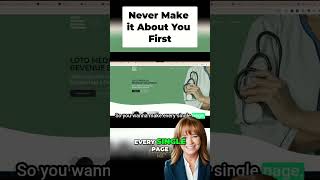
Sandy Wardenburg Waggett shows how to use Opus Clips to automatically turn one long video into 30+ short clips for YouTube, TikTok, Instagram, and Facebook. The tool finds the best moments and cuts them for you, saving hours of manual editing work.
Chapters
Hey everyone. Today I am going to show you how I use Opus Clips to take the videos that I do as training for MSW Interactive Designs clients and for my Visibility Transformation challenge and then turn them into a whole bunch of shorts automatically. So it's one piece of long form content that then I turn into 20, 30 different shorts, depending on how long the content is that I created in the first place. What is the benefit of this? Well, the shorts can be used in Facebook reels, on Instagram, on TikTok, in a variety of places to promote your long form content. So let's dive right in and I am going to share my screen and show you exactly how to do this. All right, so I am at Opus.
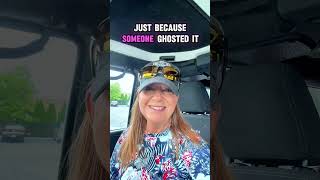
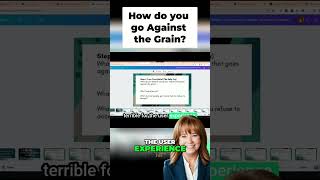
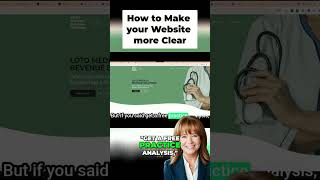
I am actually connected to my Gmail account. So when you go to Opus Pro, you'll be prompted to set up an account and you can create a trial account to give it a shot. And then it's super simple. You'll come to a screen like this where you can just drop a YouTube link or you can drop a Vimeo link or a Rumble link or a Twitch link. So it's a link to a video that's already out there. So if I go to my YouTube channel, this is the video that I'm going to create the shorts for. So you can see the video is published 13 days ago. It's already had 685 views, which is great. Which that means it's a pretty high performing video. And then I'll probably do this one too. You can see it's had 23,000 views, which is fantastic. But anyway, so I'm going to click on this one and I'm just going to click on Share to get the link. So here's the link. So you just copy the link and then you come back over to Opus Clips and you just paste the link in here and click on Get Clips and it will automatically, using its own AI technology, generate a bunch of clips for you. So you can see I've already done that here. So I'm just going to go ahead and click on here so you can see the clips that it has already generated for me, which is amazing. I want to make sure you can hear the audio and I don't think I shared that. So I'm going to stop sharing really quick and then I'm going to reshare. Let's do this better in real time. Okay. So I'm going to share normally. I'm prompted. So I don't know if you're going to be able to hear the audio or not, but it's really not that important. So anyway, I can then come to any of these videos. Now, some of these I've already edited, so this is one I've already done. But essentially it just gives you all of these clips, right? So initially I got the clips and of course my face was not on those three. I've already edited those three. But let's just say I want to now potentially use this one right here. So. So I'm just going to click on play and way too much time focused on logos. And like my web designers on the call, Amanda and Mark know when we do websites for people, a lot of times they want their logos. So this one is making the point that no one cares about your logo. So this would be a good short and you can see it gives it a score. I'm going to go ahead and edit this one. So you can see here, when I roll over, post to your desired platform in one click. You can download it or you can edit it. So I'm going to click on edit.
And then the clip is going to come up and you can see that it has already generated the text here, which is fantastic. And I'm going to go over here to upload. And you can see I've already uploaded a graphic to overlay so you can overlay any image. So I'm going to click on add to timeline. Now you can see down here in the lower left that this only occupies a very small percentage of the video. So I'm going to go ahead and expand it so that my image overlays the entire video and I'm going to double click on it to edit it.
And I'm going to expand this and click on apply. So now I can resize it and make it fit where I want it to so that my building your brand influence kit is down here. And then I can actually move the captions that it auto created. And then I'm going to add some text to it to give it context.
Drag that up here and then over here in the upper right. It's where you edit it. And to say no one.
Let'S do this. No one cares about your logo. Okay, so that's it. That's super short. Now look over here on the text. It's also short where I added it. So I'm going to drag it to the full length of the video.
And then I'm going to save changes. We'll just give it a second it's thinking and then as soon as it's saved I'm going to publish it to my YouTube channel and I can do that all right here from Opus Clips, which is fantastic. I don't have to go to any other program, so I'm going to post to YouTube. I've already connected my YouTube channel and then I'm going to add full training.
Here. And that's the URL I already copied and pasted to my YouTube video that has the full long form video. So if someone sees the short and they want to go to the long form video to view the whole training, which is what I really want them to do, I am good to go. So then I can come over to my YouTube channel and I can go to the Shorts tab and you can see where my shorts are published. So that one's still publishing. We don't see it here yet, but see how simple that is. It's really awesome. And ultimately will generate more views, more engagement, more activity, not only on your YouTube channel, but like I said, you can download these and you can publish them elsewhere. You can also connect your other social media channels to Opus Clips and publish directly to those social media channels. So think about using Opus Clips. It's super powerful, super easy to do, and you will see tremendous growth on your channel as a result.