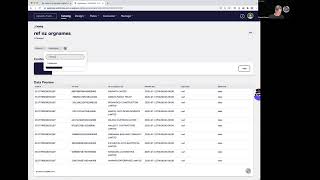
Shagility shows how to add and edit topics on catalog tiles to group related data. Topics work as free-form keywords you can click to filter the catalog, like Company or Vehicles. The feature stays ungoverned for now but may get governance rules later.
Chapters
Welcome to another Agile Data Gone in 60 Seconds. In this session, I want to talk a little bit about topics and how we tag information with it. If you have a quick look at the catalog page, you will see that we've got a bunch of tiles. And again, a tile is a view of a table or a view of data. And on each of these tiles, you'll see these little tags which we call topics. Topics are words we can create that can group information together. So you can see that on each of these tiles, these ability to have multiple topics assigned. Now, what does the topic do? Well, one of the things that allows us to do is group the information on the catalog page. So if you have a look, we have a topic here of company that's been assigned. If I scroll down, I will find a row of data that relates to company and the tiles that relate to it. So if I wanted to change that, how do I do it? Well, it's relatively simple. If you have a look here, I've got Company and Companies, and maybe I want to standardize those topics so they mean the same thing. So what I'm going to go and do is edit this tile, drill down and actually go to the catalog tile detail page. And you can see here that I've got the 3 topics that have been assigned. So I'm just going to go and click the cross and remove the Companies topic. And then I'm going to go in and I'm going to add another topic. In this case, company spelled a different way. And actually, let's try company spelled the Greek way. Hit enter, and that's now been saved against that tile. As easy as that. Now, when we were creating this capability, we had a quite intense conversation around topics. Should they be managed? Should they be treated as reference or master data? Should I have to go to a page of topics to create approved topics? And what we decided was, for now, no, the ability to simply and easily add and remove topics to manage the data the way that you want to manage it as a data magician is incredibly powerful. In the future, we may put some more governance around that, but we'll see how we go when we get some feedback from the Magician teams. So once we've added those topics again, we can go back to the catalog screen. And as I said, we will see that being aligned as rows. But the other thing we can do is we can actually tick, click click on a topic and get all the tiles back that relate to it. So for example, I have a bunch of tiles being flagged as data about New Zealand. If I click on the New Zealand topic, I will now get a page of only tiles that have been flagged that way. So these are all the tiles that have been tagged and flagged as New Zealand, and then I can draw onto something else. So maybe I see something really interesting, or I can see stuff about vehicles. So if I click on the vehicle topic, I'm going to go down to a page that only has the information that's been assigned that topic of vehicles. So topics, really, really powerful. I've shown it how it works within the catalog, that capability is getting rolled out to everything we do, to designing data rules, consuming and managing them. We can talk about that in another session. But for now, that was an Agile Data Gold in 60 Seconds. We hope you all have a simply magical day.