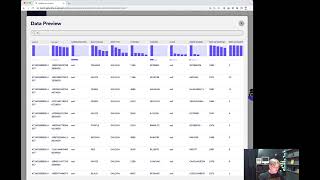
Shagility shows how Data Search in Agile Data lets you find data without writing queries. Search "JCW" across 5 million New Zealand vehicle records and get 176 matching rows instantly, with profiling metrics and sample values visible in the preview.
Chapters
Welcome to another Agile Data Gone in 60 Seconds. Today I want to do a quick demo of a new feature we introduced a little while ago called Data Search. So let's have a quick look. We're in the catalog of the Agile Data app and we can see a bunch of tiles, each tile being effectively a table or a view of data. So if I scroll down, what I'm looking for is a history area, which is where the raw data comes in. And I've got a tile here called called Raw Fleet Data, All Vehicle Types. So if I click on that and drill down, I'm going into the detail information about that tile. So we have some stuff around the data quality or trust rules, some context there that I've typed in or cut and paste from where I got the data, and data preview. So this is effectively showing us the first 10 rows, and you can see here that in this table view we've got 39 columns of data and, uh, just over 5 million rows of data. So effectively it's an open dataset that has every car that's been registered in New Zealand. If I click on Data Preview, it's going to bring it up and it's going to bring back the profiling information. So every time we load this data or load a new version or bring in some more data to augment it, we effectively go through and profile the data itself. And we can see when, you know, there's unique null variables, when there's a lot of categorical variables coming through, percentages are null. The other thing we can see is we've got a data search capability. So as I said, we've got 5 million rows in there, a whole bunch of data about cars. Uh, I'm a great fan of the new Minis, and within the Minis there's a version called a JCW, a John Cooper Works, which is kind of like a race version of the Mini. So what I'm able to do is type in JCW, hit enter, and that's now going away and searching that table, those 5 million rows, and coming back with the number of records, so 176 rows there that have the term JCW in it, and that term can be in any of the fields, any of the columns. So if we go through, you know, we can see JCW sitting there, we can go through and see JCW sitting there, and so it's a really quick way of finding the information. Now the reason we want to do this is often when you get the data originally coming in the first time we see it, you're going through and designing the data and people will say, oh look, we've got this concept of car and we've got a concept of model and you know, you're looking at the data and you can't find that data that's around model because the columns aren't pretty names and you can't see some information there. So often what we say is, well, give us an example of a model and then we'll go and search the data and then we can find the column or the rows that has that data in it for us. Or we say, send us a screenshot of the application you're using, and we can see there a piece of data that's sitting on the screen, come in here, search for that piece of data, find the column, and say, okay, this looks like the column that we're looking for. So really quick way of finding data without having to go out and query it in a third-party app. So that is Data Search available for any tile that's sitting within the Agile Data app. So that was another Agile Data Gone in 60 Seconds. I hope you have a simply magical day.