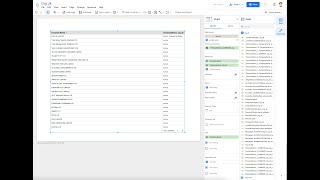
In this 60‑second tutorial, Shagility demonstrates how to consume Agile Data tiles within Looker Studio. Starting from the Agile Data catalog, he shows the "Consume" tile containing UK organization data and explains two ways to explore it: launching directly from the catalog into Looker Studio, or, more commonly, initiating the connection from Looker Studio itself. He walks through creating a new Looker Studio data source, selecting the Agile Data connector (which uses BigQuery), choosing the appropriate tenancy and the "consume" dataset, and picking a specific table (e.g., org.uk). The video details the authentication process, how the connector pulls the tile’s schema, and how to rename fields for clearer reporting while preserving technical descriptions for lineage. Shagility then creates a simple report using the new data source, customizes the view by removing unwanted columns (like row numbers and org key) and adding desired ones (company name, status). Finally, he saves the report, explaining that each time the report is opened Looker Studio will re‑query Agile Data, ensuring the latest data is displayed. The tutorial emphasizes the quick, low‑code method to surface Agile Data tiles in Looker Studio and hints at deeper configuration options for future videos.
Chapters
Welcome to another Agile Data Gone in 60 Seconds, and today I want to talk about consuming Agile Data data in Looker Studio. So let's rip over to the Agile Data app, and as we can see, we're in the Agile Data app, uh, we're in the catalog screen. We've got a bunch of tiles, a tile effectively being a table or a view of data. And I can see at the top here I've got a bunch of different tiles. The one we're going to focus on is this Consume tile, uh, which has a bunch of organizations from the UK. So one quick way to be able to explore that data is click on the three dots, go explore with Looker Studio, and would be able to open that data directly up in Looker Studio. But often we want to go from the other way. We want to start at Looker Studio and connect it to agile data. So That's easy enough. We, we go into Looker Studio and what we'll typically see when we go in is we see a bunch of reports we've opened before. And if we click over to data sources, these are the data sources where we've connected Looker Studio to Agile Data. So none there at the moment. I'm just gonna go and create one. And the way I do that is I go create data source. I pick what I'm connecting to. And for Agile Data, we connect to BigQuery. And then I'll be brought back with a list of projects or tenancies effectively that I have access to. So it's the same as the URL you go to when you go into Azure Data. So then pick up the dataset consume and then I'll be returned with a bunch of tables which effectively match all the consume tiles that we have in our catalog. So if I go down, I'm looking for one org.uk, I'm going to pick that and then I connect. And what that's doing is it's taking my credentials it's passing it over to Agile Data, it's authenticating me, make sure I have security, see what I can see. It's querying that tile and it's bringing back all the fields that relate to that tile. And what we can do is we can go rename them. So maybe I just want to say instead of that, I want a pretty name in the report. So it's got Company Name. We always keep the description of the technical column that we've got. So there's a bit of lineage there. Once we rename these, we can always see where it came from. And that's it, we're now connected. So to use that, let's just quickly go into Create Report. That's going to go and use that data source. It's going to bring that data back into my report. So it's just— Looker Studio is asking me if I want to do that, and yes I do. And then it creates a quick dummy table for us. So, uh, we just go and play around with that. I really don't like the way Looker Studio dynamic always gives me row numbers. I always turn that off. Let's say that we're not particularly interested in the org key, but we want to bring back the org name. You know, maybe we want to bring back its status, right? So we can go and see the status. We're not really interested in the record count. And so now what we're getting is the data back from those tiles in Agile Data, and it's coming directly back into Looker Studio. We should go and save that report. You know, let's call it, I don't know, something really unique like Org UK, uh, and what will happen is, uh, every time we come to this report, uh, depending on our settings for that data source and the report itself, it'll go back and re-query agile data and bring back the latest view of that data, which is what we're after. A whole lot of options within Looker Studio and things like that that we should do when we set these up properly, but we'll do that in another video. So quickest way, quick and easy way to get access to tiles that are sitting in your agile data environment. So that was another agile data gone in 60 seconds. I hope you have a simply magical day.