Learn how to build concept and detail rules in Agile Data. Create a concept rule for Users by selecting the shared tile and defining the business key, then create a detail rule that selects specific fields and links back to the concept tile. Repeat for Orders, then run the rules to populate your tiles in the catalog.
Chapters
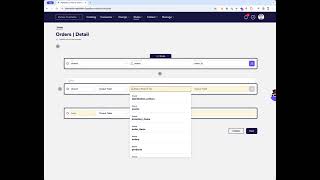
Welcome to another Agile Data Gone in 60 Seconds. Today we're going to have a quick look at creating concept and detail rules. So in the previous step, we've gone through and created our topic canvas and our draft concept tile for orders and users. We're going to go through now and populate those concept tiles and create the detailed tiles that go with them. So if I go over to rules and change rules, When we first go in, there's no rules there, so I need to create a new rule. In this case, I'm going to start off with the users, so I'm going to call this the rule 'Users' and I'm going to say it's a concept rule so I can find it later. I'm going to go through and pick up a shared tile, so that data we imported from the Look, and I'm going to go through and find the shared tile that I'm looking for, which is 'Users', and then I'm going to go away and define the business key or the unique identifier for users. So this is how we uniquely identify that concept. And I know that for users it's the ID field. For concepts, we don't need any details or any transformations happening. We're just bringing through the key. So I can take out that row, and then I'm going to go through and say populate a concept tile, and it's going to ask me which tile, and I can pick up that draft tile that I've already done. When I'm happy with that, next it's going to go and validate that rule for me. It's then going to give me a data preview of what the data looks like. So it's effectively running that query for me in the background. In this case, I'm just getting back a bag of keys, so I'm happy with it and I'm going to publish it. That rule will effectively take the data from the users shared tile and remove, move all those unique keys across into the concept tile. I need some details about those users, so I'm going to go and create another rule. In this case, it's going to be called users and I'm populating a detail tile. I'm going to again pick up from Shared. I'm going to pick up that same user table with all my history data. I'm going to use the same key, which is ID. In this case, I am going to do some transformation of the data. I'm going to change it. I'm going to go and pick up some data from that tile. And in this case, I'm actually going to output the fields. So I just want to grab the fields about the users. I want to grab all the fields, but I'm not going to pick up ID and I'm not going to pick up lat-long. And I'm not gonna— yeah, I'll pick up created date. So that's saying grab all those fields, bring it through to detail. In this case, I'm going to create a detail tile. I need to give that tile a name, and there's no detail tiles already defined, but that's okay, I can define it in the rule. So I'm going to go and create that called users and create it, and you can see it's orange because it's a detail tile. And now I need to link these details back to those IDs, and I do that by linking it to the concept tile. So every detail tile must be linked back to a concept tile. Once I'm happy with that, next. And it's again validating it, checking that the logic's correct, there's nothing I've done wrong, running that rule on a subset of data. And you can see here I'm getting back a sample of the data for those fields. Happy with that, publish it. So that's populating the user concept and all the details about those users. Need to do the same thing for orders, so exactly the same process. Orders, gonna go and populate the concept, pick up that shared tile. In this case, I'm going to pick up orders, not users. I'm going to have a look and grab the key, which in this case is order ID. I know that's unique. I don't need to transform or change any of the data, I'm just bringing through those bag of keys. I'm going to populate a concept, and the concept I'm going to populate is order because I already created that as a draft tile in the topic canvas. Validate the rule, get back the preview. Once I'm happy with that, hit publish. Yes, it's going to give me a list of order IDs. Now I need the details about those orders, so you can have a guess what I'm going to do next. New rule, create the rule to populate Orders detail, pick up the tile, history tile from shared orders, make sure I'm picking up that key again. So order ID, gonna grab and output some fields. I'm gonna pick up those fields from that same orders tile, go into the wizard, grab all the fields. I probably don't want that one at the moment. Everything else is important to me, so I'll bring it through. Populate a detail tile. That tile is going to be called Orders. It doesn't exist, so I'm going to create it. Need to link it to the key, which is the concept tile of Orders. Happy for that. Hit Next. Again, validate the rule. Run a— run that code against the sample of the data and give me some feedback. Make sure it's what I'm looking for. I'm all good at that. Publish. So that created the rules. Those rules are effectively published, but they will only run when new data turns up. Or I can run them manually. So what I can do is sit here and go run rule and do that for the full rules, or I can go into the data map, which is my preferred way of doing it, which gives me lineage, and I can go and say run forward. So it's going to run all the rules after the shared tile that it's dependent on. So do that. And then also want to do the same thing for orders, run that. And now what's happening is those have been queued to run. So if we have a look, Uh, there's the notifications of what we've done in terms of creating and publishing those rules. And then we should see in a second that those rules have been submitted to run. Uh, and, uh, when they're completed, we'll get a notification and those tiles will turn up in the catalog. While we wait for that, let's have a quick look at the catalog. We can see here that there's our draft orange tiles, our draft detail tiles. So when we create the rule, it's automatically creating those draft tiles for for us, uh, whereas the drafts for the concept and the events was effectively done through the topic canvas. And you can see there we've got some notifications that some things have been loaded. You can see here that these tiles have gone from having a draft tab to having a full line. That means the data is loaded in there. And if I pop into the orders detail, uh, and scroll down and have a look, we'll see that we've got some data in there. So we've moved the data from that shared tile into our order and order concept, order detail, user concept, user details, which we can use to populate the events in the future tutorial. So that was another Agile Data Gone in 60 Seconds. I hope you have a simply magical day.