In this 60‑second demo, Shagility showcases an experimental, code‑free data search feature built into the Agile Data application. Leveraging Google’s new BigQuery search function, the feature lets users type any text and have the system scan every row and column of a selected table, returning matching rows instantly. The demo uses an open New Zealand vehicle dataset (5.2 M rows, 39 columns) to find Mini cars under the John Cooper Works (JCW) brand, returning 176 rows. Shagility explains how this capability can streamline data onboarding by quickly locating the source table that contains specific values, reducing reliance on screenshots and manual inspection. He also discusses possible UI placements (catalog tile vs. profile screen) and emphasizes the speed, simplicity, and “magical” user experience of the no‑code approach.
Chapters
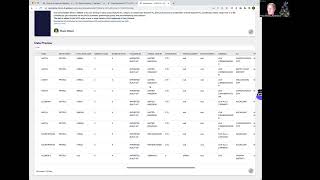
Welcome to another Agile Data Gone in 60 Seconds. Today I'm going to show you something we've just been experimenting with around data search. So a couple of weeks ago, maybe a week ago, Google announced this thing called a search function. So it's the ability to go and search for data that's in BigQuery, the database that we use under the covers to hold all your data. So what we're able to do is we're able to write a query that goes through and searches a table. For a certain piece of text and it searches every row and every column to find that text and brings it back. So I have an example I tweeted a little while ago where we went and tested it in the Google Console. But as you all know, I can't code, won't code, don't code. So, you know, we need to make this less complex and get into the, into the Azure Data App. So that's what we did. We did a little bit of an experiment. So if I go into Azure Data into the catalog and maybe I'll scroll down and find a a tile of data that I'm interested in. So in this case, I'll just go down onto a piece of information that holds all the vehicles in New Zealand that we got as a piece of open data. So as you can see down here, if I go down, there's 39 columns of data, about 5.2 million rows. And so it's got basically every car that's on the road in New Zealand, the make, the model, where it came from, and some other stuff about it. So in this example we've got a little data preview, so I'm going to go away and I'm going to search for Minis that were made under the brand John Cooper Works, which is the race version of the Minis. So type that in, hit go. It's now searching through that data. It's found it, it's bringing back, and we can see now what we have is we have 176 rows of data came back, and if I click on the data and scroll right, I can see that under submodel these rows have got the word JCW in it. So where do we see that as useful? Well, one of the things we do when we onboard data is we often have to find which table in the source system actually has the data we're looking for. So often what we'll do is we have a look in the application itself, we'll get people to send us screenshots with particular words that are on the screen and we're trying to look for them. So this is a great way of actually being able to go through and search a table and say, is this the table we're looking for? Looking for. As I said, it's an experiment. We're not sure we're going to leave a little search box there. We might actually bring it into the profile screen here, maybe because that makes more sense to me about where we're going to go and find it. We'll tidy it up and make it look pretty and beautiful like we do with all the parts of Agile Data. But it's not writing code. It's in the app. It's damn fast. And I think it's a Simply Magical thing. So on that note, that was another Gone in 60 Seconds. I hope you have a Simply Magical day.