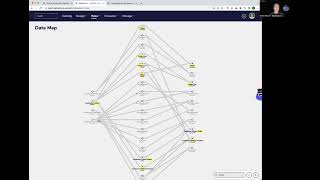
The Data Map view shows all data flowing through Agile Data, with history tiles on the left and consumed tiles on the right. Use the search box to highlight tiles containing a keyword like "order" in yellow, showing counts across all tile types. A future update will add match counts and auto-navigation through the map.
Chapters
Welcome to another Agile Data Gone in 60 Seconds session. And today I want to talk a little bit about data map and how we find information on your map. So when we have a look under rules data map, we'll bring back a diagram that shows all the data that's available in Agile Data and how it flows through the product. So on the left-hand side, we have history tiles, data that's been collected, and then the lines of the rules that are changing the data for you. And on the right-hand side, we have the last mile, the thing that you query, the consumed tiles. And as you can see, there's a lot of lines and a lot of tiles at the moment for a fairly small system. So as we add more and more data, it gets quite complex and we can drill in and drill out and scroll around and find the one we want. But sometimes we just want to get there really quickly. So what we can do is go down to the search and I can type in order. And what it's doing is highlighting every tile that has the word order in it and highlighting it in yellow so I can see it easily. So I can see I've got one history tile with orders in it, and if I scroll in a bit, I've got 2 events that have the word order, 2 concepts, 2 details. And over here I have 4 consume tiles that have the word order in the name. So where do we get this idea from? Well, previously, before we had the agile data app, we effectively use Google Sheets to configure all the rules and we could easily find by going Command+F and find looking for the words we're after to find the lineage. And then that would take us to the cell that they had it. And it's the same as if we look at what happens if we're searching within a browser. There's an article that I've written on Agile Data Well around the dangers of big guessing up front. And if I wanted to, I could come up here and go and search for the word guess and see that there's 9 instances of it and then click through and actually find where that word's used. So that's where we got the inspiration from. Really easy and simple way of finding what you're after. At some stage, we'll add the feature down here where it gives you the number of things that it found and will allow you to move left and right and it'll take you to that part of the map automatically, so you don't have to scroll yourself, but that'll come up in a future release. So data map, very simple, very easy way of finding what you're after. So that's it for today. I hope you have a Simply Magical day.