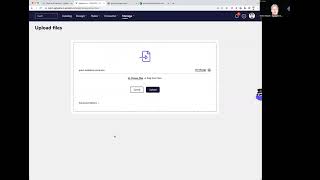
AgileData's file-upload feature lets you drag CSV or Excel files into the platform, automatically generating import rules that move data from a temporary landing area into the immutable history catalog. Each Excel sheet becomes a separate tile, ready for analysis right away.
Chapters
Welcome to another Agile Data Gone in 60 Seconds. Today I wanna do a quick look at the file upload capability that we built. So as you remember, the key thing we do to begin with is we get the data, we collect it, and we bring it into Agile Data, and we bring it into this history area. So we bring in all changes over all time, load them into history, so it becomes our immutable corporate memory. We have a bunch of ways we can do that. So we can push the data to Agile Data. We can go out and collect it from SaaS applications like Shopify and Xero, Salesforce, those types of applications. Or every now and again, we just want to be able to upload a file as a, as a one-off process or a process that we want to do on a regular basis. So to make that really easy, what we've done is we've built an upload files capability. So what I'm going to do is I'm going to go and grab a first of all CSV file and upload it. And then I'll go back and grab an Excel. So if we have a quick look, I've got a bunch of data around grants. This is the CSV version that we have. And I have the same data in Excel format, right, with a couple of sheets, Sheet 1, Sheet 2. So this data is from New Zealand government, it shows a bunch of contracts, which are grants that have been given to organizations for a set of projects, given a bunch of dates, grant type, location, and a value. So what I do is I go into the manage file upload, I go away and choose the file. So the first one I'll grab is the CSV file. I'll open that. Uh, it basically says, hey, got that file, do you want me to upload it? There's a bunch of choices. We could upload multiple files at once. In this case, we won't. And we hit upload. And what that's going to do now is it's going to go grab that file off my desktop, it's going to upload that file to Agile Data, uh, and then it's going to import that file into the history area. So effectively, it's creating a set of rules dynamically and automatically to import that data for us. So once we've done that task, we go back to the catalog page and we'll have a quick look and see if it's there already. And you can see that the first steps happened, that the data's been bought and bought into what we call landing. And then we're just going to wait a second and, uh, should create that rule and import it into the history tile area. So if I refresh that now, dum dum dum, and there we go. We've got that data sitting into history. And if I go and open up that tile, you'll see here that there's no trust rule because we haven't set any, that it's imported 5,000 rows today. And there's the data, right? That's the data that was from that CSV sitting in there. And if I go up and have a look under all rules, you will see that there's an auto-generated rule to take the data and import it in for me. So easy as that. I can now go and build the rest of the rules I need to make use of that data. The second one we want to do though is we want to go do that same process and we want to upload that file again, but this time we want to grab an Excel file. So if I go and grab that XLS file and I open that up, again, it grabs that off my desktop for me and I'm going to upload that. And in this case though, if we go and have a look at the Excel format, you'll see that we've got two sheets, Sheet 1 and Sheet 2. So Sheet 1 basically has the same information we have in the CSV. Sheet 2, I've just gone and done a cut and paste of organization out into a row. And so what we do when we do the upload is we effectively on the server, we upload the Excel spreadsheet on the server, we then export out Sheet 1 and Sheet 2 as CSVs and then bring those into Agile Data. So I go back and I go to the catalog page I should now see that we've got a bunch of new tiles coming through in latest tiles. And I've got Sheet 1 and Sheet 2. And if I just give that another second, that should move it through from landing to history for me. And we'll give that a refresh. Dum dum dum. And see if it's done that job. And there we go. We've now got Sheet 1 come through. And if I open that up, I can see again, same amount of data, 5,000 rows, same preview, right? But that was coming from an Excel spreadsheet. And so what that means is that that's actually saved me a large amount of time. In the past, I used to always have to export those sheets out to CSV and do that manually. So we've done that auto magical stuff to automate it for me. So, and for you, so you can just upload the Excel file. Few things we want to change in the future. I think we want a little bit of notification as it goes through that process where it's at in terms of importing. So I think we'll backlog that feature and add it. And again, depending on the volume of data depends on how long it takes to upload that data. So there we go, a really simple and easy way of just uploading your data to Agile Data when you want to get it in there quickly to start having a look and playing with it. And that, my friends, was another Agile Data Goldmine in 60 Seconds. I hope you have a simply magical day.