Shagility shows how to upload multiple data files to Agile Data and combine them automatically. Use a wildcard rule to route files with varying names, like yearly data, to the same landing tile. The system deduplicates rows and appends only new records.
Chapters
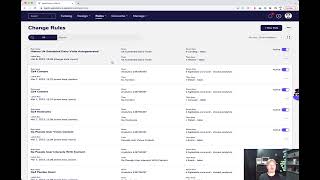
Welcome to another Agile Data Gone in 60 Seconds. Today I want to talk about dropping multiple files into Agile Data and combining them. So let's go into the application itself. So I'm going to go into Manage, Upload Files, and I'm going to go grab a file which is some open data from the UK about dairy visits to farms, and I'm going to go and upload that. And what Agile Data is doing now is it's grabbing that file off my desktop. It's going to go upload it to the Agile Data application in the backend. It's then going to automatically trigger the load of that data to go through and create a landing tile, and then it's going to go through and create a history tile. So we can see there that it's gone through and it's got the file being dropped, file being uploaded, and then the landing tile being created. And if we wait for a minute or two, it will create the history tile for me. So that's got the initial load, right? You can see we've got down here 2,000 records. So what happens next, right? Well, typically you use that data, somebody sees it has value and they're like, wow, can we have more of that please? So what we're going to be able to do is we want to be able to continuously upload new versions of this file and append it. If the file name is exactly the same, I just use the same feature, right? I go into Manage, File Upload, bring in the new file, it will automatically grab it, it will go and upload it and append it into the history tile. So if I just refresh my screen now, 'cause I've seen that notifications is new notifications, then I have a look and effectively I can see that there's a history tile here. So if I upload the same file name with new records, we will automatically go and dedupe it, so, and only insert the new records. We dedupe it because if they're— well, maybe you're uploading 3 days worth of data and we've seen the previous 2 days already, then we don't want to load them again, right? So if we see the same row, we, we ignore it and do it. But what typically happens is sometimes the file names are slightly different, right? So, you know, it's UK Scheduled Dairy Visits 2016, 2017, 2018. So how do we deal with that? So what we do is we go into All Rules and we want to be able to create a wildcard rule. So the first time we uploaded that data, you'll see that we automagically created a history rule, right? So if I have a look at that rule, that rule is saying take the data from landing and bring it through to history. Now what I can do is I can use this to create a file to landing rule which will deal with my wildcards. So I go through and I duplicate that rule Happy with that. I go to the duplicator rules. That's taken a copy of it. I'm going to go and change this to say this is the landing rule. Alright, get rid of duplicate because it's ugly. I'm going to go grab that tile name and I'm going to say instead of going from landing to history, I want to go from file drop to landing. So I'm just going to go grab that and then change this and Go file drop, and because it's not a table, it's a tile, a file. And then what I want to do is effectively go through and underscore select that, which is the file that brought in, and then put a wildcard on the end of it. So that's basically saying any file that has that naming convention with a percentage, with something after it, will get treated and run by this rule. So if I go next, it's going to go through, make sure I'm happy with that, publish it. So that rule is now active. And so if I now go into manage and go upload file and I pick up a tile for 2017. So there you go, Dairy Visit 2017, and I upload that. That's now going to upload that file. It's going to go and look at the rules. It's going to see that there's a file to landing rule. Uh, it's then going to go through and say, okay, I want to move that data instead of into its own new tile. I want to move into this landing one. That'll trigger off the history and loads that data for me. So that'll take a minute or two. Uh, one of the other things we do when you upload the files is we check the files themselves to make sure we haven't seen them before. So if the file looks exactly the same, we know we don't need to process it, just in case you drag the same file up a couple of times. So no way that you'll get dupes by doing that because we take care of all that in the magic. In the background. So there we go, so it's saying that my landing's done, and if we wait for a second, let's just refresh it, we'll see that the data's come into history in a minute as well. So as you can see there, uh, UK Scheduled Visits, the landing, has, uh, 531, 5,000 rows. This one's got slightly less, so there must have been dupes as I went across those periods. So that's it, I can now just drag in any file that's got the beginning of that name with a wildcard on the end of it, so 2017, 2018, and it will automagically append it for me. So that was another agile data gone in 60 seconds. I hope you have a simply magical day.