In this 60‑second demo, Shagility showcases a research spike (dubbed “McSpikey”) that integrates OpenAI’s ChatGPT (v3) with Agile Data’s Ask80 feature. The workflow is demonstrated step‑by‑step: (1) a CSV of New Zealand grant data is uploaded from the desktop into Agile Data’s secure cloud bucket; (2) the AutoRules engine automatically profiles the file, creates concept and detail rules, and builds a history tile followed by a consumable “purple” tile ready for BI tools. Once the tile is ready, the Ask80 interface sends only the schema definition (no raw data) to ChatGPT, which suggests natural‑language questions and attempts to generate SQL to answer them. The demo shows both successful and failed query generations, illustrating the experimental nature of the spike. Shagility notes that this is version 4 of Ask80, highlights the potential of schema‑only AI querying, and leaves the future direction open while emphasizing the fun and exploratory nature of the project.
Chapters
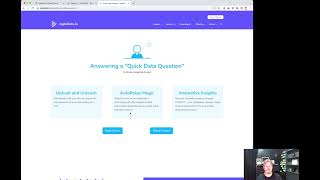
Welcome to another Agile Data Gone in 60 Seconds. And today I want to do a quick demo of a McSpikey we've done, a research spike around integrating ChatGPT with this feature that we've been thinking about for years called Ask80. So let's rip over to the product. So what we've got here is the Agile Data app, and I'm in the catalog screen and see a bunch of tiles, the tile being a table or a view of data. So what I'm going to do is I'm going to do a quick demo. So I want to see how fast I can get some data that I have on my desktop, upload it, make it useful, ask a question, right? That's the flow. So 3 steps: upload the data, let our AutoRules magic run, and then go and ask a question using ChatGPT. So the first thing I've got to do is upload the data. So I'm going to go Manage, Upload Files. So I can choose a file off my desktop. Just drag and drop it, which is what I'm going to do. We can bring files that are around 10 to 20 MB over this way. If we need to bring files that are bigger, we just click on Advanced Options and your file bucket. That'll open up Google Cloud Storage, and then you can just drag and drop your files on there of any size that you want. In this case, I'm just going to go drag a file off my desktop. It's just some open data about grants here in New Zealand, and I'm going to upload it. And what it's doing now is it's going away and it's taking that file, taking it off my desktop, uploading it, and effectively dropping it into that cloud bucket, that secure cloud bucket that I showed you just previously, but all done from within the app. So it's going to go grab that file and take it over and drop it into that bucket for me. And then it's going to— Aidy's going to pop out and let me know when she has done that task. There we go. So I'm going to go back to the catalog, and if you have a look, we've got the latest tiles there, and we've got a little notification up here telling me that I've uploaded the file. And it's going to take a couple of minutes to run through this process. So what it's going to do is it's going to— now that that file's been moved over to Azure Data, it's going to go away first of all and check whether we've uploaded that file before, uh, recently. So if I've uploaded the same file name with exactly the same size, it's going to go, hey, I'm still working on that, I'll just pause those other ones and not do them. The next thing it's going to do is it's going to work out whether we've created some rules for this file. So have we had this file before, or a version of this file? Is it effectively a file which is this month versus next month versus the next month before? And if it hasn't seen this file before, which this one hasn't, it's going to go away and create a rule for me, which it's already done. And so then it's going to go— once it's created the rule, it's going to go run that rule. So it's going to grab that data and it's going to bring it in and it's going to create a history tile, which is the next thing that we need to wait for. And so when it does that, it's effectively grabbing that CSV, it's parsing it, it's creating the schema off that. Storing that as a definition of a tile and then creating the rule, bringing it in. So there's the first step, it's loaded it into, into the landing. It's now going to create the history rule and then load that data into history. So that will take another minute or two, and then once it's created that history tile, we have some choices. So effectively we can tell the system to stop there, we can go in and ask it to create a thing called Auto-generate rules, which means it'll create all the logic for me. In this case, what I've done, if I just pop over to the, uh, tenancy area, it's going to show that I've set a flag called auto-generate rules, and what that means is it's going to go away and create all the rules for the concept and the detail for me. So we can see here the history tile is turned up on the left, and now it's going to go away. It's profiling the data, and what that means is it's looking at that data and saying, can define what the, the key of that data is. So the unique ID that will drive the concept, and in this case it'll be grant ID. And so it's going away, it's now creating the rule for creating the concept, the rule for creating the detail, and now it's executing those rules. So it's going to run the load concept, there we go, and it's going to run the load detail, there we go, it's done that one. And then the last thing it's going to do is put those back together and run the consume. So that'll give me my final purple consumable tile, which means I can use it in Looker Studio or Power BI or ThoughtSpot, anything like that. So we're just going to wait for that one to finish and then we'll go into the last step, which is ask AD a question. So let's just go back to what we've done so far. Uploaded the file, auto rules were turned on, it's built all the rules for me based on the profile of that data, and now I'm waiting for it to create that consume tile. There we go, it's running that now and we should get a lovely purple tile turn up in a second. And that is the one that we want to be able to query. There we go, we've got a consumed dataset. So if I pop in there and just have a look at the details of that tile, I don't have any metadata. So what I might want to do is go and add some context about where I got that data from so I can remember for next time or everybody else knows where the source of that data was. I've got some profiling information there, so if I pop that up I can go and see the shape of the data, whether it's, uh, yeah, got lots of nulls in it and where it doesn't. There we go. So, you know, Pub Charity is the one with the largest number of grants. We can go through and see that 72% of this field is a null. But what I want to do in this case is rather than just browse that data I want to ask Katie a question. So if I go there and ask Katie, effectively this is the McSpike we did, the research spike around ChatGPT. So we're using the ChatGPT API, so it's still version 3, and all we're doing is we're sending the schema information to GPT. We're not sending any data, but just purely the definitions of the schema and some augmentation around that. So first thing we did was we sent the schema of that Tile off to ChatGPT and we said, asked a question of what questions should we ask? So it's looked at the schema definitions and the names of those fields and it's come back and said, here's a bunch of questions. And at any time I can click on one of those and run it or I can just ask a question. So I can say, you know, what is the total amount? And what that's doing is asking that as a natural language question of ChatGPT. That's doing a test of SQL and we get an error back. So sometimes it works and sometimes it doesn't. And that's the benefit of a research project. So I can ask it how many rows there are. Cool. I can ask it how many grants are there and that should give me back Yep, and then I can say how many grant— how many organizations have more than one grant. Let's see what this one does. And in theory it should give us— okay, and that's pretty useless. Okay, so which Oh, let's see if it's any good at this one. And so what you can see is effectively I can ask questions and sometimes it, uh, gives the right answer and sometimes it doesn't. Okay, and then, um, what I can also do is basically— remember, this is open data, um, And so it's effectively giving it a, uh, hopefully bring back a WHERE clause. So it'll go and tell us the SQL to run to bring back a list of grants for that. And there we go, there's a bunch of grants come back for that organization. Again, we just got to play around with it all the time in those questions. So, you know, What would happen if I do this? Got absolutely no idea. Does it remember the fact that I've said that that is an organization, or does it not? Uh, not something I've tested before. No, it doesn't. Um, so as we said, Mick Spiky, um, maybe rather than a live demo where I just pick out what I want to do, I should have probably written down some questions earlier. But you can see basically how that works, right? Uh, that idea of grab some data, drop it in, we build the rules in the background, and then we get you to ask some questions. So, uh, That was effectively, Ask80 version 4 for us actually. We think it's got legs. We're not sure where we're gonna go with this one, but it's gonna be fun. So that was another Agile Data Gone in 60 Seconds. I hope you have a simply magical day.