Shagility's auto rules feature profiles CSV data and automatically generates concept, detail, and consume tiles in seconds. It identifies unique identifiers like Contract ID, creates low-code transformation rules, and connects to Looker Studio for instant visualization. The tool lets teams prototype data structures quickly and refine them later.
Chapters
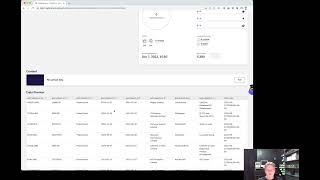
Welcome to another Agile Data Gone in 60 Seconds. Today I want to do a quick demo about a new feature we added called auto rules. So if we have a quick look at the catalog, we've got a bunch of tiles, each tile effectively being a table or a view of data. And if I flip over to data map, we can see the way that the data is moving through the system. So if I have a look at 'Australia' to 'Australia Nation' we can see that there's a bunch of lines going from the history tile all the way through to the concept detail event and then out to the purple which is the consume tile. And each one of those lines is effectively a rule. It's a piece of code that goes and changes the data and populates the next tile with the right data. So how do we create those rules? Well typically what we'll do is go into the 'All rules' screen. We'll go away, uh, let's have a look have a look at one I've done before. We effectively use our low-code environment with the natural language. So given the data in this history tile, and, and, and then populate this detail one. And so depending on the type of data we've got and how much, you know, design I've done up front, I can go through and create those change rules in a couple of minutes. But we wanted to make it even faster and even easier. So what we did was we have the ability to generate auto rules. So if I go down here, I have a tile history called Grants Recipients. Uh, it holds a bunch of CSV data that I uploaded via the file upload. Uh, it's open data from one of our government agencies that shows all the grants that have been provided, uh, to different organizations. So what I can do is I can go away and say auto-generate rules, and ADI is going to pop out and say, hey, thanks for that. Uh, I'm now going to go away and actually generate rules based on that data. So how does it do that? Well, what happens is, let's have a quick look at the history data itself. So I've got some detail there, I've got a data preview, and if I just go and expand that out, you can see here we've got some profiling stats. So we've gone through and said what's the shape of the data look like, and against this column called Contract ID, there's a little asterisk, and what that says is when we profile the data, we have a recommendation of what the unique ID or the unique identifier for a concept might be. So in this case, we're saying there's a thing called contract, and each one of these values, this contract ID, seems to be unique. So there's a strong hint that actually when we create this concept of a contract, use this column and these values for each contract ID. So in the real world, what I'd see is a bunch of contracts, each one of them being unique, and each one of them being labeled with this ID. So we only see this ID once. So what we're doing is in the background, Adie's gone away, grabbed that profiling data, and then gone and said, okay, we've got a strong indicator of an ID, we're going to go create this concept called contract, and then we're going to go away and create all the detail. We're going to pick up all those other fields and say it's details of that contract. So if we have a quick look up here in notifications, Adie's gone away and told me that, uh, she's kicked off the profiling. To create the rule and then gone away and created a rule for a concept, a rule for detail, and then actually gone and loaded those tiles. So if we have a look, let's go and have a quick look at all those rules. So the first rule it's created— she's created— is the concept rule, and we can go down and see it's a simple rule: pick up the data from history, here's the unique ID, go and populate that concept tile. So if I go and view that tile now, we'll see that in the preview I've basically got a bunch of unique keys for each one of those concepts. If I go back to the rules, then I can see some detail, and that's broken down. It's a little bit different. It says pick up the data from the history based on that contract ID, grab all the fields, and populate it into detail. And if I just quickly go and modify that rule, so move and create a draft, that opens it up so that screen's editable. I've now got a version that I can play with. And if I have a quick look at here, bring up the wizard, you can see here that I've got a bunch of columns that have been flagged as being brought through. So contract ID is the key and then bring through all the detail about it. So exactly the same process. If I wanted to, I could view the tile and see the data's been populated with all the details about those contracts. And then the last thing it's done is if you have a look, it's gone away and created a purple tile, a consume, and says, hey, I've loaded that. So how does it know to do that? Well, when we look at the rule itself, we effectively create a relationship between this detail tile and the concept tile. And the way we do that is by effectively picking the concept tile that this detail relates to. Another quick way of looking at it is in the matrix. It shows us the relationship. So you can see here Grant Recipient is a concept and it's been coupled with this recipient detail. And once those two things are coupled, in the background we automatically create these consume tiles. So here Here's one that's been created. It's the purple, it's the grant recipients. I may want to change the name of that and say, hey, it's contracts. I may even want to actually spell it right. Here's the detail about it. So again, all the information about the contract and all its detail. And if I wanted to, I could actually then go and explore that with Looker Studio. So what that's doing is opening up Looker Studio, connecting it up to that data securely, and then bringing through that data into the report. So I'm just going to go delete that one. I'm going to come through and not add data. So that was the wrong button. I'm going to go add a chart, bring that through, make it a little bit bigger. And maybe I've got here the grant type. Maybe I want to bring through the organization. And so again, I'm just hitting that. Let's go and resize it, fit to data. So now I can see all the different grants the organization got and how many of them. So really quick way of doing it. So where do we see this being valuable? Well, we believe that we should design the data based on core business processes and core business concepts and then create the rules to map that, but sometimes we want to prototype quickly. So we want to effectively bring the data in, get the auto rules created, then get that data in front of our consumers and our stakeholders, have a conversation about that data, see what we need to change. Then we go back and we actually then design the data. So we may want to change the way the data looks, we might want to create some first records, we may want to change the terminology. So maybe it's not called a contract, maybe it's called a grant, all those kind of things. But we've got a basis of rules that we can change and iterate as we go forward with that feedback. The second thing we want to do is effectively we're creating what's called a source-specific set of concepts. So if I've brought in some, say, contract data from Salesforce and then I've also brought in some contracts data from another system, then, you know, with the auto rules we end up with two concept tiles for those, those contracts. And that's not ideally where we want to be. We want to create this single view of contracts. But what we're able to do is show both of those bits of data and then say, okay, how do we combine them, right? How do we create them into a single concept of contracts with a single unique identifier across them? And we can do that as a second step, right? We can actually show them both sets of data and then go, hey, you know, the keys look like the contract IDs look like they're the same, we can match that up easily, or those contract IDs are completely different. One's ABC123, the other is, uh, 123ABC. So how do we create rules that say they are the same contract, combine them into the same concept tile with detail, and then consume it that way so we have a single view of contracts? So lots of choices about how we do that, but we see auto rules as being a really good quick way of prototyping, getting some draft rules that we can then edit and iterate going forward without having to do all that work ourselves straight away. So that was another Agile Data Gone in 60 Seconds. I hope you have a simply magical day.