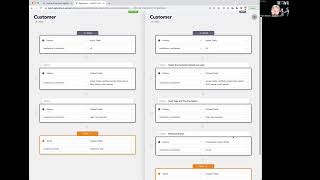
See how to compare your draft rule changes against the published version in Agile Data. Open a rule with a draft flag, use the side-by-side view to spot added or removed steps, and run a data preview to watch how output tables change, like new columns appearing.
Chapters
Welcome to another Agile Data Gone in 60 Seconds. Today I want to talk a little bit about comparing changes we make to change rules and the data that will happen as a result of those changes. So if I have a look at the rules screen, you'll see here we've got a bunch of change rules. And if you look at the top line, you'll see that we've got a rule for customer where we're creating some detail and it has a draft flag, a little draft over on the side here. So that means that we've got a rule that's in production somebody's grabbed that rule, created a draft, and started to make some changes. May have been me, may have been somebody else in the team, but it happened a while ago. I can't remember what we were doing. So how do we figure that out, right? How do we see the difference? So if I drill into the rule, go down to the rule details, I can see all the steps that the rule's doing. And if I have a look, I'm looking at the draft version. So if I wanted to, I could go and look at the draft version, I could flick back to the published version, see what it used to look like. I could do it really quickly to try and figure out the difference. But hey, we thought, as always, we want to make things simple. So we created the ability for you to compare the rule steps. So what that's doing is on the left is the rule that is published, it's the production rule that's running right now. And on the right is the draft rule, the one that I'm working on that if I publish will overwrite the current rule and keep a new version. And if you have a look, you can see here that I've got a bunch of rule steps and I've got an additional rule step down here. At some stage we'll work out a quick way of color coding so you can see what rule step was inserted, what was deleted. But for now, visual comparison is good enough. The other thing we can do is we can compare the data. So what that's doing is it's running the published rule at the top and giving me a preview of what the data would look like. It's running the draft rule at the bottom and give me a preview of what the data looks like. And I can go through and see that, for example, here's Text is Empty, and then here's Email 1, right? So there's a new column coming into this table. When I publish this rule. Again, we'll do a data diff in the future that highlights when these rows that are different or columns different, but for now I can visually go through and see what those differences are. So goal being able to see that somebody, me or somebody else, is working on a draft rule. It's different and we want to see what those differences are. So that was another Get Your Data Gone in 60 Seconds. I hope you have a simply magical day.