Rules - Create Concepts and Details - AgileData Gone in 60 Seconds
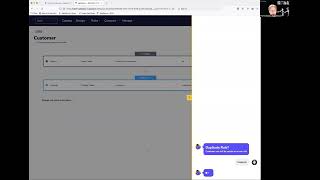
Shagility shows how to create rules in AgileData that move data from history tiles into concept and detail tiles. He builds a customer rule using the Isolicious Customers history tile, maps it to a draft concept tile, then duplicates it to create a detail rule with specific fields and validations. The populated tiles then connect to Google Data Studio for reporting.
Chapters
Welcome to another Agile Data Gone in 60 Seconds. Today I want to show how we can quickly add rules that populate the tiles with data from history. So if I look in the catalog, we have a bunch of tiles that are sitting there, each tile effectively being a table or a view of data. And if we scroll down, we'll see we get to the history area, the gray tiles, which are tiles that have been— hold data that have been brought in from a system of capture. So if I have a look, I've got a tile called Isolicious Customers. If I open that that is a bunch of customer data that we have collected from our demonstration Shopify system. So I can see in there I've got a bunch of dummy email addresses, some physical addresses for the customer. I'll have their first name, their last name, some other information about these demo customers that we put into our Shopify system. So that data has been collected and it's now sitting in our history tile. The second thing I've already done is I've gone and designed the data. So if I open up my Shopify orders data domain, I can see here I've got two core business processes, customer orders product and customer returns product. And you can see that I've got this tile here called customer for a concept and it's draft. And what draft means is I haven't loaded any data into it yet. It's got no rule, there's no data in there. So it's a conceptual tile. It's a tile just that's been designed but not populated. Compared to, say, TPC-H Nation, which has that line across the top of it, which means that it's actually got data and it's been populated as new data turns up. So one way to look at that is through the data map to give us an idea of what we actually want to do. So we have a bunch of data that comes in from our system of capture automatically into history, and then we want to create some rules that move the data and across to the concept and the detail so we can report on it. So each one of those lines that we're seeing is effectively a rule. So what we want to do is create a rule that takes the data out of the Isolicious Customer tile in history and move it through to that customer concept and customer detail information. So easiest way we do that is we go into the rule screen and I can see the previously created rules. But in this case, I'm going to go away and create a new rule. And I'm going to call this new rule, I'm going to be creative and call it customer. And the first thing I need to do is pick up the data that I want to move. So I'm going to pick it up from history. I'm going to say it's an input table. It's going to bring back all the tiles that sit in the history area for me. So in this case, I'm going to pick up that Isolicious customer we saw, and I need to go and pick the unique key for customer. So what piece of information is telling me whenever a customer is unique? And in this case, it's ID. I don't need the second line, so I'm just going to remove it. And then I need to say, where am I going to put this data? So I'm going to go put it into the concept area. I'm going to create it as a table rather than a view. And in this case, what do I want to call it? And so what we see here is a bunch of tiles that have been created before. And you can see here we've got customer draft. So what that means is it's a conceptual tile, that draft one we saw from the design screen. And so I want to populate that now. And make it real. And in this case, I'm going to go through and it's already made a suggestion on the customer key for me. So that's going to take data from history, move it through to concept. Once I'm happy with that, I go next. What it's going to do now is run that rule for me as a preview. So it's going to run it, it's going to come back and say, hey, it's passed, this is what's going to happen. And in the field sample here, what we're seeing is data out of the history tile as an example. So we've sampled the data so you can see what it looks like. In this case, I want to go and actually create a trust rule. So validate some of the data. And I want to say this data should be unique. And if it's not, give me an error, give me Dr. Bonefish. So that's effectively saying every customer ID should be unique. If not, let me know there's something wrong because it's all a bit weird. Once I'm happy with that, I publish it. And what that's doing now is taking that draft rule and making it active. So it's effectively production. So every time new data turns up in history into that customer history tile, it will automatically trigger this rule and populate the concept tile with the data. For me, I don't want to do a reload. So what I'm going to do is just run that rule, which will run this rule as a one-off. So AD's got my wish and it's become her command. So that's going to create a tile of keys, right? I now have every unique customer in there so I can count how many unique customers I have. But we often want some detail about it. So we want to understand customer name or, you know, the address, some information about it. So we also need to populate the customer detail tile. In this case, I hate retyping, so I'm just going to go duplicate it. Adi's going to say, you sure you want to do that? And I'm like, yep. And then she'll take me directly to the duplicate rule. I'm going to make this one a little bit differentiated. So I'm going to say, you know, this is a rule that's populating customer detail. I'm still picking up the data from the same place. So it's still coming from history and it's still based on the ID. But in this case, I'm going to go through and populate some detail. And because we haven't created that detail tile yet, I'm just going to create one from scratch. So I'm going to call it customer detail and it's automatically picked up my key for me. So I'm going to go do that. Now I also need the information that I want to populate. So if I add another row, I'm going to go away and pick up that same tile. In this case, I'm going to go and do a rule type on it. So we have a bunch of different ways we can do things with data when we want to transform it. In this case, I'm just going to go grab a bunch of fields and output them. So I'm going to go away and pick it up from that same tile. And then by picking that tile, when I click on here now, I get all the columns that are available in that tile. So I might want to pick up their email. I don't really want any of the address data. I might go and pick up their first name. I might pick up their phone number. Again, I don't want any of the address data. I might pick up their last name. And I might pick up their accepts marketing flag. And so that's effectively saying grab all those fields and bring them across and populate this detail. Again, I go and validate it and bring it through. So it's testing that rule for me and it will bring up a preview. So again, I can see the type of data that's coming through. And in this case, I want to go through and say email's not null, but also let's go through and say I don't want the first name to be null either. And it's gonna, oh, let's just say that one's a warning. But the last name, yeah, that's gotta be not null and that's an error. So once we're happy with that, those rules will run every time data gets refreshed. I'm gonna go publish that rule. So again, that's publishing the detail rule for me, making it active. Every time new data turns up in the history tile, this rule will get executed and any changes will be updated. And same thing, I wanna go through and rerun that. So I'm going to run that rule and that will go through and actually populate that detail tile for me. So that'll take a second or two to run. And once I'm happy with that, I go back to the catalog and I can see I've got customer detail with 61 rows. So if I go down, I can have a look at that. I can check that everything's run. There's some detail in there. And if I really wanted to, I could go through and explore this with Google Data Studio. So by clicking on that link, it's opening up a new window. And it will be basically connecting to that tile in Google Data Studio and bringing it back. And so we can go and see here, here's all the email addresses effectively coming through, and we can play around with the metrics that we're using. So, you know, we can get rid of that, go and add new chart, brings through a table. In this case, we want to go through and say, you know, give us their email address, give us their first name, and give us their last name. So again, that's made the information really easy to query, and we can go through and see a list of all our customers. So that was how we create rules really quickly to populate concepts and details so we can use it to report on by creating rules within it. So that was another Agile Data Gone in 60 Seconds. I hope you have a simply magical day.
More from Shagility
Watch now | Recording of AURA - Anna Bergevin & Shane Gibson 21st September 2026


Watch now | Recording of AURA - Chris Gambill & Shane Gibson on 11th September 2026