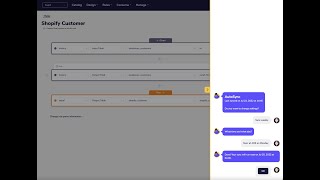
Shagility's Custom Sync feature lets you control how often data refreshes in Agile Data tiles. By default tiles auto-sync instantly, but you can override this at the rule level to refresh hourly, daily, or weekly instead. The UI shows your current sync mode, last load time, and next scheduled run.
Chapters
Welcome to another Agile Data Gone in 60 Seconds. Today I want to talk about a feature we've introduced called Custom Sync. Custom Sync allows us to change how often we refresh data within each of the tiles within Agile Data. So think of it as a way of managing the orchestration or the scheduling of those things. If we look within Agile Data, we have a bunch of things we call change rules. Change rules are the things we create to change the way data looks. We may change the way data is stored, we may change the way it's structured, we may actually change some of the values in the data to cleanse it, you know, give it, to clean up data quality problems. So if we think about a rule as a way of transforming some data and effectively in the background, it's writing code for you to do that change. If we look at Data Map, we can see how those rules flow through. So if I go into the data here for customer history, what happens is every time data turns up, it gets moved into the history tile, right? The data gets wrecked and stacked, it becomes immutable. We get those changes and we store them in that history tile and we never actually change that data. It becomes our corporate memory. After that, we have a bunch of change rules that then do something with that data, may change it in a way to make it more useful, to make it easier to consume. So if I have a look at this history tile, you can see there that we've got 3 detail tables being populated because they're the orange lines and 2 concept tables. And I can actually see that one of the detail tables we're populating is this idea of Shopify customer detail. And if I have a look forward from there, I can see that I've got 3 consume tables that are reliant on that information. So at the moment, by default, we set everything to auto sync. So what that means is when a new record comes into that history table, it will automatically trigger this rule that is dependent on that data to update the Shopify details table. And once it's done that, it will then automatically trigger the 3 rules that will populate those consume views, which means that the data then becomes automatically available in the consume views for our users as soon as possible. So any dashboards or reports that run off those consumes will see that data as soon as they can. But sometimes we may want to change that, right? We may want to change the frequency that we sync that data, and that's where custom sync comes in. So we may want to change it so that we only run it overnight. So every morning the data is refreshed, but it's not going to change during the day. Or we may only run it once a week because we only want a snapshot of the data as the end of the week, and there's no point refreshing the data all the way to the consumes. So we can control the custom sync at any one of these nodes, any one of these tiles, any one of these rules, right? So the way we do it is we set the, the custom sync behavior at a rule level. So what I'm going to do is I'm going to view the rule that populates that detail tile. So this is the rule that takes data from history, grabs the fields we want, and populates detail. And as I said, we have the ability to change the way or the frequency that it syncs. So if I go into the custom sync menu, you can see here that 80 is telling me what we're currently doing. So it's set to auto sync, and I can see the date and time that it was last loaded. So that's the last time data turned up into history and was flushed through to this detail tile. But I can easily change that. So I can change that to say, let's sync it every hour. And Adi's gonna come back and say, okay, would you wanna sync it every hour, every 2 hours, every 3 hours? I pick my frequency, and if I wanted to, I could set that as my custom sync frequency. Or I could go through and say, hey, I actually wanna load it daily. I wanna refresh the data daily. So, you know, 5, 15 in the morning every day is when I want that data to be refreshed. Or I could say, let's refresh it weekly. Let's go and say at 3:30 in the morning on a Monday, that's when I'd like to sync that data. Grab all the data from history, make it available to this tile, and then all the way through to any consume tile. Once I'm happy with that, I just click on the option that I've selected. Adi's going to come back and tell me that it's been done and the next time it's going to run. So this is basically saying next Monday, July 25th at 3:30 in the morning, this sync will run. Once I'm happy with that, at any time I can go through and see that the custom sync's been set and it's been set to weekly. So I can look at any rule and see what sync has been defined for that. So custom sync, what that means is from the data map point of view, whenever data turns up into this customer tile, the history customer tile, then that detail tile will only be refreshed at 3:30 in the morning on a Monday, and all the other tiles will be refreshed straight away. So you have complete flexibility about how you manage the, the syncing of the data all the way through the map, all the way through to the consume, to give you the flexibility you need. So that was custom sync. Pretty useful. We believe that most customers will actually leave it set as auto sync, but we know that sometimes there are times where we actually have to be able to control when that data is refreshed for whatever reason. So that was another Agile Data Gone in 60 Seconds. I hope you have a simply magical day.