In this 60‑second tutorial Shagility demonstrates how to rename long, prefixed field names in an Agile Data consume tile by creating a simple consume‑to‑consume rule that produces a semantic view. He walks through the Agile Data UI: selecting the source consume tile (orders shipped to user), opening the rule wizard, mapping each original field (e.g., ecommerceuserstreet_address) to a cleaner business‑friendly name (e.g., Street Address) while keeping the original name visible for lineage. He explains the choice between creating a view (no data copy) versus a table, names the new tile (Order to Ship View), validates and publishes the rule, and shows the resulting view in the catalog and in Looker Studio with the renamed fields. Shagility also clarifies why the original fields are prefixed— to avoid name collisions when combining order, shipment, and user data into a single consume tile— and how the semantic view isolates rule changes, preserving report stability and allowing easy remapping to the original consume if needed. The video concludes with a reminder that these patterns are optional choices to suit different workflows.
Chapters
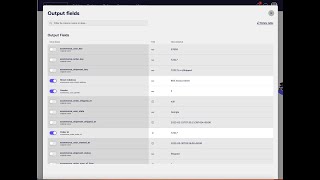
Welcome to another Agile Data Gone in 60 Seconds. And today I want to show you how we rename fields in the consume layer. So how we effectively make pretty names. So let's go over to the Agile Data product. We're in the catalog screen. Within the catalog, each tile that we see here is a table or a view of data. And I've got this tile here for orders shipped to user. And if I explore the data in the tile with Looker Studio. What it's going to do is it's opening up Looker Studio, it's connecting to that data, it's bringing the data back into that tool for us, uh, all magically done with one click. And what we can see here is, uh, the fields that it got from that tile. And if you look at those field names, you can see here got a bunch of fields that start with ecommerce_order, uh, we've got a bunch that start with ecommerce_shipment, and we've got a bunch that start with ecommerce_user. So fairly long names, I kind of can tell what they mean, but sometimes I want to make those names a little bit more pretty, or I want to just rename them to be more business terms for some reason. So what I'm able to do is just create a simple consume rule that does that work for me. So I'm going to go away, create a new rule. I'm going to go and pick up that consume tile that I was just looking at. It had the word ship in it, so if I spell that right, I can pick that one up. And I'm going to go and pick that tile up again and select the output field and pick that up. And it's going to bring up the ability for me to open up the wizard. And what it's doing is bringing back all the fields that are available in there. So I'm going to go through and maybe say pick up the street address, but rather than eCommerce User Street Address, I'm going to go away and give it a name of Street Address. I want to pick up the gender, but rather than User's Gender, I'll just call it Gender. And you notice here we've got underneath the original field name. So if we go down and say, let's have a look at Order ID, I'm going to rename that to be Order and ID. You can see that the original field name is underneath, so we keep that old name from a lineage point of view so we can always see what it was and what we changed it to. So let's go and say we've We've got last name and we've got maybe— let's have a look, let's say first name. And what we're able to do is we're able to bring those fields through. So let's just make sure I've ticked them, otherwise they won't come through. And maybe I want to bring some of the full name, full fields over there. Just, I'll just do it for now because rather than you watch me go through and rename them all. So once I'm happy with that, that's going to bring it back. I'm just going to go and say, so given this data in this tile, pick up these fields and rename them and give me a consume. And I have a choice of a table or a view. So I'm going to pick view, which means it's not going to copy the data. It's just going to put that over the top of it. And so saves a bit of data. Up to you whether you do that or just create a table. And this tile is going to be called Order to Ship View. And I'm actually going to grab that up and make that the same for the rule name because I like those things to match up so I can find them easily later. So once I'm happy with that, I'm going to go next. It's going to go away, validate the rule, it's going to bring back a preview, make sure it's all good. Once I'm happy with that, I can go through and publish that rule. So what's that's done is it's effectively created a rule that creates a new consume view on top of a previous consumed. So if I have a look at the data map, uh, let's go down here, you can see here that I've got order shipped to user, and if I run after that, you've got that view that I just created. And if I say run all rules after this point, it's effectively going to run that rule that I just created. So that'll take a minute or two to go through and run. While it does that, why don't I explain a little bit about, uh, why we had those long names. So if I go into the event matrix, you can see here we've got order is shipped to user, and that's an event that we know involves an order, a shipment, and a user. So what happens is we effectively go grab the order and all the order details, we go grab the shipment, all the shipment details, and we grab the user and all the user details, and we put that back into a single table or a single compute— consume tile. And the reason we do that is it becomes easy to query. I don't have to go away and find a bunch of tables and know how to join them. I just go at one table and it's got all the information I want. The problem is, uh, we may have the same field name more than once. So we may have an e-commerce order with a status, and we may have an e-commerce shipment with a status. And under the covers, we can't have the same field name in the table. So we can't have the word status twice because the database that we use doesn't like that for a whole raft of reasons. So we could have gone status 1, status 2, but what we decided is we'll grab that concept name, put it in front of the field, and that allows us to make sure we don't get any collisions. So when we want to rename to make them pretty, the easiest way to do it is effectively just go through and create a view that does it for us for a consume tile. So if I look up here, I've got number 1, that tile's been loaded. If I go back to the catalog, I will now see that I've got a new consume tile, which is a type view, and if I open that up with Looker Studio, again, it's going to open up a Looker Studio report directly off that tile. For me. And on the right-hand side, uh, instead of seeing those long names that we had, we will see, uh, first name, gender, last name— the names that I renamed. And every time data is updated, uh, this view will have that new set of data with those names. One of the other benefits of that is it actually allows us to isolate, uh, changes in our rules a little bit. So if you think of it, technically we call this a semantic view. Effectively, the fields in here which the report relies on will always be called that, and I can actually remap these fields back to this original consume if I needed to. So I can make changes here and manage the impact of that on my reports in a slightly simple way than going into the report itself. All just choices, right? Just different ways of working, different patterns. Pick the one that works the best for you. But that was how to quickly rename fields, make them pretty, just using a simple rule that goes consume to consume. So that was another Agile Data Gone 60 Seconds. I hope you have a simply magical day.