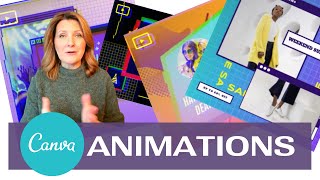
Sheryl Plouffe shows how to build animated social media posts in Canva 2.0 Pro. Pick a template, edit text and colors, add video clips, then download as MP4 or GIF. Resize for Instagram Stories, Feed, or Facebook and publish through Creator Studio.
Chapters
Want more engagement on your social media posts? I'm Sheryl Plouffe, Video Strategist, and in this video, I'm going to show you how to create dynamic social media posts using animations and video in Canva 2.0. Be sure to hit like, subscribe, and hit the notification bell so that you're notified of every new video that I publish New videos come out every Thursday. In order to show you the tip, I have to go to my computer.
We are looking at Canva, and I am a Canva 2.0 subscriber. So it— this is a feature that's available on the pro version of Canva. And what you'll see is that there is now an animated social media template. So under Create a Design, I can click on Animated Social Media. I could also search this. If I was to search social media, it comes up here as well. So you have different options on how you can access it. We'll click on it from here. So now what I do is I can look through the animated social media 800 by 800 different templates. I could also create a blank template, or if I already have one of my own designs, I could go and choose that.. But for this tutorial, I'm going to choose a random one. Okay, this is a better example because we can actually see the movement. It says, "It's time to party," and you can see what's animated. It's moving, the moving graphics. Okay, so I could keep it as this. As with anything in Canva, we could write something else in here. You know, let's go You know, let's go Hawks.
I don't know. Okay.
I'm just making stuff up now. That doesn't fit in there. So I'm just going to expand that out a little bit so that, okay. And then I can even just take this whole square and just central center it right in about there.
Okay.
So let's go Hawks as an example. And as with any other Canva type thing, you can come in here and change the colors of anything you see fit. Okay, so what's cool about this now is I could— this makes it more dynamic. I mean, I could certainly have a static graphic that I would put on my social media posts, but the, the dynamism of this is due to the fact that there's movement. I could now come over here and download this here, but what I want to show you is another really cool thing you can do. If I were to— now bear with me because I've not seen this particular animated one before. If I take this out, I can go over to Elements and I'm going to use a frame. So why don't I choose a frame? I'll just choose a square frame here like this. Just reduce this down. And now I'm going to pull this up into this square. Now I don't like how that hand is underneath. So I'm going to position this backwards. So now the finger is on top of here. And what's cool about this is I can go now down to videos. And the wonderful thing about Canva now is that providing you all these different videos that I can now put into this square. So let me find an example. Let's go Hawks.
I'm trying to think of something, find something sports-related. Here's sports right here. See all the sports. Let's presume that here, let's put this in.
I have no idea.
Okay, let's go Hawks.
Okay, and if I wanted to, I could even move this over if I would prefer to have these two guys in it, or maybe I want the girl and the guy. So let's just say it's these two guys, and I say done.
Okay, cool.
So now again, I can customize this as I see fit. But what's wonderful about this now, as you'll see, if I download this— now this is saying that this particular video, I'm getting a charge of $6.95 Canadian for this premium video. So what I could do, let me see if I can actually find an example. That doesn't cost anything. Because we can tell by the little, the little dollar sign here. This one here is free. Okay, so let's just pick a free one.
I don't want to incur a charge necessarily.
Okay, so I'm going to have to start over with the frames.
You see how that didn't work out? Okay, so let's put the frame back in.
We'll choose a free video.
And go back down to video.
Now we'll pop this into the frame.
That's what makes it go into the frame.
If I click this now, it plays. Actually, yeah, that doesn't matter. Since we've replaced the Hawks piece with the text, I guess contextually it makes sense now, right? So, so now I can go in. Same thing. I don't like how the hand is behind. So remember how we positioned it backwards.
There we go.
And now I can go download. I can download this as a video MP4, or as an animated movie or GIF. So let's do video first. Preparing your design.
Just wait for this to Finish. Okay, and there's the video. So let's open it and see what the result is of this video—
or sorry, of this, uh, animated social graphic. Because we added the video in We have to download it as a video.
Let's open it and see how that turned out. Nope, it's over here. Let's see, where is it here? There we go.
And that's how it looks. So I could now take this file and I could upload it to my social media. Now this is in a square format, so let's take a look at when we can resize it. Yes, you can. You can resize it to, let's say we wanted to do a different type of—
And we'll be able to still utilize this with the video.
Yep, in it.
And you could resize other elements around this if you wanted to. Same thing goes, you would go down here and click video, download it, then you would open up your Instagram. Actually, no, we can't open— yeah, we can't do the story there. We can do it, I believe, on Facebook through the Creator Studio. We could upload it. While we're waiting for that to happen, the other thing I wanted to mention was if you don't have a video in here and you just put the text in, let's replace any kind of random text.
It doesn't matter what it says, really.
What we can do here now, instead of— there's no video. We don't have to download this as a video. We can actually download this now as an animated graphic, right? So I can go in here and I can say animation. And I can now choose different styles of animation. If I want the animation to come in from the left or come in from the right, block is kind of cool. You can have it slide in. Let's just use slide as an example. And then choosing our format either as an MP4 movie format or as an animated GIF. So, or GIF, I don't know. I say GIF, maybe I'm saying it wrong. But Either or, you have the option to how you want to download that. Same thing, you would hit download. So you have a lot of options here. If we go back into Facebook, let's just pick up on that piece around the publishing. Instagram.
Okay, there we go.
So Instagram, create a post, Instagram feed or IGTV. Yeah, so it will not give you the option of doing an Instagram story from Creator Studio. But you could do a feed post. So if— or you could post it to IGTV, which is a format where it's required that it be vertical. Okay, so if you wanted to, let's say if we go back— yes, I want to exit. If I want to go back here, this graphic would need to be square format. So we could resize once more for Instagram.
Post.
We copy and size, and now that would be appropriate. Again, we could do the swapping out of the video, and that would work here if you wanted to use Creator Studio to post that to your feed. And off you would go. You would add your content, follow all the different prompts here to be able to publish or schedule your video for future publishing.
So I hope that you've enjoyed this tip. I think this is a fabulous feature in Canva 2.0 so that you can create really dynamic animated social media video posts. I really hope you enjoyed this tip and please share this, share it with your network, share it with your peers, and I hope that you'll like, subscribe, and hit the notification bell for all of my videos right here on YouTube. Thank you so much for watching and I'll see you in the next video.