Secrets For Creating YouTube Thumbnails
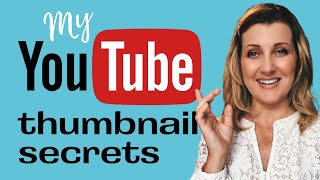
Walk through designing a YouTube thumbnail from phone to export. Use Facetune to enhance your photo, move it to Canva, position your face on the right, keep text minimal and large, and experiment with color contrast like blue or red to boost click-through rate.
Chapters
I have 2 secret tools that I use to create my YouTube thumbnails. Tool number 1 is called Facetune, and the reason why I like it is because it makes your skin clearer. You can make your teeth whiter, but it also gives a real nice pop of color when you take your pictures. Another great feature is that you can set a timer. So I'm going to take a few different images right now and I'll show you how I do it. Counting down, 3, 2, So let's say, for instance, that's the photo that I want to use in my thumbnail. And I might do 5 different versions of this with different expressions. And at this point, I'm going to take those photos, which are now stored on my camera roll, and bring it into my editor so that I can turn it into a thumbnail. So let's go to the next step. So now that I've taken the pictures, I want to import them into where I'm going to create the thumbnail, which is in Canva. So here are the 4 pictures in question. I'm going to import them, and how I got them from my phone into the computer is by AirDrop. I am an Apple person. I love to use my MacBook Pro and my iPhone, so I did use AirDrop to get them to this point. You can see they're uploading here, and now I've got the foundation of my thumbnail. At least I have the images. How I do it is that I have a whole series of thumbnails all in the same project. And when I go to create my thumbnail every week, I look through my repertoire of thumbnails, some which have been published and some which were experimental, and they're all housed in the same place. So in this case, because I'm making a video about YouTube thumbnails, I'm probably going to look through my stash of thumbnails that already exist and look for one that already has a YouTube slant to it because the image will already have the YouTube symbol on it. And I know that I've done some, so I'm just gonna go and look for one. So let's just say, for example, this one here. I could say, okay, great, here it is. What I'm gonna do is duplicate this, and now I'm going to use the copy as the foundation for my thumbnail because the YouTube symbol and icon is already on here. I'm just going to delete the image and then of these 4 over here, I need to decide. I'll choose, I'll choose this one. And this image I'm going to use to create, let's see, I'm gonna make this a little bit bigger. Let's go like that. I kind of want my face to be a bit bigger on this one. I'm just going to move that down to maybe here, something like that. And because I have the effects feature where you can remove the background— and I'm linking to this video in the cards, I did a whole video on how to remove the background in depth— we're going to use the background remover and and it's going to remove the background. Now the only thing to keep in mind is that with the Facetune app, you can take a picture either horizontally or vertically. In this case, I took it vertically, but you can decide which orientation you want to take your photo for how you want this to be laid out on your thumbnails. So in my thumbnails, I like for my picture to be on the right-hand side and then in the middle and to the left, I like for that to be where I put images or icons or text, if any. And so that's just how I like to do it. You'll come up with a scheme or a format that really works for you. So this is my image. Now you can see that the background is removed. I'm going to just take this part out, and I might keep this and just edit this now. So I And again, you can keep— you can start completely from scratch. You could go into Canva and choose one of their templated YouTube thumbnails as a starting point. It just so happens that I already have a whole host of thumbnails that I've worked on over the course of months here that I can use as a foundation and then use that to have a starting ground and be able to tweak, you know, from there. So for this one, I want to say something like And I don't want there to be many words. You know, you really want to optimize your thumbnail for mobile and keep as few words on the screen as possible, yet entice someone to want to click onto your video. The title and thumbnail are the most important things that will entice someone to click on your video, hence increasing the, you know, the likelihood of it getting seen by more people. CTR, or click-through rate, is one of the key components of success on YouTube, and the thumbnail has a lot to do with that. So remember that you want to optimize for mobile, use as few words as possible, make them as large as possible so that they can be visible on mobile. So I'm going to say YouTube— I'm gonna say, what would it be, My YouTube Thumbnail Secrets. Um, I wonder if I should make this Thumbnail Secrets. Let's try this. My YouTube Thumbnail Secrets. Now I don't like the amount of space that's between these letters right now, so I'm just going to go and, and adjust that. I want those to be a little tighter together, and I might also want this to be over here, and I'm going to make this a little bit bigger. I could make it bigger by choosing the number, or I could just use the, the text, the, the text box itself to make it bigger. So let's just say it was something like this: My YouTube Thumbnail Secrets, something like that. And I would probably tweak with this a little bit. I might make this a little bit smaller, might move this around, might even put like a box around it or something like that. One thing that I sometimes do which could be an interesting effect if you wanted to give it a try, because I've removed the background on the photo, if I make this larger, okay, you can see that it go— that the L is going over top of my hand. Just a little bit, but then if you change the position and move it backward, now it's behind my hand. What this does is it almost gives it a little bit of a— I don't know if this is really— I guess it's depth of field kind of effect where it's made to look like it's going behind my hand. So now it's giving it almost a 3D type of effect. It's very subtle, but these are small things that I think can really make a difference. I don't typically like to have it behind my hand or my image too much because I still want people to read the word, but I might have it say like that, and it's ever so subtle, but it gives it that depth. And so that's kind of a nice effect as well. So I'm liking where this is going. What I might do now is look at the color in the background and say, hmm, what— I mean, I like this turquoisey kind of color, but I think I'd like to try something else. So let's take a look at— see, if I use the green, let's say I used this type of green, I don't like the contrast. This looks too much like Christmas, so I don't really like that effect. Let's go and just try some other colors here. So this sort of yellowy gold— no, I don't really like that. That. No, that— this, this doesn't pop enough, this red part on the YouTube. Let's see here. The purple, that's not bad. Oh, the blue looks kind of nice. The blue against this red, actually, I quite like that, that sort of turquoisey blue. Have I used that? It's a little bit different than this one. And part of it too is experimentation. Even one could even argue that this one here does have a bit of a busy look and effect here. But whereas this one here has no words at all on the screen, this video, you know, the CTR wasn't as high, interestingly enough, on this video. So one has to question whether or not I should have maybe added some, some text. So part of this is experimentation as well. So let's go back to the project that we're working on, which is this one. I quite like this blue type of color, and I'm wondering if I made this a little bit bigger, see how now that's going behind my finger again. It gives it that sort of 3D type of effect. I like that. And I'm wondering if I was to put My YouTube Thumbnail Secrets, it's, uh, let's see, let's go to text. But if I put the word my, hang on a second, here. Add. So let's just add this in and go, my— I'm gonna twist this sideways and I'm gonna bring this up over here. Let's make this bigger. I don't know if we can experiment with this. Again, a lot of this is experimentation, so I might in this case want to choose something a little bit more flowery, a little bit more script-like, like this: My YouTube Thumbnail Secrets. So it gives it a bit of a contrast. I like that actually. My YouTube Thumbnail Secrets. Just looking to see if I made this a little bit bigger. My YouTube Thumbnail Secrets. I don't like how it's touching on the letters there, so I'm just going to separate that out a little bit. Like, I like that. I might just move these around. And again, I am, I am recording the entire process that I'm going through because I want you to see in real time the type of considerations that I am, you know, going through in my mind. And, and things and how I'm, how I'm approaching it and how I'm looking at it, because I think that's what's going to be helpful for you. Actually, I really don't want that touching the red. I think I'll just leave it like that. So I quite like that. My YouTube Thumbnail Secrets. Let's bring this up here like that. Okay, I like that. Yeah, I like that. Again, optimized for mobile, will be easy to read. And then once you are happy with your thumbnail, all you do is you go down to the— or you go up to the download button. And I like to save it as a PNG. And then you'll go down here, it says select pages. One thing you can do, and this might be a good practice, I don't do this all the time, but you know, if you have a whole bunch of different thumbnails in your project like I do, you could identify them over here. So let's just say, for example, I wanted to indicate that this was the July, uh, 23rd, um, you know, like this. The date was— the thumbnail was from July 23rd, 2020, you know, or you wanted to put the actual title. Maybe you wanted to put YouTube Thumbnail Secrets and actually put the title of the thumbnail in there. You could do that. Whatever you want to do is, is good, but when you go to download it, watch what happens. Now when I click on which one and if I scroll through it, it's going to show the identifier. So sometimes it can be easier for you to identify which one you're downloading if you do add that detail. So there it is. I'm going to say done. I'm going to say download. And now my design is preparing and downloading to my computer and ready for upload on YouTube. So now you know my secret to creating my YouTube thumbnails. The next thing to learn is how to monetize and make some money with your YouTube videos. Be sure to check it out here, and I'll see you there.
More from Sheryl



From 'agreeable' to 'ruthless mentor' to 'strategic sparring partner' #substack #shorts







