Smartphone Video Editing Apps Demo
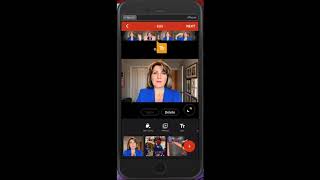
Two smartphone apps, VideoShop and Videoleap, let you edit videos on your phone. VideoShop handles trimming, text overlays, voice-overs, music, and transitions. Videoleap adds green-screen compositing through its Mixer tool for layering backgrounds and foreground clips.
Chapters
So one of my favorite apps for editing video on the phone itself is called VideoShop. There are others out there, although this one I really like because of its ease of use, and I tend to gravitate toward things that are easy to use. So this is the one that I use and recommend. There's another one that I'm going to show you in a moment as well that has some interesting features that I have not explored too, too much, but that I'm starting to use a little bit more. But VideoShop is one that I've made several videos both personally and professionally. So I wanna show you how this works. You would download this app from the App Store, and if you want to go and check VideoShop out, you can go to videoshop.net, uh, but it's going to redirect you to the App Store to buy it because it's an app, it's an application. So once you've downloaded that application, you can press the plus sign at the top right to start a new video, and you have a choice. You can either record through the app, or you can import a clip that you've already recorded on your phone and that's living on your camera roll. So I'm going to import a clip. You can see I've got a whole bunch of videos here. I will choose— let's say I choose this one here. I'll say I'm going to import that, although that's a bit longer. It's about a 3-minute video, but I want to choose something a little bit lengthy so that I can show you how we would split it all up and how we would use this. So here is the video now that's been brought in. If I want to add an additional clip into it, what I'll do is press that plus sign one more time and I'm going to import another clip. So let's say, for example, I want to import, let's say it's an unrelated clip. So it's the clip of the boys that they were going out to help with donating, or not donating, but delivering hampers for Christmas. So I'm going to import that clip, and let's say I have one more that I want to bring in. I'm going to bring in this funny one here of Parker, who is bouncing on a trampoline. So again, these are unrelated clips, but I'm just using this as an example to show you how this would work. So you would bring in whatever clips that you want into your VideoShop app. So right now it's importing these items, and there they live, 1, 2, and 3. There are a whole bunch of options here. You'll see in this menu you can actually buy clips, and actually you have to start an account in order to do that, which I have. And it's interesting because you can actually purchase little video clips of all kinds of through different categories. For example, if I go into General, I could choose to purchase little clips like this, for example. So this will play, I think it will. Oh, it's only 1 second long. Okay, let me choose a better example. Um, Technical Difficulties. Let's see how long. So that's what, 2 seconds, right? 2 seconds long. So there's different clips, so you can imagine that you could use these in various capacities. If you want to have them, you know, be in between your clips just to add some interest, you can actually go in and buy those clips if you so choose. But again, you have to have an account, and it's all done through your app store. So for instance, like with me, I'm an Apple girl. They call this Video Mall. So what you're doing is you're buying tokens. You can see 270 tokens that I have at the top left-hand corner, and it's going to cost you, let's say, 50 coins, 50 tokens to purchase that particular clip. So it's really affordable. I bought, I don't even know how many clips or how many tokens, 350 tokens for like $1.39. So really, really inexpensive, but a great way to add some interest to your clips. In fact, let's just see if I go and I import Well, let's deal with this first and then I can go in after. So here are the clips. If I want to go into this particular clip, it's pretty long. It's 3 minutes and I can scroll here across the top and you can see how long it is. If I just continue to scroll, scroll, scroll, you'll see that it's 3— let's see, that clip itself was 3 minutes and something seconds long. See, if I bring my little arrow to the end, it's 3 minutes and 16 seconds long. And now the other clip begins and it continues. So you can scroll through that. But on this particular clip, if I start to play it, so you can see that that's me at the beginning getting ready to say something, but I don't wanna have that piece in there. So what I will do is I'll go back to the beginning, I'll move this to trim, and then what I'm gonna wanna do is pull this red bar out from the left-hand side over to the point where I start to talk. So I'm gonna hold my finger down on this and I'm just gonna very gently— oops— very gently scroll this across. See how I'm moving very slowly? I can tell that this is the part where I'm just sort of preparing myself, ah, taking a deep breath. I haven't— so let's try right about— oh, and even still there I have to kind of trim that down just a little bit more to just the point where I'm going to start to speak. So let's bring that, let's bring that over. Oops, it's a little finicky. You just have to— and again, with your phone, you have to get a feel for it. It's just like anything, right? To get a feel for it. I'm just going to go there and I'm going to say done. So that's going to trim that piece off the front. So let's watch it once it's, once it's been trimmed. Let's see how that looks. Okay, there's still a little bit of a pause there that I don't like, so I'm going to trim it again. I'm going to go in and I'm going to trim that piece one more time. So there, see that piece? See, right there's my sort of anchoring smile. I'm gonna let go. Oops, I'm gonna bring that over again. It's a little bit finicky, but you just have to get used to it. So there's me just about to speak. I'm gonna go right to there, let go, and trim. Let's see how that looks. The thing with editing on a phone that you have to realize is that it's a small screen, so it does take some finessing. It's totally doable. You can absolutely edit a video on a phone, but it does take some finesse because the screen is small. You're using your fingers to do this rather than using a mouse. So that's not bad. See how the beginning there, I trimmed that down and it starts at the point where I'm speaking. Can't hear it very well. If I wanted to— this is an interesting thing too— there's different things that I can do. I can add text to the screen, so I would just double tap and just follow the prompts. So this could be, you know, visit my website, visit my website, and then you could put your website in there, www.cherylplouffe.com. You can imagine that you could use that at the end of your video. So if I don't want this at the start of my video, I just take this and I drag it down. This little orange box at the top is representative of that piece of text. So all I would do is I would drag, drag, drag, drag, drag that down all the way. I'm now— it's— I could even scroll this over, it would make it faster actually. I'm just dragging this with my finger across the screen. But what I'm trying to do here is I'm just trying to move this text across to a better place in the video. And you can choose that to be at the end, the middle, wherever you want. Typically it's probably going to be the end. And also you can change the duration of how long that text lasts on the screen. We call that a lower third or a key. You can call it a name banner. You can call it, you know, whatever you want to call it, the graphic But typically in TV, we call it a lower third, and because it's on the lower third of the website, or on the frame typically, right? That'd be the top third, middle third, lower third. And so you can actually add fades to it. You can add different, you know, effects to it. But let's say you have it last on the screen for, let's say, 7 seconds. So here's what this would look like now if I was to play this out. I'm going to say done and I'm just going to drag this back so you can just see what that effect is like. So now there's that visit my website piece and it's going to last for 7 seconds and then it's going to come out. If I wanted to add an effect to it, I click on the orange button again and I can add a fade. So watch what happens now. It should fade in. See how it fades in? So there's all different kinds of effects that you can use when you are editing your video. So that's how you would add text. You could also do— oops, cancel that— you can also do a voiceover. So if you have, for example, let me go over to the clip of the boys here. So if I wanted to, at this stage of the video, I wanted to explain what was going on because it's not self-explanatory. I could go like this and I could do voice. I would press to record. The Kitchener Junior Rangers are getting ready to hand out hampers for Christmas. Then that— you don't hear it very well because I don't have the volume up on my computer right now because I want you to hear my instructions, but you can get a sense of it here. The Kitchener Junior Rangers are getting ready to hand out hampers for Christmas. Okay, so this is a bad example of a video because I've moved around and everything, but you can see that that's the effect. That blue box— The Kitchener Junior Rangers are getting ready to hand out hampers for Christmas. That's my voiceover, meaning my voice over top of the video track. So you can move that again, just like any other feature. You can move that to wherever you like it. You can also then click on that and you can change the speed, you can change it, you know, All different types of things that you can do with it. So that's— we talked about text, we talked about the voiceover. Sound— you can actually add some tracks from your iPod, various different sound effects, so people clapping, people laughing, that kind of thing. Or you could even add actual music tracks. I'm not a fan so much of the music tracks on this particular app, but they're there. But the iPod, you have to make sure you have copyright, which typically you won't. So if you want to use a song, a Beyoncé song, then I think you're gonna be out of luck for that. But in any case, there's other settings as well. I don't use Dub, I don't use Impose. Although, impose basically means that you're bringing in a video clip on top of another. So that would be something that maybe you could aspire to once you start getting the hang of this. Again, you could buy clips and add them in, and then if you want to have little transitions between— here, let me just go to, let's go back. So now if I want to go back into my video, I'd hit edit. I can actually add some transitions. I'm going to show you this. So in transitions, T-R-A-N-X, you can hit transition. It's going to allow you to add either a flash of black, a flash of white, a fade of black, white, or crossfade, all these different things. I tend to use this one, fade white or black. I'm going to try, I'll do fade white just to show you. See how it goes in between the two clips? I'm going to click on that and I'm going to make it shorter. I don't like how they have white flashes for really long periods of time. I don't like that. So I bring it down to— what's that? You know, 1/10th of a second. So watch what happens if I go into here. And if I— do you see that little flash? Watch. See that white flash? So those are different transitions that you can use in between the clips. So if I am now on this clip and I want to put a transition between this clip and the next, again I go to transitions and I can do a— let's do a fade black in between. You'll see what that looks like. I want it to go down to the transition here. So watch. That's a fade black. In between there. Did you see that? You can make that shorter. Again, just pull that back. You'll see that that's going to be a shorter transition now. Should be. I think that was a shorter transition. So there, now it's shorter. It wasn't shorter there for a second. Boom. So now it almost looks like a flash. So there's different transitions you can add in there as well. But a really great app. I love it. Again, totally doable. Once you have completed your project, you would go next and it's going to compile the video for you. You save it to your camera roll and from there you can publish it to really any social platform you see fit. Now, of course, I haven't gone in and actually finessed this because I'm using this for demonstration. But let's presume that you've done all of the trimming, you've added all the features that you want. Okay, this is your finished video. What you're going to do then— I'll just pause that— is you click— now you can add, you know, author, place, date, title, all of that you can add. Also want to mention there's some filters at the bottom. I don't tend to use these filters, but in your particular case, depending on your brand, you may choose, you know, it's like I want to have black and white, or I want it to look like an old film. There's actually one in here that looks pretty neat. Where is it? I think it's— this one looks like a security camera, which is kind of neat. So there's all different options. I tend to just use the normal one. But what you do then is you click this button at the top in order to save it. So you can then save to, again, Instagram, YouTube, Facebook, Facebook Messenger. I tend Dropbox. So if you are working with an assistant or you have someone else who's going to be doing this process for you going forward from this point, you want to use Dropbox as an example, what have you. But I'm just gonna save it to my photos. So now it's going to say, "Do not close this app while saving." This process will take a little bit of time because the video may be a little bit lengthier, let's say 2 minutes or 3 minutes long. So it may take a bit of time. So we wait for that process to happen, and then we basically have it saved on our phone. Another app that I'm really excited about is called Videoleap. Videoleap does cost money. It's about $45 or so per year to have access to this particular app, and you can do all the same things that we can do with VideoShop through this. It's a bit different, obviously, because it's a different app and a different platform, so you'd have to get used to, to doing that, but same kind of thing. You add your clips let's say I add, um, you know, I add this, I want to add something else, I just add all those clips in and I can of course manipulate those just as I did the other one. The thing I'm excited about with this, and I'm not sure I can give you a really good example of it, but let me just show you the process. If you wanted to use green screen technology, let's say you record your video in front of a green screen, right? Just like you see in weather broadcasting or TV broadcasting, they have a green screen behind them so that when they record themselves, they can superimpose any image behind themselves. The process through Videoleap to do that would be you go over to Mixer, you would add whatever clips or pictures you want, okay? You would add that in. So let's say I add this picture or video, and then I could add another thing. You know, I add, um, I don't know, why do I have a picture of Beyoncé? Um, you know, I add this, and I want to use one or the other to superimpose under the other one. Does that make sense? That's the process. You're basically importing the pieces or elements that you want And then you would manipulate it from here by scrolling over to— let's see, go to Mixer, and then you go over to Chroma Key. Did you see that? Sorry, let me go a little bit slower here. So you have Mixer, Mixer, and then you go over to— you have to click on the actual thing that you want to do the chroma key to, and then you drag over to Chroma. You see that in the middle there, Chroma? And that is the process that you're going to use. Now from here, again, this doesn't have a green background on it, so that's going to be difficult for me to show you, but essentially this is the area in which you do it. So let me see if I can find an example from Videoleap of this technology and how it applies. You see actually on the picture here how— in fact, let me just go to that picture. Can you see on this picture? See how some of the colors have been extracted out from this? That's sort of— that's the technology that we're referring to here. And, and what happens is when you do this properly, it will extract certain colors out and let the other ones bleed through the background.
More from Sheryl



From 'agreeable' to 'ruthless mentor' to 'strategic sparring partner' #substack #shorts







