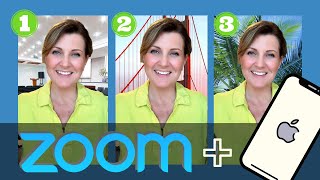
Sheryl Plouffe shows how to set up virtual backgrounds on Zoom for iPhone. The feature only works in vertical mode. You can pick from Zoom's built-in images or upload your own photos, and swap them out anytime during a call.
Chapters
Did you know that you can use Zoom's virtual background green screen feature on your iPhone?
I know, I'm so excited. Don't get me wrong, I love using my laptop, but there's something nice and convenient about using your phone to jump into video conference meetings through Zoom.
So I'm going to mirror my phone onto the screen so that you can see exactly how to access this feature and how to use it. But keep in mind, this is for a vertical orientation only. So when I do the demonstration, you're going to see some dark bars on either side of the screen.
So let me mirror my phone and let's get into it.
So the first thing you'll need to do is make sure that you have the Zoom app downloaded to your phone. I am using an iPhone X in this case. So we're going to go in and locate the Zoom app. A page will come up. That lists all of your upcoming meetings if you have any upcoming meetings, which I have a few coming up. It doesn't matter if you are joining a preexisting meeting or prescheduled meeting, or if you're starting your own personal meeting. In this case, for this demonstration, I'm starting my own meeting. So I'm just going to click on Start here at the top of the page.
So now I'm inside the meeting and I need to locate the virtual background features. So what I'll do is press on the screen and look for the three dots on the bottom right-hand side of the screen where it says More. I'll click on that, click on Virtual Background, which will bring up the virtual background features. What comes up by default are three boxes at the bottom. One is a box that says None, in other words, no virtual background chosen. The middle one is your default image that Zoom gives you. It's a red bridge on a foggy day. And the third button is a plus sign. This gives you the option of importing your own imagery. So I'm going to click on the plus button because I know I have a couple of pictures that I want to show you, a few examples of, on my camera roll. So the first one is this image here, which is the location of my live event. So this is sort of a boardroom kind of style and look to it. This is an image that I could use if I wanted to, and it gives you an option to add one more in. So I'm going to click the plus sign, and there's an image way up here, right here with palm trees. I want to show you— it's not that one, this one. Click Done, and there you go. So now you've got these palm trees behind you. You can choose whatever photos look best. And it does take a little bit of experimentation. You're going to want to look at what you're wearing versus the backdrop— background. I kind of like the palm trees personally, but you'll notice that on the bottom of the screen you don't have any more room now to choose any more photos. So you will need to experiment, experiment by removing some and adding some more. So for example, if I wanted to remove the background from the boardroom, I click on Remove And now I can see the bridge images behind me. If I want to choose none and just be back in my living room, I can do that. Or again, I can come back to the palm trees. So have some fun with this. Choose backdrops that look best with what it is that you're wearing and have fun with it.
So be sure to try this feature next time you're starting your own meeting or you're joining in a Zoom meeting video conference. Try this backdrop trick. On your iPhone. Can't wait to hear how it goes. Let me know in the comments and be sure to watch these other popular videos on my channel. Subscribe and hit the notification bell. New videos come out every Thursday. I help entrepreneurs increase their authority and income with video. Thank you so much for watching. See you next time.