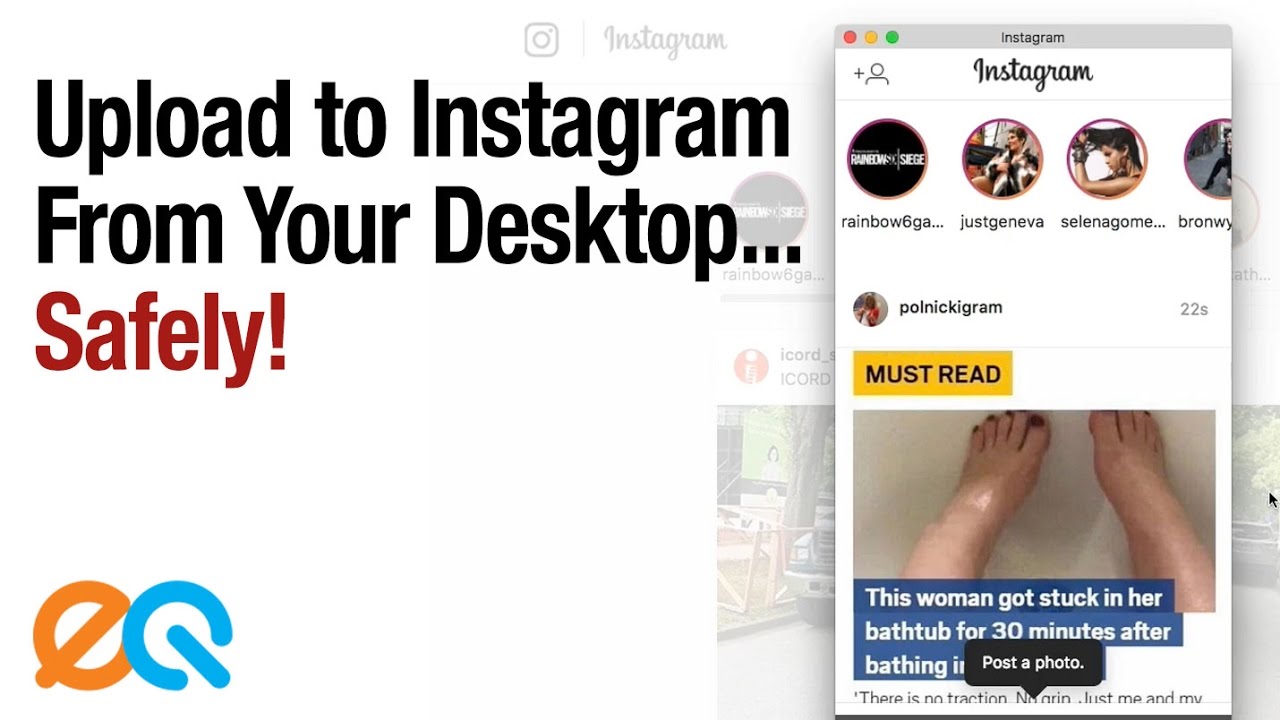
Tod Maffin shows how to post photos to Instagram from desktop safely using the free Chrome extension MOBIG, which emulates a mobile device. Instagram's official app is the only truly secure method, but this workaround lets you upload and edit posts from your computer without trusting third-party services with your password.
Chapters
Hi, Tod Maffin here from EngageQ Digital. Well, if you use Instagram for your brand, you're uploading photographs, you will know that the only real secure way to upload it to your Instagram channel is to use your smartphone, is to use the actual Instagram app. Now, there are some tools out there like Buffer and Sprout Social that will push you a reminder, so you can still schedule them. But at the end of the day, those scheduled reminders will just send you back to the Instagram app on your smartphone. You have to post it there. There have been some third-party tools out there in the wild. They have not been secure. I don't recommend you use them. They require you to give them your Instagram password directly, and who knows what they'll do with it. And frankly, Instagram's been shutting them down anyway. 3 in the last week alone. However, there is now a way to do this, to upload images and post on Instagram using Instagram's own website using a desktop browser. And I'm gonna show you how in this example. Um, we're using Chrome for this. It's a Chrome plugin. It's very secure. Basically what you do is— last week Instagram added the ability for people who don't have the app on their smartphone but still use a mobile browser, let those people use the mobile browser to upload images. What we're going to do is we're going to convince your Chrome browser that it is a mobile browser. To do that, we need to install a plugin. It's very safe. It's very secure. The address to download it is, if you just open up a new tab and go to bit.ly/ MOBIG. It's short for Mobile Instagram. MOBIG. It will pop this up. You want to click Add to Chrome. It will tell you that it's been added, and if you look up in the top right, you'll notice that there's a red M icon. Okay, more on that in a moment. Now you're done. That's— you only have to do that step once. So now when you want to upload something to Instagram using your desktop, once you've got that installed, Here's what you do. You navigate to Instagram.com. Now you're gonna see it just like the regular site. You're not gonna be able to see, you know, the upload button. But you wanna click that red M that appears. And when you do, it's gonna ask you what size phone you wanna pretend to be. It doesn't really matter which one you pick. I usually pick the one at the bottom just because it's more room. And it's gonna pop up Instagram. So you just log in or switch accounts. And you'll notice that it looks a lot like the Instagram app because that's more or less what it is. And if we look down here, there is a post photo. Now again, you're not looking at my phone, you're looking at the web browser. Pops up a little tiny thing. We want to click this, find the image you want to upload, and it's just like Instagram because it is Instagram. So you have all the other stuff that you're used to having. You can resize it and so on, put in some text. This is a, uh, an in-joke for people who play the video game Overwatch. And click share, and that's it. You have now posted to Instagram via your desktop web browser. And we'll close that window, we'll just reload the main window, log back in again, and you will see at the top of your feed, just like you posted it all along from the app.