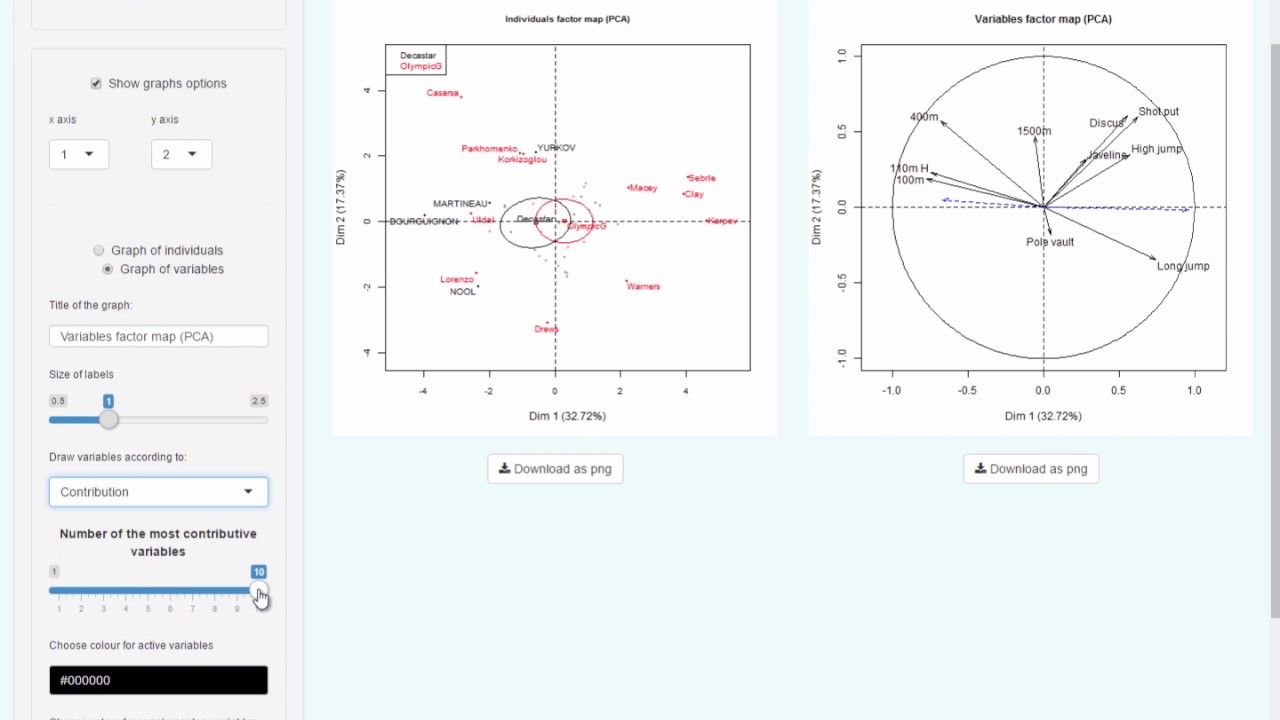
The video is a step‑by‑step instructional walkthrough of the Factoshiny R package, which provides a Shiny‑based graphical interface to the FactoMineR multivariate analysis suite. Using the Decathlon dataset (41 athletes, 13 variables), the presenter demonstrates how to import data, launch PCAshiny, and configure the analysis by selecting active versus supplementary quantitative and qualitative variables and individuals. The tutorial covers customizing the individuals and variables plots—changing axes, adjusting label size, highlighting contributions, applying color coding, and adding confidence ellipses—followed by exploring PCA outputs such as eigenvalues, summary tables, and dimension descriptions via the dimdesc function. It shows how to download plots in various formats and retrieve the exact R code that reproduces the analysis. The presenter also explains reusing the Factoshiny output object for further modifications, and extends the workflow to clustering with HCPCshiny on PCA, CA, or MCA results, including selecting the number of clusters, visualizing 3‑D plots, and obtaining cluster descriptions. Throughout, the emphasis is on the ease of interactive exploration, the breadth of graphical options mirroring FactoMineR, and the ability to generate reproducible code without writing it manually.
Chapters
We are now going to see how to use the Factoshiny library, which gives a graphical interface to the FactoMineR package in the form of an HTML page, and that allows us to draw interactive plots. We are going to use a dataset called Decathlon in this tutorial. You can see the PCA video with FactoMineR to get a detailed description of this dataset. The data has 41 rows corresponding to 41 athletes, and 13 variables. Among these 13, we have 10 variables corresponding to athletes' performances in each decathlon event. Then, we have 2 quantitative variables: the athletes' ranking on the scoreboard and their number of points. Lastly, there is a competition variable with 2 categories: Decastar and 2004 Olympic Games. Moving now to R, first, we import the data. And check that it loaded OK. Now, let's load the Factoshiny library. We then use the function PCAshiny on the Decathlon dataset. It would also be possible to first perform the PCA analysis and then to use the PCA outputs in order to modify the plots. Then an interface opens up. On the left, you can choose the parameters of the PCA analysis as well as the parameters of the graphical options. On the right, we can see the outputs. On the left, there are 3 blocks: one to define the parameters of the PCA, one for the graphical options, and one for download options. First, we are going to define the parameters of the PCA. By default, all the quantitative variables are active. We can decide that the rank and number of points are supplementary variables. We can also consider the competition qualitative variable as a supplementary variable. We can select some individuals as supplementary or suppress them if we prefer. And by default, the variables are standardized. As you can see, the analysis is conducted instantly and provides the chosen plots. We get 2 plots: first, the individuals plot showing the individuals and the categories of the qualitative variable, and second, the variables plot with the active variables in black with solid lines and the supplementary variables in blue with dotted lines. We can then modify the graphical options to improve these 2 graphs. Factoshiny includes the latest graphical updates in the FactoMineR package. It is user-friendly, and in particular, it enables users to work with and explore data directly. By default, the individuals and variables plots are drawn for the first versus the second axis, but we can modify the axes and choose to draw the plots for the third versus the fourth axis, and so on. Let's now look at the first and second axes. We can choose to modify the graph of the individuals. Since there are a lot of labels that overlap, we can decrease the font size to 0.8. When we have lots of individuals and when the plots are overloaded with information, we can also improve them by highlighting certain things. Here are a few interesting plot options. Let's focus on individuals who are projected better than 0.7 on the plane. That is, we want these individuals to be labeled and the others to have transparent labels. Rather than selecting individuals in terms of their squared cosine, we can select individuals by name. Here, as an example, we choose only Clay and Karpov. We can also select individuals in terms of their contribution, for example. Here, let's select only the 15 individuals with the largest contributions to the first 2 axes. We can also color individuals in terms of the categories they belong to for a given qualitative variable. To do this, the qualitative variable must have been considered as supplementary in the analysis. We can also create confidence ellipses around the Decastar and Olympic Games barycenters. These can be seen as confidence regions for the barycenters. Here is the result for the individuals. The same things can be done for the variables. For example, we can highlight the ones with the largest contributions. Here are the 5 with the longest arrows, that is, the ones that most contributed to the plane. Evidently, the supplementary variables haven't contributed anything, and the 5 variables in gray have not contributed much. The graphs can be downloaded as PNGs, JPEGs, or PDFs. That's all for the graphs. On another page named Values, we have the main results of the PCA that are obtained with the summary function. We can visualize all the results or one of them. So for example, here we find the results for the eigenvalues with a bar plot. If we select summary of PCA, the results are given by default for the first 10 individuals and first 10 variables, but we can modify this number here. We have all the results given by the summary function: the line of code we ran, a table with the eigenvalues and the percentages of inertia associated with each axis, A table showing the results for the individuals, the outputs for the active variables, the supplementary quantitative variables, and finally the supplementary qualitative variables. The summary can be downloaded. On a 3rd page, we have the description of the dimensions in terms of the variables, obtained with the dimdesc function. You can characterize the axes using the dimdesc function. Only correlations significantly different to 0 are shown, and the variables are sorted from the most significantly positively correlated to most significantly negatively correlated. Then we have 2 pages about the dataset: one page with a summary of the dataset, and another with the dataset itself. This package makes interacting with R and FactoMineR simpler, thus facilitating selection and addition of supplementary information. In addition to its FactoMineR interfacing capabilities and its ability to effortlessly create complex graphs, the Factoshiny package can also generate the code used to construct the graphs. You quit the app by clicking on this button. In the object outPCA, we can find the lines of code that allow FactoMineR to redo the analysis. So you just have to copy and paste these lines of code to redo the analysis exactly as it was. It is also possible to reuse the object resulting from Factoshiny in order to further modify the graphs using the configuration described previously. With PCAshiny, the interface is reopened as it was when we left it. So we can modify the parameters of the methods or the graphical options. Then we quit the app again. The functions CA_shiny and MCA_shiny operate on exactly the same principle. We can also run clustering on the PCA results or on CA or MCA results. So we can copy and paste the the line of code for PCA and modify it to consider 8 components which preserve 96% of the information. So ncp= 8 instead of ncp= 5. Then we can use the HCPC shiny function on the output of the function PCA or on the output of the function PCA shiny. So an interface is opened. On the left, we can define the parameters of the method. First, we choose the number of clusters we want to have. Here, 4 clusters are proposed. This is the optimal number found by our algorithm. I can choose to keep this choice. Then we can consolidate the partitioning or not. Then we can change the graphical options and modify one of the 3 plots. For the 3D plot, I can add the labels of the individuals as well as the barycenter of each cluster. On the other page, we have a description of the clusters using all of the variables. Both quantitative and qualitative, and both the active and supplementary ones, a description of the cluster using the dimensions and using individuals. As for PCA, CA, or MCA, we can download the plots and obtain the lines of code to redo the analysis. Lastly, we quit the app. That's all for the Factoshiny package. Most of the graphical options of the FactoMineR package are available in Factoshiny, and the main advantage is that you don't need to know the lines of code, and moreover that you can modify the graphical options and see instantly how the graphs are improved.