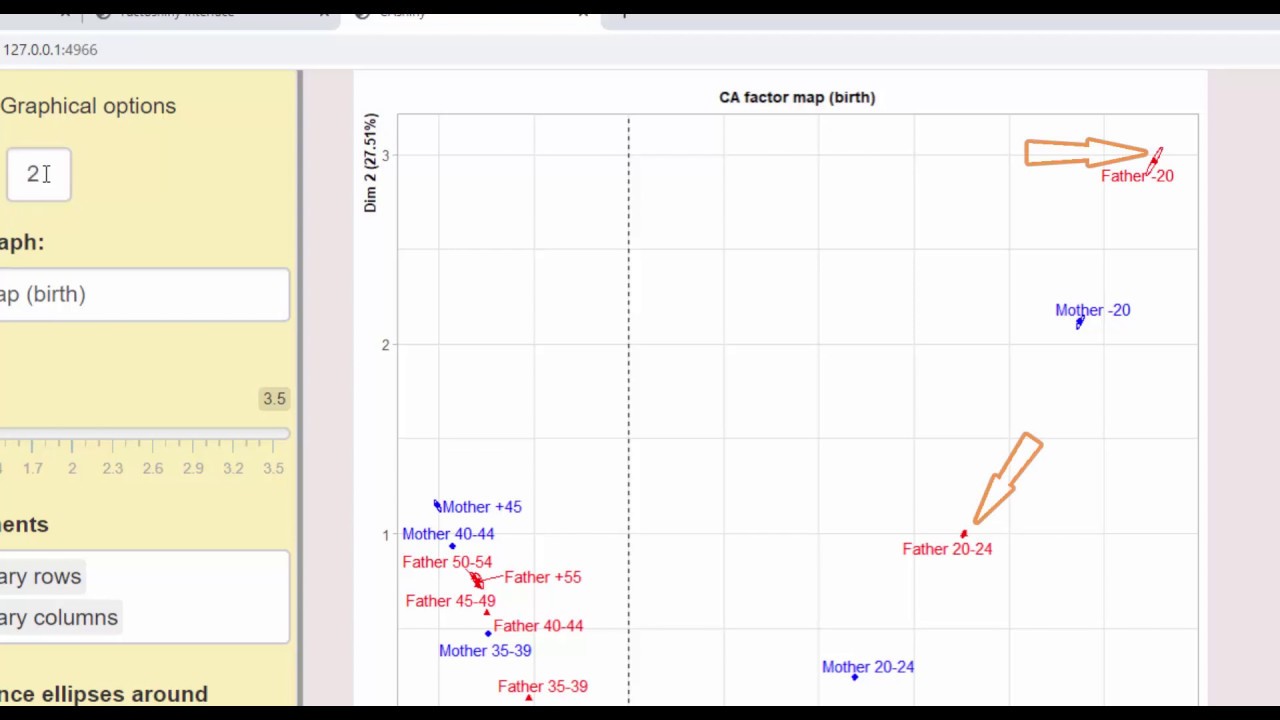
The video walks through performing correspondence analysis (CA) on a 2003 birth count contingency table using the FactoMineR package and its graphical front‑end Factoshiny. It begins by describing the dataset (mother and father age groups) and how categories are designated as active or supplementary. The speaker shows how to import the CSV into R, configure Factoshiny, and launch the CA without writing R code. Within the interface, they set active and supplementary rows/columns, discuss extra quantitative (e.g., year of birth) and qualitative variables, and explain missing‑data handling options (default inclusion, independence‑model imputation, 2‑dimensional CA imputation). The tutorial then presents the CA output: chi‑square test, eigenvalues/inertia, coordinates, contributions, and squared cosines for active and supplementary elements. Plot customization is demonstrated—adjusting font size, toggling visibility of supplementary points, labeling based on representation quality or contribution, applying transparency, drawing 95 % confidence ellipses, and selecting alternative axis pairs. The speaker shows how to enable clustering on rows or columns, choose the number of dimensions, and generate an automatic interpretation report in multiple formats (R Markdown, HTML, Word). Finally, they retrieve the underlying R code for the analysis, demonstrate that the Factoshiny session can be saved and reopened, and close the application. The tutorial ends by encouraging viewers to try the workflow themselves.
Chapters
In this video, we're going to look at how to do a correspondence analysis with FactoMineR. For this, we're going to work with data on the number of births in 2003 as a function of the ages of the father and mother. As rows, we have different age groups: mothers younger than 20, from 20 to 24, 25 to 29, etc. In the columns, we have the same age groups for the fathers. For example, in the first entry, 2085 corresponds to the number of children born to a mother and father both less than 20 years old. In this table, some values are really quite small, in particular the number of births to mothers between the ages of 45 and 49 and 50 to 60. For the purposes of this tutorial, we would like to group these 2 together as one group, mothers 45 and over. We're going to use as active categories mother younger than 20, from 20 to 24, up to 40 to 44, and mother 45 and older. We'll use the rows mother from 45 to 49 and 50 to 60 as illustrative categories. Same thing for the fathers. Active categories here are fathers less than 20 years old, up to fathers from 50 to 54, and fathers 55 and over. Illustrative categories are fathers from 55 to 59 and fathers 60 and over. The colors shown here in the row and column names indicate whether the categories are active or supplementary. These colors will show up again in the CA plots. Let's move to the practical part: how to do correspondence analysis with FactoMineR. First, let's import the data. We import the dataset by giving the filename. We signal that the column names are available with header= TRUE, that the columns are separated by semicolons, that the row names, the individuals' names or row names, are available here in the first column of the dataset. We tell R not to check the variable names by putting check= FALSE. names equal FALSE, because otherwise R will delete the spaces and replace them with dots, making them harder to read. So the import seems to have worked, and we can check that it has. See how all the variables are quantitative, as we wanted and expected. Let's now see how to run CA with FactoMineR, and more precisely Factoshiny, its graphical interface. This interface launches the commands of FactoMineR, and it is not necessary to know the syntax of R. This interface also improves the readability of the graphs. Let's load the Factoshiny package. To launch the CA, just run the Factoshiny function on a dataset. This function can be, can be run on a dataset, on a CA result object, or on a result object of the Factoshiny function. Let's run the function on the birth dataset. The graphical user interface opens in the default browser. On the left side, there is a brief description of the dataset, then the methods that can be applied to that dataset, and a link to a video that helps choosing which method to use. On the right-hand side, we have the different methods. Clicking on a method's help button provides a quick description of the method as well as links to course videos about the method. If you then click on Run, the analysis is executed and a new window opens in the browser. This new window is divided into 2 parts. On the left is the menu that will allow you to parameterize the method or the graphs. On the right are the results. In the left menu, we have several tabs. The first one will be used to parameterize the method, that is to say to choose the active and additional rows and columns. And also the management of missing data if missing data are present in the dataset. I will now specify that the rows mothers aged 45 to 49 and mothers aged 50 to 60 are supplementary, and the columns fathers aged 55 to 59 and fathers over 60 are supplementary. In our dataset, there are no extras quantitative variables and no extras qualitative variables. What would extras quantitative or qualitative variables be? Let's take another dataset that makes it easier to make these variables explicit. We have a textual example with the contingency table cross-referencing authors in rows and the words they use in their text in columns. We can add as a quantitative variable the year of birth of the authors, which would make it possible, for example, to highlight a temporal evolution. The year is a quantitative variable here, quite different from a count. It is therefore not an additional column. For an additional qualitative variable, we can imagine a variable that organizes authors by literary trend. The literary trend variable is qualitative and takes several forms. Note that these additional variables concern only the rows of the table. For the quantitative variables, they are represented on a graph with the circle of correlations by calculating the correlation coefficient between the quantitative variable and the coordinates of the rows on the dimensions. For the qualitative variables, the categories of a qualitative variable are positioned at the very center of the rows that take this category. Each time, the weight of the row is taken into account. In our example, it is not proposed to choose additional qualitative variables because there is no qualitative variable in the dataset. If there were, there would be a heading for selecting qualitative variables. If we had missing data, we would have several options to manage them. The first option is to add rows and columns that have at least one missing data, This is what is done by default. The second option consists in imputing the dataset using the independence model. For a missing cell, we calculate the product of the sum of its row by the sum of its column, divided by the sum of the table. We update all the missing cells and then iterate until convergence because the row and column sums move. Finally, it is possible to impute the table using a 2-dimensional CA model. This strategy is certainly the best in many situations. Then, once the missing data have been imputed, the CA is constructed on the completed table. Let's go back to our dataset without missing data. The CA is constructed and the graph of the simultaneous representation is provided. But first, let's look at the summaries of the main results. In this tab, we have a listing with the main results of the analysis. The first line here reminds us of the command used to run the CA. Next up, the results of the chi-square test on the variables, using only the active rows and columns. The value is very big, so there is a significant relationship between the 2 variables. After this, we have a table showing showing the eigenvalues and the percentages of inertia associated with each dimension. Then, the results for the active rows, showing the coordinate value of the rows in the first dimension, the contribution of each row to the construction of the first dimension, and the quality of representation on the first dimension. Followed by the results for the second dimension, and the third. Same thing for the active columns. We get the coordinate values, the contributions, and the squared cosine for the 1st, 2nd, and 3rd dimensions. Next, we have the results for the supplementary elements. First up, the supplementary row with their coordinate values and quality of representation. We don't have their contribution because they didn't contribute to the construction of the dimensions. Then, the same thing for the columns: coordinate values and quality of representation for the 1st, 2nd, and 3rd dimensions. Going back to the plots, we can make new ones by selecting certain things to highlight. We can make the font size smaller and modify the title, for example. With the smaller font size, the labels overlap much less, the plot is easier to take in. We can also make supplementary rows and columns invisible and keep only the active rows and columns. For example, here we can decide we want to make the supplementary rows and columns invisible. This gives us a plot with only the active rows and columns appearing. Also, we can only put labels on points which are well represented. So here are the rows with a sufficiently good representation, with scores squared cosine of at least 0.7 on the plane, and similarly, the columns with squared cosine of at least 0.7 on the plane. The points representing rows and columns with visible labels here are these well-projected ones. The others are not labeled and are shown with a transparency effect. This can be very useful when there are too many points on the plot to see clearly. Only showing the most important ones makes it easier to interpret. We can also label points as a function of their contribution. So for instance, the 4 rows with the largest contribution to the plane's contraction and the 3 columns. Here's the plot showing them. We can also draw confidence ellipses around the position of rows and columns. The principle of ellipses construction is as follows: The table with the active elements is taken as reference. Then, new data tables are constructed by drawing n values in a multinomial distribution with theoretical frequencies equal to the values in the cells of the table divided by n. The idea is then to provide a 95% confidence zone on the position of the point. Here, the ellipses are very, very small because the numbers in the data table are very large, several tens of thousands, and therefore the position of each point is very stable. When the numbers are smaller, the ellipses are much larger and give information about the possibility to interpret or not a difference in position between 2 rows or between 2 columns. Also, as in all factor analysis situations, we can instead choose to plot other pairs of axes, For example, 1 and 3. Lastly, we can try to do clustering. Just check this box here. After running correspondence analysis, either we can do clustering on the rows or on the columns. This choice will be made later in the clustering. But before leaving CA, we need to choose the number of dimensions of the CA that will be kept to build the clustering. It is also possible to obtain a report on the results of the CA, that is to say an attempt of an automatic interpretation of the CA results in English or French. This automatic report can use graphs suggested by the analysis or use the graphs just worked on. First, it is interesting to see the graphs suggested by the method. We will be able to retrieve this automatic report in different formats. In R Markdown format, in HTML format, or in Word format. Finally, there is a button Get the CA Code, which retrieves the lines of code of the CA to implement the method and rebuild the graphs identically. So if I click on Get the CA Code, the 2 lines of code appear here, one to parameterize the method and one to build the graph. Finally, you can quit the application by clicking on this Quit the app button. If I display the result object, I find the lines of code which allow to parameterize the method and to build the graph. I can also find the application as it was when I left it in by typing Factoshiny result. You can see that the application is exactly as it was before. So I can modify my plots again, and I can quit the application again and close it. And there you have it, correspondence analysis followed up by clustering. So that's all from us on this subject. Now it's your turn.