Relume's AI tool generates complete design systems from a client description in seconds, creating sitemaps, wireframes, and style guides that export directly to Figma with variables and components already set up. The speaker shows how to shuffle colors, lock elements, and import into Framer for rapid prototyping, then emphasizes showing clients multiple AI concepts to cut revision cycles and boost profitability.
Chapters
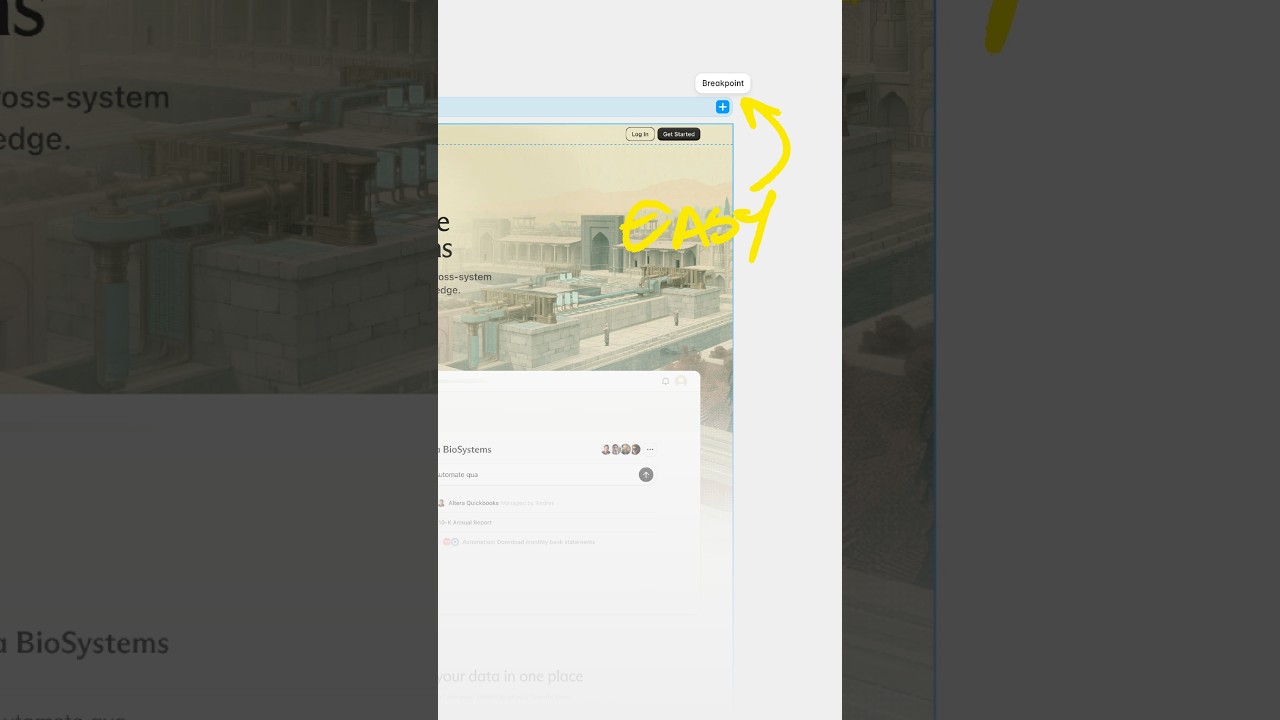
So I just finished watching Arnau's video where he claims we can create a style guide in seconds using AI, specifically using Relume's AI-powered style guide builder. Now I've used Relume components before to speed up my workflow and create websites in days and not months. Call me Bruce Wayne Daddy, but I haven't really tried their style guide builder. So I've spent the past week testing it out for myself, and in this video I'm gonna show you exactly what I've learned and how to use Relume's style guide builder to get faster, more profitable on projects and become Bruce Wayne too. Also, go subscribe to this channel and show him some love. Tell him Batman sent ya. Let's talk about my current workflow. These days when I start a project, I usually start with a preexisting design system. Create a design system from scratch? Do you think I'm actually insane? That would take forever. So for SaaS projects, I'm using ShadCN UI Kit, but for websites, I'm usually using Relume's Figma Kit. They have a large library of low-fidelity components and it's super fast to make changes because I just need to update variables and textiles. Wow, design systems are cool. This can actually save me tons of time. It takes me a couple days or so to set up and customize, but after using Relume's AI workflow, I can actually go from idea to sitemap to wireframe to customized style guide in seconds and directly export it to Figma where Relume automatically updates my variables, textiles, and components automatically. Which I thought was the coolest part, actually, with the extra benefit of actually having a whole library of more sections and components that I could use in their library. So let me show you exactly how it works, starting from the beginning. So this is Relume's intended AI workflow. And let's start with an example of a potential client project. Let's say I'm creating a website for Wayne Reserve, an exclusive invite-only suit brand. I'm going to go to relume.io and I'm going to simply describe describe the client's business right here. I'm going to click on Generate, and within seconds it generates a sitemap. I can add, edit, or delete pages and sections right here on this page. And when I click on the Wireframe tab, their AI magic does its thing and creates wireframes automatically, which I think is pretty cool. But where I think the real magic happens is in their Style Guide tab. I can click on the Shuffle button and Relume changes my colors, typography, UI styling automatically. But it actually gets way more interesting. If I want, I could just shuffle my heading fonts, or if I have a specific font in mind, I could search for it, click on the font, and then lock it right here. Now when I shuffle, my heading font is locked and doesn't change. I can also choose specific background colors for each section. Relume also suggests some images, but I've created some of my own, so I can actually just upload them directly on here. It's pretty impressive how far I can customize this home page or this concept. Now, it's typically at this stage where it would make the most sense to actually present these multiple concepts to clients to see which style that they like best, reducing the amount of revisions, saving yourself tons of time later in the project. I've been burned before. Trust me, you're going to want to present multiple concepts at first just to get the client saying yes to a direction. When we finally decided on a particular style that we like, we can now actually export this directly into to Figma and start customizing our style guide in our designs even further. So let me introduce you to my favorite website builder, Framer. Out of all the website builders that I've tried, I think it's the most powerful and yet the most simple website builder I've ever used. So later in this video, I'm going to show you not just how to import these Relume components into Figma, but actually how to take your Figma designs into Framer and actually bring those designs to life. So you wanna stay tuned till the end of this video where I do exactly that. So you'll want to duplicate Relume's Figma kit, and I've left a link for you down in the description down below. And, um, as we're waiting for this to duplicate, I just wanna point out a couple different things here on this Figma kit. Relume has a default style guide for us right here. Now with this workflow, all of this stuff is going to automatically change. And that's kind of the magic of this. And so we're going to go to Relume's plugin right here and we're going to sign in. I've already signed in, but we're going to select on the specific project and then we're going to go to style guide and we're going to click on the specific concept that we want to import. And this is going to import. This took about 10 minutes, but I sped it up here. Once this is imported, that's when you'll see the magic happen. On the style guide and you'll see exactly what I mean. So let's check out our typography and text styles. All of our H1s through H6s are updated. And if you go to the style guide page, check that out. Our font name is updated even, and all of our style guides is updated with this exact theme that we want. This is a phenomenal starting place. Of course, I can go in and customize the style guide further, fine-tune tune it to my liking. But this is a phenomenal start. As we see here, we even have radius, we have shadows, we have icons that are set to white. And then this is exactly what I mean as well. As we check out the rest of the components that are here on this library, those have also been updated with textiles, with button components, with the exact colors that I want. So I actually want to teach you how to import these designs that we've just created with the help of AI and with the whole style guide and how we can actually import that into Framer. So what I'm going to do is I'm going to make sure that all of these components are responsive with its parent container. And so each section I'm going to set to fill, but the parent container I'm going to set to fix and I'm going to set to 120 or 1200 pixels. And then I'm going to open up Framer's plugin and I'm going to copy this entire thing. And then what I'm going to do is I'm going to go into Framer and I'm going to paste it right here and I'm going to let it do its thing. And boom, everything copied and pasted. And then I'm gonna set this parent frame to fit to make sure everything is fit there. But you could see it's even responsive because I've set those sections to fill. Another really interesting thing too is that you can actually create your own text styles pretty easily with Framer. You can just select on a heading like this, for example, and then you can scroll to text styles and then you could just select on a new style and it'll create that new style automatically. So I think that's pretty cool. And if you need some inspiration for your portfolio website, I got some bangers right here or right there. All right. Till next time, God bless you. Batman out.