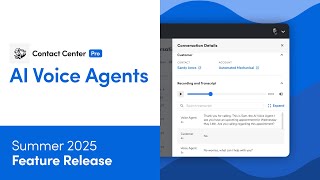
Contact Center Pro's AI Voice Agent automates routine calls like job bookings and spam detection, handles off-hours traffic, and escalates complex issues to humans. The walkthrough covers setup, routing, greeting messages, and how to review transcripts and recordings after each call.
Let's take a look at an overview of the new AI Voice Agent feature in Contact Center Pro. The new Voice Agent feature brings intelligent automation to your Contact center. Designed to enhance efficiency and availability, it ensures seamless support for customers anytime, even during off hours or high call volumes. It offers several key benefits that help your team reduce wait times, boost productivity, and deliver faster support. Voice agents ensure uninterrupted customer service by handling calls during off hours, holidays, and peak times. By automating routine tasks such as job booking, customer record updates, spam call detection, and data collection, the Voice Agent reduces the burden on human agents. It also escalates complex issues only when necessary. Leveraging Titan intelligence and natural language processing, the Voice Agent can accurately interpret customer needs, generate detailed follow ups, and ensure all interactions are logged and categorized. Before getting started, make sure you have the Edit Voice Agent settings permission enabled for your account. Now let's take a look at how to configure and use Voice agents in ContactCenter Pro. First, let's configure your Voice Agent settings. Go to your Contact Center Pro profile and click Settings. In the side panel, click Voice Agents, click Edit Default Settings. Now you can set up how the Voice Agent sounds to customers. Enter your Voice Agent's name and your business name. These will be used when the VA introduces itself to customers. Set an opening message to greet customers when they call, and a closing message for how your Voice Agent ends the call. You can use bracketed shortcut keys to include the account name, agent name, or business name. Finally, decide how job booking works. Choose if the Voice Agent can book jobs directly or if it should send the task to follow ups for a live agent. Don't forget to save your changes. You can also customize settings for specific tenant accounts. Now let's see how we can add the Voice Agent to a call routing workflow. In your Routing Workflow Edit mode, click Add to add a new routing module and select Voice Agent. Review the Voice Agent's base permissions and set up a pre routing message. Select Text to Speech to enter a pre routing message that the system will read aloud to customers before they speak to the Voice agent. Or select Upload Message to add a prerouting audio message for customers. When you're done, save your changes. Add an escalation path in case the voice agent can't help. In this case, I'll forward the call to an external number. After setting your escalation path, click Save. Your basic routing workflow is ready. After adding entry points, you can go ahead and activate it. After the call with the voice agent ends, you can check their conversation details in the Voice Agent Follow Ups tab. You can then call the customer back. After reviewing the call summary. In Contact Center Pro, Select Urgent Follow Ups and then Voice Agents, you'll see all open, cold, and done conversations that involve a voice agent. From this screen, you can apply filters and narrow down the results. View the VA conversations Get a quick overview of important call details with the AI Call Summary. Change the lead status. Get the customer details as well as the recording and transcript. If a conversation can't lead to a job, you can dismiss it. Now that you know how to set up VA settings, routing, and follow ups. Check out our other resources for more information.