Get to know Titan Advisor
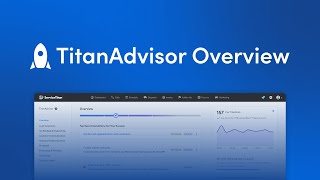
Sina from ServiceTitan walks through Titan Advisor, a built-in guide that scores your account across four stages (Launch through Mastery) and recommends features based on your business. It tracks your progress, lets you customize a prioritized plan, and shows which features are quick wins versus required to level up.
Hey everyone, my name is Sina. I'm the senior manager of customer programs here at ServiceTitan and today I'm super excited to walk you through a Titan Advisor overview. Now, the first thing you're probably wondering is what is Titan Advisor? Now Titan Advisor is an automated best practice guide that helps you get the most out of Service Titan by making personalized recommendations for features for your organization that you can implement to achieve your business goals. Now the really cool thing about Service Titan's Titan Advisor is it applies to all customers on Service Titan, regardless of your size, regardless of your industry or your product package. It applies to everyone. So without further ado, why don't we just jump right into the software and let's take a look at Titan Advisor. So I'm going to go ahead and share my screen now to get to Titan Advisor, it's going to be in the very top right hand corner and you're going to click on that rocket ship in the top. Right now you'll notice that when you first click in, it will drop you into the overview tab. And I'll be covering everything that you see on your screen here in the overview tab. But I want to start on this left hand side to begin with. The first tab that you're going to see is the Training tab. Now this is a tab where you can either enroll in courses yourself or if you've got the permission, you can assign courses for your team to take. You'll also notice there's a what's new tab on the left hand side. Titan Advisor is constantly being updated with new features. And if you're ever curious of what those new features are, you can just click into that what's new section and it will list out those new features features. So you can see May 6th we released a couple of features inside of Titan Advisor. Now the last thing that you're seeing on the left hand side are the business sections. Titan Advisor is going to be broken up into the different, different sections of your business. And this will allow you to see the features that belong in each of those sections. Now for our example, today I'm going to go in and click into the job booking and dispatching section. Now the first thing you're noticing is there's two different sides inside of a section. You have a what to set up and then you have a how you're using features. The what to set up side is usually a one and done type of setting. You've checked the checkbox, you've added in a call tracking number. Usually it's just something you have to do once and then you will get those points on the right hand side for the how you're using features. This is actually tracking a behavior. So this will be a living and breathing thing as your teams continue to hit those thresholds for success criteria and get those points. So why don't we actually click into one of these features and let's see what's inside of a feature so we can understand what we're looking at. Going to Go in and click into this Capture Email Addresses to connect with customers. The first thing you'll notice when you drop in is there's a nice little about me for that feature. It explains what that feature is all about. At the very top you'll notice some icons as well. These are going to be tied to your business goals, which we'll touch on later on in the video today. On the right hand side you'll also see if this feature applies to all of the customer types under Service Titan. You can see that for this specific feature, this applies to everyone and anyone. If this feature will impact any KPIs, you'll see those KPIs listed here and then you will see a photo or a gif. And yes it is gif. You'll see that GIF or photo right below that about me giving you a visual if it's necessary. Now scrolling all the way to the bottom, then we start to get into the points, which is really what I'm sure all of us are here for. So let's get into the success criteria and you can see that for this specific feature, what we're measuring is the percent of jobs booked in the last 30 days with an email address for the service location or bill to customer. If over 75% of those jobs booked in the last 30 days have an email address, I'll be getting two points. If over 90% of those jobs booked in THE last 30 days have an email address, I'll be getting the full five points. Now you'll notice this is going to be a living and breathing thing as your team is continuing to book jobs and whether or not they've got those email addresses inside of those customers for these service locations or build to Customer. This will constantly update itself to make sure your team are doing those best practices that we suggest here in Titan Advisor. So I'm going to click out of this specific feature, but any feature inside of Titan Advisor you'll be able to understand if you just scroll all the way to the bottom and see the specific success criteria which is what we're measuring down below. But let's go ahead and exit out of this. There's a few other things I'm going to show you on this screen. The first thing is this required tag. If a feature is tagged as required, that means that that feature must be complete in order to go to the next stage inside of Titan Advisor, up at the top here, you'll notice those different stages. Launch is what all of us will begin with once we're live and using Service Titan. Then you can graduate to acceleration, graduate to optimization, and then finally graduate into mastery. You'll notice each of these stages will have different features. And one other thing I want to note here is let's say we're in the launch stage, but we've completed one of the features inside of Acceleration. You will still get those points. So don't think that just because you're in one stage, you can't get points from another stage. The other thing I want to point out here is to the right hand side, you'll notice this icon here, which has been tagged as a Quick win. And you can see reading this on the screen, this is going to be something that requires a low level of effort, but can provide a pretty significant roi. And we'll come back to this quick win when we're actually customizing our plan. So at this point, I'm going to go back to the Overview tab. Another question you're probably asking yourself is, I saw those different stages, how do I know which stage I am actually in? And once we're back inside of the Overview tab at the very top, you'll notice this bar and then you will notice that rocket ship at some point inside of this bar. So I can see that the account that I'm in today, which is just a demo account that I use, this is currently in the launch stage of Titan Advisor. If this rocket ship was over here, then I would have been in the acceleration stage. So if you're ever curious about what stage you are actually in, you can just click into your overview tab and see where that rocket ship lies and it will tell you your current stage. So at this point, we know what these business sections are, we know how to read a specific feature. I think we're ready to actually customize our own plan, which is one of my favorite things that they've added into Titan Advisor. So I'm going to go in and click into Customize Plan. What this allows you to do is this allows you and your team to focus on four specific features inside of Titan Advisor. Now, you can see I've already got some features listed here. I can rearrange these if I would like in any order. Let's say I don't want some of these features. I want to look for other features that I want to put into my plan. I can go ahead and search for those keywords and I can see those specific features. And let's say I want to grab one of these. I can just take this, drag it over and you can see now that is going to be a part of my customized plan. Now, the last thing I'm going to show you in here is the filters that you can use. So of course you can search for those available features, but there's also a filter icon that you can use and this is actually really useful. So I'm going to click into this filter. I can either filter by those primary business goals which we saw those icons on those specific features. There's that Quick Win I was talking about earlier with the low level of effort but great roi. We can filter by the different business sections that we saw earlier or I can focus on a specific customer type, meaning maybe I've just launched the construction side of my business, so I really to focus on those specific features. Now, if you're looking at this list and you're like, wow, there's a lot of things I can filter by, I'm not really sure where to start. My advice, start with the quick wins. Start with the things that are easy to do but have great roi. We can click apply and then we'll see all of those Quick Win features listed. And once again, I can just click those and drag those into my plan and then I can save it. And there we go. We've got our updated plan with that new feature that I've listed out. Now over on the right hand side, everyone's talking about what's your Titan Advisor score? What is your Titan Advisor score? You can see our score is going to be listed in the top right here. And one of the most common questions I get is why is my score going up? Or why is my score going down? What am I not doing? Or what? What have I been doing to get those points? And for that I'm going to click into this arrow in the top right. What this will actually do is provide you a history of your score. Now, because this is a demo account, I don't have nearly enough data. So I'm actually going to use my dropdown date filter and I'm going to open this up to get some beautiful Data, let's make this a very big date range. And let's click Apply and boom, right in front of you, we can actually see where my score was at a point in time. If I increased, why did I increase? And I can see that over that specific date range that I've set inside of my date filter. Now, right below that, I can see the actual why, why has my score gone up, or why has my score gone down? The history will show you in green if you've gained points, or the history will show you in red if you've lost points. And if you're ever curious, what's really great about this screen is I can click into that feature directly from here. And this allows me to see some of that success criteria, some of the stuff that we're measuring. So I can ensure to do this and get those points back. It's really intuitive. And I really like this part of Titan Advisor. So let's go back into the overview tab. There's a few different things I want to hit on, but we're almost at the end. Can y' all believe it? So we've talked about the features. We know how to customize our own plan. We know why our score is going up or down. What if I want to go to the next stage inside of Titan Advisor? What are the things that I need to accomplish? And there's really two things that need to happen in order for you to go to the next stage. The first thing is you need to get the minimum amount of points inside of that stage. So I can see that 8 of 65 points I've so far earned inside of the launch stage. But I need a minimum of 39 points inside of launch to go to the acceleration stage. So I've got 31 more points to go. The second thing that needs to be accomplished is all of those required features. And remember, and luckily, I've got a great example here. Whenever you see a feature that's tagged with required, that's what this is talking about. So I have 10 different required features remaining inside of the launch stage. And if I just click my drop down, I can actually see those specific features that I need to set up in the different business sections. And I can also see the features that I need to use more of those behaviors that are required in those different business sections. So again, two different things. You need the minimum amount of points for that stage to go to the next one, and you need to complete all required features in that stage to go to the next one. The very last thing I'M going to be showing you for our overview today is the visuals. I'm a very visual person and I love the visuals. We have the business goals down here at the bottom. Now I'm going to click my edit pencil. So what this allows you to do is this allows you to rearrange these things so that way Tightening Advisor will personalize some of those recommendations that it's giving you based off of the business goals that you've set priority on. So maybe it's our slow season. So we really want to see some business insights. I really want to focus on the reporting and where I can improve my team the best and see where they're really crushing it. I can drag that up to the second option or maybe it's number one. I can play with this and move this however I would like. But once again, whenever you see those icons to the right hand side, you will also see those icons tied to specific features all the way at the top. So I'm going to go ahead and save this. And at this point we've hit everything inside of Titan Advisor. Let me go ahead and stop my share and look back at our lovely folks. That was our overview of Titan Advisor. We know all the different business sections. We know what all the features mean. We know why our score is going up and down. And finally, if I want to go to the next stage, I know exactly how to get there. Again, my name was Cena. This was the Titan Advisor overview video. I hope you all have a fantastic rest of your day and I'll see you in the next one.
More from Bill



Capturing the 80%: How SmartAC’s Gen-2 Targets Non-Membership Homeowners | Podcast Ep. 296

Build better customer data with every booking in ServiceTitan | TAD Tune-Up Series

The Biggest Change for Roofers Coming From Other Roofing Software to #ServiceTitan?


