How To Use The New Closeout Screen | Technician Training
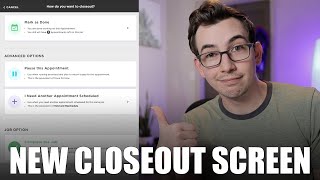
Richard Kohberger walks through ServiceTitan's new closeout screen for technicians. Jobs now contain multiple appointments to officially support multi-day work. The closeout options let you pause, schedule another appointment, or mark the job done, with lead technician permissions controlling what each person can do.
What's going on, everybody? It's Richard Kohberger here, the blue collar nerd. If you don't know who I am, once upon a time I was a mediocre H vac technician and now I make mediocre YouTube videos for the very excellent company Service Titan. And today I'm going to be showing you a feature that's coming out that's going to change a little bit about the way you close out jobs in the mobile side of Service Titan. And the new feature is called Appointments. So first of all, why is this happening? Well, the Appointments feature gives us a real official built in way to handle multi day jobs in Servicetitan. See, before there was no single officially correct way to tell the system, hey, this job, it's only one job, but it's going to take more than one day to get it done. Now there were ways of handling it, but they were more kind of janky workarounds than actual built in official solutions. And I'll explain that a little further because I know that none of you really have any experience with janky workarounds, right, John? So like for example, you could stretch the job really long. If it were a three day job, you could just stretch the job to cover three days and then use done for now to kind of pause the job and resume the job. Or if it were a three day job, you could schedule three separate jobs even though they're all really one job. Or they could just book one job that wasn't stretched really long and then at the end of the day you just reschedule that job over to the next day and then if it's one more day, then you reschedule it again to the next day. At the end of every day it was confusing and every workaround had its trade offs. Like maybe this method was better for time tracking, but this method gave you more accurate reporting. It was just, it was just a lot. And so Appointments is the solution to that problem. So appointments go inside of jobs. Jobs are basically containers now and inside of those jobs are appointments. So that means every single job has at least one appointment inside of it. And one more note before we jump in, just because we're introducing this appointments feature does not mean that those old workarounds that we talked about are going to stop working. And some companies may choose to continue using those workarounds for one reason or another. So take your company's guidance on how to handle multi day jobs within your company. All right, with all that said, let's jump into ServiceTitan. And see what we've got. So for most companies, most of the time, the majority of your jobs aren't actually multi day jobs, they're single jobs with a single appointment on them. So that's what I'm going to show you first right now. I am dispatched and arrived on a single day job. Something to note real quick. When this release does go live for your company, you're going to get signed out of the mobile app, meaning you'll have to sign back into the app. So you know, if you haven't had to type your password in in six months and you don't remember what it is, you know, now's probably a good time to start trying to figure that out. But worst case scenario, there's that forgot password button. You tap that, it sends you an email. You know the deal, you've forgotten a password before you're a person. So at the top of the screen here I see I've got this blue banner and it's telling me that when you're ready to leave the job, use the closeout in the bottom left corner of the screen. The previous done for now and finish options have been moved there. So yeah, down here in the corner of the screen I've got this new button that says closeout and if I tap on that, I'll get this screen with a few options. So at the top of the screen I just get some information about this job. So. So it tells me my remaining appointments on this job, meaning if there's any more appointments that I'm assigned to, it would tell me that there the total remaining number of appointments on this job, whether I'm assigned to them or not. And the remaining technicians that are on this appointment right now, which is currently just me, but if there were another tech on this job with me, then their name would be there as well. Then I've got a couple of choices under advanced options. So the first one is pause this appointment. That's done for now. It's been renamed Pause now the main purpose of this option is for short same day trips like, hey, I'm just going to go to the supply house and I'll be back in like an hour or whatever. Some companies may choose to use it a little bit differently, so take your company's guidance on that. And there is an office side setting that controls whether or not this option shows up at all. So if you're not seeing it, then your company probably just doesn't have it turned on. Under that we have another option that says I need another appointment Scheduled. Now, depending on what office side settings your company has turned on, different options may appear for you when you tap on that. Or if none of those settings are enabled, then that option just wouldn't show up for you at all. Let me show you what I mean. So for demonstration purposes, I have all of the settings enabled for myself. So when I tap on I need another appointment, I get three options underneath that. One option is to place the appointment on hold. Hold is like a more long term pause. Most companies don't use this option, but some do. So take your company's guidance on when to use that one. The middle option is I will schedule another appointment. And choosing that gives me as the technician the option to go ahead and schedule the next appointment myself. Again, most companies choose to leave the scheduling up to the office, so you might not see that one. But maybe if you're on call or something, your company might choose to enable that. And the next option, which is probably the most common, that's notify the office that I need another appointment. So if I select that, I got this text box here where I can explain my reasoning as to why I need another appointment and back in the office that's going to put like a red box around the job. It'll show your reasoning there. And if your company chooses, they can also set up an alert so that anytime a technician chooses this option, then it's going to send a text and or email to whoever they choose. All right, I'm going to back out of that. And then down here under job options, I only have one option which is complete the job. Now right now that's grayed out for me. It's not going to let me do that. And if I click into it, it'll tell me why. So I can see here it's because I haven't collected my signatures yet. So I'll just go ahead and do that real quick. All right, now if I go back to the closeout screen, I see that I can in fact complete the job. I can click close out here at the bottom and then it's going to give me one last warning that once I close this out, I'm going to lose access to the job. Then I would hit complete and it would close me out. But I'm not going to do that. What I'm going to do is now change this job from the office side to be a multi day job and I'm going to put another technician on it besides myself. Okay, so I've added another appointment to the job and I've put another tech on the job with me. I hit sync changes and now I am back on my overview all jobs screen. So you can see here, Tanya Wilson, that's the job I'm currently working. And if you look underneath at the job number, you can see it ends in 3251. Now if I scroll down a little bit, I can also see that I've got Tanya Wilson scheduled for tomorrow. And if I look at the job number, it's the same 3251. So this down here, that's the second appointment on this job that I'm currently working. All right, back in on the job. Now, if I click close out, I should have some different options. Yeah. So now here at the top I have this new section called appointment options. And if I tap into that, I have some options within it. So I can mark only myself done on this appointment. So now there's two texts on this job, right? Me and somebody else. So I can say I'm going to mark only myself as done. I'm going to bounce, the other person's going to stay. Or underneath that I can mark the appointment as done, meaning I'm marking the entire appointment as done for everybody. Me and the other person will both be marked finished. Now, that option marking the entire appointment as done, I only have because I am marked as the lead technician on this job. That's something set up from the office side. So if I wasn't lead technician, I would only be able to mark myself as done. Then I've got the pause appointment and need another appointment scheduled options that we already talked about. And if you'll notice, I still have the option to complete the job. Now, this is where you can mess up. So if I've lost you at any point, if you're scrolling through your phone right now, checking Facebook, seeing who went home on the Bachelor last night, John, and bring it back. This part's really important. At the top here, I see that there is one remaining appointment on this job. If I do this down here, if I complete the job, I'm completing the entire job. The job and all of the appointments within it. The only reason I would do that is if we got finished early. We were expecting this to be a two day job. We got it done in one. We're closing out the entire job. But if there's still work to do tomorrow, do not close out the entire job. You want to mark only the appointment as done. Now, if you do mess up and you close out the job when you meant to close out just the appointment. It's not the end of the world. The office can undo it but you know then you're on the sh T list when it's time to schedule the next jobs. You know how it goes when you get on the offices bad side, just, just don't do that. If there's still appointments that need to be done, close out only the appointment, don't close out the entire job. And that's it, that's appointments. Something to note is that like form triggers, you know if you have a form that you have to fill out on a job that's still on the job level, not on the appointment level. So if there's a form required for a job and you filled it out on day one, it's not going to be like on day two. Same thing with like your invoice summary. Any estimates you build, any pictures you take and attach to the job, those are all on the job level. So you don't have to redo it. Every new appointment. As far as when this is coming out, it is live now in training mode. So that's how I'm showing it to you. I was just in training mode there. So if you want to work with your company to kind of book you some fake jobs and you can play around with it a little bit, wouldn't be the worst idea. As far as the live accounts go, it's being rolled out in batches, so not every company is going to get it all at the same time. But your company admins will get emails to let them know when this is about to go live in your account. And again, when this does go live, you're going to get kicked out of the mobile app, so make sure you know your password. Anyways, that's all I got for today. If you like the way I explain things, I am the blue collar nerd. You can Find me on YouTube as the Blue collar nerd or you can find a lot of my videos on the Official Service Titan YouTube channel. So if you would please subscribe to both of those, it would mean a lot to me. Appreciate it. Peace.
More from Bill



Capturing the 80%: How SmartAC’s Gen-2 Targets Non-Membership Homeowners | Podcast Ep. 296

Build better customer data with every booking in ServiceTitan | TAD Tune-Up Series

The Biggest Change for Roofers Coming From Other Roofing Software to #ServiceTitan?


